Quickstart
Welcome to Autohive! This guide will help you get started quickly and make the most of the platform.
1. Sign up & onboarding
First things first:
- Go to autohive.com and sign up for an account.
- New accounts go through a short setup with three steps. At the end, Autohive creates your first agent and opens a chat with it:
- What do you work on the most? Pick your area of work, such as Marketing, Engineering, Sales or Customer support. If yours is not listed, select Something else? and type it in.
- What do you use everyday? Pick the apps you use at work. Autohive shows apps that suit your area of work, and you can search for others. Pick at least one, then select Next. You can add more apps later.
- Create your first agent. Choose an avatar and a name. Autohive suggests a name for you. Then pick the problem you want solved first from a short list of ideas based on your work and apps. You can also select Skip to create the agent without picking one.
While Autohive prepares the ideas, you will see a bee animation. Use Back to change an earlier answer. If you refresh the page, setup reopens on the step you reached.
2. Explore your workspace & meet your first agents
When setup finishes, you will land in a chat with your new agent in your Autohive workspace. Here’s what to check out next:
- Discover agents:
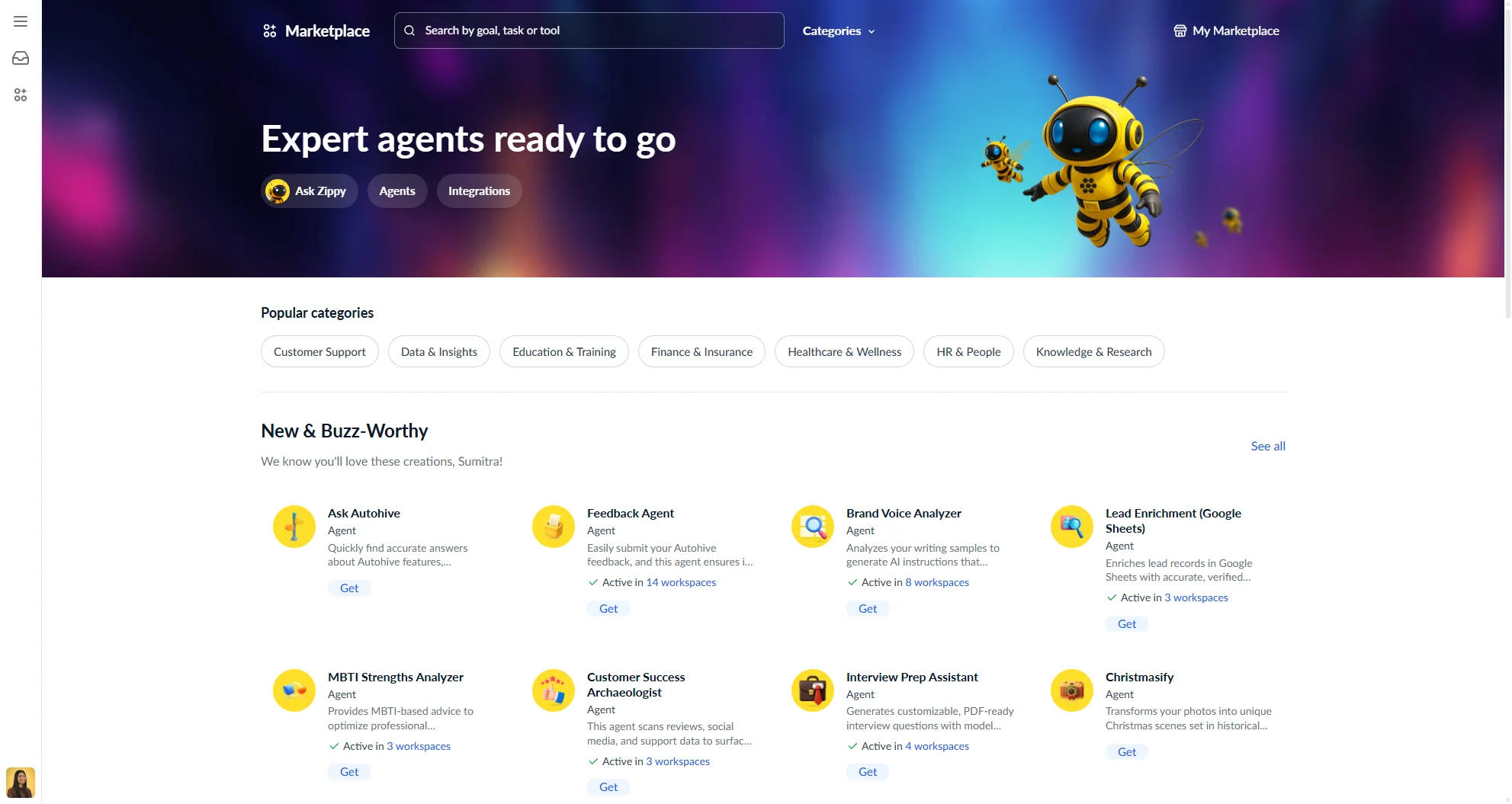
- Head to the Marketplace. Here you’ll find a variety of pre-built AI agents designed for different tasks.
- The Agents section in your sidebar will be your go-to place to find and manage agents you use frequently.
3. Upload content to enhance your agents
Autohive agents become more powerful when they have context about your specific needs and business.
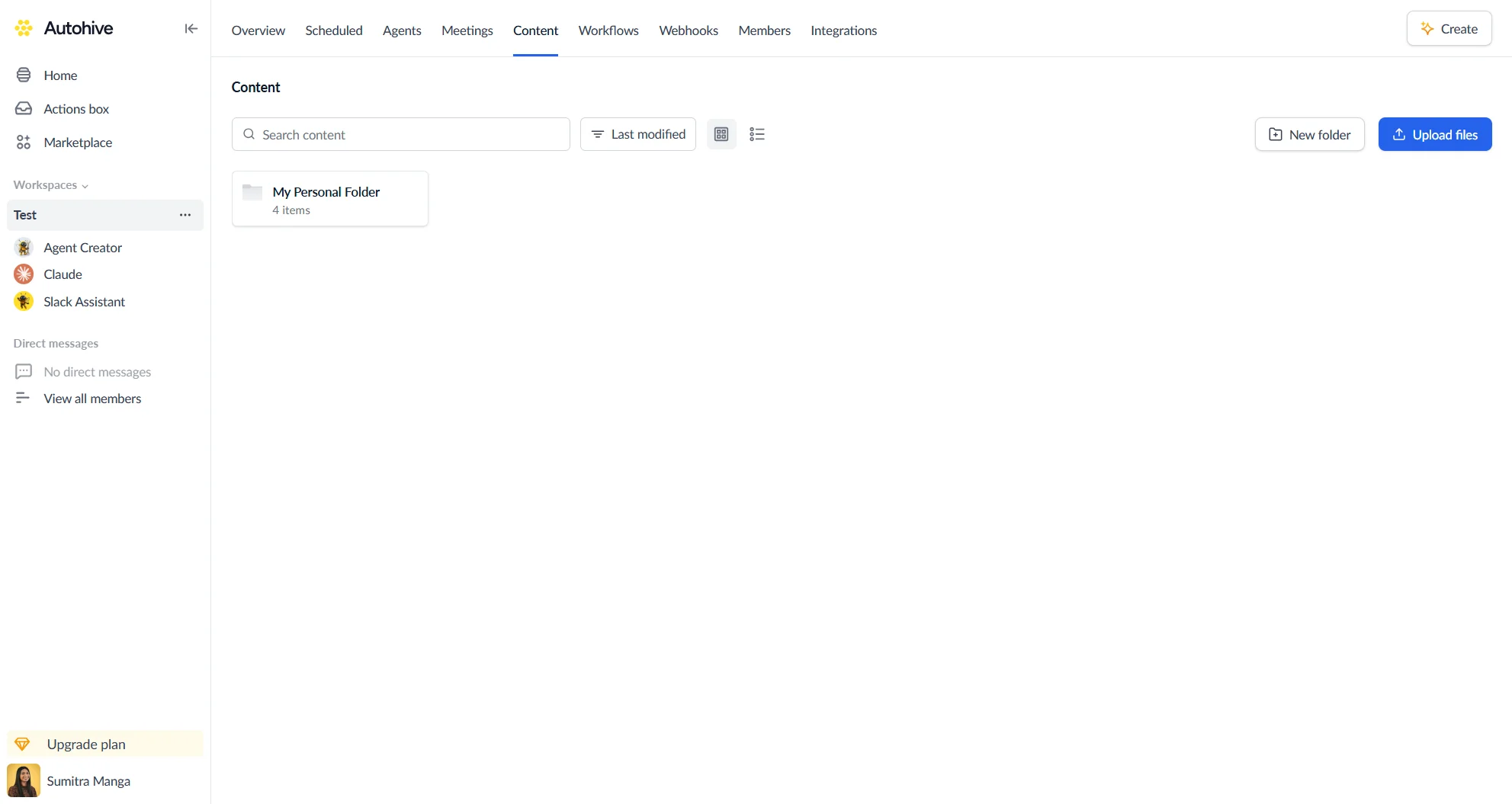
- Navigate to the Content tab.
- Upload your documents: This could include guides, product documentation, FAQs, marketing materials, spreadsheets, etc.
- How it helps:
- Train agents: Your uploaded content helps agents understand your business, products, services, and tone of voice.
- Store generated content: Keep outputs like reports or strategies created by agents organised and accessible.
- Reference in chats: Use uploaded files directly in conversations to guide agent responses or provide data for tasks.
- Build knowledge bases: Link content directly to specific agents to give them deeper, context-rich insights over time.
4. Automate tasks with jobs
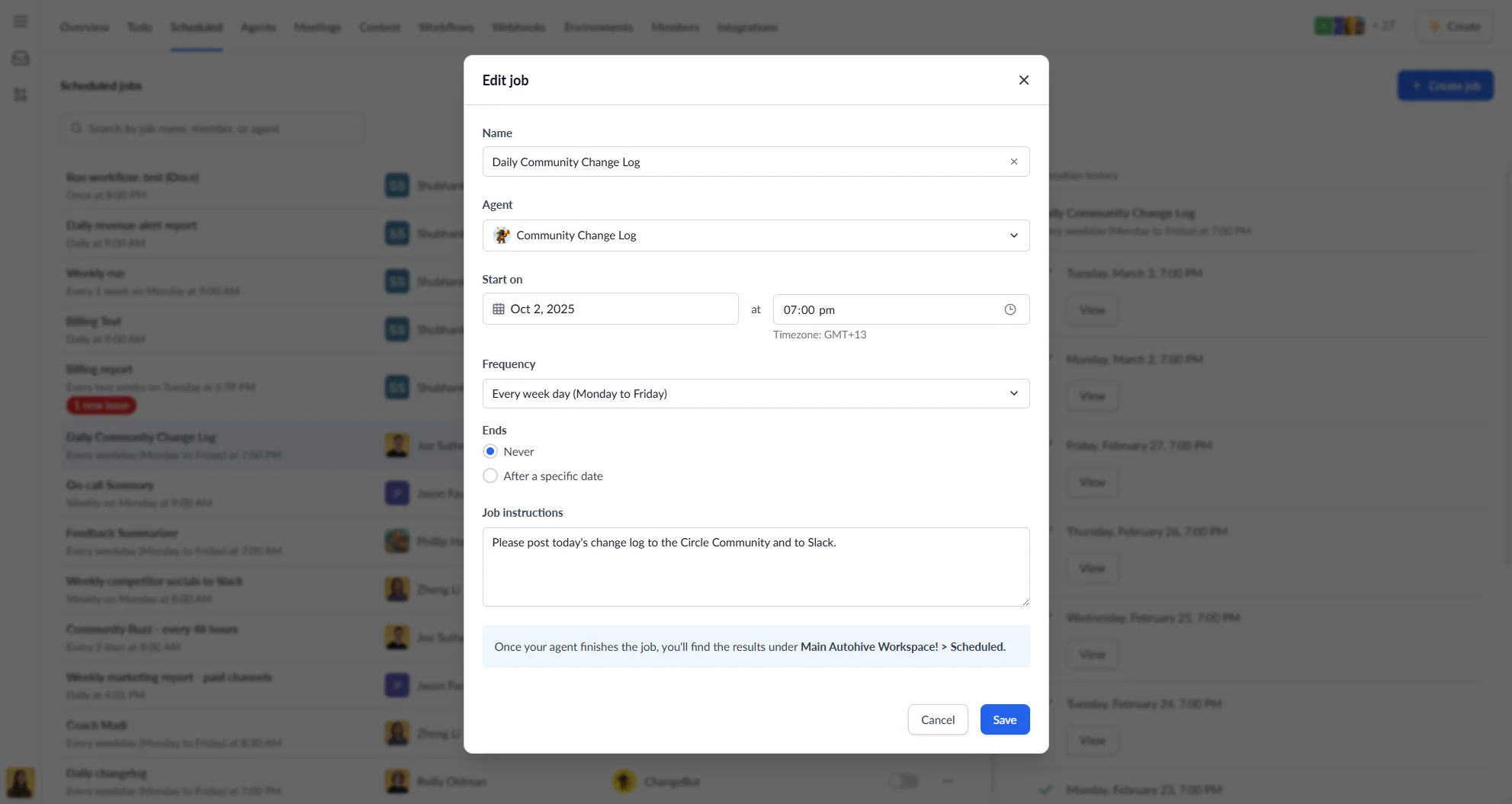
Repetitive tasks can be automated using Autohive’s Jobs feature.
- Find the Jobs tab in the top navigation.
- Create scheduled tasks: Configure agents to perform actions on a recurring basis (e.g., daily reports, weekly summaries, data processing).
- Track job history: Monitor when jobs have run, their execution times, and their status (active or completed).
5. Build workflows to combine agents and tools
For more complex automation, Workflows let you chain together multiple agents and actions in a visual editor.
- Navigate to the Workflows section in your workspace.
- Add nodes: Each node represents an agent or action — drag them onto the canvas from the library.
- Connect nodes: Draw edges between nodes to define the execution order.
- Publish your workflow: Once you’re happy with the design, publish it to make it active.
Workflows are ideal for multi-step processes that go beyond what a single scheduled job can handle.
6. Next steps
As you get more comfortable, you can explore:
- Inviting team members: Invite colleagues to collaborate, chat with agents, and share information. Look for the Members option in your workspace settings.
- Integrations: Connect Autohive to other tools you use — find the full list in the Integrations section.
- Creating your own agents: Build and configure custom agents tailored to your team’s workflows.
We’re excited to see what you build and automate with Autohive! If you have any questions, don’t hesitate to reach out to our support channels or consult the full documentation.