Wix
The Autohive Wix integration connects your Wix account with Autohive’s automation platform, enabling:
- Documentation search - Search Wix’s REST, SDK, Design System, Build Apps, and Headless documentation
- Site management - Query, inspect, and manage sites in your Wix account
- API execution - Call and chain Wix REST API operations against a selected site
- Business solutions - Build and manage eCommerce, Bookings, Payments, Events, Pricing Plans, Blog, CMS, and CRM data
Install the integration
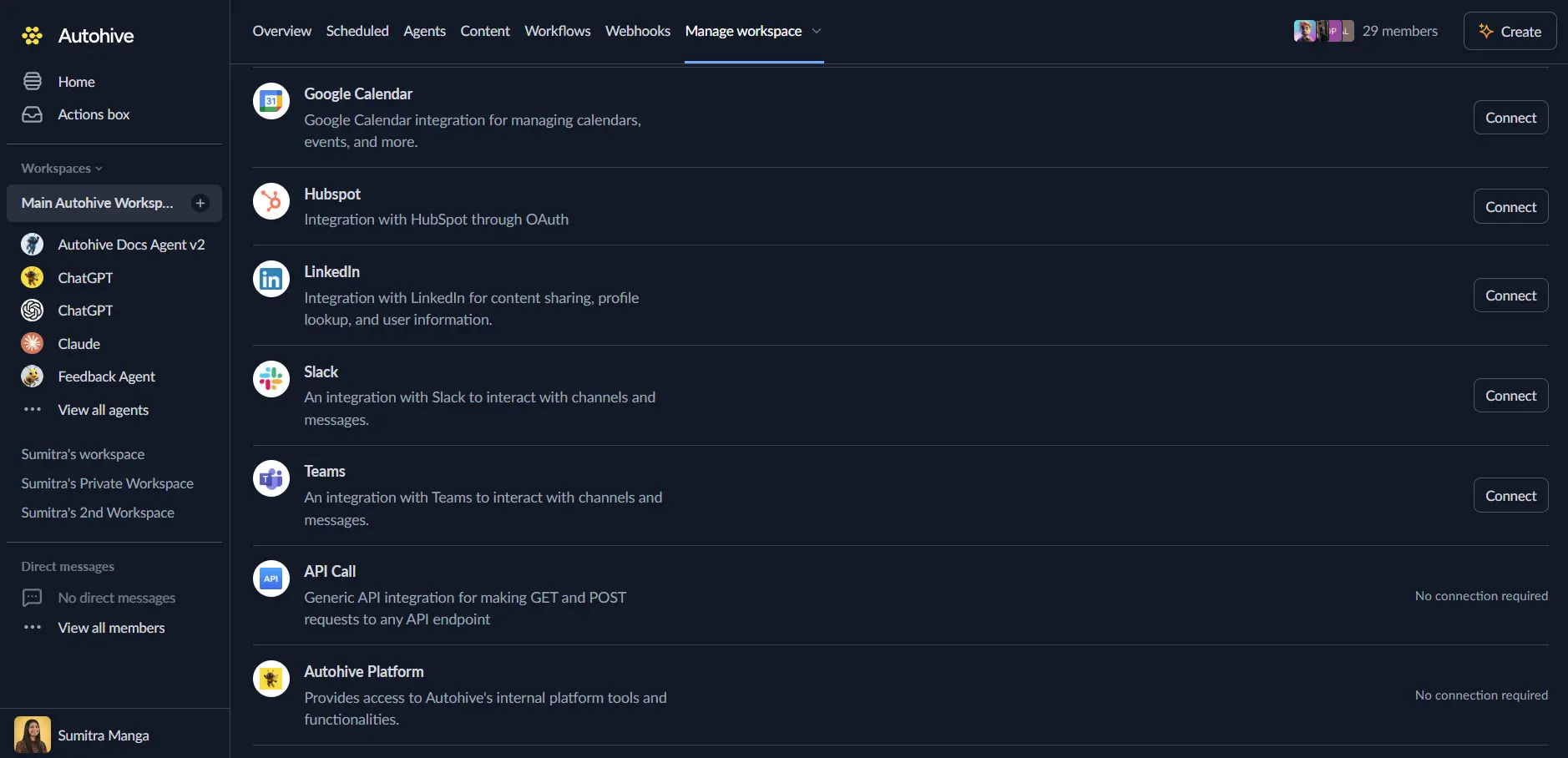
Log in to Autohive and navigate to Your user profile > Connections or Your workspace -> Manage workspace
Locate the Wix Integration card and click Connect
Authorize with Wix - you’ll be redirected to Wix’s authorization page
Review and approve permissions for the account and sites you want Autohive to work with
Confirm installation - you’ll be redirected to Autohive with “Connected” status displayed
Use the integration
You can now use the integration with your agents, workflows and scheduled tasks!
- Follow our Create your first agent guide on how to create an agent.
- In the ‘Agent settings’, scroll down to the ‘Add capabilities’ section and turn on the Wix capability. You can choose what individual Wix capabilities to turn on and off.
- Once the settings have been selected, begin prompting the agent of the workflow you’d like to achieve with Autohive and Wix!
Available capabilities
Documentation and guidance
- WixREADME: Entry point that routes to the right tool or recipe for a task - called first for most Wix management tasks
- Search REST/SDK/Design System/Build Apps/Headless Documentation: Search across Wix’s developer documentation surfaces
- Business Flows Documentation: Complete step-by-step instructions for multi-step sample flows
- Browse REST Docs Menu: Navigate the REST documentation by category, drilling down through the menu instead of searching by keyword
- Read Full Docs Article: Fetch the full content of an article by its URL
- Read Full Docs Method Schema: Get the full request and response schema of an API method
- Search Wix API Spec: Inspect a REST method’s exact request/response schema
Site management
- List Wix Sites: Query the sites in a Wix account
- Get Site Context: Fetch a site’s ID, properties, and installed apps by site name
- Manage Wix Site: Perform an account-level action such as creating, updating, or publishing a site
- Upload Image to Wix Site: Upload one or more images to a site’s Media Manager
API execution
- Call Wix Site API: Perform a single REST API call for a specified account and selected site
- Execute Wix API: Run a script that chains, loops, or paginates across one or more Wix REST API calls for a selected site - the default way to call site-scoped business-data APIs such as Bookings, Stores, and CMS
Support
- Support and Feedback: Prompt for feedback and send it to Wix
Key features
Documentation-grounded code generation
Search and read Wix’s own REST, SDK, and API-spec documentation before writing a call, so generated code and API requests match the current platform surface.
Real actions on live sites
Beyond documentation lookup, the integration can perform actual account- and site-level actions - applying discounts, managing bookings staff, sending emails to contacts, and more - through structured API execution.
Multi-step business flows
Business Flows Documentation packages complete, step-by-step instructions for common multi-step tasks, reducing the trial-and-error normally needed to chain several API calls together.
Common use cases
Site and content operations
- Query installed apps and site properties before making a change
- Publish pending updates to a site on a schedule
Business data automation
- Apply a discount across all store products, or update pricing plans in bulk
- Manage bookings staff or send follow-up emails to CRM contacts
Developer support
- Look up the exact schema for an API method before an agent writes a call
- Walk through a documented multi-step flow (e.g. registering event attendees in a headless project) end to end
Disconnect the integration
- Navigate to Your user profile -> Connections or Your workspace -> Manage workspace
- Find the Wix Integration
- Click Disconnect and confirm
Data Impact: Existing sites and business data remain unchanged in Wix. Disconnecting only removes Autohive’s API access.