Veo
The Autohive Veo integration enables AI-powered video creation using Google’s Veo 3.1 model. This built-in tool provides:
- Text-to-video generation - Create video sequences from natural language descriptions
- Image-to-video - Turn a single still image into a dynamic video clip
- Reference-guided generation - Use up to 3 images together to guide style and consistency
- Video extension - Continue or extend a video previously generated with Veo
- First-frame/last-frame transitions - Guide a generated clip’s start and end points for smooth storytelling
- Multiple output formats - Choose resolution (720p, 1080p, or 4K), aspect ratio (landscape or portrait), and duration (4, 6, or 8 seconds)
Overview
Unlike traditional integrations that require OAuth setup, Veo is a built-in tool that’s ready to use immediately. It leverages Google’s Veo 3.1 model to turn text prompts and images into professional-quality video content without requiring editing software or animation skills. The integration is already set up, so no authentication is required.
Key capabilities:
- Generate video from text prompts
- Animate a single still image into video
- Combine up to 3 reference images for style and consistency
- Extend an existing Veo-generated video with additional scenes
- Choose resolution, aspect ratio, and duration for the output
Enable the tool
Veo is a built-in capability available to all Autohive agents. It is ready to be added to agents and workflows:
Navigate to your agent in Autohive
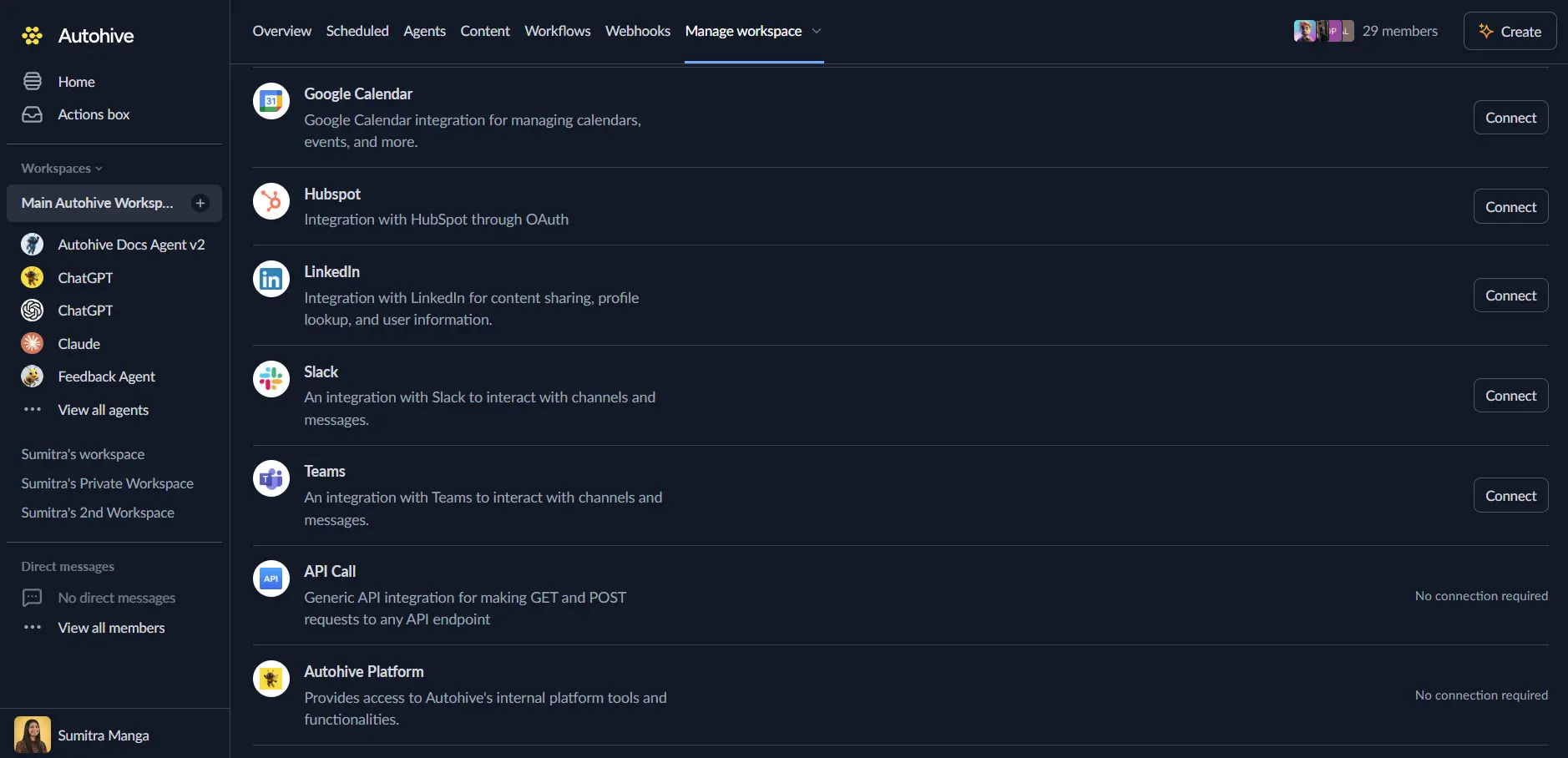
Open Agent Settings and scroll to Add Integrations and Agents
Enable “Veo” from the Built-in Tools section
Save your agent configuration
That’s it! No OAuth connection or API key setup required.
Use the tool
Once enabled, your agent can automatically invoke Veo when video creation is needed. You can also explicitly request video generation:
Text-to-Video Generation
Describe the video you want to create:
Prompt: "Generate a video of a drone shot flying over a coastal city at sunrise"
The agent invokes Veo with your prompt and returns the generated video.
Image-to-Video
Provide a still image and describe how it should come to life:
Prompt: "Animate this product photo so the camera slowly pans around it"
Veo uses the uploaded image as a starting point and generates a corresponding video clip.
Reference-Guided Generation
Combine multiple images for style and consistency:
Prompt: "Use these three brand images as style reference and generate a video introducing our new product line"
The tool supports up to 3 input images for reference-guided generation.
Extending a Video
Continue a video you’ve already generated with Veo:
Prompt: "Extend this video with another 4 seconds showing the sun fully rising"
Use cases
Marketing & social media
- Generate short promotional clips and product showcase videos from a text brief
- Turn existing product photography into dynamic video content
- Rapidly prototype different creative directions before committing to a full production
Content creation
- Produce explainer or narrative video sequences from a written script
- Create video content for social posts, ads, or internal communications
- Extend a generated clip into a longer sequence as a story develops
Cross-integration workflows
- Generate a still image with an image-generation tool (for example Nano Banana Pro or OpenAI Image), then feed it into Veo for image-to-video generation
- Combine Veo with social publishing integrations to generate and post video content in a single workflow
Tips for better results
Be specific and descriptive:
  Good: "A slow-motion shot of a barista pouring latte art in a sunlit café, warm tones, shallow depth of field"
Poor: "A coffee shop"
Include style and format details:
- Shot type: close-up, wide angle, drone shot, tracking shot
- Mood and lighting: warm, dramatic, natural light, golden hour
- Format: resolution (720p/1080p/4K), aspect ratio (landscape/portrait), duration (4/6/8 seconds)
For image-to-video and reference-guided prompts:
"Use this image as the first frame and animate a gentle camera zoom out, ending on a wide shot of the full scene"
Frequently asked questions
Q: Is Veo included in my plan?
- Yes, it’s a built-in tool available to all Autohive users. Usage is billed based on token/generation consumption.
Q: How long does video generation take?
- Generation time varies with resolution, duration, and current load; longer or higher-resolution clips take longer to produce.
Q: Can I extend any video with Veo?
- No — video extension only works on clips originally generated by Veo. Each extension renews a 2-day window for further modification.
Q: Is there a limit to how many videos I can generate?
- No fixed limit, but usage counts toward your workspace’s token consumption and billing.
Related features
- Agent Capabilities - Overview of all available tools
- Content area - Store and manage generated videos
- Getting Started - Getting started guide