Shopify Admin
The Autohive Shopify Admin integration connects your Shopify store with Autohive’s automation platform, enabling:
- Customer Management - Create, update, search, and manage customer profiles
- Order Processing - Retrieve, create, and cancel orders
- Product Management - Manage product catalog, variants, and inventory
- Inventory Control - Track and update inventory levels across locations
- Fulfillment Automation - Create fulfillments and update tracking information
- Draft Orders - Manage draft orders including creation and completion
Every Admin action runs against Shopify’s current GraphQL Admin API.
Install the integration
This integration uses custom authentication with credentials from a merchant-owned Shopify app - Autohive does not own or distribute the Shopify app, and does not run a shared Shopify OAuth flow.
Step 1: Get a Client ID and Client secret from Shopify
This part happens on Shopify’s site, before you touch Autohive. You don’t need to write or edit any code. If someone else at your company manages your Shopify apps, this is a good step to hand to them.
Create a Shopify Partner account (skip if you already have one)
The Shopify Dev Dashboard sits inside a Shopify Partner account. A Partner account is free and separate from your store’s regular login.
- Go to partners.shopify.com and click Join now.
- Enter your name, email, and a password, then submit the form.
- Open the verification email Shopify sends and click the confirmation link.
- Log in at partners.shopify.com.
If your business already has a Partner account, ask whoever manages it to add you as a user instead of creating a second one.
Create the app
- Go to the Shopify Dev Dashboard and sign in using the organization that owns the store.
- Click Apps in the left-hand menu, then Create app in the top right corner.
- Name the app something you’ll recognize later, such as “Autohive Integration.”
- Click Create.
An “app” here just means a set of credentials Shopify uses to identify who’s making a request. You’re not building anything.
Turn on the scopes Autohive needs
Shopify calls permissions “scopes.” In the app’s Settings page, find API access scopes (or Configuration), turn on each scope listed under “Scopes required” below, then save.
Install the app on your store
- In your app, find the Release or Install option.
- Choose your store, or paste in its
.myshopify.comaddress if asked. - Confirm the install.
You must be signed into the Partner account that belongs to the same organization that owns the store, or the install will fail. Whoever manages your Shopify store can confirm this for you.
Copy the Client ID and Client secret
- In your app, click Settings, then find the Credentials section.
- Copy the Client ID and Client secret shown there. Treat the secret like a password: anyone who has it can act as your app.
Step 2: Connect the app in Autohive
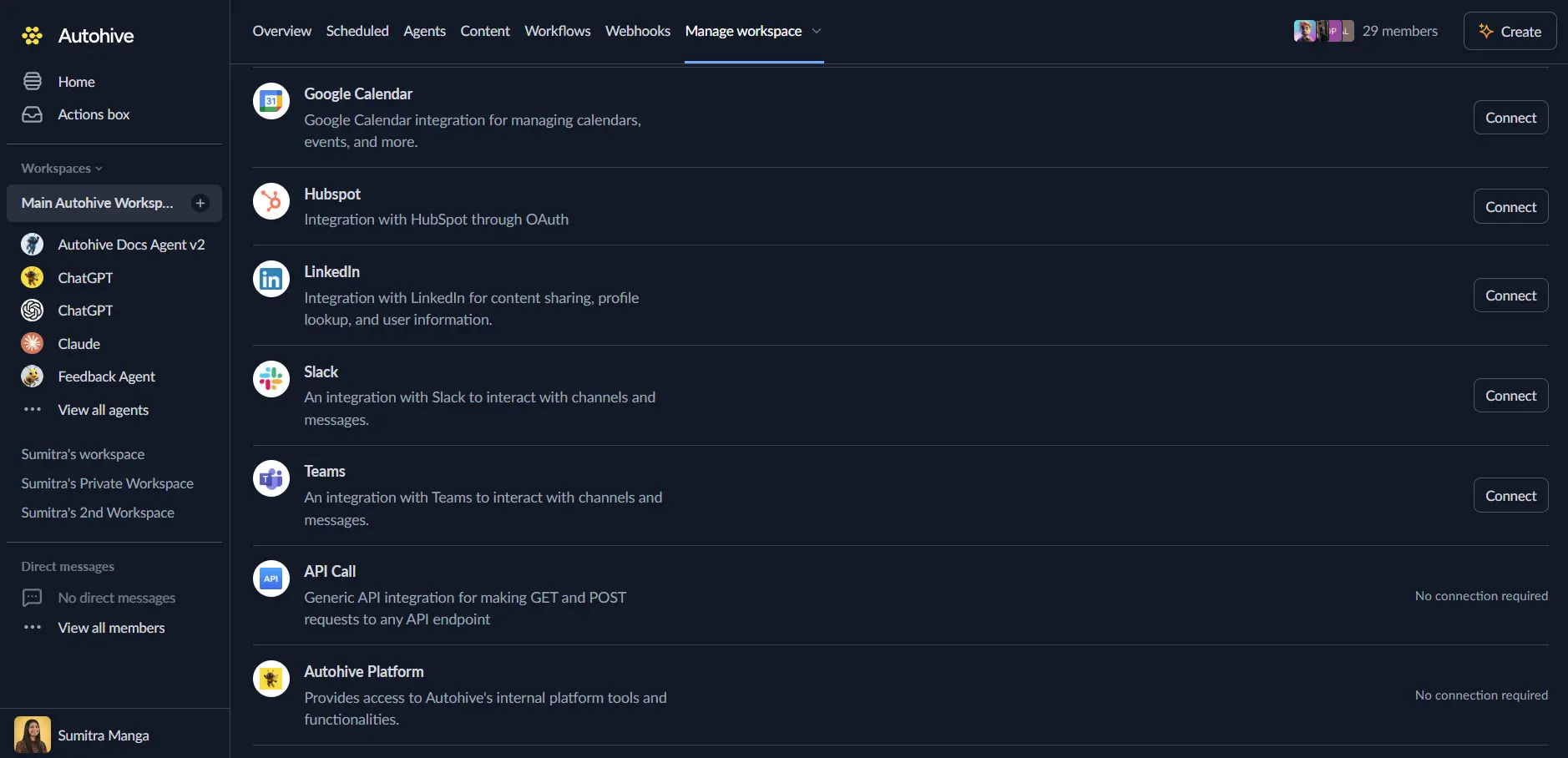
Log in to Autohive and navigate to Your user profile > Connections or Your workspace -> Manage workspace
Locate the Shopify Admin Integration card and click Connect
Enter your credentials:
- Shop domain - the store’s permanent domain, such as
your-store.myshopify.com - Client ID - the app’s Client ID, from Step 1
- Client secret - the app’s Client secret, from Step 1
- Shop domain - the store’s permanent domain, such as
Confirm installation - Autohive exchanges these credentials for a short-lived Shopify access token whenever an action runs; no access token needs to be copied into Autohive
Scopes required:
write_customerswrite_orderswrite_productswrite_inventoryread_locationswrite_merchant_managed_fulfillment_orderswrite_draft_orders
Use the integration
You can now use the integration with your agents, workflows and scheduled tasks!
- Follow our Create your first agent guide on how to create an agent.
- In the ‘Agent settings’, scroll down to the ‘Add capabilities’ section and turn on the Shopify Admin capability. You can choose what individual Shopify Admin capabilities to turn on and off.
- Once the settings have been selected, begin prompting the agent of the workflow you’d like to achieve with Autohive and Shopify!
Available capabilities
Customers
- List Customers: Retrieve a list of customers with optional filtering by creation date, update date, etc. Supports cursor-based pagination (
limit, up to 250;after). - Get Customer: Retrieve a single customer by their ID.
- Search Customers: Search for customers using a query string, with the same cursor-based pagination contract as List Customers.
- Create Customer: Create a new customer profile with details like email, name, and address. If the customer is created but a requested welcome email can’t be sent, the action still returns the created customer with
partial_success: true. - Update Customer: Update an existing customer’s information.
Orders
- List Orders: Retrieve orders with filtering by status (open, closed, cancelled), financial status, and fulfillment status. Supports cursor-based pagination (
limit, up to 250;after). - Get Order: Retrieve details of a specific order.
- Create Order: Create a new order with line items, customer details, and shipping address.
- Cancel Order: Submit an asynchronous request to cancel an existing order. The response includes Shopify’s cancellation
job_id,job_done, and acancellation_statusofpendingorcompleted; the action does not poll pending jobs.
Products
- List Products: Retrieve products with filtering by title, vendor, type, and status. Supports cursor-based pagination (
limit, up to 250;after). - Get Product: Retrieve details of a specific product.
- Create Product: Create a new product with variants, options, and images. If variant setup or the final product refresh fails after the product itself is created, the action returns the created product ID with
partial_success: truerather than creating a duplicate on retry. - Update Product: Update an existing product’s details (variant updates require separate calls).
Inventory
- Get Inventory Levels: Retrieve inventory levels for specific items or locations (up to 250 comma-separated IDs per list).
- Set Inventory Level: Set the available inventory quantity for an item at a specific location, using a caller-supplied or auto-generated idempotency key for safe retries.
Locations
- List Locations: List all store locations (warehouses, stores, etc.).
- Get Location: Retrieve details of a specific location.
Fulfillments
- List Fulfillments: List fulfillments associated with a specific order. Returns an explicit error if Shopify’s fulfillment count indicates the first 250 results are incomplete, rather than silently returning a partial list.
- Create Fulfillment: Create a fulfillment for an order through Shopify’s fulfillment-order workflow. With the documented scope, this can only fulfil orders assigned to merchant-managed locations - fulfillment orders on an app-managed or third-party fulfillment service are not visible.
- Update Fulfillment Tracking: Update tracking information for an existing fulfillment.
Draft Orders
- List Draft Orders: List draft orders with optional filtering. Supports cursor-based pagination (
limit, up to 250;after). - Create Draft Order: Create a new draft order with line items and customer details.
- Complete Draft Order: Complete a draft order, converting it into a real order.
- Delete Draft Order: Delete a draft order.
Shop
- Get Shop Info: Retrieve general information about the shop.
Key features
GraphQL Admin API
Every Admin action uses Shopify’s current GraphQL Admin API rather than the deprecated REST Admin API, so the integration keeps working as Shopify continues to retire REST endpoints.
Custom app authentication for any merchant store
Because auth is a merchant-owned Shopify app (shop domain, Client ID, Client secret) rather than a shared Autohive OAuth app, the integration can connect to any merchant’s store, not just stores in Autohive’s own Shopify organization.
Comprehensive Store Management
- Access to core e-commerce entities: Customers, Orders, and Products.
- Full CRUD (Create, Read, Update, Delete) support for key resources.
Pagination and result limits
Most list and search actions return up to 250 items at a time. When more items are available, the response provides the information needed to request the next set. List Fulfillments works differently: it returns up to 250 fulfillments and shows an error if the order has more. Details within a result, such as variants, images, addresses, and line items, may also be limited to 250 items, and the response indicates when more are available.
Inventory & Fulfillment
- Multi-location inventory management, with an idempotency key for safe inventory-level retries.
- Automate the fulfillment process through Shopify’s fulfillment-order workflow, and update tracking numbers.
Flexible Searching & Filtering
- Advanced search capabilities for customers.
- Granular filtering for orders and products based on status, dates, and other attributes.
Common use cases
Customer Support Automation
- Search for a customer by email to retrieve their recent orders.
- Update customer notes or tags based on support interactions.
- Create new customer profiles from external leads.
Order Management
- Automatically cancel orders flagged as fraudulent.
- Retrieve open orders for reporting or synchronization with ERP systems.
- Create orders programmatically from external sales channels.
Inventory Sync
- Update inventory levels in real-time based on stock changes in a warehouse management system.
- Check inventory availability before processing orders.
Fulfillment Processing
- Automatically create fulfillments when shipping labels are generated.
- Update customers with tracking URLs from logistics providers.
Notes
- Custom auth, not a shared OAuth app: this integration connects using a merchant-owned Shopify app’s shop domain, Client ID, and Client secret, exchanged for a short-lived access token per action. It does not use Autohive’s own Shopify OAuth app.
- GraphQL-only: every Admin action now uses the GraphQL Admin API; there is no fallback to the legacy REST Admin API.
- Result limit is 250: most list and search actions return up to 250 items at a time and let you request the next set. List Fulfillments is the exception and shows an error if an order has more than 250 fulfillments.
- Order history window: order actions can access only the most recent 60 days by default without additional Shopify approval.
- Asynchronous order cancellation: Cancel Order returns a job id and status rather than cancelling synchronously; the action does not poll the job to completion.
Disconnect the integration
Important: Disconnecting stops API access but preserves existing data in both systems.
- Navigate to Your user profile -> Connections or Your workspace -> Manage workspace
- Find the Shopify Admin Integration
- Click Disconnect and confirm
Data Impact: Existing data remains unchanged in both systems, but sync stops and Autohive loses Shopify Admin API access.
Remove access
From Shopify:
- Sign in to the Shopify Dev Dashboard using the organization that owns the store.
- Find the app created for this connection and uninstall it from the store, or delete/deactivate the app version.
- Alternatively, in Shopify Admin, go to Settings > Apps and sales channels, find the app, and uninstall it from there.
Setup FAQs
Q: Do I need to know how to code to do this? A: No. Creating the app is mostly clicking buttons and copying values. You don’t write or edit any code.
Q: I don’t have a Shopify Partner account. Do I need one? A: Yes, but it’s free and takes a couple of minutes to set up. See “Install the integration” above.
Q: Someone else at my company already has a Partner account. Can I use that instead of making my own? A: Yes, and it’s usually better. Ask them to add you as a user on the existing account rather than creating a second one. Fewer accounts means fewer places credentials can get lost.
Q: The app won’t install on my store. What’s wrong? A: This almost always means your Partner account and your store belong to different Shopify organizations. Only an app created under the same organization that owns the store can be installed on it. Check with whoever manages your Shopify store to confirm which organization owns it.
Q: Can I reuse an app I already built for something else? A: We recommend creating a separate app just for Autohive. It keeps the permissions scoped to this one integration, so nothing else that app does gets disrupted if you ever disconnect Autohive.
Q: Does creating this app cost anything? A: No. Shopify Partner accounts and Dev Dashboard apps are free.
Q: I lost the Client secret before pasting it into Autohive. Now what? A: Go back to your app’s Settings > Credentials in the Dev Dashboard and generate a new secret. Paste the new one into Autohive. The old one stops working once you generate a replacement.
Q: Who at my company should do this setup? A: Whoever manages your Shopify store’s apps and permissions, usually a store admin or the person who set up other Shopify apps before. If that’s not you, loop them in before you start Step 1.
Q: Will this give Autohive full access to my store? A: No. The app only gets the specific permissions listed in “Scopes required” above. Autohive can’t do anything outside those scopes.