Salesforce
The Autohive Salesforce integration connects your Salesforce CRM with Autohive’s automation platform, enabling:
- Flexible record search - Run any SOQL query against any Salesforce object (Contact, Lead, Opportunity, Account, and more)
- Record lookup and updates - Retrieve a single record by ID, or update one or more fields on an existing record
- Task and event tracking - List tasks and calendar events with status, due date, and assignee filters
- Readable summaries - Get a human-readable summary of a specific task or event, alongside its raw record data
Install the integration
Salesforce uses OAuth 2.0 via a Salesforce Connected App.
Log in to Salesforce and go to Setup → App Manager → New Connected App
Enable OAuth Settings and set a callback URL
Add the
apiscope under Selected OAuth ScopesSave and copy the Consumer Key (Client ID) and Consumer Secret
Log in to Autohive and navigate to Your user profile > Connections or Your workspace → Manage workspace
Locate the Salesforce Integration card and click Connect
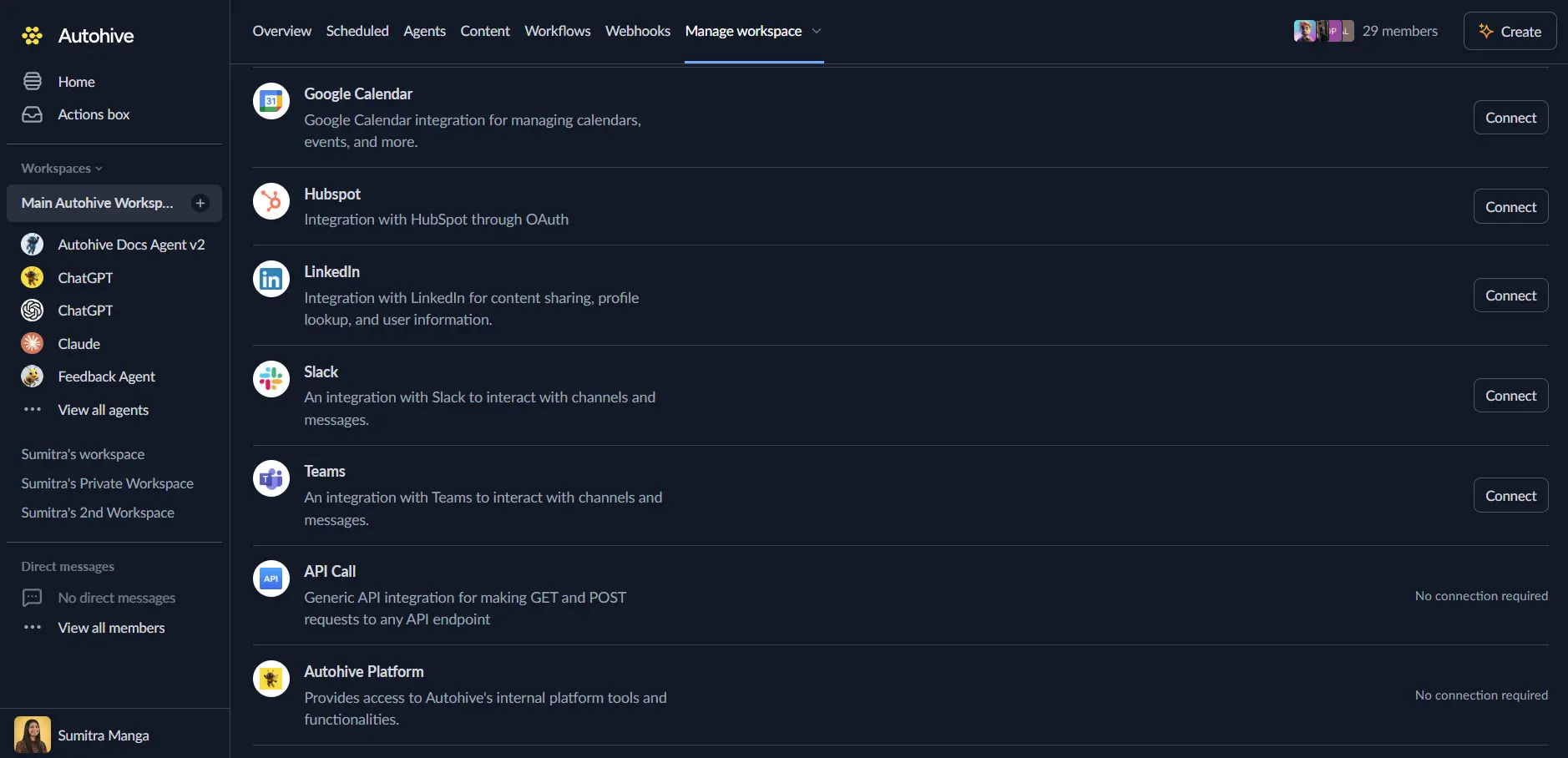
Authorize Autohive using your Salesforce Connected App credentials when prompted
Confirm installation
Use the integration
You can now use the integration with your agents, workflows, and scheduled tasks!
- Follow our Create your first agent guide on how to create an agent.
- In the Agent settings, scroll down to the Add capabilities section and turn on the Salesforce capability. You can choose which individual Salesforce capabilities to turn on and off.
- Once the settings have been selected, begin prompting the agent with the workflow you’d like to achieve with Autohive and Salesforce!
Available capabilities
Records
- Search Records - Run a SOQL query against any Salesforce object (e.g. Contact, Lead, Opportunity, Account) and return matching records
- Get Record - Fetch a single record by object type and ID, optionally limited to a comma-separated list of fields
- Update Record - Update one or more fields on an existing record by object type and ID
Tasks
- List Tasks - List Task records, optionally filtered by status, assigned user, or due date range
- Get Task Summary - Retrieve a single Task by ID and return a human-readable summary alongside its raw fields
Events
- List Events - List Event (calendar) records, optionally filtered by start date range or assigned user
- Get Event Summary - Retrieve a single Event by ID and return a human-readable summary alongside its raw fields
Key features
Full SOQL query access
Search Records accepts any valid SOQL query, so an agent can search any standard or custom Salesforce object without needing a dedicated action for each one.
Readable task and event summaries
Get Task Summary and Get Event Summary return both a human-readable summary and the raw record, making it easy for an agent to reason about upcoming work or explain it to a user without parsing raw Salesforce field names.
Flexible filtering
List Tasks and List Events support status, assignee, and date-range filters, so agents can narrow down to exactly the activity that matters - like overdue tasks or this week’s meetings.
Common use cases
CRM record lookups and updates
- Search for contacts, leads, opportunities, or accounts matching specific criteria using SOQL
- Retrieve a record’s full details before drafting a follow-up
- Update a record’s fields, such as phone number or title, when new information comes in from another system
Task and activity reporting
- List open or overdue tasks for a sales rep or team
- Summarize a task or event for inclusion in a daily digest or Slack update
- Review upcoming events (meetings, calls) for a given date range
Sales pipeline monitoring
- Query opportunities by stage, close date, or owner using Search Records
- Cross-reference tasks and events tied to a deal to build a full activity timeline
Disconnect the integration
- Navigate to Your user profile → Connections or Your workspace → Manage workspace
- Find the Salesforce Integration
- Click Disconnect and confirm
Data Impact: Existing data in your Salesforce org remains completely unchanged. Disconnecting only removes Autohive’s API access.
Notes
- Rate limits: Salesforce typically allows 15,000 API calls per 24 hours, though this varies by Salesforce edition.
- SOQL syntax: Search Records requires valid SOQL - quote string literals with single quotes and check field names against your org’s schema if a query returns unexpected results.