On this page
RSS Reader
The Autohive RSS Reader integration connects RSS and Atom feeds with Autohive’s automation platform, enabling:
- Feed reading - retrieve the latest entries from any RSS 2.0, RSS 1.0/RDF, or Atom feed
- Entry details - each entry includes its title, link, description, publication date, and author when the feed provides them
- Public and protected feeds - read public feeds with no setup, or supply credentials for feeds that require them
Install the integration
Log in to Autohive and navigate to Your user profile > Connections or Your workspace -> Manage workspace
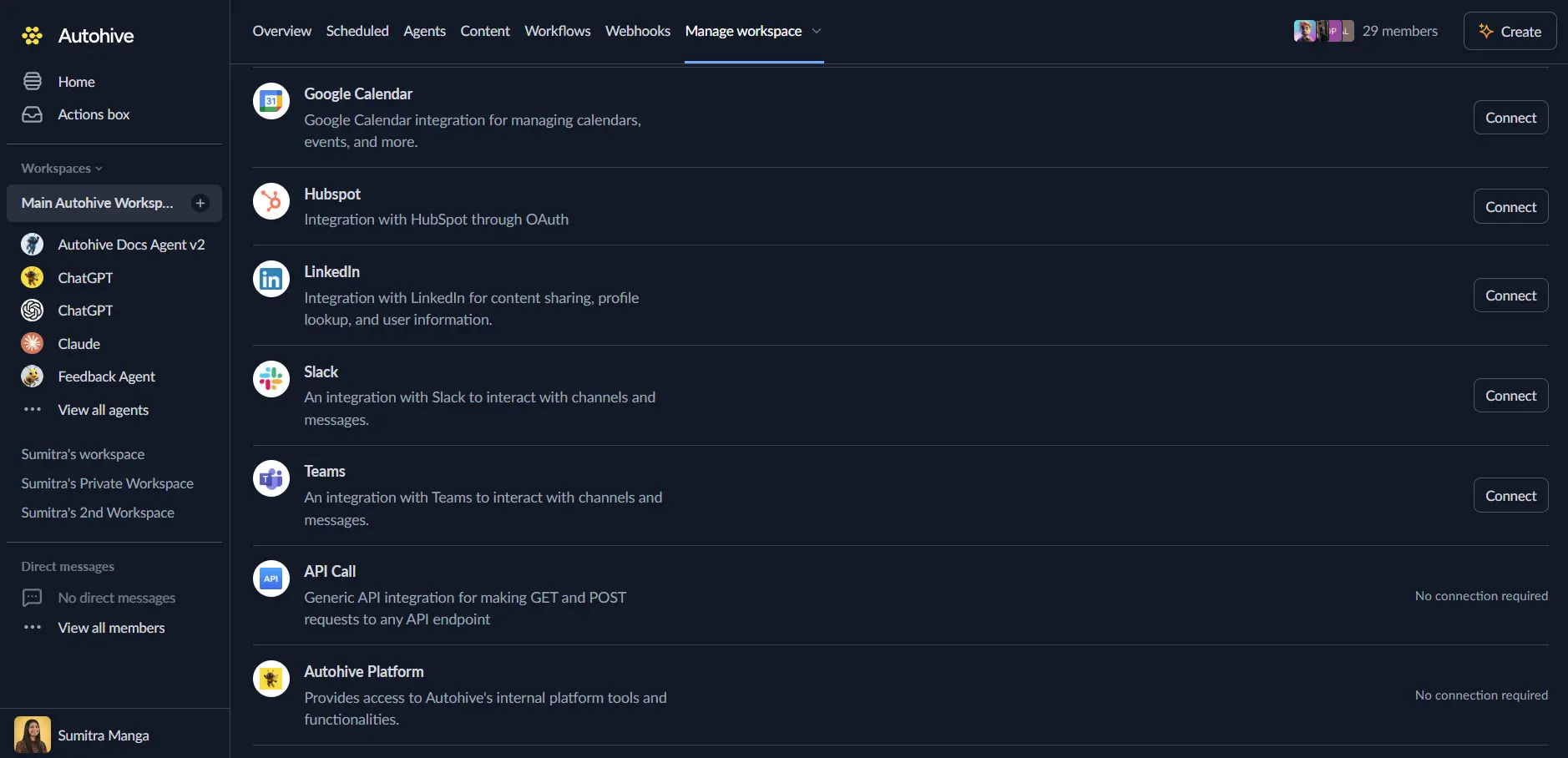
Locate the RSS Reader Integration card and click Connect
Enter credentials if your feed needs them - every field is optional, and most public feeds need none. You’ll get these from the RSS feed provider:
- Username for the RSS feed and Password for the RSS feed - for feeds protected by a username and password
- API token for the RSS feed - for feeds protected by a token
Confirm installation
Use the integration
You can now use the integration with your agents, workflows and scheduled tasks!
- Follow our Create your first agent guide on how to create an agent.
- In the ‘Agent settings’, scroll down to the ‘Add capabilities’ section and turn on the RSS Reader capability.
- Once the settings have been selected, begin prompting the agent with the workflow you’d like to achieve with Autohive and your feeds!
Responses could be inaccurate, especially if your agent’s Temperature setting is high.
Available capabilities
Feeds
- Get Feed: Retrieve entries from an RSS or Atom feed URL, up to a limit you choose (10 by default). Returns the feed’s title and link, plus each entry’s title, link, description, publication date, and author
Key features
Broad format support
- Reads RSS 2.0, RSS 1.0/RDF, and Atom feeds
- Detects the feed format automatically, so you don’t need to know which one a feed uses
- Returns publication dates as ISO 8601 strings when the feed provides them
Authentication options
- No credentials needed for public feeds
- Username and password authentication (HTTP Basic) when you provide both
- Bearer token authentication when you provide an API token
- Removes your credentials from error messages if a request fails
Common use cases
News and content monitoring
- Check industry news feeds on a schedule and have an agent summarize what’s new
- Watch competitor blogs and route notable posts into your workflows
- Track product changelogs and status feeds
Content curation
- Collect entries from several feeds and compile them into a digest
- Filter entries by keyword in a workflow before passing them on
- Give an agent fresh articles as context when drafting content
Notes
- If you provide both a username and password pair and an API token, the username and password are used.
- The limit input caps how many entries Get Feed returns; the default is 10.
Disconnect the integration
Important: Disconnecting stops feed access but preserves existing data in both systems.
- Navigate to Your user profile -> Connections or Your workspace -> Manage workspace
- Find the RSS Reader Integration
- Click Disconnect and confirm
Data Impact: Existing data remains unchanged in both systems, but Autohive loses access to your feeds.