Projectworks
The Autohive Projectworks integration connects your Projectworks professional services automation (PSA) account with Autohive’s automation platform, enabling:
- Comprehensive data access - Retrieve users, clients, projects, modules, tasks, and resourcing bookings, plus timesheets, leave requests, invoices, and expense claims from a centralized view
- Client and project lifecycle management - Create, update, and delete clients, projects, modules, and tasks
- Resource and time tracking - Generate and modify timesheet entries, manage leave requests, and adjust user assignments on tasks
- Financial record handling - Create, update, and delete expense claims and review invoices
- User and role administration - Add or modify users, assign roles, and update leave balances and postings
- Custom field support - Set or update custom field data on clients, projects, modules, tasks, and users
- Advanced filtering - Locate specific records by ID, name, date, or other relevant criteria
Install the integration
Projectworks uses HTTP Basic authentication with an API account (a Consumer Key and Consumer Secret pair) — not your normal Projectworks login.
Create a Projectworks API account:
- Log in to Projectworks and go to Profile icon → Admin → API Accounts
- Click + to create a new API account, then Add to generate it
- Open Three Dots → Details and copy the Consumer Key and Consumer Secret
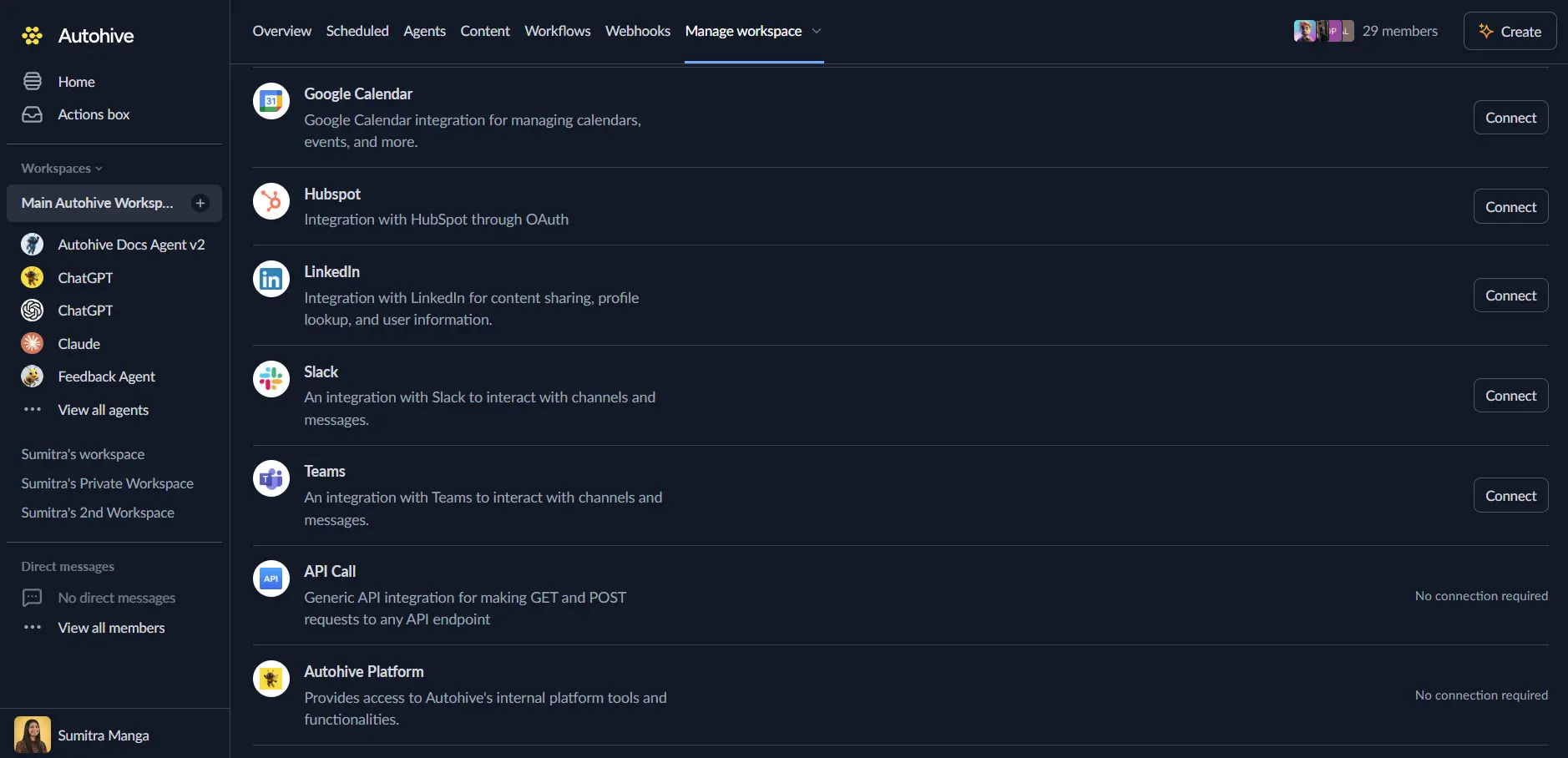
The Consumer Secret is shown only once when the API account is created and cannot be retrieved later. If you lose it, create a new API account.Log in to Autohive and navigate to Your user profile > Connections or Your workspace -> Manage workspace
Locate the Projectworks Integration card and click Connect
Enter your credentials - paste the Consumer Key and Consumer Secret into the matching fields
Confirm installation - your Projectworks account will be connected to Autohive
Use the integration
You can now use the integration with your agents, workflows and scheduled tasks!
- Follow our Create your first agent guide on how to create an agent.
- In the ‘Agent settings’, scroll down to the ‘Add capabilities’ section and turn on the Projectworks capability. You can choose what individual Projectworks capabilities to turn on and off.
- Once the settings have been selected, begin prompting the agent of the workflow you’d like to achieve with Autohive and Projectworks!
Available capabilities
User Management
- List Users: Browse users and employees with filtering by email, name, and last-modified date
- Get User: Retrieve a single user’s full details by ID
- Create User: Add a new user with email, first name, and last name
- Update User: Partially update an existing user’s details
- Delete User: Remove a user from your account
- Update User Roles: Replace a user’s set of assigned role IDs
- Update User Posting: Create an employment posting for a user (billability, rate, office, team, and position)
- Update User Leave Balances: Replace a user’s leave balances per leave type
Client Management
- List Clients: Browse clients and companies with filtering by office, name, and last-modified date
- Get Client: Retrieve a single client’s full details by ID
- Create Client: Add a new client with name, account manager, and office
- Update Client: Partially update an existing client
- Delete Client: Remove a client from your account
Project Management
- List Projects: Browse projects with filtering by client, user, and project number
- Get Project: Retrieve a single project’s full details by ID
- Create Project: Add a new project with its type, status, currency, manager, and account manager
- Update Project: Partially update an existing project
- Delete Project: Remove a project from your account
- Update Project User Rate: Set a user’s rate card or rate on a project
Module & Task Management
- List Modules: Browse a project’s modules with filtering by project and name
- Get Module: Retrieve a single module’s full details by ID
- Create Module: Add a new module to a project
- Update Module: Partially update an existing module
- Delete Module: Remove a module from your account
- List Tasks: Browse tasks with filtering by project, module, and user
- Get Task: Retrieve a single task’s full details by ID
- Create Task: Add a new task to a module
- Update Task: Partially update an existing task
- Delete Task: Remove a task from your account
- Update Task User: Create or replace a user’s task assignment (hours and rate)
- Update Task Placeholder: Create or replace a placeholder (unassigned role) on a task
Resourcing
- List Resources: Browse resourcing bookings with filtering by project, user, and date range
- Get Resource: Retrieve a single resourcing booking by ID
Time & Leave Tracking
- List Timesheets: Browse timesheet entries with filtering by user, task, and date
- Create Timesheet Entry: Log time against a task with a date and minutes
- Update Timesheet Entry: Modify an existing timesheet entry
- Delete Timesheet Entry: Remove a timesheet entry
- List Leave: Browse leave requests with filtering by user, type, and status
- Get Leave: Retrieve a single leave request by ID
- List Leave Types: Browse configured leave types for use when creating leave
- Create Leave: Submit a leave request with status and dated day entries
- Update Leave: Replace an existing leave request
- Delete Leave: Remove a leave request
Financial Records
- List Invoices: Browse invoices with filtering by client, project, and status
- Get Invoice: Retrieve a single invoice’s full details by ID
- List Expense Claims: Browse expense claims with filtering by user, project, and billable status
- Get Expense Claim: Retrieve a single expense claim by ID
- Create Expense Claim: Submit an expense claim with amount, currency, tax type, and an optional receipt file
- Update Expense Claim: Replace an existing expense claim
- Delete Expense Claim: Remove an expense claim
Configuration & Discovery
- List Roles: Browse configured roles (used with Update User Roles and Update Task Placeholder)
- List Offices: Browse offices with filtering by name
- Set Custom Fields: Create or update custom-field data on a client, project, module, task, or user
Key features
Full Read and Write Access
- Read access to every core Projectworks entity for a centralized operational view
- Create, update, and delete clients, projects, modules, tasks, users, leave, expense claims, and timesheets
- Manage sub-resources such as task assignments, user roles, leave balances, and employment postings
- Set custom field data to capture your organization’s specific business requirements
Advanced Filtering and Pagination
- Filter records by ID, name, date, status, and other entity-specific criteria
- Incremental syncing with
modified_since_datefilters on many list actions - Page-based pagination (
page/page_size) for efficient retrieval of large datasets
Flexible Update Semantics
- Partial updates (PATCH) for clients, projects, modules, tasks, and users — send only the fields you want changed
- Full replacements (PUT) for leave requests and expense claims — supply all required fields
- Reference IDs (office, currency, project/task type, status, leave type, role) are looked up via the matching list actions
Secure Authentication
- HTTP Basic authentication using a dedicated API account, separate from user logins
- Consumer Key and Secret managed independently of individual user credentials
- Encrypted credential storage and transmission
Common use cases
Operational Data Synchronization
- Pull users, clients, projects, and tasks into reporting and analytics tools
- Sync timesheets, leave, and resourcing data to a central data warehouse
- Use
modified_since_datefilters for incremental, change-only syncing - Provide agents live access to project and financial data for decision support
Client and Project Lifecycle Management
- Automatically create clients and projects from CRM or sales pipeline events
- Spin up project modules and tasks from templates when work is won
- Update project status and assignments as work progresses
- Archive or delete projects when engagements close
Time and Leave Automation
- Create timesheet entries automatically from completed tasks or calendar events
- Adjust user task assignments and rates as teams change
- Submit and manage leave requests through automated workflows
- Keep leave balances accurate by syncing from HR systems
Resource Planning
- Review resourcing bookings to track allocation across projects and people
- Identify over- or under-utilized team members for better planning
- Correlate bookings with timesheets to compare planned versus actual effort
Financial Workflow Automation
- Create and update expense claims with receipt attachments
- Review invoices by client, project, and status for billing oversight
- Track billable versus non-billable expenses across projects
- Surface financial records for reporting and reconciliation
User and Role Administration
- Onboard new users with roles, postings, and leave balances in one workflow
- Update role assignments as responsibilities change
- Maintain consistent custom-field data across users and entities
Working with reference data
Many create and update actions require reference IDs (office, currency, project/task type, status, leave type, role, etc.) that must already exist in your Projectworks account. Look these up with the corresponding list actions before creating or updating records:
- List Roles provides role IDs for Update User Roles and Update Task Placeholder
- List Leave Types provides leave type IDs for Create Leave
- List Offices provides office IDs for clients, projects, and postings
Some operations have prerequisites worth noting:
- Update Task Placeholder requires a valid
role_idfrom List Roles — an unrecognized role ID causes the API to error - Update User Leave Balances requires the user to have an active posting first (create one with Update User Posting)
- Create Expense Claim typically requires a receipt file — most Projectworks accounts reject a claim with no attached file
Disconnect the integration
Important: Disconnecting stops data synchronization but preserves existing data in both systems.
- Navigate to Your user profile -> Connections or Your workspace -> Manage workspace
- Find the Projectworks Integration
- Click Disconnect and confirm
Data Impact: Existing data remains unchanged in both systems, but sync stops and Autohive loses Projectworks API access.
Uninstall the app
From Projectworks: Go to Profile icon → Admin → API Accounts, find the API account used for the Autohive connection, and delete it to revoke access.