PDF Creator
The Autohive PDF Creator integration provides a Python execution environment focused on PDF generation and manipulation within Autohive’s automation platform, enabling:
- PDF creation from scratch - Generate professional PDF documents from text, images, or other data sources
- PDF editing - Modify existing PDF content and structure
- Merging - Combine multiple PDF files into a single document
- Page rotation - Adjust page orientation within a PDF
- Page extraction - Isolate and save individual pages or a range of pages from a larger PDF
- Watermarking - Apply custom watermarks to protect or annotate documents
- File streaming - Accept input files and automatically return any files generated during execution
Install the integration
Log in to Autohive and navigate to Your user profile > Connections or Your workspace -> Integrations
Locate the PDF Creator Integration card and click Connect to workspace
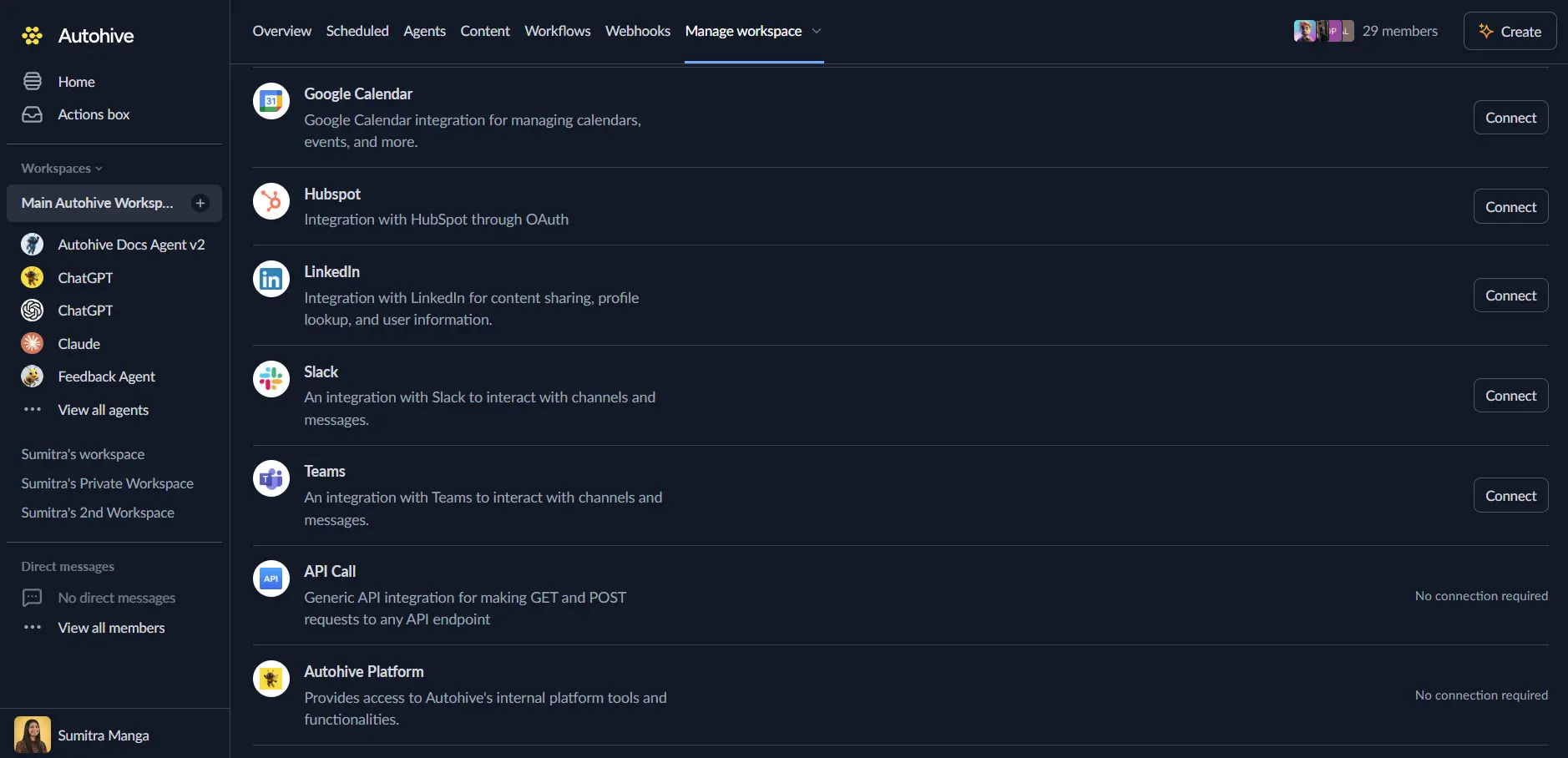
Confirm installation - the integration will be enabled immediately with “Connected” status displayed
Use the integration
You can now use the integration with your agents, workflows, and scheduled tasks!
- Follow our Create your first agent guide on how to create an agent.
- In the Agent settings, scroll down to the Add Integrations and Agents section, click Add integrations and agents, and select PDF Creator.
- Once the settings have been selected, begin prompting the agent with the PDF workflow you’d like to achieve with Autohive and PDF Creator!
Available capabilities
Create and Edit PDF
- Create and Edit PDF - Runs Python code to perform PDF tasks such as creating, editing, merging, rotating, extracting pages from, or watermarking PDF documents. The code has access to reportlab and Pillow, plus the Python standard library, and can accept optional input files that are decoded and placed in the working directory before execution. Any files the code creates are automatically detected, encoded, and returned, alongside the script’s standard output and any error traceback.
Key features
Code-driven PDF generation
Rather than a fixed set of narrow actions, PDF Creator exposes a single flexible action that executes Python code, so an agent can build exactly the PDF layout, structure, or edit needed for a given request using reportlab for PDF generation and Pillow for image handling.
Input and output file streaming
Input files (for example, an existing PDF to merge or watermark, or an image to embed) are provided as base64-encoded content and made available in the working directory. Any new files created during execution are automatically detected and returned as base64-encoded output files with their content type, so results can flow directly into the next step of a workflow.
Standard output and error capture
The action captures everything printed to standard output as its result, and captures a full traceback in error if the code raises an exception - making it straightforward for an agent (or a human reviewing its work) to confirm what happened during a run.
Common use cases
Report and document generation
- Assemble client-ready PDF reports from text summaries, data tables, and chart images
- Generate invoices, statements, or certificates with custom layouts using reportlab
- Convert structured data into a formatted, shareable PDF
PDF manipulation
- Merge multiple source PDFs (for example, a cover page, body report, and appendix) into one file
- Rotate incorrectly oriented pages before sharing or archiving a document
- Extract a specific page or range of pages from a larger PDF for standalone use
- Apply a watermark (for example, “Draft” or a company stamp) across a document’s pages
Automated workflows
- Generate a PDF as the final step of a data-processing or reporting workflow
- Combine PDF Creator with other integrations - for example, take an image generated elsewhere and embed it into a PDF report
- Produce consistent, branded documents on a schedule without manual document assembly
Disconnect the integration
Important: Disconnecting stops the integration but does not affect previously generated PDF files.
- Navigate to Your user profile -> Connections or Your workspace -> Integrations
- Find the PDF Creator Integration
- Click Disconnect and confirm
Data Impact: No data is stored by the integration itself. Disconnecting only prevents new PDF executions.
Notes
- Available libraries: Only reportlab, Pillow, and the Python standard library are available for use in the executed code - there is no package installation during execution.
- File handling: Input and output files are transferred as base64-encoded content with a name and MIME content type.
- Isolated execution: Code runs in a temporary, isolated working directory for each request.