Overview
Connect Autohive to your other work tools to share data, trigger tasks, and automate workflows between systems.
Why connect your tools?
- Keep all your workflows in one place.
- Give agents access to live data.
- Stop copying-and-pasting between apps.
What you can connect today
Check out Agent tools & capabilities for the full breakdown of what integrations and their features are supported. Or head to the side bar to see a list of integrations currently available.
How integration connections work
Autohive stores integration connections at the plan or workspace level.
Plan integrations are connected by a plan owner and shared across the plan. Members can use them in their agents and workflows without individual setup, unless their workspace uses its own accounts for that integration.
Workspace integrations let a workspace connect its own accounts — for example, a client workspace using a separate Google account. If a workspace has any accounts for an integration, those accounts replace the plan accounts available in that workspace. If it has none, it inherits the plan accounts.
With multiple integration connections, supported integrations can keep several accounts at either level. Which account to use controls whether actions use a fixed account, run for every account, ask you to choose, or let the agent decide. Agent and chat settings can override the shared choice.
Workspace members can connect and disconnect workspace accounts. Renaming workspace accounts or changing their shared selection setting requires the workspace creator or a plan owner who belongs to the workspace. Plan owners manage plan accounts.
See Plan integrations for setup and permissions, or Multiple integration connections for account selection and examples.
Setting up a connection
Open Integrations from your profile menu or a workspace. Both entry points open the same page; opening it from a workspace selects that workspace in the filter. Expand the integration, then use Add plan account under Plan to share an account, or Add workspace account under a workspace to use it there. See the Plan integrations guide for the steps.
Using connected tools
In chats
Ask agents to use connected tools:
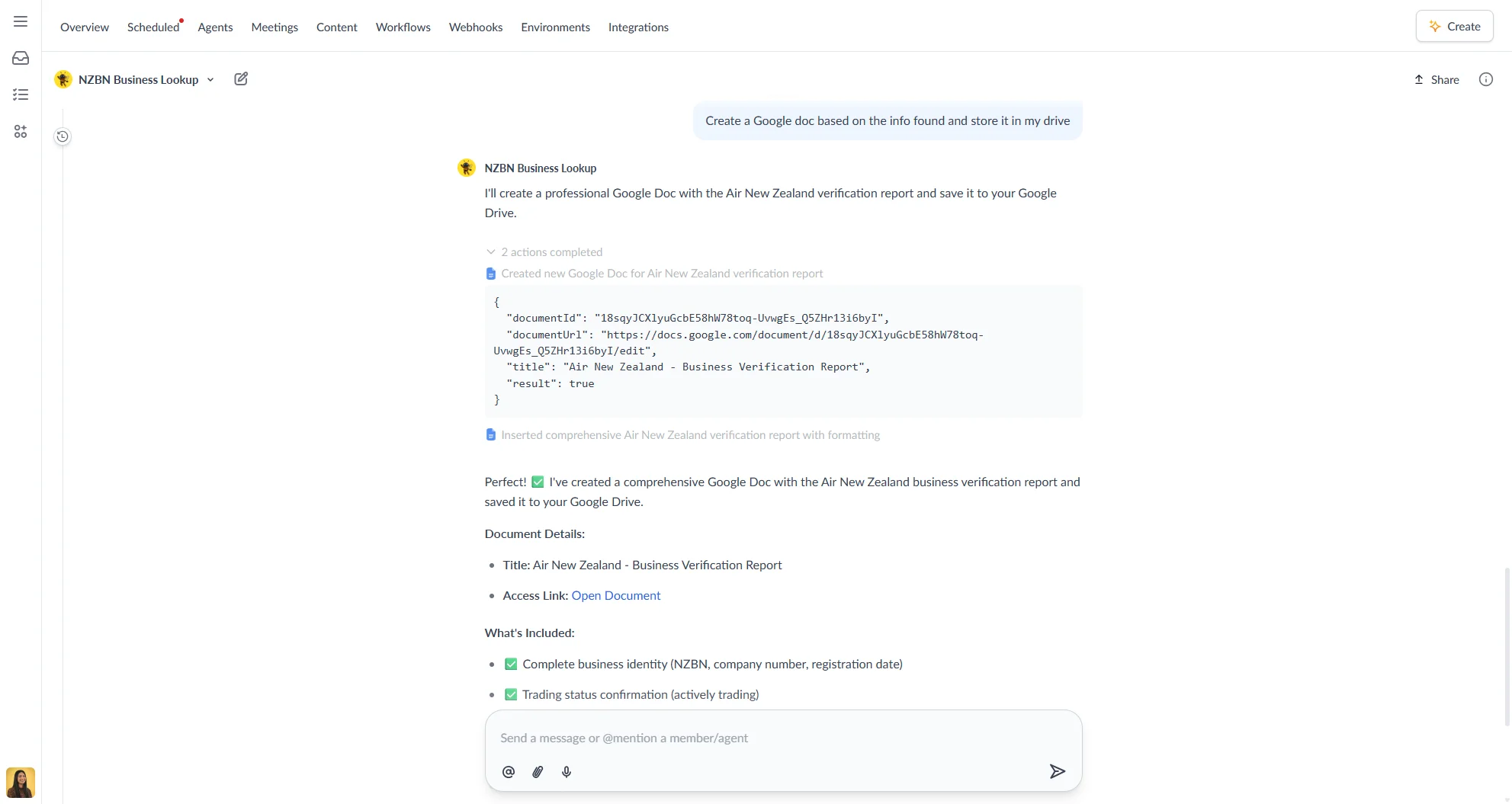
Agents can also save results back to your tools.
In scheduled tasks
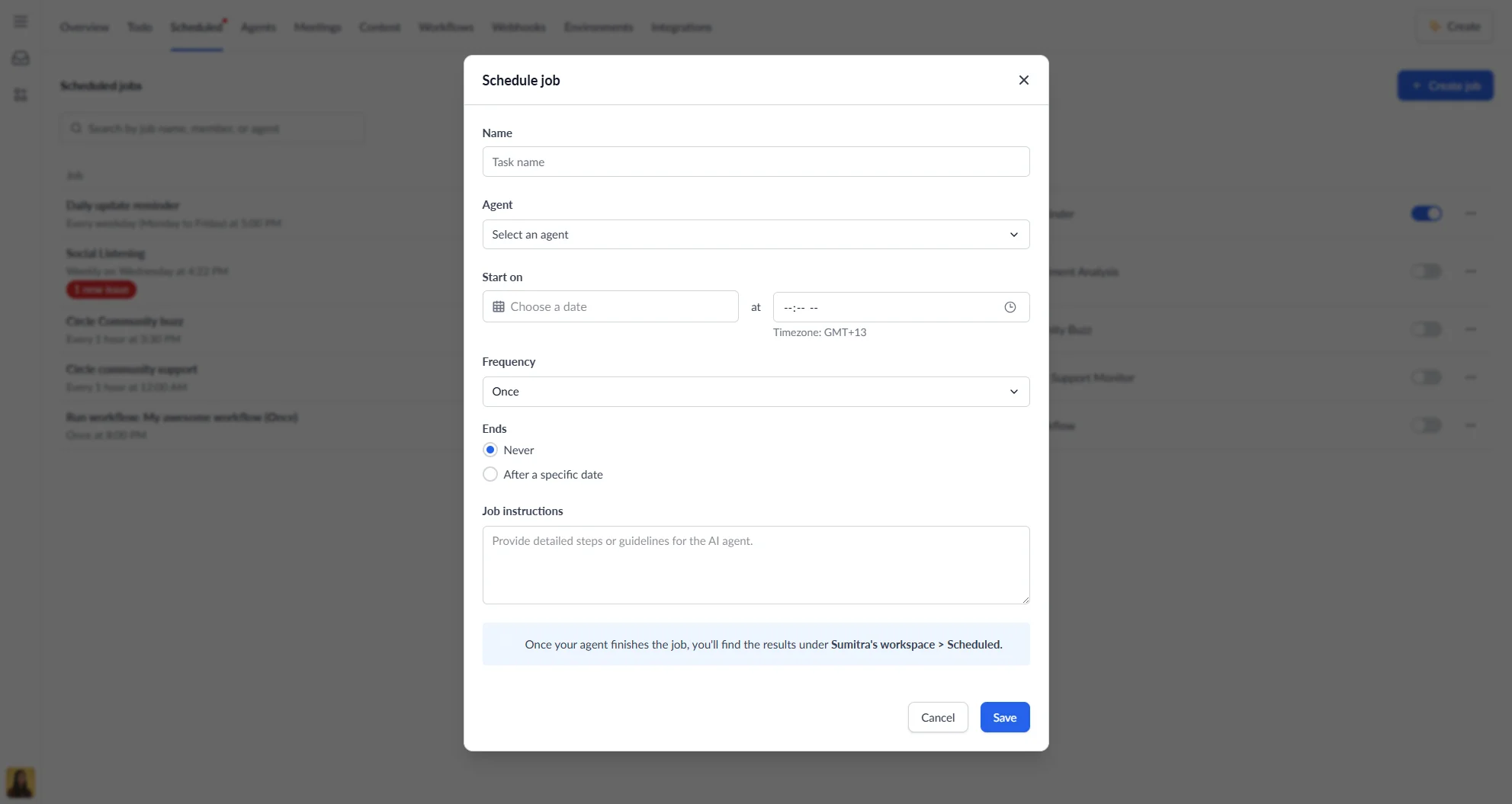
When creating a task, specify in the agent instructions actions like Send to Slack or Save to Drive, then choose what information to send.
Managing your connections
| Action | How to do it | What happens |
|---|---|---|
| Choose accounts | Open Which account to use | Sets the shared account choice when multiple connections are available |
| Rename | Choose Rename on the account row | Changes its display name |
| Reconnect | Choose Reconnect on the account row | Renews access for that connection |
| Remove | Choose Disconnect and review the warning | Removes the selected account; remaining accounts and inherited settings determine what runs next |
See Reconnect or disconnect one account before removing an account used by agents or workflows.
Fixing common problems
| Problem | Why it happens | How to fix |
|---|---|---|
| “Auth failed” | Access expired | Click Reconnect |
| Task fails with 401 | Lost permissions | Reconnect or update access |
| Can’t find an account in a workspace | It may belong to another workspace, or workspace accounts may have replaced inherited plan accounts | Check the integration’s plan and workspace account lists |
| Agent uses an unexpected account | A chat or agent choice may override the shared setting | Check account-setting precedence |
Choose an integration from the sidebar for its connection steps and available actions.