Overview
Connect Autohive to your other work tools to share data, trigger tasks, and automate workflows between systems.
Why connect your tools?
- Keep all your workflows in one place.
- Give agents access to live data.
- Stop copying-and-pasting between apps.
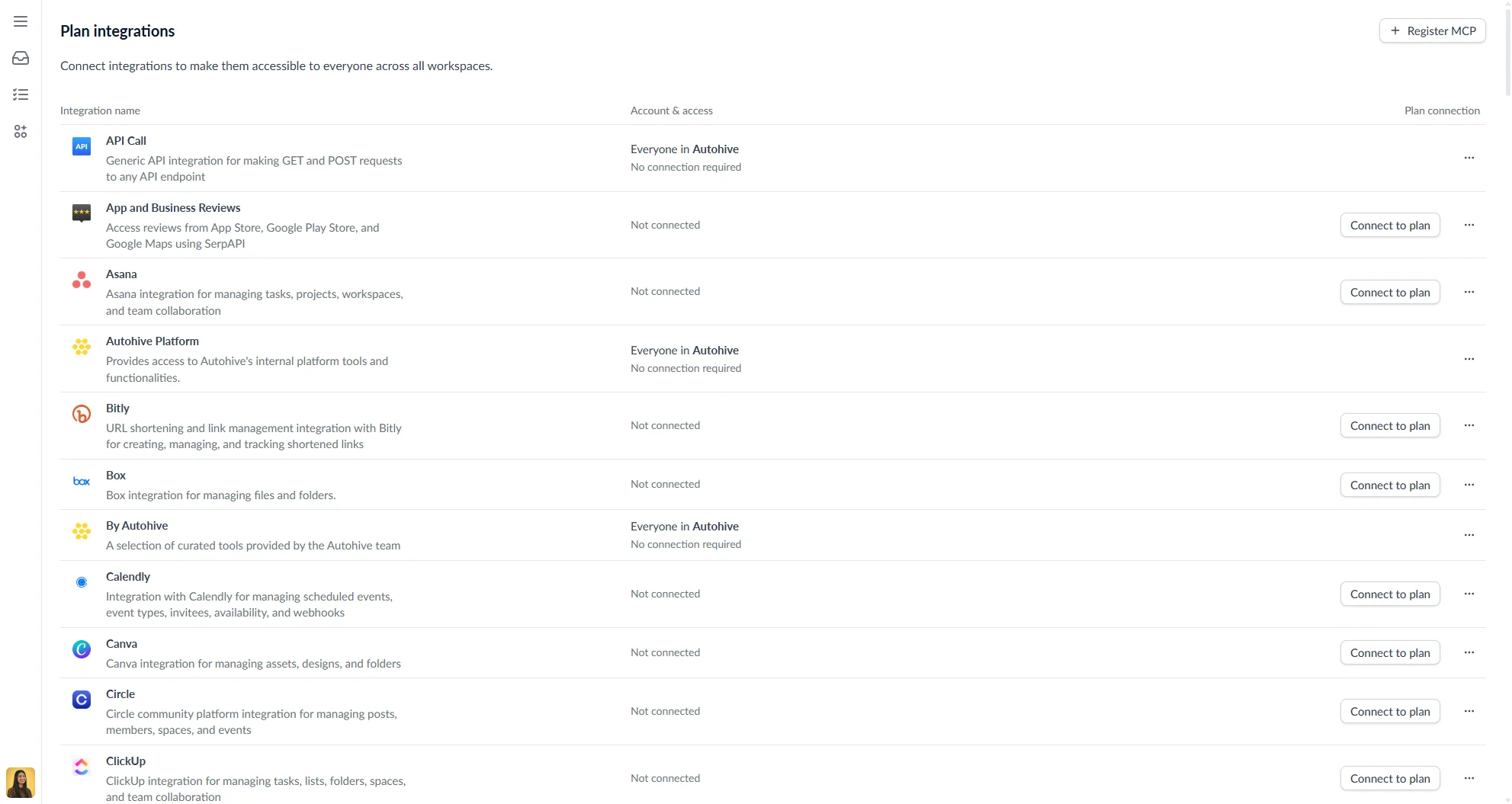
What you can connect today
Check out Agent tools & capabilities for the full breakdown of what integrations and their features are supported. Or head to the side bar to see a list of integrations currently available.
How integration connections work
Autohive uses a two-tier model for managing integration connections.
Plan integrations are connected once by the plan owner and shared across the entire plan. All members can use them in their agents and workflows without any individual setup.
Workspace integrations let individual workspaces connect under a different account, overriding the plan-level connection for that workspace. This is useful when a workspace needs separate credentials — for example, a client workspace using a different Google account.
Autohive follows a workspace-first, plan-fallback model: if a workspace has its own connection, that is used; otherwise the plan-level connection is the fallback. The Account & access column in workspace integration settings shows which source is active.
Any workspace member can manage workspace-level connections. Only the plan owner can connect or disconnect plan-level integrations.
See Plan integrations for full details.
Setting up a connection
Integrations are connected at the plan level by the plan owner and shared with all members automatically. See the Plan integrations guide for instructions on connecting and disconnecting integrations.
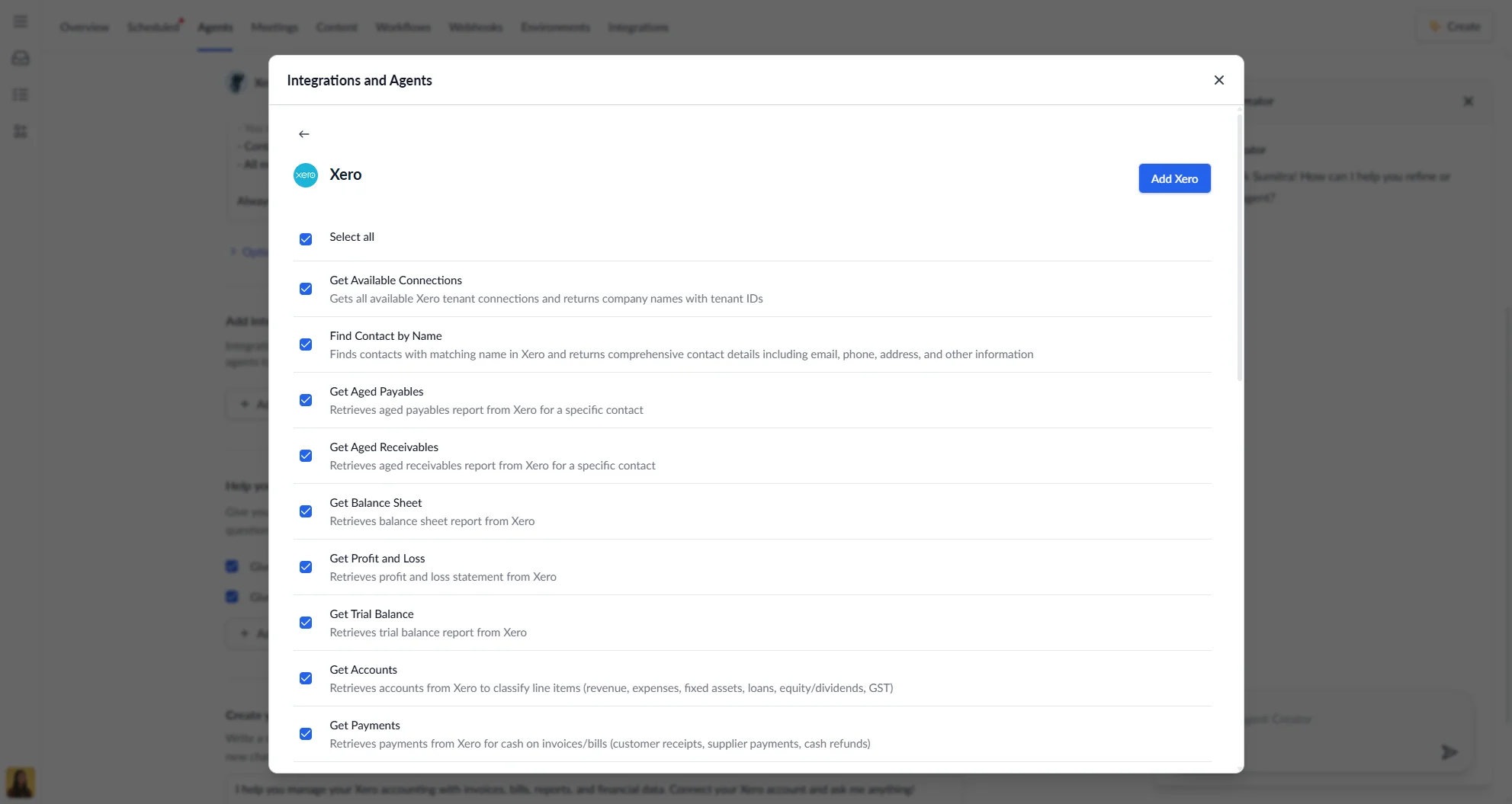
Using connected tools
In chats
Ask agents to leverage connections:
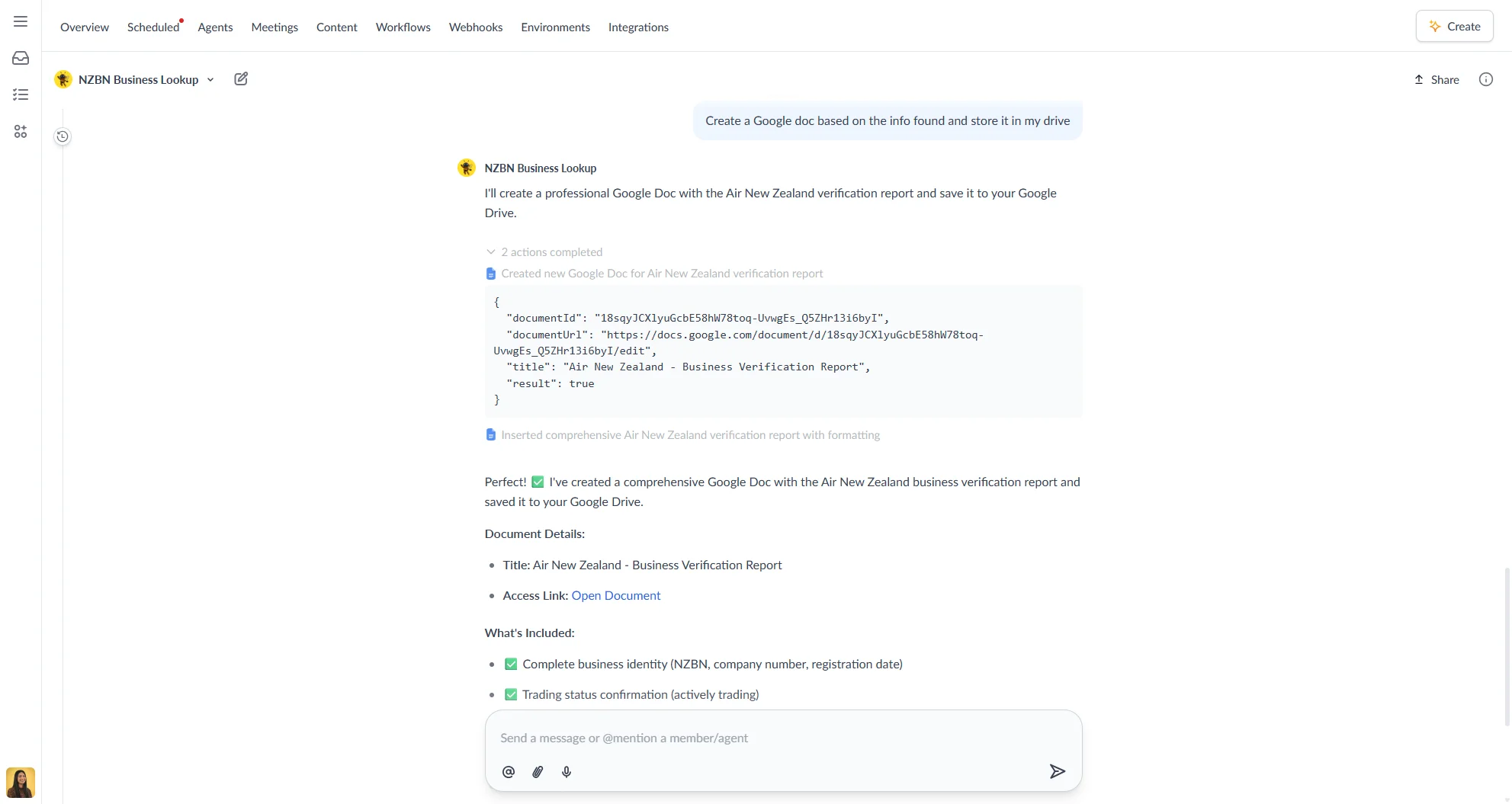
Agents can also save results back to your tools.
In scheduled tasks
When creating a task, specify in the agent instructions actions like Send to Slack or Save to Drive, then choose what information to send.
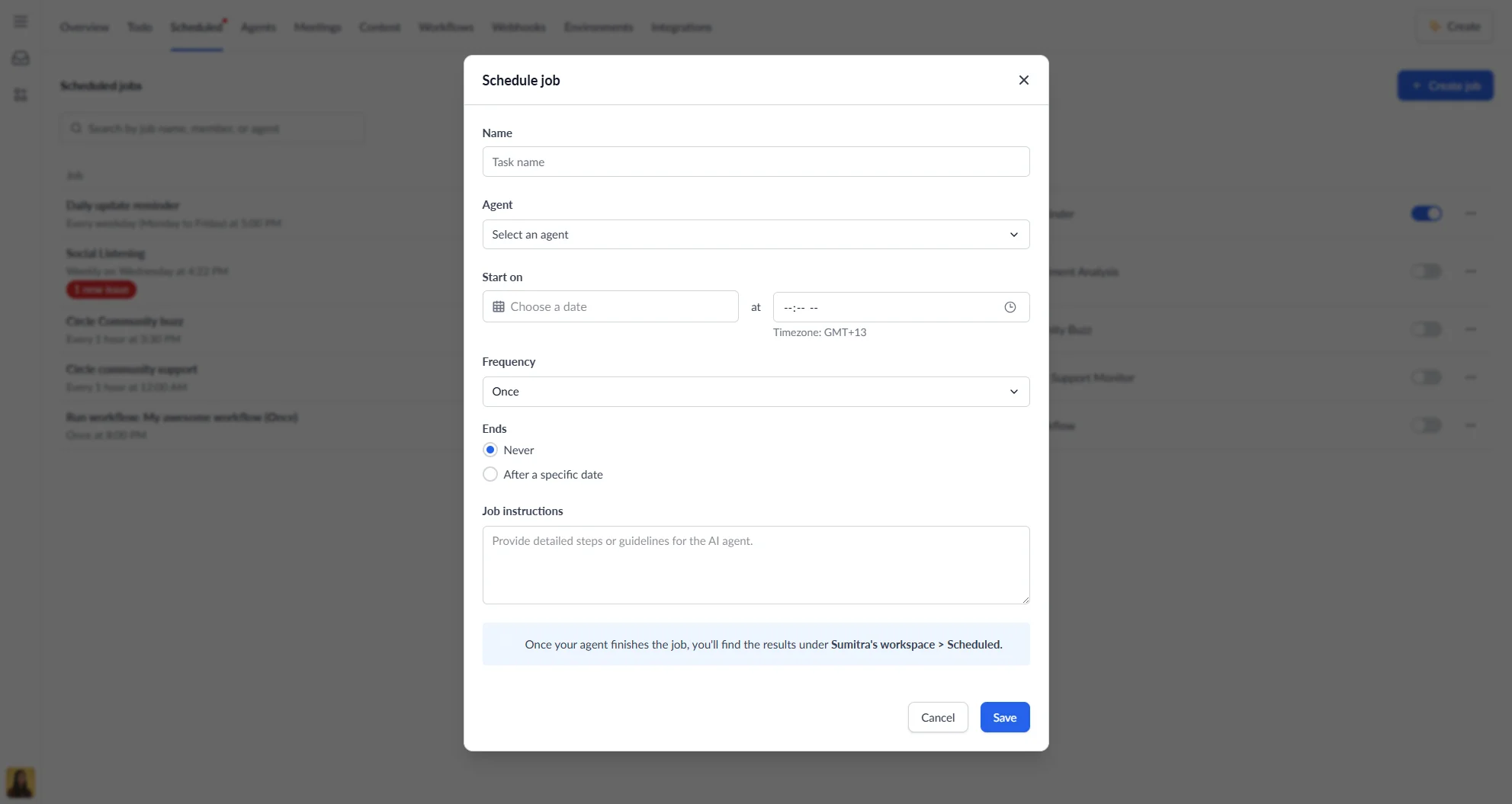
Managing your connections
| Action | How to do it | What happens |
|---|---|---|
| Remove | Click Disconnect | Deletes connection; tasks using it will fail |
Fixing common problems
| Problem | Why it happens | How to fix |
|---|---|---|
| “Auth failed” | Access expired | Click Reconnect |
| Task fails with 401 | Lost permissions | Reconnect or update access |
| Can’t find integration connection in workspace | Integration may be set up in a different workspace | Connect integration via workspace integrations |
Connecting your tools to Autohive creates smoother workflows across your entire stack.