Notion MCP
The Autohive Notion MCP integration connects to Notion’s official hosted Model Context Protocol server, enabling:
- Cross-source search - Search your Notion workspace and connected tools like Slack, Google Drive, and Jira
- Page management - Create, update, move, and duplicate pages with full content control
- Database and view operations - Create and update databases, data sources, and views (table, board, list, calendar, timeline, gallery, form, chart, map, dashboard)
- Structured querying - Query data sources with SQL or an existing view, including grouped summaries and filters
- File attachments - Upload local files, create attachments from text or URLs, and download attachment content
- Comments and collaboration - Add and retrieve comments and discussions on pages
- Workspace and user lookups - List teamspaces and workspace members, or retrieve the connected identity
Install the integration
Notion MCP uses OAuth, authorizing against Notion’s hosted MCP server (https://mcp.notion.com).
Log in to Autohive and navigate to Your user profile > Connections or Your workspace -> Manage workspace
Locate the Notion MCP Integration card and click Connect
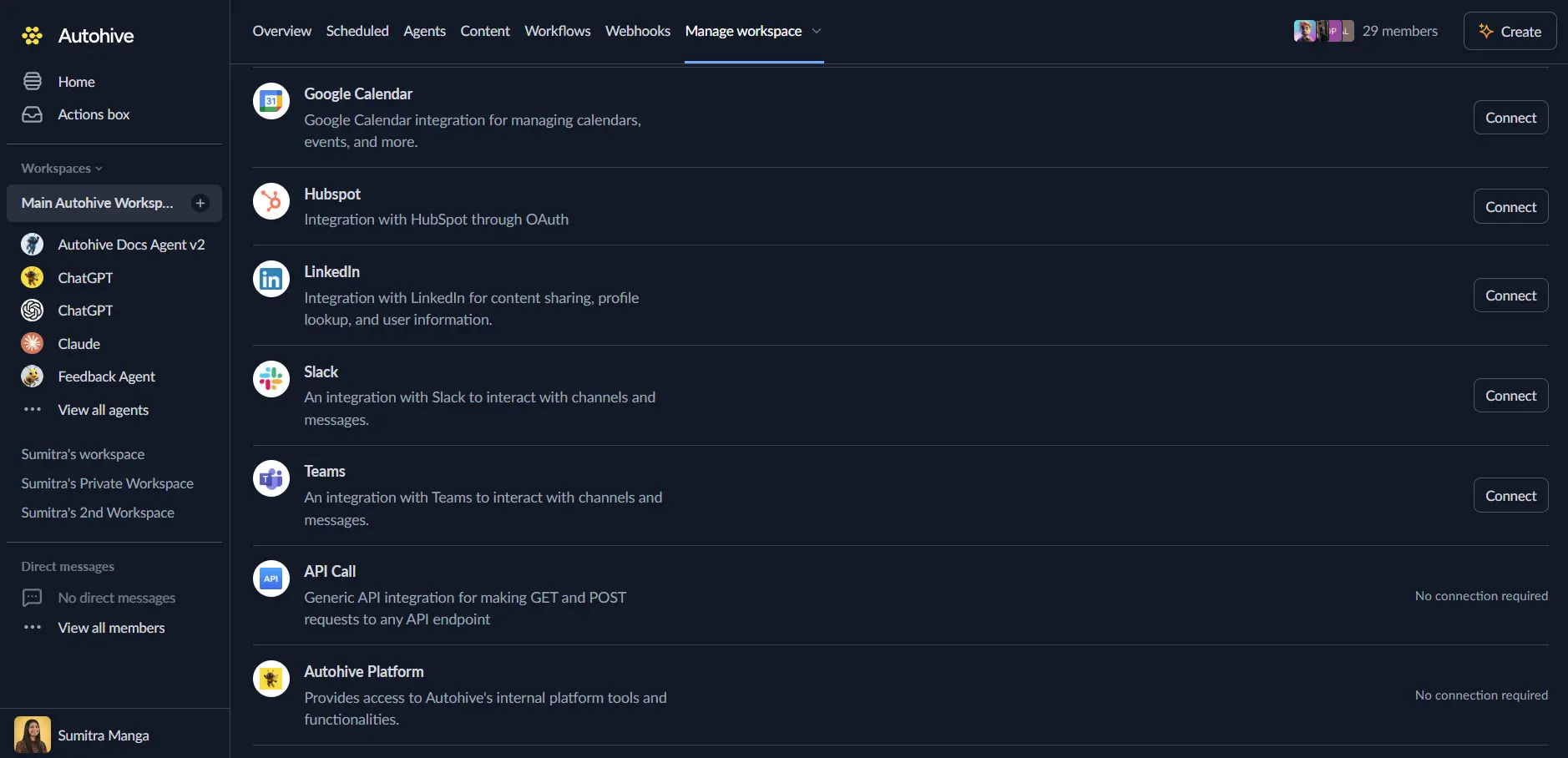
Authorize with Notion - you’ll be redirected to Notion’s authorization page
Select your Notion workspace and choose which pages to share with Autohive
Review and approve permissions. The connection can only read and update content that you personally have access to in the selected workspace
Confirm installation - you’ll be redirected to Autohive with “Connected” status displayed
Use the integration
You can now use the integration with your agents, workflows and scheduled tasks!
- Follow our Create your first agent guide on how to create an agent.
- In the ‘Agent settings’, scroll down to the ‘Add capabilities’ section and turn on the Notion MCP capability. You can choose what individual Notion MCP capabilities to turn on and off.
- Once the settings have been selected, begin prompting the agent of the workflow you’d like to achieve with Autohive and Notion!
Available capabilities
Search and discovery
- Search Notion and connected sources: Search across your Notion workspace and connected tools like Slack, Google Drive, and Jira
- Fetch content: Retrieve a page, database, or data source by its URL or ID, or retrieve the connected workspace/user identity
Pages
- Create pages: Create one or more pages with specified properties and content, supporting database templates, custom icons, and cover images
- Update a page: Update a page’s properties, content, icon, or cover
- Move pages: Move one or more pages or databases to a new parent
- Duplicate a page: Duplicate a page within the workspace
- Convert a page to a skill: Mark a page as an AI skill
- Create a folder: Create an empty folder under a parent page
Databases and views
- Create a database: Create a new database, initial data source, and initial view with specified properties
- Update a data source: Update a data source’s properties, name, description, or other attributes
- Create a view: Create a new view on a database (table, board, list, calendar, timeline, gallery, form, chart, map, or dashboard)
- Update a view: Update a view’s name, filters, sorts, or display configuration
- Query across data sources: Query data sources with SQL, or run an existing view, with structured summaries, grouping, and filters
- Query meeting notes: Query the current user’s meeting notes, filtered by meeting-specific properties
Files and attachments
- Create a file upload URL: Create a short-lived URL for uploading one local file directly to Notion
- Create an attachment: Create an attachment from inline text, a direct public HTTPS URL, or a completed file upload
- Download a text attachment: Download the complete text content of a previously created attachment
Comments and collaboration
- Add a comment: Add a comment to a page or specific content, or reply to an existing discussion
- Get comments: List all comments and discussions on a page
Workspace and users
- Get teams: Retrieve the list of teamspaces in the workspace
- Get users: List workspace members and guests, or retrieve a specific user or the connected identity
- Get async task status: Check the status (queued, running, retrying, succeeded, or failed) of a long-running operation
Key features
Cross-source search
Search isn’t limited to Notion itself - with Notion AI access, the same search call can surface results from connected tools like Slack, Google Drive, and Jira alongside Notion pages and databases.
SQL-style querying
Query data sources directly with SQL, or run an existing saved view, to get structured, grouped, and filtered results without hand-building a series of individual lookups.
Asynchronous long-running operations
Actions like page creation, page updates, and page duplication support asynchronous execution, with a dedicated tool to poll task status until the operation completes.
Common use cases
Knowledge management automation
- Search across Notion and connected tools like Slack or Google Drive to answer a question with a single query
- Automatically create or update documentation pages from external sources and data
Structured reporting
- Query databases and data sources with SQL-style filters to build recurring reports
- Create dashboard and chart views to surface project or team metrics
Content and file workflows
- Attach generated files or reference material to pages via URL or file upload
- Duplicate template pages to kick off new projects, then update their content and properties
Team collaboration
- Add comments to pages to route feedback and questions through Notion for a team to actively work through
- Look up workspace members or teamspaces before assigning follow-up work
Disconnect the integration
Important: Disconnecting stops data synchronization but preserves existing data in both systems.
- Navigate to Your user profile -> Connections or Your workspace -> Manage workspace
- Find the Notion MCP Integration
- Click Disconnect and confirm
Data Impact: Existing data remains unchanged in both systems, but sync stops and Autohive loses Notion MCP access.