monday.com
The Autohive monday.com integration now connects through monday.com’s official hosted Platform MCP server. This gives your agents access to a much larger part of the monday.com platform, enabling:
- Board, item & column management - Create, read, update, and bulk-edit items and boards, with rich filtering, grouping, and insights
- Docs - Create, read, and edit monday docs, including rich content blocks, comments, and version history
- Automations & workflows - Build and manage board automations and cross-board workflows from natural-language descriptions
- Forms - Create and configure monday WorkForms, manage questions, and submit responses
- Dashboards & widgets - Build dashboards with charts, batteries, tables, and other visual widgets
- AI meeting notes & sprint intelligence - Search AI-generated meeting summaries and pull AI-written sprint retrospectives
- Platform AI agents & Vibe apps - Create and manage monday.com’s own AI agents and custom Vibe apps
- Direct API access - Run raw GraphQL queries and mutations against the full monday.com API when a dedicated action isn’t available
Install the integration
Log in to Autohive and navigate to Your user profile > Plan integrations or Your workspace -> Manage workspace
Locate the monday.com Integration card and click Connect
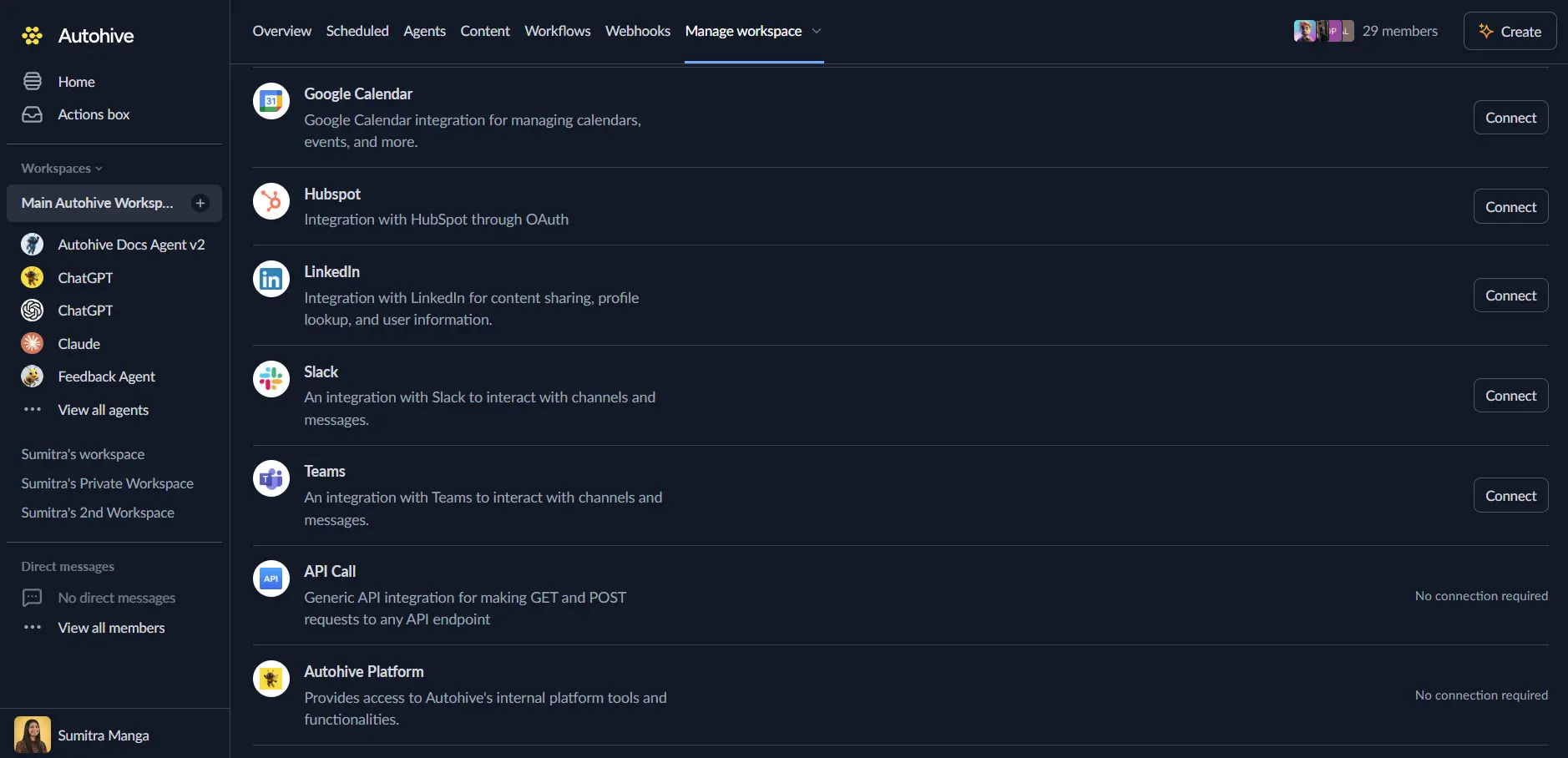
Authorize with monday.com - you’ll be redirected to monday.com’s authorization page. Appprove the authorization to give Autohive access.
Confirm installation - your monday.com account will be connected to Autohive via the monday.com MCP server
Use the integration
Once connected, Autohive agents can interact with your monday.com boards, docs, automations, forms, and more through natural-language conversations.
Add monday.com integration for your agents
- Follow our Create your first agent guide on how to create an agent.
- In the ‘Agent settings’, scroll down to the ‘Add integrations and agents’ section and add the monday.com integration. You can choose what individual monday.com actions to turn on and off.
- Given the scope of the monday.com MCP server, consider enabling the actions groups a given agent actually needs.
- Once the settings have been selected, begin prompting the agent with the workflow you’d like to achieve with Autohive and monday.com!
Example prompts
Try these prompts to get started:
📋 "Show me all the items in my 'Product Roadmap' board that are marked as In Progress"
✅ "Create a new item called 'Fix login bug' in the Bugs group and assign it to Sarah"
📊 "Build me a pie chart widget showing item counts by status on my Sales Pipeline board"
🤖 "Summarize what was discussed in yesterday's team meeting and list the action items"
Available capabilities
The monday.com MCP server exposes a very large surface of the monday.com platform. Capabilities are grouped below by area - enable only what a given agent needs.
Boards, items & columns
- Create Board: Create a new monday.com board (public, private, or shareable), optionally assigning board owners and placing it in a specific workspace.
- Get Board Info: Retrieve comprehensive board metadata - structure, owners, configuration, and views (including each view’s filter).
- Get Board Items Page: Paginated item retrieval with column values, groups, subitems, item descriptions, filters, search, and sorting.
- Create Item / Create Items: Create a single item, or up to 20 items in one call (including subitems and duplicated items), with full column value support.
- Update Items: Update column values on up to 40 items in a single call, across one or more boards.
- Change Item Column Values: Update the column values of a single item.
- Board Insights: Filter, group, and aggregate board data (counts, sums, averages, min/max, and more) for reporting without pulling every item.
- Get Board Activity: Retrieve a board’s activity log for a date range, optionally scoped to specific items or users.
- Create Group / Create Column: Add new groups or columns to a board, with full column-type-specific settings.
- Get Column Type Info: Look up the JSON schema, and filter/aggregation guidelines, for any column type.
- Move Object: Move a board, folder, or dashboard overview to a new parent folder, workspace, or position.
Docs
- Create Doc: Create a new monday doc in a workspace or attached to an item, with initial markdown content.
- Read Docs: Fetch documents (by ID, object ID, or workspace) with full markdown content, blocks, and comments, or fetch a doc’s version history.
- Update Doc: Rename a doc, or add, update, delete, or replace blocks (text, lists, tables, images, notice boxes, layouts, and more), and add comments.
Updates & notifications
- Create Update: Post a comment/update to an item, optionally mentioning users, teams, or boards, or replying to an existing update.
- Get Updates: Retrieve updates from an item or board, including replies and file attachments, with date-range filtering for boards.
- Create Notification: Send a bell-icon and/or email notification to a specific user about an update or item.
Automations & workflows
- Create Automation: Generate a board automation (trigger + conditions + actions) from a natural-language description.
- List / Manage Automations: List a board’s automations (including legacy ones), then activate, deactivate, or delete them.
- Get Automation Runs / Statistics: Inspect automation run history (per board or account-wide) and aggregate success/failure statistics.
- Create / Update / Publish Workflow: Create a new cross-board workflow, iteratively update its steps via natural language, and publish a draft to go live.
- Plan Workflow: Have an AI agent break a described process into one or more workflows, identifying the required boards, columns, and blocks before you build.
Forms
- Create Form: Create a new monday WorkForm (with a backing board to store responses).
- Get Form / Update Form: Retrieve a form’s structure and settings, or update its appearance, accessibility, features, header, question order, tags, and password/activation state.
- Form Questions Editor: Create, update, or delete individual form questions, including conditional show-if rules and type-specific settings.
- Create Form Submission: Submit answers to a WorkForm on behalf of a user, across all supported question types.
Dashboards & widgets
- Create Dashboard: Create a new dashboard aggregating one or more boards.
- Create Widget / All Widgets Schema: Add chart, number, battery, calendar, Gantt, list view, or app-feature widgets to a dashboard or board view, using the JSON Schema definitions for each widget type.
- Create / Update View & View Table: Create or update board views, including table views with filters, sorting, column visibility, and group-by settings.
Files & assets
- Get Asset Upload URL / Finalize Asset Upload: Upload a file to monday.com via a presigned URL and attach it to an item’s file or doc column.
- Get Assets: Retrieve file metadata (name, size, URL, thumbnail, uploader) for existing assets by ID.
Users, teams & workspaces
- List Users and Teams: Look up users and teams by ID, name, or “me”, including team memberships.
- Get User Context: Retrieve the current user’s identity, account plan/member info, and their favorite or most-relevant boards, folders, workspaces, and people.
- List / Create / Update Workspaces: List all accessible workspaces, create a new one, or update its name, description, kind, or account product.
- Workspace Info: List the boards, docs, and folders inside a workspace.
- Create / Update Folder: Create or update a workspace folder (name, color, icon, position, parent).
Search
- Search: Search boards, items, documents, updates, folders, workspaces, dashboards, or timeline items by keyword, optionally scoped to specific boards, workspaces, or creators.
AI meeting notes
- Explore Meetings: Discover meetings by topic/keyword or browse recent meetings by date and access level.
- Search Meetings Content: Search inside meeting topics, summaries, and action items for specific passages.
- Get Meetings Content: Fetch full meeting content (summary, topics, action items, transcript) for specific meeting IDs.
monday dev Sprints
- Get monday dev Sprints Boards: Discover paired sprints/tasks boards in the account.
- Get Sprints Metadata: Retrieve sprint timelines, completion status, and activation state from a sprints board.
- Get Sprint Summary: Retrieve a completed sprint’s full AI-generated analysis - scope management, velocity, task distribution, and recommendations.
Platform AI agents (monday agent builder)
- Manage Agent: Create (via AI prompt or manually), read, update, delete, activate, deactivate, or run monday.com platform agents.
- Manage Agent Triggers: List, add, or remove the triggers that fire an agent automatically.
- Manage Agent Skills: Create new reusable skills, or attach/detach existing skills to an agent.
- Manage Agent Knowledge: List, grant, update, or revoke an agent’s read/read-write access to specific boards and docs.
- Agent Catalog: Browse the account-wide catalog of available trigger types and skills before wiring them to an agent.
Vibe (AI app builder)
- Vibe Create / Update: Generate a new custom Vibe app from a prompt, or send follow-up prompts to modify an existing app.
- Vibe Get / List / Ask: Fetch an app’s status, messages, and code version history; list your Vibe apps; or ask a read-only question about an existing app.
- Vibe Publication / Delete: Publish or unpublish an app on the account, or permanently delete it.
Reusable actions & direct API access
- Create / Update / Delete / List / Get / Run Action: Save, edit, remove, list, retrieve, or execute reusable code snippets (Python, JavaScript, or TypeScript) that run in a monday-authenticated sandbox.
- Execute Code: Run arbitrary code in a monday-authenticated sandbox for bulk operations, data transformation, or multi-step workflows without saving it as a reusable action.
- All API Read / Write / Monday API: Execute custom GraphQL queries, mutations, or full operations directly against the monday.com API for anything not covered by a dedicated action.
- Get GraphQL Schema / Get Type Details: Inspect the monday.com GraphQL schema and specific type definitions to construct custom queries safely.
Visualization components
- Show Table / Chart / Battery / Assign: These MCP tools are designed to render interactive board tables, pie/bar charts, status-breakdown batteries, and smart task-assignment interfaces via MCP UI.
Knowledge base
- Get monday.com Knowledge: Ask a question about using monday.com (features, automations, UI) or the monday.com developer API, and get an AI-generated, cited answer.
Key features
Full-platform access, not just boards
- Unlike the previous custom integration, which covered a handful of board and item actions, this now connects to monday.com’s official Platform MCP server - giving agents access to virtually the entire monday.com API surface: boards, docs, automations, workflows, forms, dashboards, agents, and more.
Natural-language automation & workflow building
- Describe an automation or a whole cross-board workflow in plain English and have it translated into the correct trigger, condition, and action blocks - no need to know internal block IDs.
AI-powered meeting & sprint intelligence
- Surface AI-generated meeting summaries, topics, and action items, and pull AI-written sprint retrospectives (velocity, scope creep, task distribution) directly into agent workflows.
Direct GraphQL fallback
- When a dedicated action doesn’t cover a use case, agents can fall back to raw GraphQL queries and mutations against the full monday.com API, using schema-introspection tools to build them safely.
Build monday.com’s own AI agents and apps
- Beyond automating your boards, this integration can create and manage monday.com’s native platform agents (with their own triggers, skills, and knowledge) and Vibe apps - letting an Autohive agent bootstrap other AI capabilities inside monday.com itself.
Bulk & batch operations
- Create up to 20 items, or update up to 40 items, in a single call across multiple boards and groups - reducing round-trips for large data operations.
Common use cases
Automated task & project management
- Create items automatically from external triggers (emails, form submissions, CRM updates) with full column values set in one call.
- Bulk-update dozens of items’ statuses, owners, or dates in a single operation.
Cross-board workflow automation
- Plan and build multi-board workflows (e.g., “when a deal is marked Won, create an onboarding task and notify the account manager”) entirely from a natural-language description.
- Monitor automation run history and failure statistics to catch broken automations before they cause missed work.
Reporting & dashboards
- Use Board Insights to generate counts, sums, and averages grouped by status, owner, or any column, without pulling every item.
- Build dashboards with chart, battery, and table widgets that stay live against your board data.
Documentation & knowledge management
- Generate and update monday docs from agent-driven research or meeting outcomes, including rich content, tables, and comments.
- Search and summarize AI meeting notes to keep a project’s context up to date without watching every recording.
Intake forms
- Build and configure WorkForms, adjust questions and conditional logic, and submit responses programmatically to route incoming requests onto the right board.
Extending monday.com itself
- Use the Vibe app builder to spin up small custom monday.com apps from a description, or configure monday.com’s own platform agents (their triggers, skills, and board/doc access) as part of a broader automation build.
Disconnect the integration
Important: Disconnecting stops MCP access but preserves existing data in both systems.
- Navigate to Your user profile -> Connections or Your workspace -> Manage workspace
- Find the monday.com Integration
- Click Disconnect and confirm
Data Impact: Existing data remains unchanged in both systems, but sync stops and Autohive loses access to the monday.com MCP server.
Remove access
From monday.com: Go to your Profile > Administration > API (or Developers section) and regenerate your token to invalidate the previous one.