Microsoft Dynamics 365 Business Central
The Autohive Microsoft Dynamics 365 Business Central integration connects your Business Central Online company to Autohive. Your agent can use it to:
- Review inventory. Read items, stock levels, locations, and recorded unit costs.
- Plan purchasing. Read purchase and sales orders, estimate reorder costs, and forecast stock.
- Check billing. Read customers, sales invoices, credit memos, and overdue balances.
- Read aging reports. See what each customer owes you and what you owe each vendor.
- Run finance reports. Get the trial balance, the income statement, ledger entries, and dimensions.
- Manage purchase orders. Create a purchase order or remove one.
Everything else is read-only. The integration does not receive stock, post invoices, or take payments.
Install the integration
Log in to Autohive and go to Your user profile > Connections or Your workspace → Integrations.
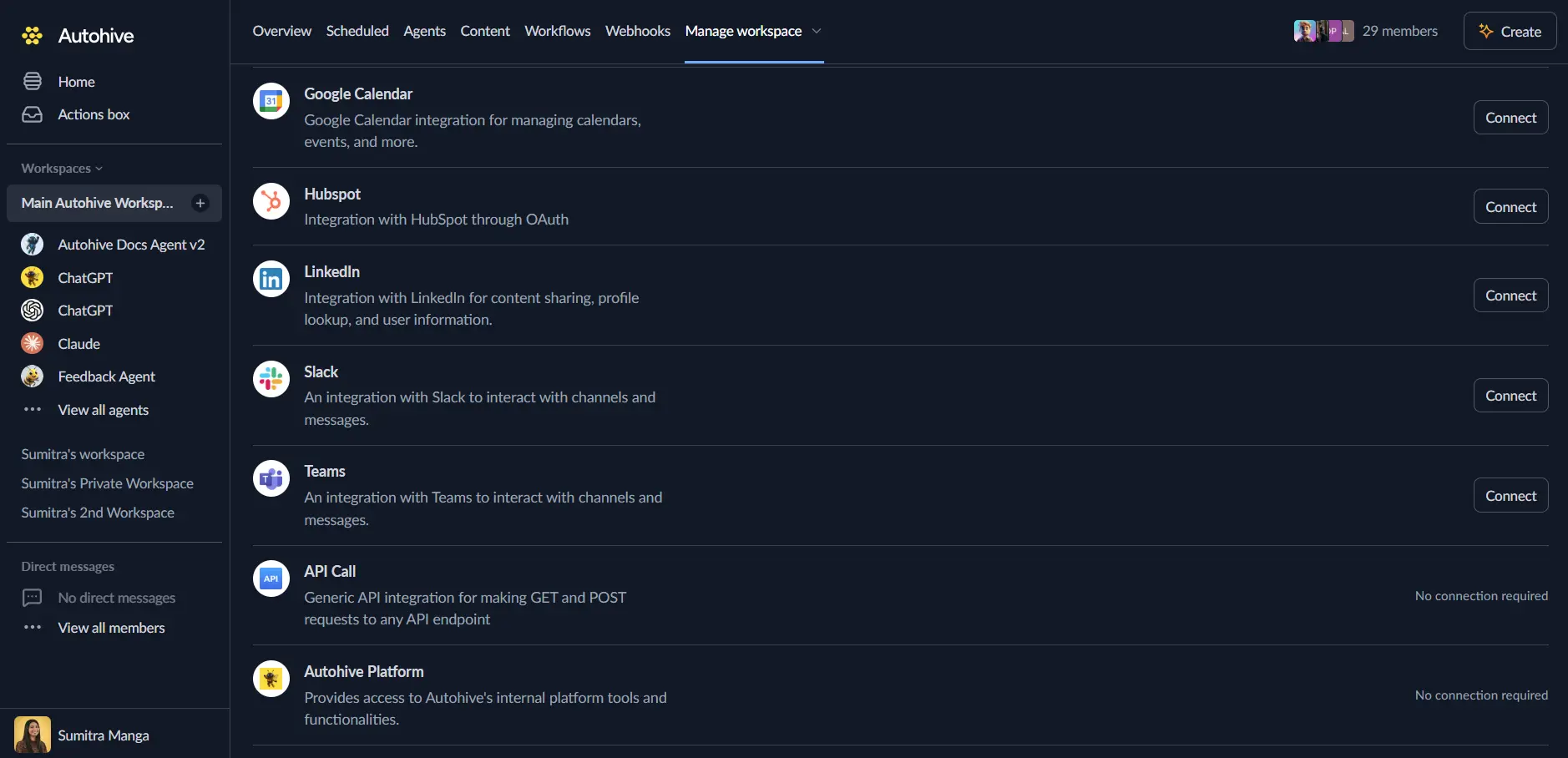
Find the Microsoft Dynamics 365 Business Central card and click Connect to workspace.
Sign in with Microsoft. Use a work account with a Business Central license.
Review and approve permissions. These are OAuth scopes. An OAuth scope is a permission you approve when you connect. Autohive requests:
- Offline access: Lets Autohive stay connected without asking you to sign in again.
- Dynamics 365 Business Central Financials.ReadWrite.All: Lets Autohive read and write Business Central financial data.
Confirm installation. You return to Autohive with “Connected” status.
Use the integration
Turn on Microsoft Dynamics 365 Business Central capabilities in Agent settings → Add capabilities. A capability is one action your agent can take.
- Follow our Create your first agent guide to build an agent.
- Turn on the Business Central capabilities you want your agent to use.
- Start prompting your agent with the task you want to do in Business Central.
Every capability needs two details from you:
- Tenant ID: Your Microsoft Entra tenant ID. It is a long code made of letters and numbers.
- Environment: The name of your Business Central environment, such as Production or Sandbox.
Every capability except List Companies also needs a company ID. Ask your agent to run List Companies first. It returns the ID of each company you can reach.
Available capabilities
A few terms show up below:
- A GUID is the long ID code that Business Central gives each record. IDs are not the visible numbers you see in documents or items.
- A ledger entry is one posted line in your books.
- A dimension is a tag that groups ledger entries, such as a branch or a brand.
- An ETag is a version code on a record. It changes whenever the record changes.
- Aging groups outstanding balances into current and overdue periods.
Dates use the format YYYY-MM-DD. Both the start and end dates are included.
Companies
- List Companies: Find the companies you can reach.
- Returns each company ID and name.
- Get Company Information: Read details about one company.
- Includes the local currency.
Inventory
- List Items: Read items with stock, unit cost, and base unit.
- Optional filter by exact item number.
- Stock is the on-hand total for the whole company.
- Get Item: Read one item.
- Needs the item ID from List Items.
- List Locations: Read warehouse and location details.
- Does not return stock counts.
- List Item Variants: Read item variants.
- Optional filter by item ID.
- List Units Of Measure: Read unit codes, such as box or each.
- Does not show how many units fit in a pack.
- List Item Ledger Entries: Read stock movements and recorded costs.
- Optional filters for item number, start date, and end date.
- Dates filter the posting date.
Purchasing
- List Vendors: Read your suppliers.
- Optional filter by exact vendor number.
- List Purchase Orders: Read purchase orders with vendor, currency, and status.
- Optional filters for vendor ID, start date, and end date.
- Dates filter the order date.
- Get Purchase Order: Read one purchase order header.
- Needs the purchase order ID.
- List Purchase Order Lines: Read the lines of one purchase order.
- Needs the purchase order ID.
- Optional filter by item ID.
- Shows costs, units, expected receipts, and received quantities.
- List Purchase Invoices: Read purchase invoice headers.
- Optional filters for vendor ID, start date, and end date.
- Check each invoice status. Not every invoice is posted.
- List Purchase Invoice Lines: Read the lines of one purchase invoice.
- Needs the purchase invoice ID.
- Optional filter by item ID.
- Shows costs, discounts, units, and tax.
- Create Purchase Order: Create a purchase order for a vendor.
- Needs the vendor ID or the vendor number. Use one, not both.
- Optional order date, posting date, requested receipt date, and currency code.
- Optional item lines, up to 100 per order.
- Each line needs an item ID and a quantity above zero.
- Each line can also have a unit cost, a unit of measure code, and a description.
- Does not receive or invoice the order.
- Remove Purchase Order: Permanently delete a purchase order and its lines.
- Needs the purchase order ID and its ETag from Get Purchase Order.
- Fails if the order changed since you read it.
- Does not undo posted receipts or invoices.
Sales orders
- List Sales Orders: Read sales orders.
- Optional filters for start date and end date.
- Dates filter the order date.
- Get Sales Order: Read one sales order header.
- Needs the sales order ID.
- List Sales Order Lines: Read the lines of one sales order.
- Needs the sales order ID.
- Optional filter by item ID.
- Shows quantities and shipped quantities.
Planning
- Estimate Reorder Cost: Estimate the budget for a reorder.
- Needs the item ID and a quantity in the item’s base unit.
- Multiplies the quantity by the recorded unit cost.
- Uses your company’s local currency.
- This is not a supplier quote.
- Forecast Stock: Estimate how long current stock will last.
- Needs the item ID, a start date, an end date, and the number of days to forecast.
- The forecast can run from 1 to 365 days.
- Use 1 to 730 days of history ending before today.
- History is limited to 10,000 item ledger entries. If it exceeds this limit, choose a shorter date range.
- Uses completed sales in the date range you give.
- Fails if the history is incomplete.
Customers and billing
- List Customers: Read customers with payment terms, balances, and credit limits.
- Optional filter by exact customer number.
- Get Customer: Read one customer.
- Needs the customer ID.
- List Sales Invoices: Read sales invoices with amounts, due dates, and status.
- Optional filters for customer ID, start date, end date, status, and due before date.
- The due before date does not include the day you give.
- Optional switch to show only open invoices with a balance left.
- Get Sales Invoice: Read one sales invoice header.
- Needs the sales invoice ID, not the visible invoice number.
- List Sales Invoice Lines: Read the lines of one sales invoice.
- Needs the sales invoice ID.
- Includes service lines, discounts, and tax.
- List Sales Credit Memos: Read credit memos that correct billing.
- Optional filters for customer ID, start date, and end date.
- Dates filter the credit memo date.
Aging
- Get Receivables Aging: See what one customer owes you.
- Needs the customer ID.
- Uses the Business Central report settings.
- Get Payables Aging: See what you owe one vendor.
- Needs the vendor ID.
- Uses the Business Central report settings.
Accounting
- List Accounts: Read your chart of accounts.
- Optional filter by exact account number.
- List General Ledger Entries: Read posted debits and credits.
- Optional filters for start date, end date, account ID, and document number.
- List Dimensions: See which dimensions your company uses.
- List Dimension Values: Read the codes for one dimension.
- Needs the dimension ID from List Dimensions.
- List General Ledger Entry Dimensions: Read the dimensions on one ledger entry.
- Needs the ledger entry ID.
- Get Trial Balance: Read the trial balance for a period.
- Needs a start date and an end date.
- Get Income Statement: Read the income statement for a period.
- Needs a start date and an end date.
- Header and subtotal rows are included. Do not add them to detail rows.
Key features
Read-first design
- Most capabilities only read data.
- Only two capabilities change data: Create Purchase Order and Remove Purchase Order.
- Neither one posts, receives, or pays anything.
Paging
- List capabilities return one page at a time.
- A page holds 100 records by default. You can ask for 1 to 1,000.
- Each result says whether more pages exist and gives a link to the next page.
- Keep the same company and filters when you ask for the next page.
Safe writes
- Autohive sends each create or remove request once.
- If a request times out, check Business Central before you try again. The change may have worked.
- Remove Purchase Order needs the current ETag, so it cannot delete a changed order by mistake.
Private error messages
- Business Central error text can include personal details.
- Autohive does not show that text. It gives a short message with next steps.
Common use cases
Collections
- List customers, then read each customer’s receivables aging.
- Find overdue open invoices with List Sales Invoices.
- Read the invoice lines to see what each charge covers.
Inventory and reordering
- Check stock for a list of items.
- Forecast how many days of stock are left.
- Estimate the cost of a reorder, then create a purchase order.
Billing checks
- Compare sales invoice lines with credit memos for one customer.
- Review which invoices are still draft.
Month-end review
- Read the trial balance and income statement for the month.
- Check customer and vendor aging side by side.
- Read ledger entries for one account to explain a balance.
Business unit reporting
- List your dimensions and their values.
- Read ledger entries and the dimensions on each one.
Notes
- Business Central Online only. The integration is built for Business Central Online.
- Your permissions apply. The connected user needs access to the company and the records. Creating a purchase order needs insert rights. Removing one needs delete rights.
- Stock is company-wide. Item stock is the on-hand total. It is not warehouse stock or stock available to promise.
- Reorder cost is an estimate. It leaves out freight, duties, discounts, tax, and price breaks.
- The forecast is a simple baseline. It uses past sales only. It ignores incoming supply, open orders, seasons, and production.
- Aging uses report defaults. Read the date, the periods, and the currency in each result.
- Reports use a date filter. The trial balance and income statement filter by report date, not posting date.
- Invoices are billing records. Use ledger entries for accounting analysis.
- Open invoice pages can be short. The open-only filter runs on each page. A page may hold fewer rows than you asked for, or none. Keep going while more pages exist, and repeat the open-only setting on each page.
- Blank currency means local currency. Read it against the company’s local currency.
- Not covered yet. Receiving stock, posting invoices, payments, warehouse stock, reservations, lead times, and supplier price lists are not included.
Disconnect the integration
Important: Disconnecting removes Autohive’s access to Business Central through this connection.
- Go to Your user profile > Connections or Your workspace → Integrations.
- Find the Microsoft Dynamics 365 Business Central integration.
- Click Disconnect and confirm.
Data Impact: Disconnecting does not change any data in Business Central. Purchase orders you created or removed stay as they are.