Metabase
The Autohive Metabase integration connects your Metabase account to Autohive. It works with Metabase Cloud and self-hosted Metabase version 0.49 or later. Your agent can look through your data, run queries, and build new questions and dashboards. It only sees what your API key’s group can see.
- Explore your data. List databases and tables, and read a table’s columns.
- Find saved work. Search questions, models, metrics, dashboards, and collections.
- Run queries. Run SQL or a saved question and get the rows back.
- Build reports. Save SQL as a question, then add it to a dashboard.
A few Metabase terms show up on this page:
- A question is a saved query in Metabase.
- A collection is a folder that holds questions and dashboards.
- A dashboard is a page of questions shown together. Each one is a card.
Install the integration
Metabase uses a URL and an API key to connect. An API key is a secret code that lets Autohive sign in to Metabase.
Sign in to Metabase as an admin.
Go to Admin > Settings > Authentication > API keys.
Create an API key. Assign it to a group. The key gets the data and collection permissions of that group. Pick a group that can see only what your agent should use.
Log in to Autohive and go to Your user profile > Connections, or Your workspace -> Integrations.
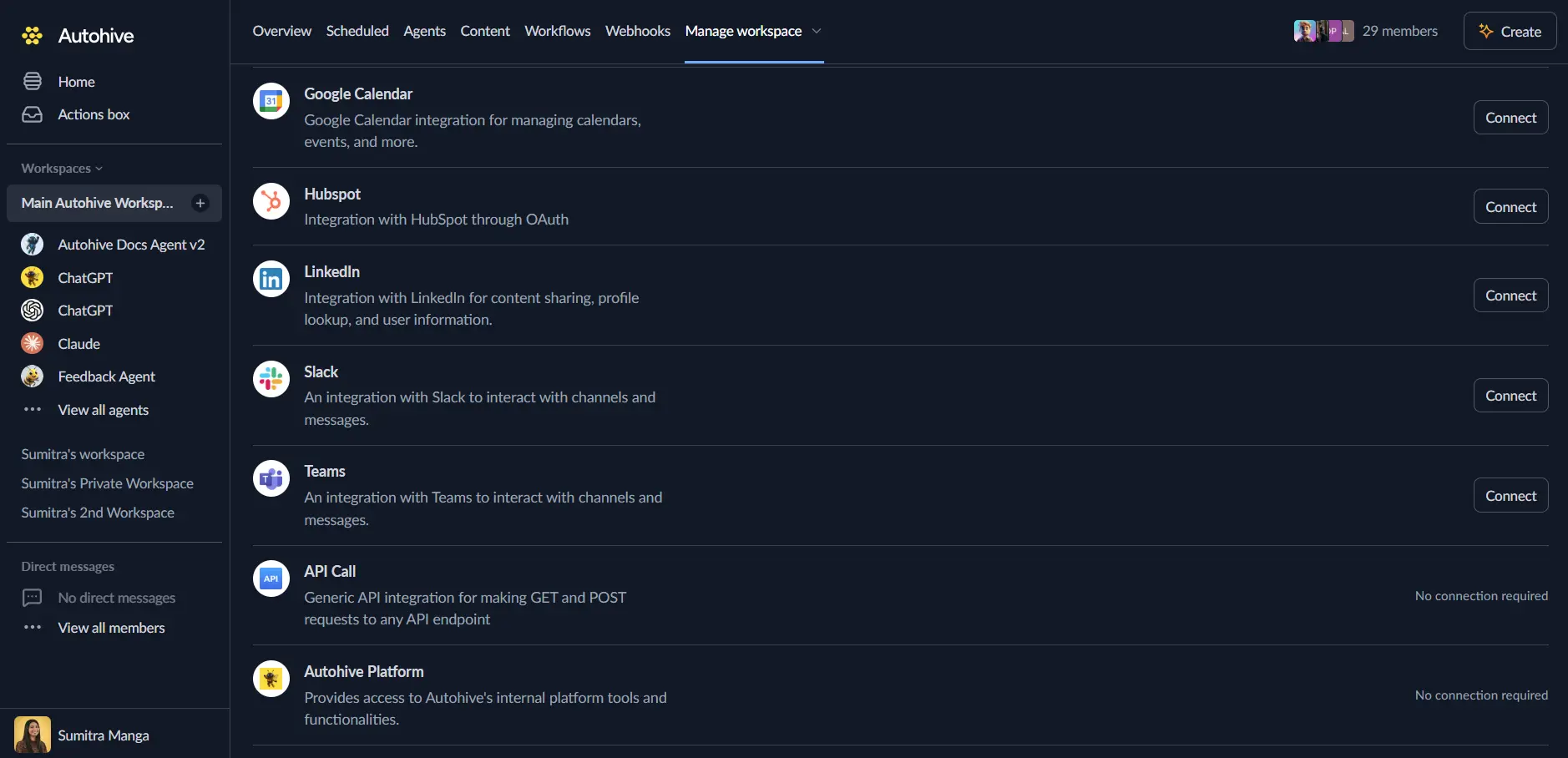
Find the Metabase Integration card and click Connect.
Enter your Metabase URL. This is the address you open Metabase at. For example,
https://yourcompany.metabaseapp.com. If Metabase runs from a sub-path, include it, such ashttps://example.com/metabase.Paste your API key.
Confirm installation. You return to Autohive with “Connected” status.
Use the integration
Turn on Metabase capabilities in Agent settings → Add capabilities. A capability is one action your agent can take.
- Follow our Create your first agent guide to build an agent.
- Turn on the capabilities you want your agent to use.
- Start prompting your agent with the task you want to do with Metabase.
Available capabilities
Account
- Get Current User — Show which Metabase user your API key acts as.
- Use it to check the connection works.
Data model
- List Databases — List the databases connected to Metabase.
- Returns each database’s ID, name, and engine.
- Get Database Schema — List the tables in one database.
- Filters: schema, table name text.
- Can include each table’s fields.
- Returns 50 tables per page by default, up to 200.
- Get Table — Get a table’s fields, types, and foreign keys.
- A foreign key is a column that links to another table.
- Use it before you write SQL.
Search and browse
- Search — Find saved items and tables in Metabase.
- Item types: question, model, metric, dashboard, collection, table, database, document.
- Can search trashed items instead.
- Metric needs Metabase 0.51 or later. Document needs 0.57 or later.
- If your Metabase rejects a type, that type is left out and the result says so.
- List Collections — List the collections your API key can see.
- Personal collections are left out unless you ask for them.
- Can list trashed collections instead.
- List Collection Items — List what is inside one collection.
- Shows questions, models, dashboards, and sub-collections.
- Can filter by item type.
- Defaults to the top level.
- Create Collection — Create a new collection.
- Can sit inside another collection.
Questions and queries
- Get Question — Get a saved question with its SQL and filters.
- Shows the filters the question accepts.
- Run Question — Run a saved question and return its rows.
- Set filters with the values from Get Question.
- Returns 100 rows by default, up to 2,000.
- Run SQL Query — Run one SQL statement and return its rows.
- Uses the SQL dialect of the database you pick.
- Accepts SELECT, WITH, EXPLAIN, SHOW, DESCRIBE, and VALUES statements.
- Returns 100 rows by default, up to 2,000.
- Create Question — Save a SQL query as a question.
- Chart types: table, bar, line, area, row, pie, scalar, combo, scatter, funnel, progress, gauge, map.
- Can add a description and a collection.
Dashboards
- Get Dashboard — Get a dashboard with its cards, tabs, and filters.
- Create Dashboard — Create an empty dashboard.
- Can be saved in a collection.
- Add Question to Dashboard — Add a saved question to a dashboard.
- The new card goes below the existing cards.
- Existing cards stay as they are.
- Optional width (1 to 24) and height.
- Add questions one at a time.
Key features
Permissions follow your API key
Every request runs with the permissions of your API key’s group. The agent cannot see or change anything the group cannot.
Safety checks on SQL
Before it runs SQL, the integration reads the statement in the database’s own dialect. It sends only a single read statement. It refuses writes hidden inside a read, such as WITH ... DELETE or SELECT ... INTO. It also refuses functions that change things, such as nextval().
This blocks common writes, not every write. For full protection, connect the database in Metabase with a read-only database user.
Rows keyed by column name
Query results come back as rows. Each row uses the column names as keys. The result also lists the columns and says when rows were cut off.
Sent once
Queries, creates, and dashboard updates are sent once. They are not retried if the connection drops. If a create times out, the agent checks whether the item was saved before it tries again. This avoids duplicates.
Common use cases
Answer a data question
- List Databases to find the right database.
- Get Database Schema to find the tables.
- Get Table to read the columns.
- Run SQL Query to get the answer.
Reuse existing reports
- Search for saved questions on a topic.
- Get Question to see its SQL and filters.
- Run Question with the filter values you need.
Build a dashboard
- Create Collection to hold the new work.
- Create Question for each chart.
- Create Dashboard to make the page.
- Add Question to Dashboard once for each question.
Notes
- Version. Metabase 0.49 or later is required. That is the first version with API keys.
- HTTPS only. Metabase Cloud always uses HTTPS. A self-hosted Metabase needs a reverse proxy or tunnel that provides it.
- 2,000 rows per query. Metabase returns at most 2,000 rows. For big tables, add totals in SQL or use a
LIMIT. - Query time limit. A query gets 120 seconds. A slower query returns an error.
- Query permission. Run SQL Query needs the API key’s group to write native queries on that database. Some saved questions also need it. If the permission is missing, Run Question names the one you need.
- No deletes. The integration never deletes or archives Metabase content.
- Not covered yet. Alerts and subscriptions, Metabase’s point-and-click query builder, exporting results, and editing existing questions.
Disconnect the integration
Important: Disconnecting removes Autohive’s access to your Metabase account.
- Go to Your user profile -> Connections, or Your workspace -> Integrations.
- Find the Metabase Integration.
- Click Disconnect and confirm.
Data Impact: Disconnecting does not change any data in Metabase. Delete the API key in Metabase if you no longer want it to work.