Lusha
The Autohive Lusha integration connects your Lusha account to Autohive. Your agent can use it to:
- Find known contacts and companies. Look up people and companies you already have details for.
- Enrich records. Reveal work emails, phone numbers, and company details.
- Prospect for new leads. Search by job title, department, company size, industry, and more.
- Work in batches. Handle up to 100 records in one request.
- Watch your credits. Check your balance, plan limits, and the cost of each action.
Install the integration
Lusha connects with an API key. An API key is a secret code that lets Autohive act as you in Lusha.
Create your API key in Lusha. Open the Lusha API dashboard and generate a key.
Check your access. Your Lusha user needs API access turned on. Ask your Lusha admin if you cannot see the API dashboard.
Log in to Autohive and go to Your user profile > Connections or Your workspace → Integrations.
Find the Lusha card and click Connect to workspace.
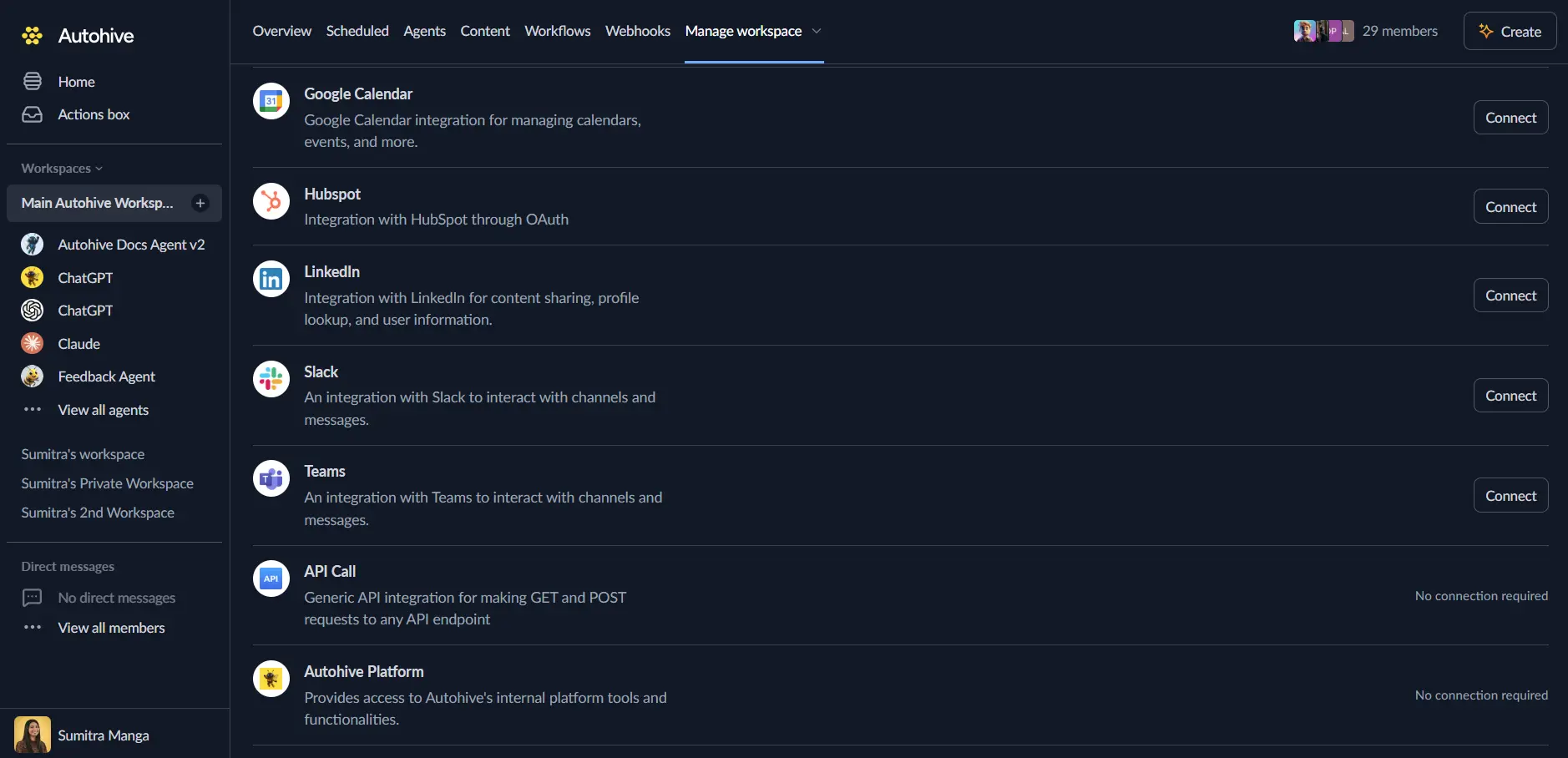
Enter your details. Paste your key into the API Key field.
Confirm installation. You return to Autohive with “Connected” status.
Use the integration
Turn on Lusha capabilities in Agent settings → Add capabilities. A capability is one action your agent can take.
- Follow our Create your first agent guide to build an agent.
- Turn on the Lusha capabilities you want your agent to use.
- Start prompting your agent with the task you want to do with Lusha.
Available capabilities
A few terms show up below:
- A credit is the unit Lusha uses to charge for searches and reveals. Credits come from your Lusha plan.
- A preview is a short record with no email or phone number. It shows what data Lusha has.
- To reveal data is to unlock a contact’s email or phone number. This is the step that costs credits.
- To enrich a record is to reveal its full details.
- To prospect is to find new people or companies that match filters you set.
- A filter narrows a prospecting search, such as department or company size.
- Waterfall is a Lusha plan feature. If Lusha has no match, it checks other data providers.
Look up known records
- Search Contacts: Find contact previews from details you already have.
- Needs 1 to 100 contacts.
- Each contact needs one of: a Lusha ID, an email, or a LinkedIn URL.
- A first name, last name, and company name or domain also works.
- Returns IDs, which data is available, and the reveal cost.
- Uses credits.
- Search Companies: Find company previews from details you already have.
- Needs 1 to 100 companies.
- Each company needs an ID, a name, or a domain.
- Uses credits.
Enrich records
- Enrich Contacts: Reveal emails and phone numbers for known contact IDs.
- Needs 1 to 100 Lusha contact IDs from an earlier search.
- Optional choice to reveal emails, phones, or both. The default is both.
- Optional switch to stop Lusha from using other data providers.
- Uses credits.
- Enrich Companies: Reveal company details for known company IDs.
- Needs 1 to 100 Lusha company IDs.
- Returns basic company facts by default.
- Optional extra fields, such as employees by department or location, competitors, open jobs, and parent company.
- Each extra field costs extra credits.
- Search and Enrich Contacts: Find contacts and reveal their details in one step.
- Needs 1 to 100 contacts, as in Search Contacts.
- Search and reveal charges both apply.
- May return less data if your plan has no Waterfall.
- Search and Enrich Companies: Find companies and reveal their details in one step.
- Needs 1 to 100 companies, as in Search Companies.
- Search and reveal charges both apply.
Prospect for new leads
- Prospect Contacts: Find one page of contacts that match your filters.
- Needs filters for contacts, companies, or both.
- Contact filters include job titles, departments, seniority, and countries.
- Optional page number and page size. The size can be 10 to 100.
- Optional limit on contacts per company.
- Returns previews and IDs. It does not reveal emails or phones.
- Uses credits.
- Prospect Companies: Find one page of companies that match your filters.
- Needs company filters.
- Company filters include names, domains, size, revenue, industry, technologies, and location.
- Optional page number and page size.
- Returns previews and IDs. It does not reveal full details.
- Uses credits.
- List Filter Types: See which filters Lusha offers.
- Needs to know if you want contact or company filters.
- Shows which filters need a search word.
- Get Filter Values: See the values Lusha accepts for one filter.
- Needs the filter type and whether it is for contacts or companies.
- Needs a search word of 2 to 256 characters for locations, company names, and technologies.
Account and jobs
- Get Account Usage: See your credit balance and plan.
- Needs nothing.
- Returns rate limits and the credit price of each action.
- Lusha allows five of these requests per minute.
- Get Contact Enrichment Job: Check a delayed Waterfall result.
- Needs the job ID from Enrich Contacts.
- Checks once. Wait the time Lusha gives you before you check again.
- Does not use credits.
Key features
Find first, reveal second
- Search and prospect actions return previews.
- Pick the best matches, then enrich only those IDs.
- This keeps your credit spend low.
Batches
- Search and enrich actions take up to 100 records at once.
- For search and search-and-enrich actions, add your own reference ID to each input record to match results later. For standalone enrich actions, match results by Lusha ID.
- One failed record does not fail the whole batch. Check each result.
Filter discovery
- List Filter Types shows what you can filter on.
- Get Filter Values shows the exact values Lusha accepts.
- Use both before you run a prospecting search.
Credit-aware
- Each response includes the total credits Lusha charged for the request.
- Get Account Usage shows your balance and the price of each action.
- Credits are Lusha credits, not dollars.
Clear errors
- Errors say what went wrong, such as a bad key, not enough credits, or a rate limit.
- Autohive does not retry search, enrich, or prospect requests that use credits.
- If a request times out, check your Lusha usage before you try again.
Common use cases
Prospecting
- Find sales contacts at companies with 51 to 500 people.
- List the filter values for a country, then search with them.
- Review the previews, then enrich only the best contacts.
Contact enrichment
- Find a work email from a name and company domain.
- Enrich a list of LinkedIn URLs with emails and phones.
- Fill in missing details on contacts in a spreadsheet.
Company research
- Look up a company by domain and reveal its size and industry.
- Reveal the technologies a company uses, or its open jobs.
- Build a list of companies that match your target market.
Credit tracking
- Check your credit balance before a large batch.
- Compare the cost of each action on your plan.
Notes
- You need your own Lusha account. Lusha charges its credits to your account. Autohive does not include them in its own usage costs.
- Your plan sets what works. Some options, such as Waterfall and the do-not-contact filter, depend on your Lusha plan. Lusha returns an error if your plan does not include them.
- Some contacts are restricted. Lusha may block a single contact for compliance reasons. The rest of the batch still returns.
- Missing data is normal. A successful request does not mean every email or phone was found.
- Prospecting returns one page. Check the page and total in the result to decide if you need another page.
- Totals can be estimates. If Lusha does not guarantee the total, treat it as approximate.
- Waterfall results can be delayed. If Enrich Contacts returns a job, use Get Contact Enrichment Job to collect the rest later.
- Rate limits apply. Lusha allows 25 requests per second for the account. Your own hourly and daily limits also apply.
- Not covered yet. Tables, webhook management, recommendations, conversations, lookalikes, signals, and older Lusha v2 endpoints are not included.
Disconnect the integration
Important: Disconnecting removes Autohive’s access to Lusha through this connection.
- Go to Your user profile > Connections or Your workspace → Integrations.
- Find the Lusha integration.
- Click Disconnect and confirm.
Data Impact: Disconnecting does not change any data in Lusha. Delete the API key in the Lusha API dashboard if you no longer want it to work.