On this page
Lumin PDF
The Autohive Lumin PDF integration connects your Lumin account with Autohive’s automation platform, enabling:
- Signature requests - Send signature requests directly from a PDF URL or a saved template, and track their status
- Embedded signing - Generate embedded signing links for in-app signing flows
- Signer follow-up - Send reminders to pending signers automatically
- Document retrieval - Download signed documents, certificates of completion, and merged files
- Document and template management - Upload documents, generate filled PDFs from templates, and manage workspace templates and members
- Agreements - Create and download agreements from lumin-type templates
Install the integration
This integration uses API Key authentication.
Sign up for a Lumin account at luminpdf.com if you don’t already have one
Navigate to your account’s Developer settings
Generate an API Key
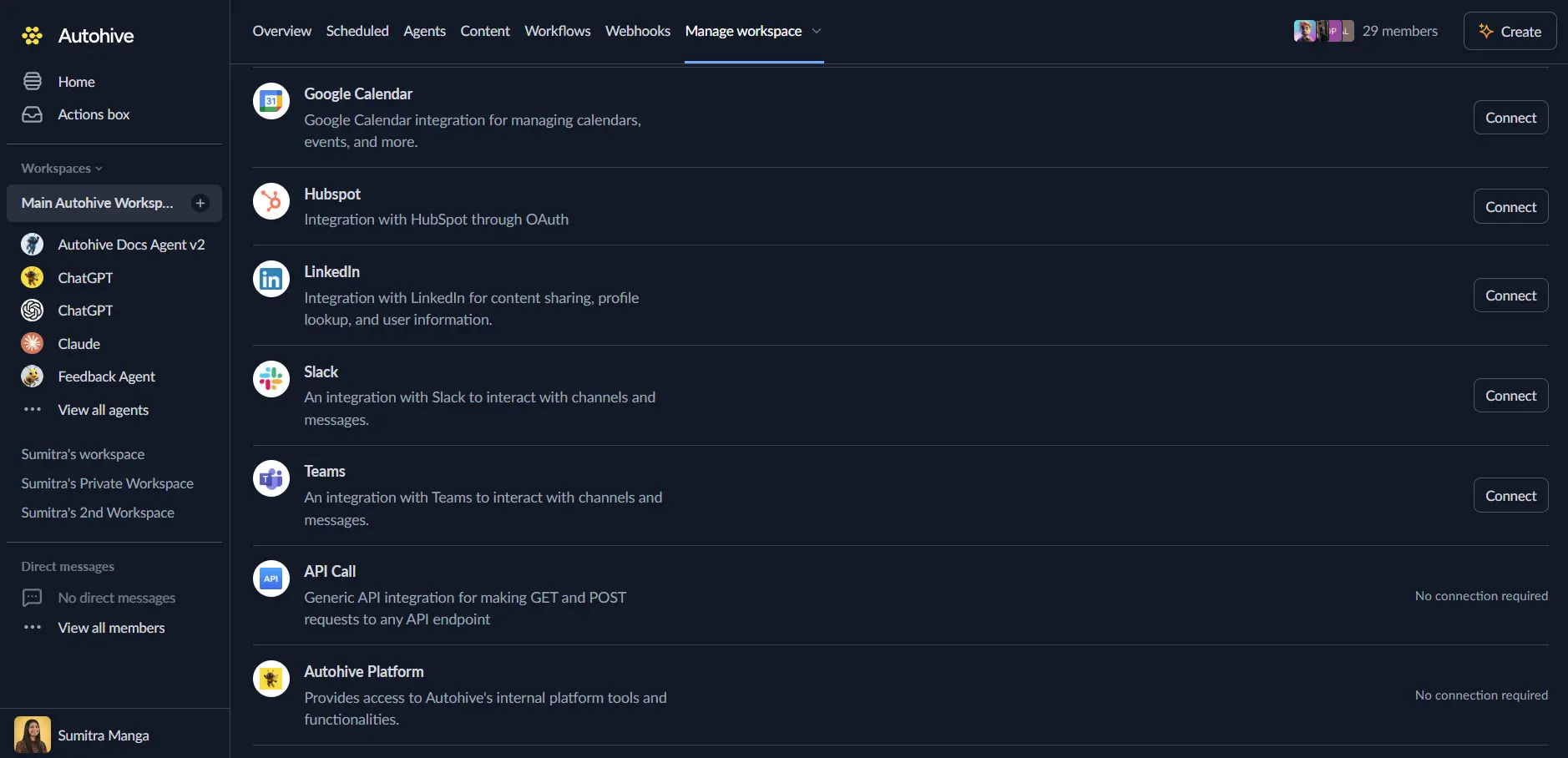
Log in to Autohive and navigate to Your user profile > Connections or Your workspace → Manage workspace
Locate the Lumin PDF Integration card and click Connect
Enter your API Key
Confirm installation
Use the integration
You can now use the integration with your agents, workflows, and scheduled tasks!
- Follow our Create your first agent guide on how to create an agent.
- In the Agent settings, scroll down to the Add capabilities section and turn on the Lumin PDF capability. You can choose which individual Lumin PDF capabilities to turn on and off.
- Once the settings have been selected, begin prompting the agent with the workflow you’d like to achieve with Autohive and Lumin PDF!
Responses could contain inaccurate responses. Especially if your agent’s Model configuration - Temperature is set high.
Available capabilities
Account & workspace
- Get Current User - Get information about the currently authenticated Lumin user
- Get Workspace - Get information about the current workspace
- List Workspace Members - List all members in the current workspace
Templates
- List Templates - List all templates in the workspace, returning both
pdf-type (uploaded PDFs) andlumin-type (built in the template builder) templates - Get Template - Get full details of a specific template, including its signer roles and field definitions
Signature requests
- Send Signature Request - Send a signature request with one or more PDF documents to specified signers
- Send From Template - Send a signature request using a saved lumin-type template with signer roles mapped to email addresses
- Get Signature Request - Retrieve details and current status of a signature request
- Update Signature Request - Extend the expiry date of a pending signature request
- Cancel Signature Request - Cancel a pending signature request (cannot be undone)
- Generate Signing Link - Generate an embedded signing URL for a specific signer, for in-app or custom signing flows
- Send Reminder - Send a reminder email to pending signers, either specific signers or all who haven’t signed
- Download Signed Document - Get a download URL for a completed signed document, certificate of completion, or merged file
Documents & agreements
- Upload Document - Upload a document to Lumin from a URL or create one from a template (PDF, DOCX, XLSX, PPTX, PNG, JPEG)
- Generate Document From Template - Generate a filled PDF from a template with custom field, tag, and variable values
- Create Agreement - Create an agreement from a lumin-type template
- Download Agreement - Get a download URL for an agreement file
Key features
Two ways to send for signature
- Send a signature request directly from one or more PDF URLs (Send Signature Request) for ad-hoc documents
- Send from a saved lumin-type template with predefined signer roles (Send From Template) for repeatable workflows — use Get Template first to discover the required roles
Full signature lifecycle visibility
- Track a signature request’s status and signer progress with Get Signature Request
- Automatically remind pending signers, or target specific signers by email
- Download the signed agreement, a certificate of completion, or a merged file once complete
Template-driven document generation
- Generate filled PDFs or full agreements from templates using tag, field, and variable values
- Templates created in Lumin’s template builder (
lumin-type) support signer roles and dynamic fields; uploaded PDFs (pdf-type) do not
Common use cases
Contract and agreement signing
- Send contracts, agreements, or offer letters for signature directly from a document URL
- Track signing progress and automatically remind signers who haven’t completed the request
- Download the completed, signed document once all parties have signed
Repeatable signature workflows
- Build a lumin-type template once with signer roles and fields
- Send from that template repeatedly, mapping new signers to the same roles each time
- Pre-fill tags, fields, and variables so each generated document is tailored to the recipient
In-app signing experiences
- Generate an embedded signing link for a specific signer to embed directly in your own application or workflow, rather than relying on email-based signing
Document generation without signing
- Use Generate Document From Template to produce filled PDFs (e.g. invoices, reports, or contracts) from a template without initiating a signature workflow
Disconnect the integration
- Navigate to Your user profile → Connections or Your workspace → Manage workspace
- Find the Lumin PDF Integration
- Click Disconnect and confirm
Data Impact: Existing data in your Lumin account remains completely unchanged. Disconnecting only removes Autohive’s API access.
Notes
- File size limits: 20 MB on free plans, 200 MB on paid plans.
- Pagination: List endpoints only accept a
limitof10,25, or50— other values are rounded to the nearest accepted value. - Template types matter:
send_from_templateandcreate_agreementonly work with lumin-type templates (built in Lumin’s template builder), not uploaded PDFs. Check thetypefield inlist_templatesoutput if these actions return a “template not found” error. - Signing links: Only available once a signature request reaches
NEED_TO_SIGNstatus. If a signing link comes back empty, wait a few seconds and check the request’s status first.