On this page
Klaviyo
The Autohive Klaviyo integration connects your Klaviyo account with Autohive’s automation platform, enabling:
- Profile management - create, update, and list customer profiles, and manage marketing subscriptions
- Campaign management - list, view, and create email campaigns, and assign templates to campaign messages
- Lists and segments - list and inspect your audience lists and segments
- Flows and events - list flows, and list and query events and metrics
- Reporting - pull campaign and flow performance reports
- Templates - create, view, and list email templates
- Reviews - retrieve product and store reviews
Install the integration
Log in to Autohive and navigate to Your user profile > Connections or Your workspace -> Manage workspace
Locate the Klaviyo Integration card and click Connect
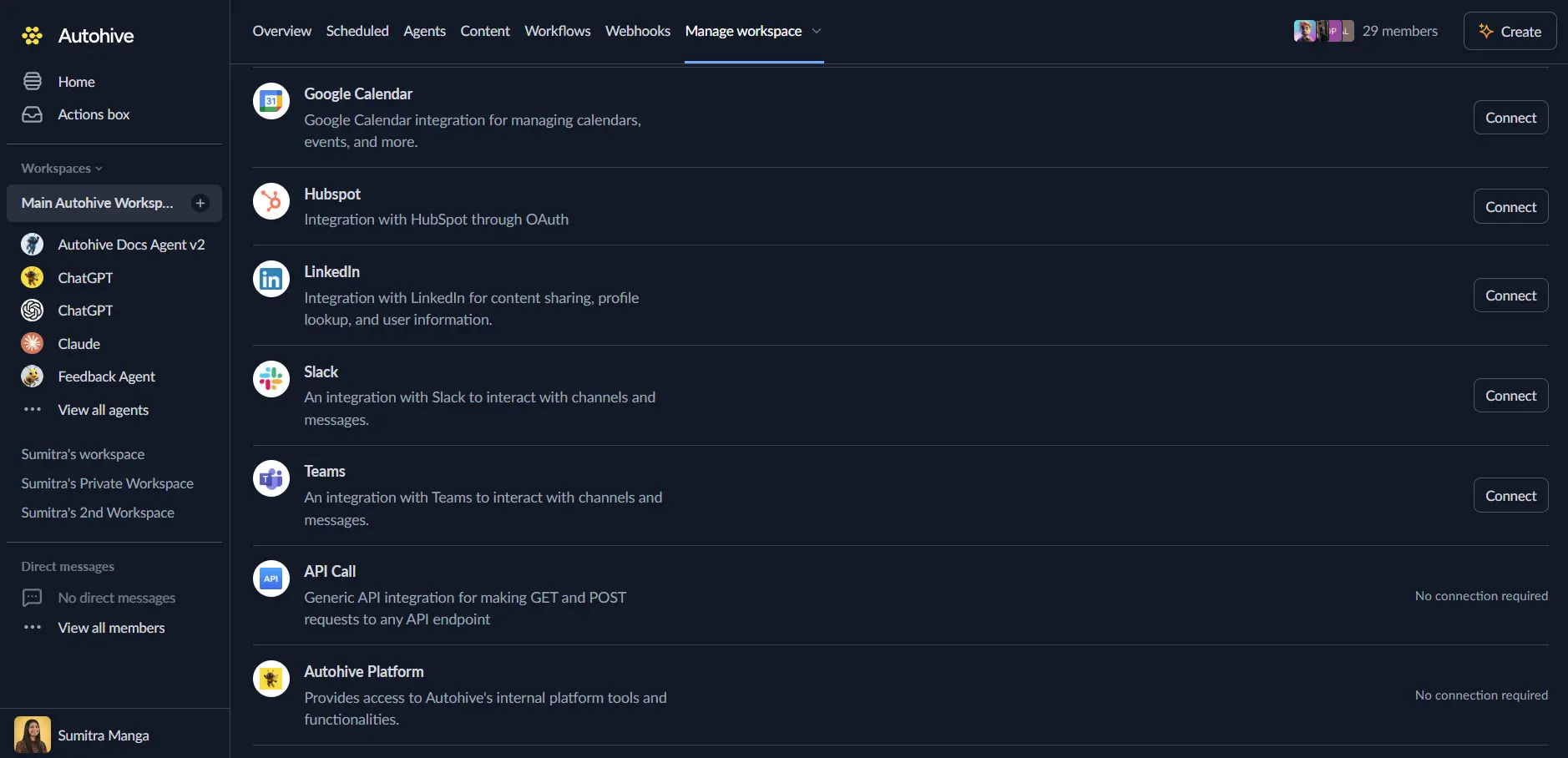
Authenticate with Klaviyo when prompted, and authorize the requested permissions
Confirm installation
Use the integration
You can now use the integration with your agents, workflows and scheduled tasks!
- Follow our Create your first agent guide on how to create an agent.
- In the ‘Agent settings’, scroll down to the ‘Add capabilities’ section and turn on the Klaviyo capability. You can choose what individual Klaviyo capabilities to turn on and off.
- Once the settings have been selected, begin prompting the agent with the workflow you’d like to achieve with Autohive and Klaviyo!
Responses could be inaccurate, especially if your agent’s Temperature setting is high.
Available capabilities
Accounts
- Get Account Details: Retrieve details of your Klaviyo account
Campaigns
- Get Campaigns: List your campaigns
- Get Campaign: Get details of a campaign
- Create Campaign: Create a campaign
- Assign Template to Campaign Message: Assign an email template to a campaign message
- Get Campaign Report: Get a report of your campaign performance
Catalogs
- Get Catalog Items: List your catalog items
Events and metrics
- Get Events: List events
- Get Metrics: List event metrics
- Get Metric: Get details of an event metric
- Query Metric Aggregates: Query and aggregate event data associated with a metric
Flows
- Get Flows: List your flows
- Get Flow: Get details of a flow
- Get Flow Report: Get a report of your flow performance
Lists and segments
- Get Lists: List your lists
- Get List: Get details of a list
- Get Segments: List your segments
- Get Segment: Get details of a segment
Images
- Upload Image from URL: Upload an image from a URL
Profiles
- Get Profiles: List your profiles
- Get Profile: Get details of a profile
- Create Profile: Create a profile
- Update Profile: Update a profile
- Subscribe Profile to Marketing: Subscribe a profile to marketing for a given channel and list
- Unsubscribe Profile from Marketing: Unsubscribe a profile from marketing for a given channel and list
Reviews
- Get Reviews: List product and store reviews
- Get Review: Get details of a review
Templates
- Create Email Template: Create an HTML email template
- Get Email Template: Get the details of an email template
- List Email Templates: List your email templates
Key features
Broad marketing coverage
- Manage profiles, lists, and segments in one place
- Create and configure campaigns and assign templates to them
- Inspect flow structure and performance without leaving your workflow
Reporting built in
- Pull campaign and flow performance reports directly into an agent’s context
- Query and aggregate raw event data against any metric
Template tooling
- Create and retrieve HTML email templates
- Assign templates to campaign messages for a streamlined campaign workflow
Common use cases
Campaign operations
- Draft and create campaigns from a brief, then assign the right template
- Pull a campaign or flow report and have an agent summarize performance
- Check which templates exist before creating a duplicate
Audience management
- Create or update profiles as new customers or leads arrive from other systems
- Subscribe or unsubscribe profiles to marketing lists based on activity elsewhere
- List segments and lists to route audiences correctly in a workflow
Event-driven automation
- Query metric aggregates to spot trends before they show up in a dashboard report
Notes
- Klaviyo’s remote MCP server requires an Owner, Admin, or Manager role on the connected Klaviyo account for full access.
- Some write actions may create user-generated content (such as profile or event data); treat content from these capabilities as untrusted input.
Disconnect the integration
Important: Disconnecting stops API access but preserves existing data in both systems.
- Navigate to Your user profile -> Connections or Your workspace -> Manage workspace
- Find the Klaviyo Integration
- Click Disconnect and confirm
Data Impact: Existing data remains unchanged in both systems, but sync stops and Autohive loses Klaviyo API access.