Karakeep
The Autohive Karakeep integration connects your Karakeep instance (Karakeep Cloud or self-hosted) with Autohive’s automation platform, enabling:
- Bookmark creation - save links, text notes, or previously uploaded assets (images/PDFs) as bookmarks
- Tag management - create tags, attach tags to bookmarks by name or ID, and list tags with usage counts
- Bookmark search - full-text, semantic, or hybrid search across your saved bookmarks
- Bookmark browsing - list bookmarks (optionally filtered by archived/favourited status) or by tag, and retrieve a single bookmark by ID
Install the integration
Karakeep uses a Base URL + API Key for authentication.
Sign in to your Karakeep instance - either Karakeep Cloud or your self-hosted deployment
Navigate to Settings → API Keys
Generate an API key and grant it the scopes you need (bookmarks read/write, tags read/write) - admin scopes are not required. Since Karakeep 0.32, API keys carry granular per-resource scopes; an action will return an error if the key lacks the scope it needs
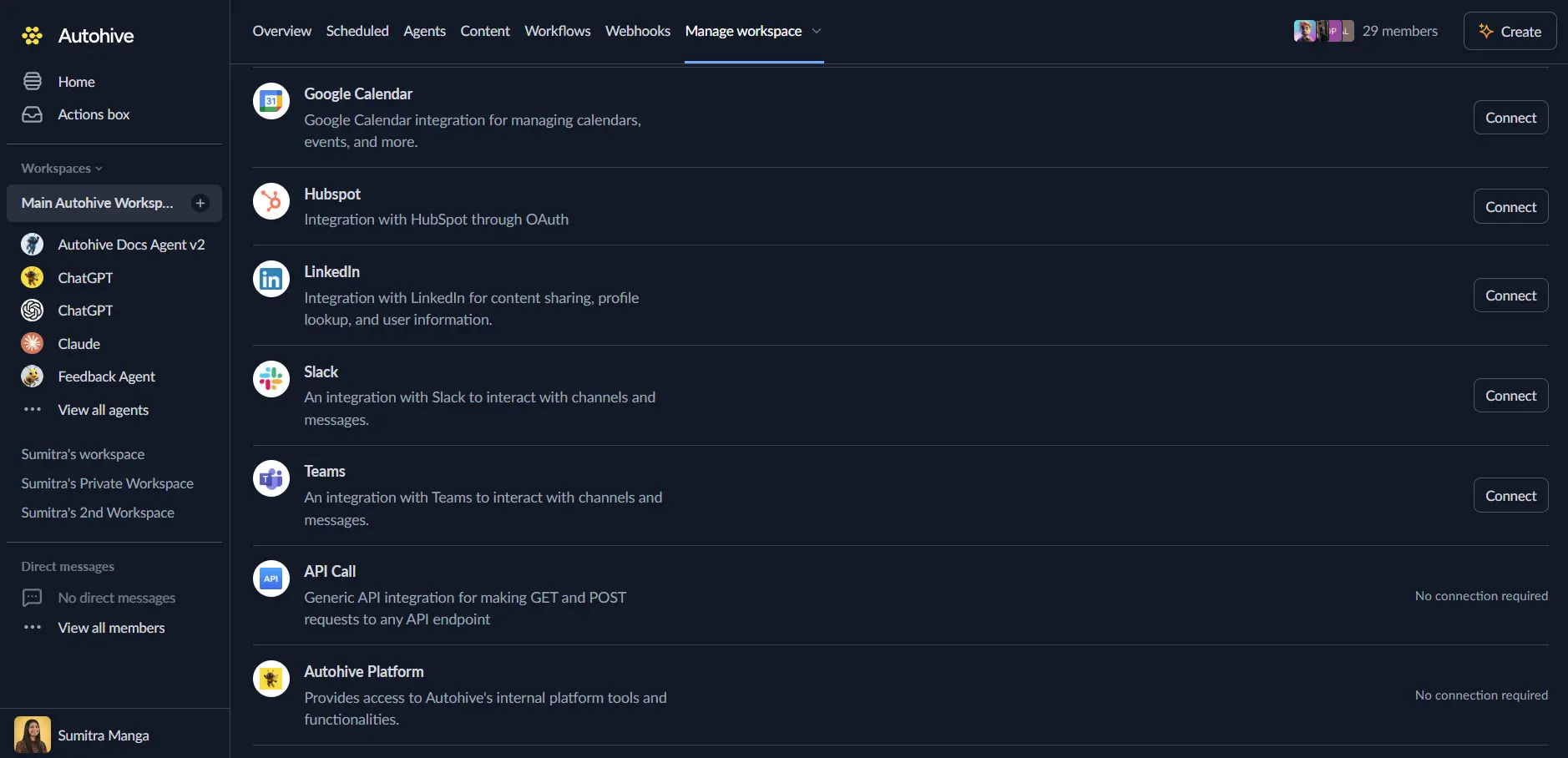
Log in to Autohive and navigate to Your user profile → Connections or Your workspace → Manage workspace
Locate the Karakeep Integration card and click Connect
Enter your instance’s Base URL:
- Karakeep Cloud:
https://cloud.karakeep.app - Self-hosted: your HTTPS URL, for example
https://karakeep.example.com(no trailing slash or/api/v1)
- Karakeep Cloud:
Paste your API Key
Confirm installation
Use the integration
You can now use the integration with your agents, workflows, and scheduled tasks!
- Follow our Create your first agent guide on how to create an agent.
- In the Agent settings, scroll down to the Add integrations and agents section and add the Karakeep integration. You can choose which individual Karakeep actions to turn on and off.
- Once the settings have been selected, begin prompting the agent with the workflow you’d like to achieve with Autohive and Karakeep!
Available capabilities
Bookmarks
- Create Bookmark - Save a bookmark of type link (URL), text (note), or asset (image/PDF); duplicate URLs return the existing bookmark with
already_existedset to true - Get Bookmark - Retrieve a bookmark by ID
- List Bookmarks - List bookmarks, optionally filtered by archived or favourited status
- Search Bookmarks - Full-text, semantic, or hybrid search across bookmarks
- Get Bookmarks With Tag - List bookmarks that have a given tag
Tags
- Attach Tags to Bookmark - Attach one or more tags to a bookmark by name or existing tag ID; tags that don’t exist yet are created automatically when attached by name
- Create Tag - Create a tag by name
- List Tags - List tags, optionally filtered by name and sorted by name, usage, or relevance
Key features
Works with Cloud or self-hosted
The same integration connects to Karakeep Cloud or a self-hosted instance - just point the Base URL at your instance and everything else works identically.
Automatic deduplication for link bookmarks
Saving a link that’s already bookmarked returns the existing bookmark (with already_existed: true) instead of creating a duplicate.
Flexible tagging
Tags can be attached by name (auto-created if missing) or by existing tag ID, and you can track whether a tag was attached by a human or by AI.
Multiple search strategies
Search bookmarks using full-text search, semantic (embedding-based) search, or a hybrid of both, with adjustable sort order.
Common use cases
Read-it-later automation
- Create Bookmark whenever an agent finds a link worth revisiting
- Attach Tags to Bookmark to categorize it (e.g. “research”, “to-read”)
- List Bookmarks filtered by
favouritedorarchivedstatus to review a reading queue
Research capture and retrieval
- Create Bookmark with type
textto save notes or excerpts - Search Bookmarks using semantic or hybrid search to resurface related saved content later
- Get Bookmarks With Tag to pull everything saved under a topic tag
Content curation
- List Tags sorted by usage to see your most common topics
- Create Tag for new categories as they emerge
- Attach Tags to Bookmark to keep a growing bookmark collection organized
Disconnect the integration
- Navigate to Your user profile → Connections or Your workspace → Manage workspace
- Find the Karakeep Integration
- Click Disconnect and confirm
Data Impact: Existing data in your Karakeep account remains completely unchanged. Disconnecting only removes Autohive’s API access.
Notes
- HTTPS required: this integration only accepts
https://base URLs. Karakeep does not terminate TLS itself, so a self-hosted instance needs a reverse proxy or tunnel providing HTTPS in front of it. - API key scopes: since Karakeep 0.32, API keys carry granular per-resource scopes. If a key lacks the scope an action needs (e.g. tags write), that action returns an error.
- Asset bookmarks: creating a bookmark of type
assetrequires anasset_idfrom a file already uploaded to Karakeep (POST /assets) - this integration does not upload files itself. - Base URL should not include a trailing slash or
/api/v1.