Jira
The Autohive Jira integration connects your Jira Cloud projects with Autohive’s automation platform, enabling:
- Full issue lifecycle management - Create, retrieve, update, delete, search, transition, and bulk-create issues across all your Jira projects
- Project discovery - List and inspect projects, components, versions, issue types, priorities, statuses, and status categories
- Sprint and board operations - Access boards, sprints, backlog and board issues, and move issues between sprints
- Comments and worklogs - Add, update, retrieve, and delete comments; log and retrieve work against issues
- Issue relationships - Link issues together, look up link types, and manage watchers
- User and metadata lookup - Search for Jira users, look up custom fields, project roles, and full issue changelogs
- Dashboards - List, search, and inspect dashboards and their gadgets
Install the integration
Jira uses OAuth 2.0 for authentication. Autohive will redirect you to Atlassian to authorise access — no API keys or tokens required.
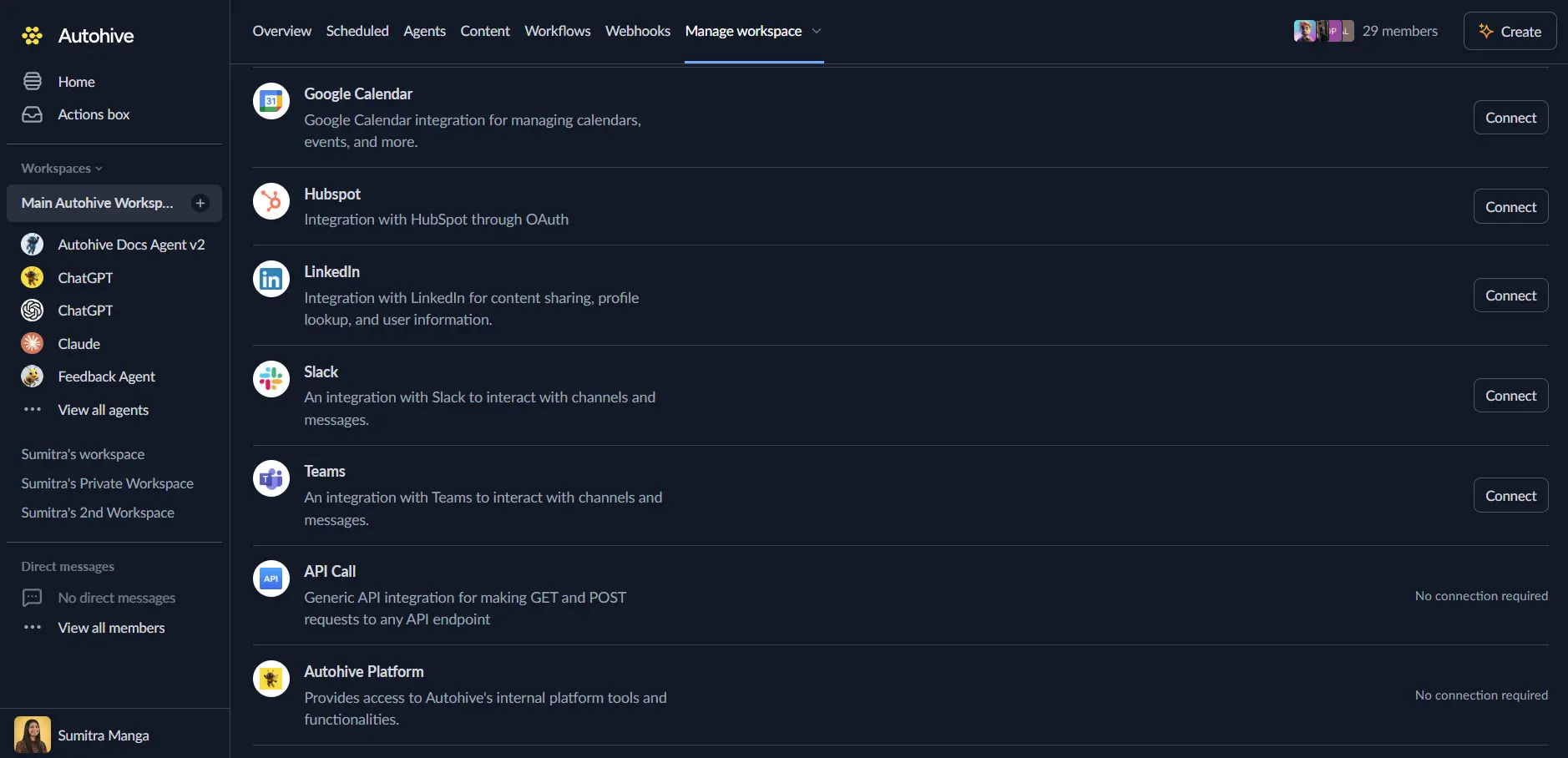
Log in to Autohive and navigate to Your user profile > Connections or Your workspace → Manage workspace
Locate the Jira Integration card and click Connect
You’ll be redirected to Atlassian — log in with your Atlassian account if prompted
Select the Jira site you want to connect and click Accept to grant Autohive the required permissions
You’ll be redirected back to Autohive with the integration showing as “Connected”
Use the integration
You can now use the integration with your agents, workflows, and scheduled tasks!
- Follow our Create your first agent guide on how to create an agent.
- In the Agent settings, scroll down to the Add capabilities section and turn on the Jira capability. You can choose which individual Jira capabilities to turn on and off.
- Once the settings have been selected, begin prompting the agent with the workflow you’d like to achieve with Autohive and Jira!
Available capabilities
Issue operations
- Create Issue — Create a new issue with project key, summary, issue type, description, assignee, priority, labels, parent (for subtasks), and custom fields
- Bulk Create Issues — Create up to 50 issues in a single request
- Get Issue — Retrieve a full issue by key or ID, including status, priority, assignee, dates, labels, components, fix versions, subtasks, and parent
- Update Issue — Modify an existing issue’s summary, description, assignee, priority, labels, due date, fix versions, components, or custom fields
- Delete Issue — Permanently delete an issue, optionally including its subtasks
- Search Issues (JQL) — Run a JQL query with pagination via a next-page token
- Assign Issue — Assign or unassign an issue, or set it to the project default assignee
- Get Issue Transitions — List available workflow transitions for an issue
- Transition Issue — Move an issue to a new status, with an optional comment and resolution
- Get Issue Changelog — Get the full field-by-field change history for an issue
Comments
- Add Comment — Post a comment to an issue, with optional role/group visibility restrictions
- Get Comments — List comments on an issue with pagination
- Update Comment — Update the text of an existing comment
- Delete Comment — Permanently delete a comment
Projects
- List Projects — List all accessible projects, filterable by type and name
- Get Project — Get full project details including issue types, components, and versions
- Get Project Components — List all components for a project
- Get Project Versions — List all versions/releases for a project
- Create Project Version — Create a new version/release for a project
- Get Project Roles — List all role names for a project (e.g. Developer, Administrator)
Sprints & boards
- List Boards — List all boards, filterable by type (Scrum/Kanban) or project
- Get Sprints — List sprints for a board, filterable by state (active, future, closed)
- Create Sprint — Create a new sprint on a Scrum board
- Update Sprint — Update a sprint’s name, dates, goal, or state (start or close it)
- Get Sprint Issues — Get issues assigned to a sprint, with an optional additional JQL filter
- Get Board Issues — Get all issues on a board across all sprints
- Get Backlog Issues — Get all issues in the backlog (not assigned to any sprint)
- Move Issues to Sprint — Move one or more issues into a target sprint
Worklogs
- Add Worklog — Log time spent on an issue, with optional estimate adjustment
- Get Worklogs — Retrieve all work log entries for an issue
Issue links & watchers
- Link Issues — Create a directional link between two issues (e.g. Blocks, Relates)
- Get Issue Link Types — List all available link type names and directions
- Add Watcher — Add a user as a watcher on an issue
- Get Watchers — List all watchers on an issue
Users
- Get Current User — Get the profile of the authenticated user
- Get User — Get a user’s profile by account ID
- Search Users — Search users by name or email to get account IDs for assignment or watching
Metadata
- Get Issue Types — List all issue types; when a project is specified, includes their available statuses
- Get Priorities — List all priority values (e.g. Highest, High, Medium, Low, Lowest)
- Get Fields — List all available fields, with an option to show only custom fields and their IDs
- Get Status Categories — List the three status categories: To Do, In Progress, Done
Dashboards
- List Dashboards — List dashboards accessible to the authenticated user, filterable to owned or favourited
- Get Dashboard — Get full details of a specific dashboard
- Search Dashboards — Search dashboards by name, owner, or group
- Get Dashboard Gadgets — List all gadgets on a specific dashboard
Key features
Powerful JQL search
- Run any valid JQL (Jira Query Language) expression to find exactly the issues you need
- Filter by project, status, assignee, sprint, label, component, fix version, and custom fields
- Combine conditions with
AND,OR, andNOToperators for precise targeting - Paginate through large result sets using a next-page token
Full issue lifecycle management
- Create issues of any type (Bug, Story, Task, Epic, Sub-task) with standard and custom fields, individually or in bulk (up to 50 at once)
- Update any editable field on an issue without touching other fields
- Transition issues through your workflow using the same statuses your team has configured
- Review an issue’s complete field-by-field changelog
Sprint & agile board awareness
- Query active, future, or closed sprints, and move issues between sprints or into the backlog
- Create and manage sprints directly, including starting and closing them
- Retrieve all issues on a board or in the backlog for planning and reporting
Issue relationships and tracking
- Link related issues together (e.g. “blocks”, “relates to”) and look up available link types
- Add and list watchers to keep the right people informed of issue activity
- Log work against issues and retrieve worklogs for time-tracking reports
Custom field and metadata discovery
- Discover custom field IDs with Get Fields before using them in create/update operations
- Look up project roles and status categories to build workflow-aware automations
Common use cases
Automated bug reporting
- Automatically create Jira bugs from monitoring alerts, error tracking tools (e.g. Raygun, Sentry), or customer support tickets
- Populate issues with full context: stack traces, environment details, affected user counts, and severity
- Assign and label issues based on predefined rules or AI classification
Sprint planning and reporting
- Generate weekly sprint summary reports by querying sprint or board issues and formatting results with AI
- Move issues into a new sprint and start it, or move unfinished issues back to the backlog at sprint close
- Identify unresolved blockers or overdue issues and surface them in Slack or email
Cross-system workflow sync
- Sync issue status changes between Jira and other tools (GitHub, Linear, Asana, Monday)
- When a pull request merges, automatically transition the linked Jira issue to “Done”
- Mirror customer-facing support tickets into Jira as internal bugs or tasks
AI-powered issue triage
- Let an Autohive agent review incoming issues, classify their type and priority, and update fields accordingly
- Auto-assign issues to the right team member based on component, label, or description content
- Summarise long issue threads, comments, and changelogs into concise action items
Release and deployment tracking
- Query all issues fixed in a version to auto-generate release notes
- Create a new version/release and transition associated issues once a deployment succeeds
- Log time spent on release-related work for accurate reporting
Reporting dashboards
- List and inspect dashboards and their gadgets to understand what’s already being tracked
- Search dashboards by owner or team to route stakeholders to the right view
Disconnect the integration
- Navigate to Your user profile → Connections or Your workspace → Manage workspace
- Find the Jira Integration
- Click Disconnect and confirm
Data Impact: Existing data in your Jira projects remains completely unchanged. Disconnecting only removes Autohive’s API access.
Notes
- JQL queries follow standard Jira Query Language syntax. Refer to Atlassian’s JQL documentation for the full reference.
- Transitions are project- and issue-type-specific. Use Get Issue Transitions to discover valid transition IDs before attempting to move an issue.
- Custom fields can be included in create/update operations using their
customfield_XXXXXidentifier. Use Get Fields with the custom-only option to discover these IDs. - Autohive supports Jira Cloud (atlassian.net). Jira Server and Jira Data Center are not currently supported.
- Multiple Jira sites: if your Atlassian account has access to more than one Jira site, the integration pins to a single Cloud ID discovered from your OAuth token at connection time.