Jira
The Autohive Jira integration connects your Jira projects with Autohive’s automation platform, enabling:
- Issue management - Create, update, transition, and search issues across all your Jira projects
- Project discovery - List and inspect projects, issue types, priorities, and statuses
- Sprint and board operations - Access active sprints, board configurations, and sprint-level issue lists
- Comment and activity - Add and retrieve comments to keep issue discussions in sync with automated workflows
- Attachment handling - Fetch attachment metadata linked to issues
- User and assignee lookup - Search for Jira users to assign issues or filter by reporter/assignee
- Workflow transitions - Move issues through your configured workflow statuses programmatically
Install the integration
Jira uses OAuth 2.0 for authentication. Autohive will redirect you to Atlassian to authorise access — no API keys or tokens required.
Log in to Autohive and navigate to Your user profile > Connections or Your workspace → Manage workspace
Locate the Jira Integration card and click Connect
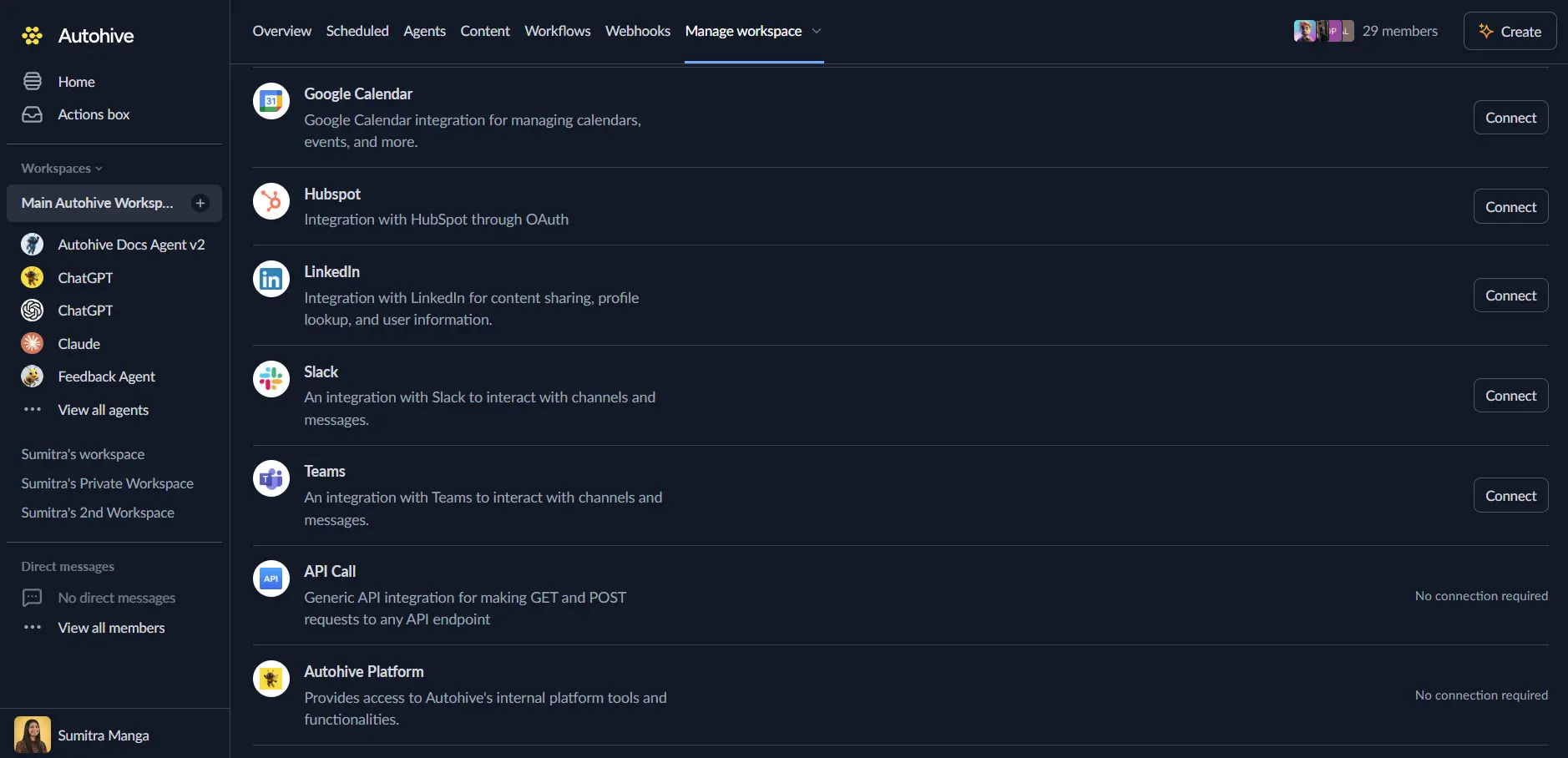
You’ll be redirected to Atlassian — log in with your Atlassian account if prompted
Select the Jira site you want to connect and click Accept to grant Autohive the required permissions
You’ll be redirected back to Autohive with the integration showing as “Connected”
Use the integration
You can now use the integration with your agents, workflows, and scheduled tasks!
- Follow our Create your first agent guide on how to create an agent.
- In the Agent settings, scroll down to the Add capabilities section and turn on the Jira capability. You can choose which individual Jira capabilities to turn on and off.
- Once the settings have been selected, begin prompting the agent with the workflow you’d like to achieve with Autohive and Jira!
Available capabilities
Issue Operations
- Get Issue — Retrieve a full issue by key (e.g.
PROJ-123), including summary, description, status, assignee, priority, and custom fields - Create Issue — Create a new issue with project, issue type, summary, description, priority, assignee, labels, and due date
- Update Issue — Modify an existing issue’s fields including summary, description, assignee, priority, and labels
- Delete Issue — Permanently delete an issue by key
- Search Issues (JQL) — Run a JQL query to find issues matching any combination of project, status, assignee, label, date range, and more
- Transition Issue — Move an issue to a new workflow status (e.g. “In Progress”, “Done”) using available transitions
Comments
- Get Comments — Retrieve all comments on an issue with author and timestamp information
- Add Comment — Post a new comment to an issue, supporting plain text and Atlassian Document Format (ADF) content
Projects
- List Projects — Retrieve all Jira projects accessible to your account
- Get Project — Fetch metadata for a specific project including key, name, lead, and issue types
- Get Issue Types — List all available issue types for a given project (e.g. Bug, Story, Task, Epic)
- Get Project Statuses — List all workflow statuses configured for a project’s issue types
Sprints & Boards
- List Boards — Retrieve all Scrum and Kanban boards your account has access to
- Get Board — Fetch details about a specific board including its project association and type
- List Sprints — Get all sprints for a board, filterable by state (active, closed, future)
- Get Active Sprint — Retrieve the currently active sprint for a given board
- Get Sprint Issues — List all issues assigned to a specific sprint
Users
- Search Users — Find Jira users by display name or email address for assignment or filtering purposes
- Get Current User — Retrieve the profile of the authenticated Autohive integration user
Attachments
- List Attachments — Get metadata for all attachments on a given issue, including filenames, sizes, and download URLs
Key features
Powerful JQL Search
- Run any valid JQL (Jira Query Language) expression to find exactly the issues you need
- Filter by project, status, assignee, sprint, label, component, fix version, and custom fields
- Combine conditions with
AND,OR, andNOToperators for precise targeting - Order results by any field and paginate through large result sets
Full Issue Lifecycle Management
- Create issues of any type (Bug, Story, Task, Epic, Sub-task) with all standard and custom fields
- Update any editable field on an issue without touching other fields
- Transition issues through your workflow using the same statuses your team has configured
- Delete stale or duplicate issues programmatically
Sprint & Agile Board Awareness
- Query active sprints to understand current team workload and capacity
- List all issues in a sprint to generate status reports or identify blockers
- Support for both Scrum and Kanban board types
Seamless Comment Integration
- Add comments to issues from other systems (e.g. post a Slack message as a Jira comment)
- Retrieve comment threads to summarise discussion or extract decisions in AI workflows
Common use cases
Automated Bug Reporting
- Automatically create Jira bugs from monitoring alerts, error tracking tools (e.g. Raygun, Sentry), or customer support tickets
- Populate issues with full context: stack traces, environment details, affected user counts, and severity
- Assign and label issues based on predefined rules or AI classification
Sprint Planning and Reporting
- Generate weekly sprint summary reports by querying active sprint issues and formatting results with AI
- Identify unresolved blockers or overdue issues and surface them in Slack or email
- Create sprint retrospective documents by summarising completed and incomplete issues
Cross-System Workflow Sync
- Sync issue status changes between Jira and other tools (GitHub, Linear, Asana, Monday)
- When a pull request merges, automatically transition the linked Jira issue to “Done”
- Mirror customer-facing support tickets into Jira as internal bugs or tasks
AI-Powered Issue Triage
- Let an Autohive agent review incoming issues, classify their type and priority, and update fields accordingly
- Auto-assign issues to the right team member based on component, label, or description content
- Summarise long issue threads and comments into concise action items
Release and Deployment Tracking
- Query all issues fixed in a version to auto-generate release notes
- Transition all issues in a release to “Released” status after a successful deployment
- Create post-release tracking issues for follow-up work or known limitations
Disconnect the integration
- Navigate to Your user profile → Connections or Your workspace → Manage workspace
- Find the Jira Integration
- Click Disconnect and confirm
Data Impact: Existing data in your Jira projects remains completely unchanged. Disconnecting only removes Autohive’s API access.
Notes
- JQL queries follow standard Jira Query Language syntax. Refer to Atlassian’s JQL documentation for the full reference.
- Transitions are project- and issue-type-specific. Use “Get Project Statuses” to discover valid transition names before attempting to move an issue.
- Custom fields can be included in create/update operations using their
customfield_XXXXXidentifier, which you can find in your Jira project settings. - Autohive supports Jira Cloud (atlassian.net). Jira Server and Jira Data Center are not currently supported.