The Autohive Instagram integration connects your Instagram Business or Creator account to Autohive. A capability is one task an agent can do, such as publishing a post. With Instagram connected, your agents can:
- Publish images, videos, reels, carousels, and stories
- Retrieve your posts with engagement counts
- Read, reply to, hide, and delete comments
- Pull account and post analytics
Install the integration
Log in to Autohive and navigate to Your user profile > Connections or Your workspace -> Integrations
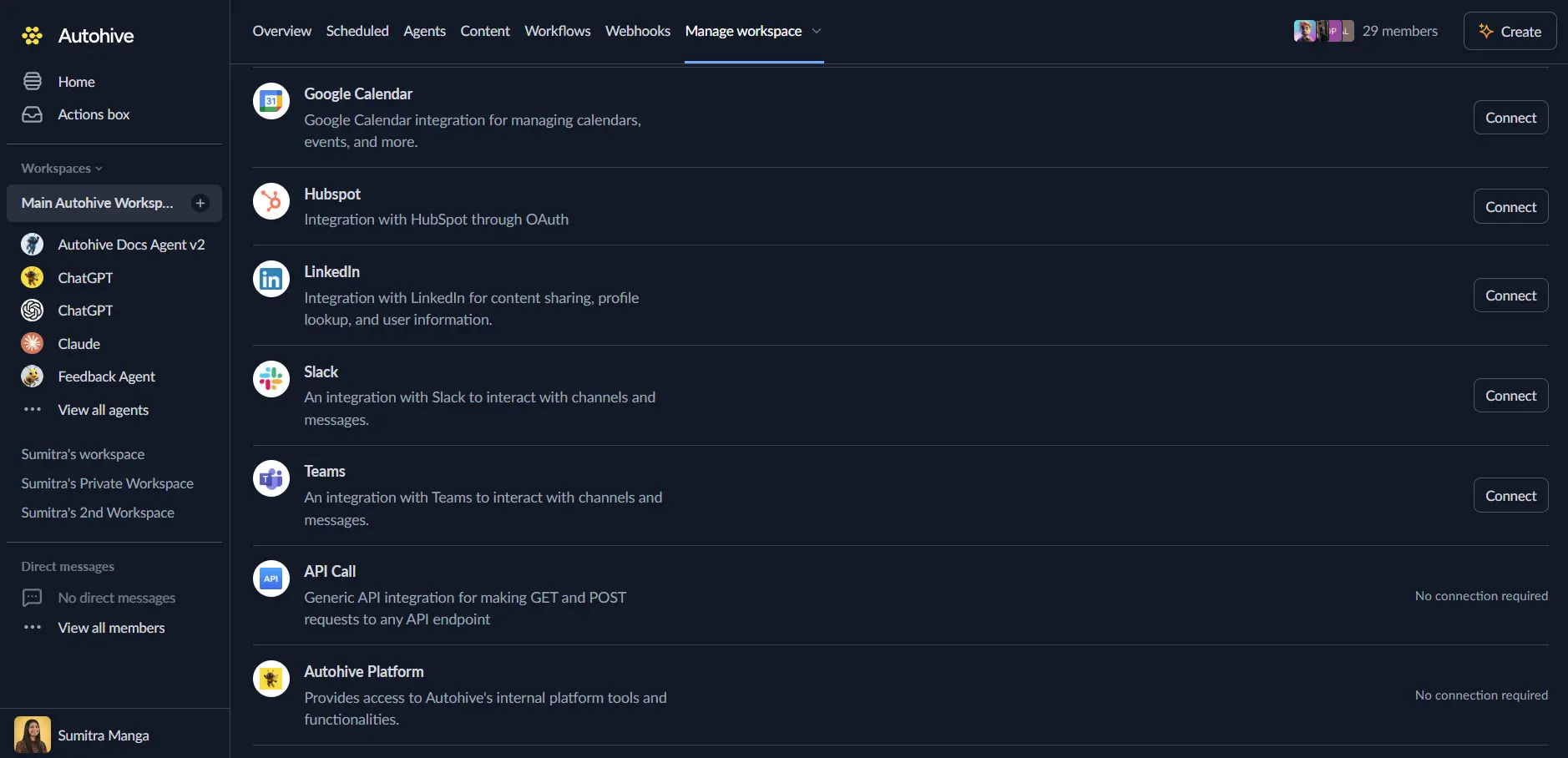
Locate the Instagram Integration card and click Connect to workspace
Log in to your Instagram account with your instagram credentials
Review and approve permissions. Autohive requests access to:
- Access your Instagram Business account profile info
- Publish content to your Instagram account
- Manage comments on your posts
- Access insights and analytics for your account and media
Confirm authentication - you’ll be redirected to Autohive with “Connected” status displayed
Use the integration
You can now use the integration with your agents, workflows and scheduled tasks!
- Follow our Create your first agent guide on how to create an agent.
- Turn on Instagram capabilities in Agent settings → Add capabilities. You can turn each Instagram capability on or off.
- Once the settings have been selected, begin prompting the agent with the workflow you’d like to achieve with Autohive and Instagram!
Available capabilities
Account information
- Get Account: Show your Instagram profile details.
- Includes username, bio, and follower and following counts.
- Includes your total number of posts.
Publishing
- Create Post and Wait: Publish a post and wait until it is live.
- Works for images, videos, reels, and carousels.
- Best for small files that process quickly.
- Add a caption, and alt text for images.
- Create Post in Background: Start a post that Instagram processes in the background.
- Works for the same post types as Create Post and Wait.
- Best for large videos and big carousels.
- Returns a publish state that tracks the post.
- Complete Post: Check a background post and publish it when ready.
- Takes the publish state from the earlier step.
- The agent keeps checking until the post is live.
- Returns the media ID and link when published.
- Create Story: Publish an image or video story.
- Stories disappear after 24 hours.
Post management
- Get Posts: Retrieve posts from your account.
- Fetch one post by its ID, or list your recent posts.
- Includes like and comment counts.
- Results come back one page at a time.
Comment moderation
- Get Comments: Read the comments on a post.
- Includes the author, time, like count, and replies.
- Results come back one page at a time.
- Manage Comment: Reply to a comment, or hide or unhide it.
- A reply needs your message text.
- Delete Comment: Permanently remove a comment.
- You cannot undo this.
Analytics
- Get Insights: Get account or post analytics.
- Account metrics: reach, impressions, profile views, and follower demographics.
- Post metrics: reach, saves, shares, and video watch time.
- Choose a period: day, week, or 28 days.
- The lifetime period works for posts only.
Key features
Content publishing
- Publish images, videos, reels, and carousels.
- Publish stories that expire after 24 hours.
- Add captions, and alt text for images.
- Mix photos and videos in one carousel.
Mixed media carousels
- A carousel holds 2 to 10 items in order.
- Each item is either an image or a video.
- Each item needs a public link to its file.
- You can also attach files in the chat. Autohive uploads them to a public link for you.
Large uploads
- Large files can take a while to process.
- Create Post in Background and Complete Post handle this without timing out.
- The agent keeps checking progress on its own.
- You do not need to send another message.
- If a post shows an unknown status, check your account before posting again.
Video posts
- A standalone video is published as a reel.
- The Video option still works. It is treated as a reel.
Comment management
- Read all comments on your posts.
- Reply to comments to engage with your community.
- Hide inappropriate comments without deleting them.
- Delete comments that break your community rules.
- View replies to each comment.
Account analytics
- Track account reach and impressions.
- Monitor profile views.
- Understand follower demographics.
- Choose daily, weekly, or 28-day periods.
Post analytics
- Measure how far a post reaches.
- Track saves and shares.
- Monitor video watch time.
- See lifetime metrics for a single post.
Limits
- Files must be on a public link to be published. Files attached in chat are uploaded for you.
- You can publish up to 100 posts in 24 hours. A carousel counts as one post.
- Stories last 24 hours. Story insights expire after 24 hours too.
- Carousels need 2 to 10 items.
Common use cases
Social media management
- Publish consistent content across your Instagram presence.
- Monitor and respond to comments across your posts.
- Track engagement metrics to improve your content plan.
- Manage your visual content library.
Community engagement
- Automatically reply to common questions on your posts.
- Hide spam or inappropriate comments while keeping the conversation.
- Monitor comment sentiment and engagement patterns.
- Build relationships through timely responses.
Content automation
- Publish content from external triggers or content systems.
- Create automated posting workflows for regular updates.
- Connect with content calendars and approval workflows.
- Coordinate Instagram content with other social platforms.
Analytics and reporting
- Track account growth with follower and reach metrics.
- Monitor post performance to find your top content.
- Generate engagement reports for stakeholders.
- Compare how images, videos, reels, and carousels perform.
Disconnect the integration
Important: Disconnecting stops data synchronization but preserves existing data in both systems.
- Navigate to Your user profile -> Connections or Your workspace -> Integrations
- Find the Instagram Integration
- Click Disconnect and confirm
Data Impact: Existing data remains unchanged in both systems, but sync stops and Autohive loses Instagram API access.