HubSpot
The Autohive HubSpot integration connects your HubSpot CRM with Autohive. It lets your agents work with your customer data.
- CRM records - Create, read, update, and search contacts, companies, deals, and tickets.
- Linked records - Find and create links between contacts, companies, deals, tickets, and activities.
- Notes and tasks - Add notes and tasks so every customer interaction has a record. Filter tasks by owner, status, or due date.
- LinkedIn messages - Log LinkedIn messages on many contacts at once, such as everyone who accepted a connection request.
- Deal pipelines - Follow deals from first contact to close, including custom properties.
- Support tickets - Read ticket conversations and add internal notes.
- Lists - Read marketing lists and add or remove contacts on manual and snapshot lists.
- Calls and meetings - Read call transcripts and meeting details linked to a contact or deal.
- Marketing - Read marketing emails and campaign results.
Install the integration
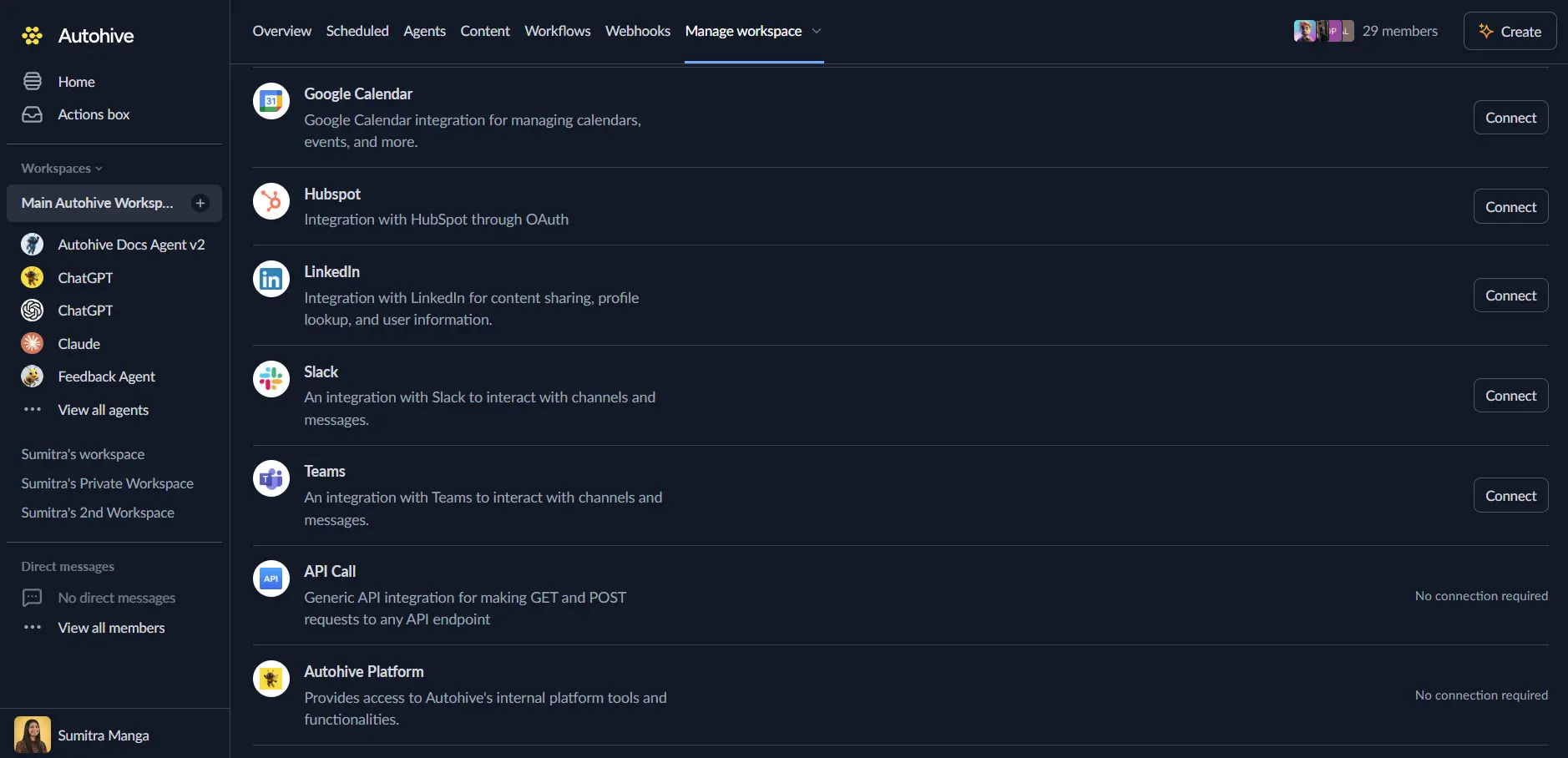
Log in to Autohive and navigate to Your user profile > Connections or Your workspace -> Manage workspace
Locate the HubSpot Integration card and click Connect
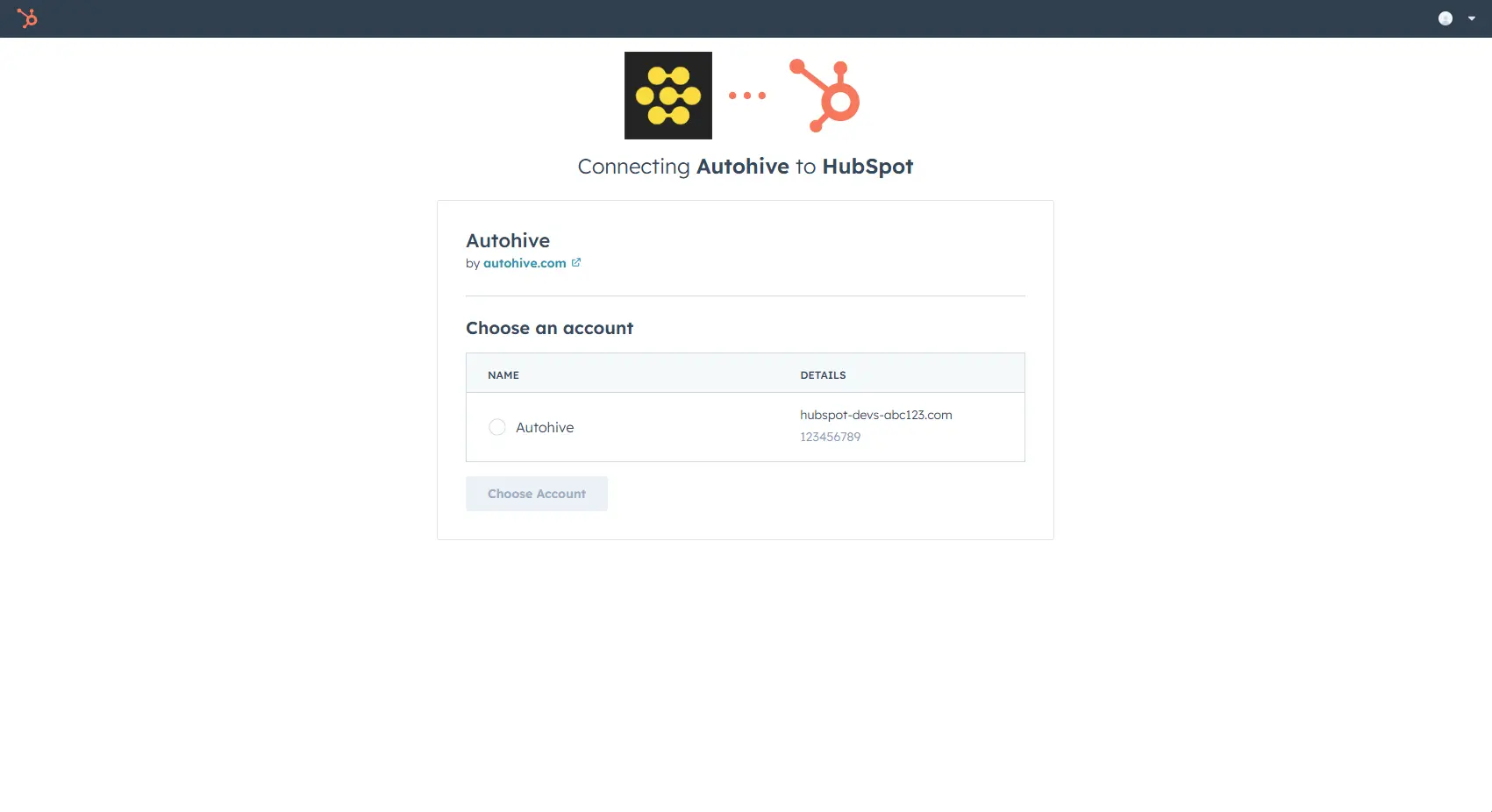
Select your HubSpot account and click Choose Account
Review and approve permissions. These permissions are called OAuth scopes. They set what Autohive can do in your HubSpot account. Autohive requests access to:
- Contacts: Read and write contact data, properties, and associations
- Companies: Read and write company data, properties, and associations
- Deals: Read and write deal data, pipelines, and custom properties
- Tickets: Read and write ticket data and manage conversations
- Notes: Create, read, update, and delete notes (engagements)
- Lists: Read list and segment data and memberships, and add or remove contacts on manual or snapshot lists
- Owners: Read owner information for assignment and filtering
- Conversations: Read and write conversation threads
- Sales Email: Read sales email engagement data
- Content: Read access to marketing emails and content
- Campaigns: Read access to marketing campaigns and performance data
- Calling Transcripts: Read access to call and meeting transcripts, including Google Meet recordings saved to HubSpot
Approve every permission so the integration works as expected.
Confirm installation - you’ll be redirected to Autohive with “Connected” status displayed
Use the integration
You can now use the integration with your agents, workflows and scheduled tasks!
- Follow our Create your first agent guide on how to create an agent.
- Turn on HubSpot capabilities in Agent settings → Add capabilities. A capability is one action an agent can take in HubSpot. You can turn each one on or off.
- Once the settings have been selected, begin prompting the agent of the workflow you’d like to achieve with Autohive and HubSpot!
Available capabilities
Contact Management
- Create Contact — Add a new contact with name, email, phone, and company.
- Create or Update Contacts — Add or update up to 100 contacts in one call.
- Autohive matches each row on email, so it never makes duplicates.
- Each email can appear only once per call.
- Set other fields by their HubSpot internal name.
- Each row reports as created, updated, or failed.
- Get Contact — Look up one contact by email address.
- Update Contact — Change details on an existing contact.
- Search Contacts — Find contacts by text, up to 100 results.
- Get Recent Contacts — List the newest contacts by creation date.
- Get Contact Notes — Read every note on a contact.
- Get Contact Emails — Read a contact’s recent emails.
- Returns up to 20 emails.
- Shows whether each email was incoming or outgoing.
- Get Contact Associations — List the records linked to a contact.
- Covers companies, deals, tickets, tasks, emails, and meetings.
- Get Contact Properties — List every contact field, including custom fields.
Company Management
- Create Company — Add a company with domain, industry, revenue, and size.
- Get Company — Read one company with its standard and custom fields.
- Update Company — Change details on an existing company.
- Search Companies — Find companies by text, with paging.
- Search Companies by Owner Name — List the companies assigned to one owner.
- Pass the owner’s first, last, or full name.
- Use the paging cursor to get more pages.
- Get Company Notes — Read every note on a company.
- Get Company Associations — List the contacts, deals, and tickets linked to a company.
- Get Company Properties — List every company field, including custom fields.
Deal Management
- Create Deal — Add a deal with amount, stage, and pipeline.
- Get Deal — Read one deal with its dates in UTC.
- Update Deal — Change a deal’s stage, amount, or custom fields.
- Search Deals — Find deals by text and filters.
- Filter by close date, amount, pipeline, or stage.
- A deal must match every filter you set.
- Use the paging cursor to get the next page.
- Or fetch several pages, up to a total you set.
- Get Deals — List deals with paging.
- Filter by pipeline and date.
- Continue from the cursor returned by the last page.
- Add a delay between requests for large data sets.
- Get Recent Deals — List recently created or changed deals.
- Get Deal Pipelines — List every pipeline and its stages.
- Get Deal Notes — Read every note on a deal.
- Get Deal Associations — List the contacts, companies, line items, and quotes on a deal.
- Get Deal Properties — List every deal field, including custom fields.
LinkedIn Messages
These capabilities log LinkedIn activity on HubSpot contacts. A logged message shows on the contact’s timeline as LinkedIn message. It matches Log activity > LinkedIn message in HubSpot.
- Log LinkedIn Messages — Log a LinkedIn message on up to 100 contacts at once.
- Identify each person by contact ID, email, or first and last name.
- Set the message text, send time, company, or deal on each row.
- Set a default message for rows that have no text of their own.
- Set an owner to show as the author of every message.
- Each row gets a status: logged, not found, ambiguous, invalid, or failed.
- Ambiguous means two or more contacts matched. Autohive does not guess. It lists the matching IDs.
- Get LinkedIn Message — Read one logged message by its ID.
- Update LinkedIn Message — Change a logged message’s text, time, or owner.
- Delete LinkedIn Message — Delete a logged message.
- HubSpot keeps it in the recycling bin for 90 days.
To log messages for people who are not in HubSpot yet, run Create or Update Contacts first. Then pass each returned contact ID to Log LinkedIn Messages.
Task Management
- Create Task — Add a task with a due date.
- Notes are optional. A due date is enough, and a title helps.
- Link it to a contact, company, or deal.
- Get Task — Read one task by ID.
- List Tasks — List tasks with paging.
- With no filters, it lists every task in the account.
- Filter by owner ID or owner email.
- Filter by status, priority, or task type.
- Leave out completed tasks.
- Filter by due date, before or after a time.
- Filter by linked contact, company, or deal.
- Search task titles and notes.
- Filtered results sort by due date, oldest or newest first.
- Filtered results also show how many tasks match in total.
- Add a UTC offset to a due date to match a local day.
- A date with no offset is read as UTC.
- You can set up to 6 filters in one call.
- Update Task — Change a task’s notes, status, priority, type, or due date.
- Delete Task — Move a task to HubSpot’s recycling bin.
- You can restore it for 90 days.
Calls and Meeting Transcripts
A transcript is a written copy of what people said on a call.
- Get Contact Calls and Meetings — Read calls and meetings linked to a contact.
- Calls include their transcripts.
- Google Meet transcripts come from HubSpot’s Calling Transcripts API.
- They sync through Sales Hub or Service Hub Professional or Enterprise.
- Get Deal Calls and Meetings — Read calls and meetings linked to a deal.
- Get Call Transcript — Read the full transcript of one call.
- Each spoken line has a speaker and a timestamp.
Ticket Management
- Get Recent Tickets — List recent support tickets.
- Filter by pipeline stage ID. Stage IDs are different in each account.
- Each ticket includes its assigned owner ID (
hubspot_owner_id).
- Get Ticket Conversation — Read the conversation thread on a ticket.
- Messages include sender details.
- Add Ticket Comment — Add an internal note to a ticket.
Notes Management
- Create Note — Add a note and link it to contacts, companies, or deals.
- You can also link it to other records, such as a ticket.
- Update Note — Change the text of an existing note.
- Delete Note — Permanently remove a note from HubSpot.
Lists and Segments Management
- Get Lists — List your lists and segments.
- Filter by type: manual, dynamic, or snapshot.
- Get List Details — Read one list, including its filters for dynamic lists.
- Search Lists — Find lists by name, with paging.
- Get List Members with Details — Export list members with names, emails, and custom fields.
- Get List Memberships — Read raw member IDs and join times.
- Add Contact to List — Add a contact to a manual or snapshot list.
- Remove Contact from List — Remove a contact from a manual or snapshot list.
Only manual and snapshot lists accept direct changes. Dynamic lists build their members from filters, so you cannot change them directly.
Associations Management
An association is a link between two records.
- Link Records — Link two records with HubSpot’s default association type.
- Works for contacts, companies, deals, and tickets.
- Example: link a contact to a company.
Owners
- Get Owner — Read an owner by ID.
- Returns name, email, and team.
Marketing Emails
- Get Marketing Emails — List marketing emails, with paging.
- Filter by archived status.
- Show only published or only unpublished emails.
Campaigns
- Get Campaigns — List campaigns, with name filtering and sort order.
- Get Campaign — Read one campaign, with results for a date range.
- Get Campaign Assets — List a campaign’s landing pages, emails, forms, and more.
- Each asset includes its results.
- Add a start and end date to see results. HubSpot returns none without both.
- Get Campaign Performance — Read combined results across all of a campaign’s assets.
- Includes views, submissions, and email opens and clicks.
- Add a start and end date. Without both, every total is 0.
Key features
CRM Automation
- Work with contacts, companies, deals, tickets, and notes.
- Find the links between records, and create new links.
- Read and write custom fields, and list every field on an object.
- Dates are in UTC, so teams in different time zones see the same time.
- Paging and rate limit handling support large data sets.
Deal Pipeline Management
- Manage a deal from creation to close.
- Use custom properties for your own business needs.
- Read pipelines and stages to set up workflows.
- Filter by close date, amount, pipeline, and stage. Every filter must match.
Notes and Activity Tracking
- Add one note to a contact, a company, and a deal in a single step.
- Create, update, delete, and read notes.
- Log LinkedIn messages on contacts so they show on the contact’s timeline.
- Keep a full interaction history on every record.
Bulk Contact and LinkedIn Logging
- Create or update up to 100 contacts in one call, matched on email.
- Log a LinkedIn message on up to 100 contacts in one call.
- Name matches that find more than one person are never guessed. Autohive lists the IDs instead.
- Fix a wrongly logged message by updating or deleting it.
Lists and Segments
- Read manual, dynamic, and snapshot lists.
- Add or remove contacts on manual or snapshot lists to keep a segment current.
- Export list members with full contact details.
- Read lists of up to 10,000 members.
- Filter lists by type.
Tasks and Call Insights
- Create and track tasks linked to contacts, companies, or deals.
- Set due dates, priority, and status on each task.
- Find one person’s overdue or due-today tasks with owner, status, and due date filters.
- Read call transcripts and meeting details for a contact or deal.
Marketing Emails and Campaigns
- List marketing emails and read their basic details.
- Browse campaigns and open their landing pages, emails, and forms.
- Read combined results across a campaign’s assets.
Common use cases
Automated Lead Management
- Capture contacts from website forms, campaigns, and referrals.
- Create contacts and link them to companies.
- Add contacts to manual or snapshot lists as they qualify. Remove them when they no longer qualify.
- Track email history for lead nurturing.
- Create follow-up tasks for new contacts.
LinkedIn Outreach Tracking
- Log everyone who accepted a LinkedIn connection request in one call.
- Add new people to HubSpot first, matched on email.
- Review ambiguous name matches and re-run those rows with a contact ID.
- Correct or delete a logged message that was wrong.
Sales Pipeline Automation
- Create deals from qualified opportunities.
- Move deals through stages as activity happens.
- Add notes that record conversations, objections, and next steps.
- See every contact and company linked to a deal.
- Build sales reports from custom deal properties.
- Create follow-up tasks for a deal and track them to completion.
Task Triage
- Pull one rep’s open tasks that are overdue or due today.
- Filter by owner email, so you do not need the owner ID.
- Add the rep’s UTC offset to the due date to match their local day.
- Read the contacts, companies, and deals linked to each task.
Customer Support
- Read ticket conversations for quality checks and training.
- Add internal notes that record how an issue was resolved.
- Link tickets to contacts and companies.
- Filter tickets by stage, and read the assigned owner ID on each one.
Account Management
- Create company records with detailed business information.
- Map how companies connect to contacts and deals.
- Record account strategy in company notes.
- Find companies by owner for territory planning.
Marketing and Lists
- Export list members with full contact details for a campaign.
- Update manual and snapshot lists as your audience changes.
- Check when each contact joined a list.
- Review results across landing pages, forms, and marketing emails.
Data Analysis
- List every custom field on contacts, companies, and deals.
- Pull custom field values into reports.
- Export data with custom fields to other tools.
Call and Meeting Review
- Pull call transcripts for a contact or deal to see what was said.
- Use the speaker details to confirm who said what.
- Create a task or note that points to the transcript.
Disconnect the integration
Important: Disconnecting stops data synchronization but preserves existing data in both systems.
- Navigate to Your user profile -> Connections or Your workspace -> Manage workspace
- Find the HubSpot Integration
- Click Disconnect and confirm
Data Impact: Existing data remains unchanged in both systems, but sync stops and Autohive loses HubSpot API access.
Uninstall the app
From HubSpot: Follow the HubSpot Knowledge Base article on uninstalling connected apps