Google Forms
The Autohive Google Forms integration connects your Google account with Autohive’s automation platform, enabling:
- Form creation - create new forms that accept responses straight away, or start them as drafts
- Question authoring - add short-answer, paragraph, multiple choice, checkbox, dropdown, and linear-scale questions
- Publishing control - publish or unpublish forms and control whether they accept new responses
- Response access - list and read submitted responses, with pagination and timestamp filtering
- Advanced edits - apply raw Google Forms API batch update requests for anything the standard capabilities don’t cover
Install the integration
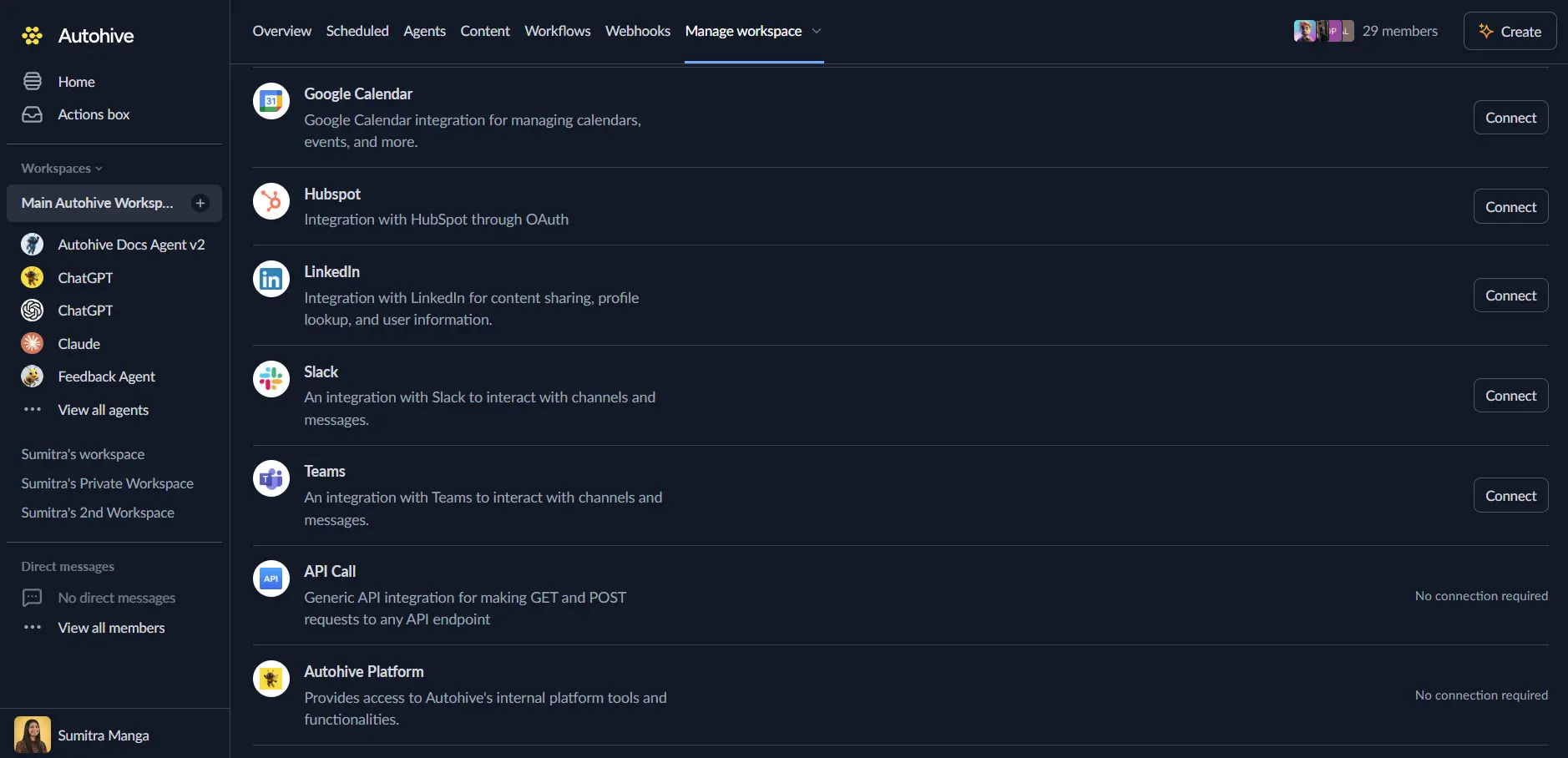
Log in to Autohive and navigate to Your user profile > Connections or Your workspace -> Manage workspace
Locate the Google Forms Integration card and click Connect
Select your Google account and click Choose Account
Review and approve permissions. Autohive requests access to:
- Create and edit your forms and their questions
- Read responses submitted to your forms
Ensure you approve the permissions required in order for the integration to function as expected.
Confirm installation - you’ll be redirected to Autohive with “Connected” status displayed
Use the integration
You can now use the integration with your agents, workflows and scheduled tasks!
- Follow our Create your first agent guide on how to create an agent.
- In the ‘Agent settings’, scroll down to the ‘Add capabilities’ section and turn on the Google Forms capability. You can choose what individual Google Forms capabilities to turn on and off.
- Once the settings have been selected, begin prompting the agent with the workflow you’d like to achieve with Autohive and Google Forms!
Available capabilities
Forms
- Create Form: Create a new form with a title, either published and accepting responses right away (the default) or as an unpublished draft
- Get Form: Retrieve a form’s full structure, including its info, settings, and questions
- Update Form Info: Update a form’s visible title and description
- Set Publish Settings: Publish or unpublish a form and control whether it accepts new responses
Questions
- Add Text Question: Add a short-answer or paragraph question to a form
- Add Multiple Choice Question: Add a radio, checkbox, or dropdown question with your own options, optionally shuffled per respondent
- Add Scale Question: Add a linear-scale question, such as 1 to 5, with optional labels for the lowest and highest values
- Delete Item: Remove a question or other item from a form by its position
- Batch Update Form: Apply raw Google Forms API batch update requests for advanced edits, such as turning a form into a quiz
Responses
- List Responses: List responses submitted to a form, page by page, with optional timestamp filtering
- Get Response: Retrieve a single response by its ID
Key features
Form authoring
- Create a form with a title, then build it out with the question capabilities and info updates
- Insert questions at a specific position, or leave the position out to add them at the end
- Mark questions as required so respondents must answer them before submitting
Publishing control
- New forms are published by default and return a responder link that accepts submissions immediately
- Turn auto-publish off to create a draft, then publish it later with Set Publish Settings
- Unpublished forms stop accepting responses, and their responder links stop working
Response access
- Responses are read-only: the integration can list and read submissions but never changes or deletes them
- Page through large result sets with page sizes from 1 to 5,000 responses
- Filter responses by submission time, for example everything submitted after a given date
Common use cases
Survey automation
- Create feedback or survey forms from a workflow and share the responder link automatically
- Open and close surveys on a schedule by publishing and unpublishing forms
- Build quizzes by creating a form and applying quiz settings through Batch Update Form
Response processing
- Read new responses on a schedule and route them into other systems through your workflows
- Ask an agent to summarize or categorize the responses a form has collected
- Use timestamp filtering to process only the responses that arrived since the last run
Notes
- Responses are read-only. The integration cannot create, edit, or delete responses.
- There is no capability to delete a form. Remove forms from Google Drive or the Google Forms website.
- Push notifications for new responses are not available in this version. To act on new responses, check for them on a schedule instead.
Disconnect the integration
Important: Disconnecting stops data synchronization but preserves existing data in both systems.
- Navigate to Your user profile -> Connections or Your workspace -> Manage workspace
- Find the Google Forms Integration
- Click Disconnect and confirm
Data Impact: Existing data remains unchanged in both systems, but sync stops and Autohive loses Google Forms API access.
Uninstall the app
From Google: Go to your Google Account settings > Security > Third-party apps with account access > Find Autohive and revoke access