Gmail
The Autohive Gmail integration connects your Gmail account to Autohive. With Gmail connected, your agents can:
- Send and reply to emails in plain text or HTML
- Read your inbox and search your mail
- Sort mail with labels
- Write, edit, and send drafts
- Read full email threads
- Mark emails as read or unread, and archive them
- Send files as attachments
Install the integration
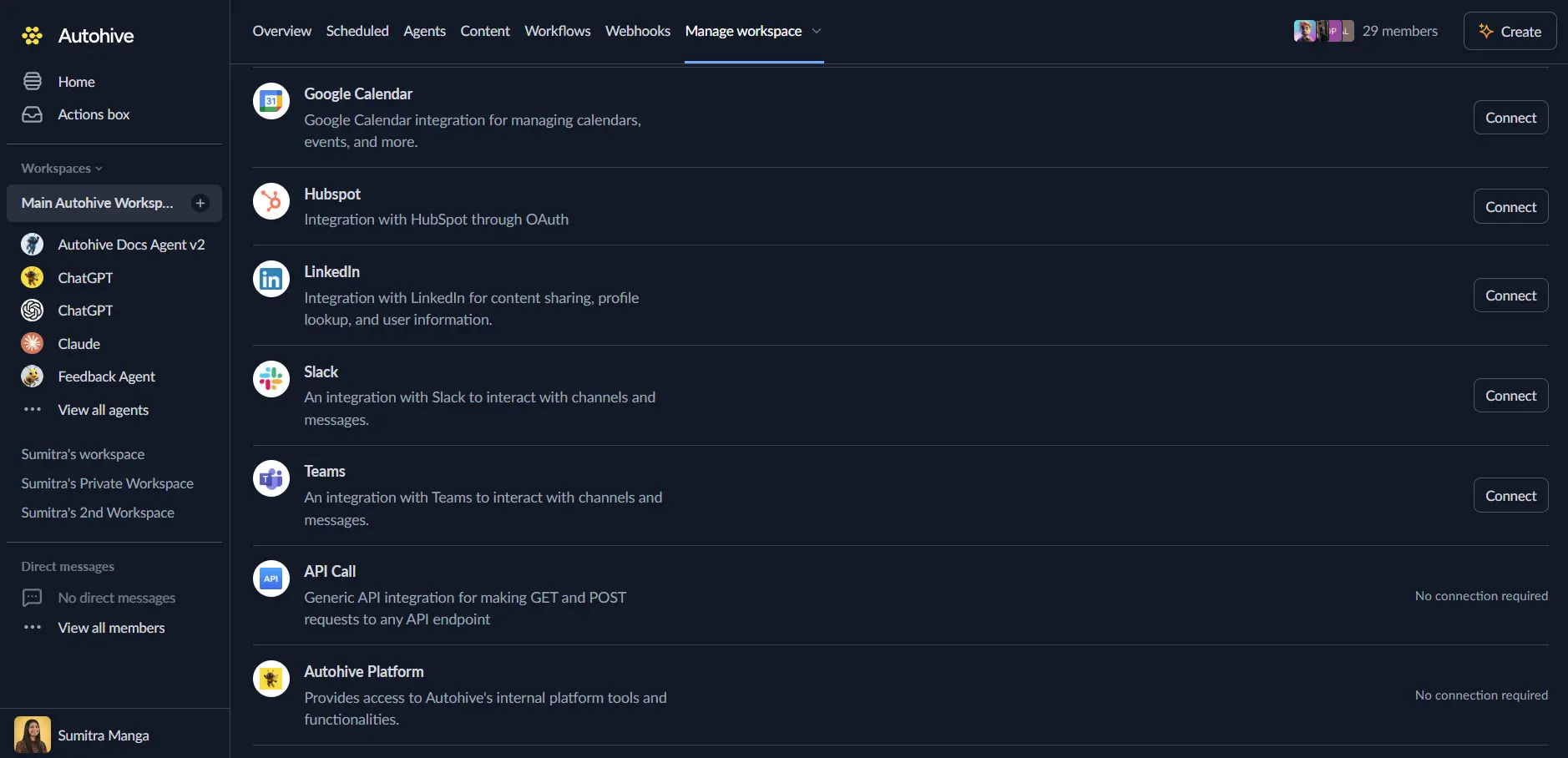
Log in to Autohive and navigate to Your user profile > Connections or Your workspace -> Manage workspace
Locate the Gmail Integration card and click Connect
Select your Google account and click Choose Account
Review and approve permissions. Autohive requests access to:
Ensure you approve the permissions required in order for the integration to function as expected.
Confirm installation - you’ll be redirected to Autohive with “Connected” status displayed
Use the integration
You can now use the integration with your agents, workflows and scheduled tasks!
- Follow our Create your first agent guide on how to create an agent.
- Turn on Gmail capabilities in Agent settings → Add integrations. You can turn each Gmail action on or off.
- Once the settings have been selected, begin prompting the agent of the workflow you’d like to achieve with Autohive and Gmail!
Available capabilities
Send and reply
- Send Email: Send a new email.
- Set the recipients (To, CC, and BCC), subject, and body.
- Choose plain text or HTML for the body.
- Attach files and add an optional signature.
- Reply to Thread: Reply to an existing email thread.
- Give the thread ID and the message ID.
- Add recipients, a custom subject, a signature, or files if needed.
- Without a custom subject, the reply uses “Re:” plus the original subject.
Drafts
- Create Draft: Save an email as a draft to send later.
- Give a thread ID and message ID to draft a reply.
- Autohive fills in the recipient and subject for replies.
- Update Draft: Change an existing draft.
- Edit the content, recipients, or files.
- Reply drafts stay in their thread.
- List Drafts: Show the drafts in your mailbox.
- Filter with a Gmail search query.
- Results come back one page at a time.
- Get Draft: Open one draft by its ID.
- Send Draft: Send a saved draft.
- Gmail deletes the draft after it sends.
- Delete Draft: Permanently remove a draft.
Read your mail
- Read Inbox: List the emails in your inbox.
- Filter by all, read, or unread emails.
- Narrow by date with the after and before fields.
- Add a Gmail search query for more control.
- Read All Mail: List emails from your whole mailbox.
- Supports the same filters as Read Inbox.
- Choose whether to include spam and trash.
- Read Email: Read one email by its ID.
- Returns the body, headers, and attachment details.
- HTML-only emails are converted to plain, Markdown-style text.
- Long bodies come back in chunks of 20,000 characters.
- Use the body offset field to read the next chunk.
- Get Thread Emails: Read the messages in one thread.
- Returns short snippets, not full bodies.
- Shows the newest 25 messages by default.
- Set a maximum of 1 to 100 messages.
- Use the page token to load older messages.
Labels
- List Labels: Show all Gmail labels.
- Filter to your own labels or Gmail system labels.
- Create Label: Make a new custom label.
- List Emails by Label: List emails that carry certain labels.
- Archived emails are left out unless you ask for them.
- Add Labels to Emails: Apply labels to emails.
- Give the message IDs and label IDs.
- Remove Labels from Emails: Take labels off emails.
- Give the message IDs and label IDs.
Email status
- Mark Emails as Read: Mark emails as read.
- Mark Emails as Unread: Mark emails as unread.
- Archive Emails: Move emails out of your inbox.
- Archived emails stay in your mailbox.
Account information
- Get User Info: Show your Gmail profile details.
- Includes your email address and message and thread counts.
- List Send-As Signatures: Show your send-as addresses and their default signatures.
- Gmail only shares the default signature for each address.
- It does not share your full list of saved signatures.
Key features
Page size and paging
Pagination means getting results one page at a time. Your agent can use it with these capabilities:
- Read Inbox, Read All Mail, and List Emails by Label return 25 emails per page by default.
- Set a page size from 1 to 500 emails.
- When more emails match, the response includes a next page token.
- The agent passes that token back to get the next page.
- Narrow results with filters before paging through everything.
Email search
- Use Gmail’s search syntax in the query field.
- Filter by sender, subject, date range, and content.
- Combine several filters in one request.
HTML email
- Send HTML emails with links, tables, and lists.
- Autohive adds a plain text version for older email apps.
- Use inline styles. Style blocks and scripts are removed.
- Autohive removes unsafe styling before the email is sent.
Labels
- Create your own labels.
- Apply several labels to one email.
- Filter emails by one or more labels.
Disconnect the integration
Important: Disconnecting stops data synchronization but preserves existing data in both systems.
- Navigate to Your user profile -> Connections or Your workspace -> Manage workspace
- Find the Gmail Integration
- Click Disconnect and confirm
Data Impact: Existing data remains unchanged in both systems, but sync stops and Autohive loses Gmail API access.
Uninstall the app
From Google: Go to your Google Account settings > Security > Third-party apps with account access > Find Autohive and revoke access