Freshsales
The Autohive Freshsales integration connects your Freshsales CRM with Autohive’s automation platform, enabling:
- Contact and account management - create, read, update, delete, and list contacts and sales accounts
- Deal management - create and update deals, move them through pipeline stages, and track amounts, close dates, and win probability
- Sales activities - attach tasks, appointments, and notes to contacts, accounts, and deals
- Views and search - list records through your saved Freshsales views and search across contacts, accounts, and deals in one query
Install the integration
Get your Freshsales API key:
- Log in to Freshsales and go to Personal Settings > API Settings
- Copy your API key
Note your bundle alias - the
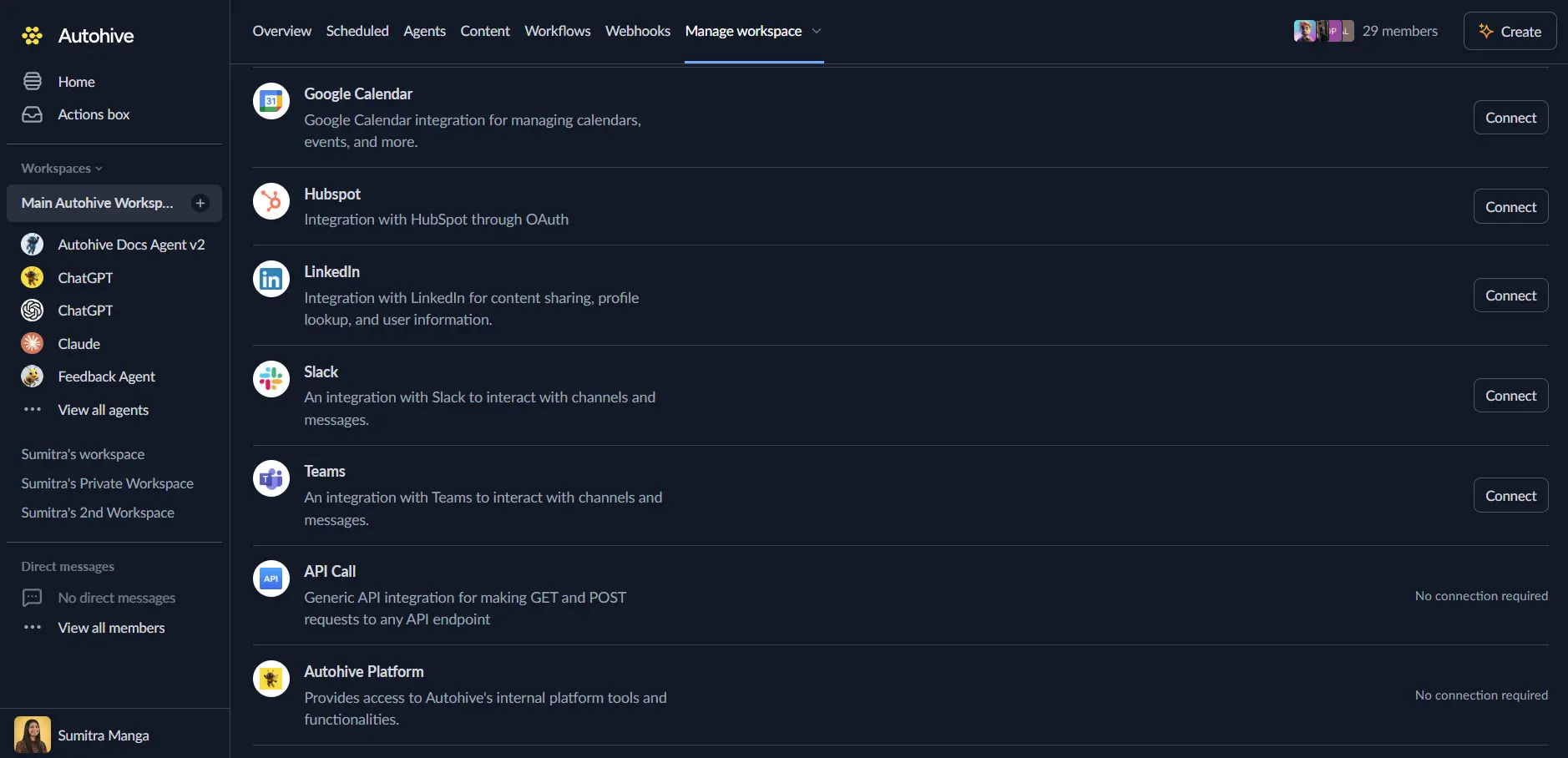
yourcompanypart ofyourcompany.myfreshworks.comLog in to Autohive and navigate to Your user profile > Connections or Your workspace -> Manage workspace
Locate the Freshsales Integration card and click Connect
Enter your credentials:
- API Key - your Freshsales API key
- Bundle Alias - your bundle alias. Pasting your full domain, such as
https://yourcompany.myfreshworks.com, also works
Confirm installation
Use the integration
You can now use the integration with your agents, workflows and scheduled tasks!
- Follow our Create your first agent guide on how to create an agent.
- In the ‘Agent settings’, scroll down to the ‘Add capabilities’ section and turn on the Freshsales capability. You can choose what individual Freshsales capabilities to turn on and off.
- Once the settings have been selected, begin prompting the agent with the workflow you’d like to achieve with Autohive and Freshsales!
Available capabilities
Views
- List Views: List the saved views (filters) available for contacts, accounts, or deals, so other capabilities can list records from a specific view
Contacts
- Create Contact: Create a contact. Freshsales requires a first or last name, plus an email address or mobile number
- Get Contact: Retrieve a contact by ID, optionally embedding related records such as accounts, deals, tasks, and notes
- Update Contact: Update fields on a contact; only the fields you provide are changed
- Delete Contact: Delete a contact by ID
- List Contacts: List contacts from a view, 25 records per page, with sorting options
Accounts
- Create Account: Create a sales account (organization) with a name and optional details such as website, industry, and annual revenue
- Get Account: Retrieve an account by ID, optionally embedding related contacts and deals
- Update Account: Update fields on an account; only the fields you provide are changed
- Delete Account: Delete an account by ID
- List Accounts: List accounts from a view, 25 records per page, with sorting options
Deals
- Create Deal: Create a deal with a name and amount, plus optional pipeline, stage, expected close date, and win probability
- Get Deal: Retrieve a deal by ID, optionally embedding its account and contacts
- Update Deal: Update fields on a deal, such as moving it to another stage or changing its amount
- Delete Deal: Delete a deal by ID
- List Deals: List deals from a view, 25 records per page, with sorting options
Tasks
- Create Task: Create a task with a title and due date, attached to a contact, account, or deal
- Get Task: Retrieve a task by ID
- Update Task: Update a task’s details, or set its status to 1 to mark it as done
- Delete Task: Delete a task by ID
- List Tasks: List tasks filtered by status: open, due today, due tomorrow, overdue, or completed
Appointments
- Create Appointment: Schedule an appointment with start and end times, attached to a contact, account, or deal
- Get Appointment: Retrieve an appointment by ID
- Update Appointment: Update an appointment’s details, such as its times, location, or time zone
- Delete Appointment: Delete an appointment by ID
- List Appointments: List appointments, optionally filtered to open or completed
Notes
- Create Note: Attach a note to a contact, account, or deal
- Update Note: Update the content of a note
- Delete Note: Delete a note by ID
Search
- Search: Search across contacts, accounts, and deals by name, email, or other text
Key features
Complete CRM coverage
- Full create, read, update, and delete support for contacts, accounts, and deals
- Attach tasks, appointments, and notes to any contact, account, or deal
- Custom field support on contacts, accounts, and deals
View-based listing
- Freshsales lists records through saved views; when you don’t specify one, the integration uses the default “All Contacts”, “All Accounts”, or “All Deals” view automatically
- Discover pipeline- or owner-specific views with List Views and pass a view ID to any list capability
- List results return 25 records per page along with pagination metadata
Flexible lookups
- Embed related records in a single request, such as a contact’s accounts, deals, and notes
- Search across contacts, accounts, and deals with one query
Common use cases
Lead and contact automation
- Create contacts automatically from form submissions, emails, or other systems in your workflows
- Keep contact details current when they change in other systems
- Look up a contact’s full context, including deals and notes, before an agent drafts outreach
Pipeline management
- Create deals when qualified leads arrive and move them through stages as work progresses
- Update deal amounts, expected close dates, and probabilities from other systems
- Review deals with view-based listing and sorting
Activity logging
- Log notes against contacts, accounts, and deals after meetings or conversations
- Create follow-up tasks with due dates when a deal changes
- Schedule appointments with locations or meeting links
Disconnect the integration
Important: Disconnecting stops API access but preserves existing data in both systems.
- Navigate to Your user profile -> Connections or Your workspace -> Manage workspace
- Find the Freshsales Integration
- Click Disconnect and confirm
Data Impact: Existing data remains unchanged in both systems, but sync stops and Autohive loses Freshsales API access.
Remove access
From Freshsales: Go to Personal Settings > API Settings to manage or reset your API key.