Fergus
The Autohive Fergus integration connects your Fergus account with Autohive’s automation platform, enabling:
- Job lifecycle management - Create draft or direct jobs, update draft details, and finalise jobs to make them active
- Job discovery - List and filter jobs by status, type, customer, site, or job number
- Customer and site lookup - Search customers and list sites to find the IDs needed when creating jobs
- User discovery - List technicians and staff for job assignment
- Inbound and outbound workflows - Support both the inbound work order-to-job flow and the outbound BCTI (invoice) reporting flow
Install the integration
Fergus uses a Personal Access Token (PAT) for authentication.
Log in to your Fergus account
Navigate to Settings → Fergus API
Generate and copy your API Token
Log in to Autohive and navigate to Your user profile > Connections or Your workspace → Manage workspace
Locate the Fergus Integration card and click Connect
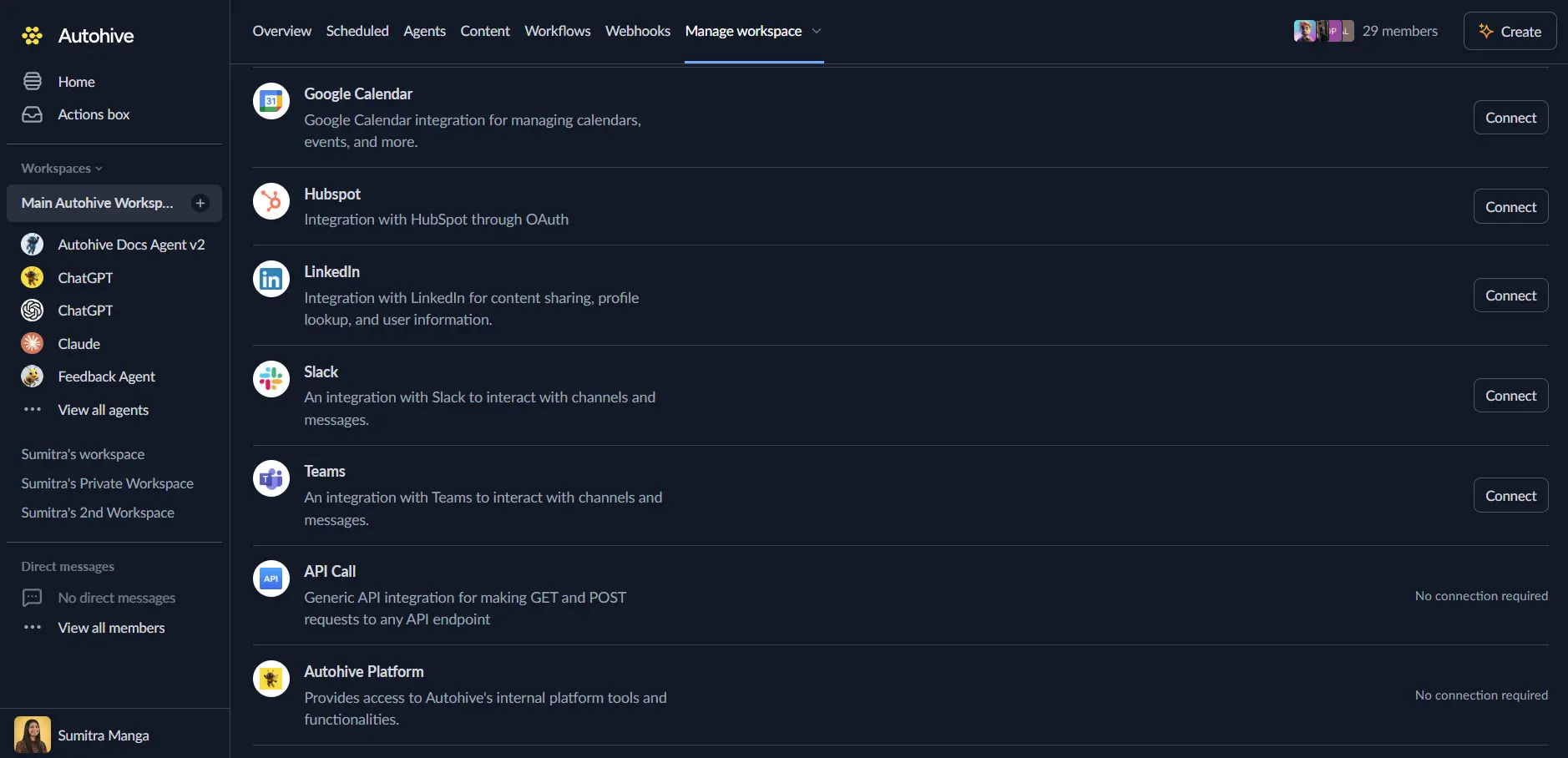
Enter your API Token
Confirm installation
Use the integration
You can now use the integration with your agents, workflows, and scheduled tasks!
- Follow our Create your first agent guide on how to create an agent.
- In the Agent settings, scroll down to the Add capabilities section and turn on the Fergus capability. You can choose which individual Fergus capabilities to turn on and off.
- Once the settings have been selected, begin prompting the agent with the workflow you’d like to achieve with Autohive and Fergus!
Available capabilities
Jobs
- Create Job - Create a new job from an inbound work order. Set as a draft (only job type and title required) to fill in details later, or create directly with all required fields
- Update Job - Update a draft job’s fields. Fergus only allows updating jobs that are still in draft status
- Finalise Job - Finalise a draft job, making it active and ready to assign to a technician
- Get Job - Retrieve full details of a single job, including completion and invoice data for BCTI reporting
- List Jobs - List jobs with optional filters by status (Active, Completed, Invoiced), job type, customer, site, or job number
Customers & Sites
- Search Customers - Search for customers by name to find a customer ID before creating a job
- Get Customer - Get full details of a single customer
- List Sites - List sites (job locations) to find a site ID before creating a job
Users
- List Users - List all users (technicians and staff) to find user IDs when assigning jobs
Key features
Draft-first job creation
Create a job as a draft with just a job type and title, then use Update Job to fill in customer and site details before calling Finalise Job to make it active — useful when information arrives incrementally.
Two-way workflow support
- Inbound: turn a maintenance-partner work order into a Fergus job by searching for the customer and site, then creating the job
- Outbound: list completed or invoiced jobs and pull their full invoice/completion details to report BCTI data back to a maintenance partner
Common use cases
Inbound — work order to Fergus job
- Search Customers to find the customer by name
- List Sites to find the site for that customer
- Create Job with all details
- (optional) List Users plus a calendar event to assign a technician
Outbound — Fergus to maintenance partner (BCTI)
- List Jobs filtered by
status: Invoiced - Get Job to pull full invoice/completion details
- Push the data to the maintenance partner’s portal via their integration
Disconnect the integration
- Navigate to Your user profile → Connections or Your workspace → Manage workspace
- Find the Fergus Integration
- Click Disconnect and confirm
Data Impact: Existing data in your Fergus account remains completely unchanged. Disconnecting only removes Autohive’s API access.
Notes
- The Fergus API enforces a rate limit of 100 requests per minute per company.
- Endpoint paths are based on
https://api.fergus.com. If any action returns unexpected errors, this may indicate an API change since this integration was documented.