AWS Security
The Autohive AWS Security integration connects core AWS security and monitoring services to Autohive’s automation platform, enabling:
- Security finding investigation - Query and update findings from AWS Security Hub, GuardDuty, and Amazon Inspector
- Infrastructure monitoring - Query CloudWatch metrics, alarms, and alarm history for EC2, RDS, Lambda, and other services
- Log analysis - Search and retrieve CloudWatch Logs events across log groups and streams
- Audit and compliance - Look up CloudTrail events to audit API activity and verify trail configurations
This integration covers Security Hub, GuardDuty, Amazon Inspector, CloudWatch Metrics & Alarms, CloudWatch Logs, and CloudTrail — 22 actions in total.
Install the integration
This integration uses custom authentication with AWS IAM credentials.
Prerequisites
- An AWS account with the services you plan to use enabled (Security Hub, GuardDuty, Inspector, etc.)
- An IAM user with programmatic access (access key ID and secret access key), or temporary STS credentials (access key ID, secret access key, and session token)
Creating IAM credentials
- Sign in to the AWS IAM Console
- Go to Users and select or create a user for Autohive
- Under the Security credentials tab, click Create access key
- Select Third-party service as the use case
- Copy the Access Key ID and Secret Access Key (the secret is only shown once)
Required IAM permissions
For read-only access to most of this integration, attach the SecurityAudit AWS managed policy to the IAM user. This covers all read actions across Security Hub, GuardDuty, CloudWatch, CloudTrail, and CloudWatch Logs, plus List Inspector Findings.
For the four write/extra-permission actions, add a custom inline policy with:
  {
    "Version": "2012-10-17",
    "Statement": [
        {
            "Effect": "Allow",
            "Action": [
                "securityhub:BatchUpdateFindings",
                "guardduty:ArchiveFindings",
                "cloudwatch:SetAlarmState",
                "inspector2:BatchGetFindingDetails"
            ],
            "Resource": "*"
        }
    ]
}
Setup steps in Autohive
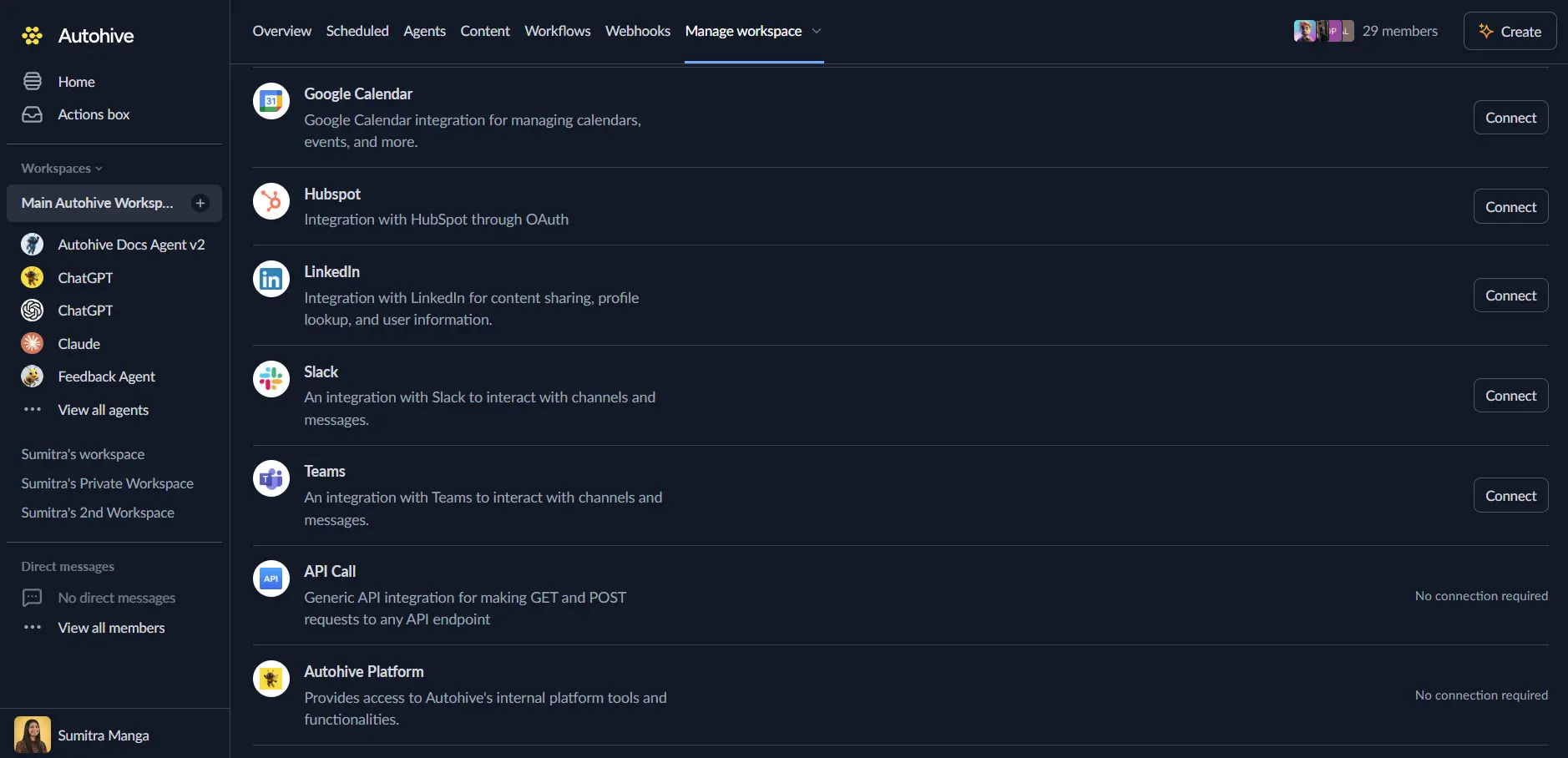
Log in to Autohive and navigate to Your user profile > Connections or Your workspace → Manage workspace
Locate the AWS Security Integration card and click Connect
Enter your AWS Access Key ID
Enter your AWS Secret Access Key
Enter your AWS Region (e.g.
us-east-1,eu-west-1,ap-southeast-2)If using temporary (STS) credentials — an access key ID starting with
ASIA— also enter the AWS Session Token. Leave it blank for long-term IAM user credentials.Confirm installation
Use the integration
You can now use the integration with your agents, workflows, and scheduled tasks!
- Follow our Create your first agent guide on how to create an agent.
- In the Agent settings, scroll down to the Add capabilities section and turn on the AWS Security capability. You can choose which individual capabilities to turn on and off.
- Once the settings have been selected, begin prompting the agent with the workflow you’d like to achieve with Autohive and AWS!
Available capabilities
Security Hub
- Get Findings - List and filter security findings from AWS Security Hub
- Get Finding Details - Get detailed information about a specific Security Hub finding by ARN
- Update Finding Workflow - Update the workflow status (
NEW,NOTIFIED,RESOLVED,SUPPRESSED) of one or more findings - Get Insights - Get security insight results from AWS Security Hub
GuardDuty
- List Detectors - List all GuardDuty detector IDs in the current account and region
- List GuardDuty Findings - List and filter findings for a specific detector
- Get GuardDuty Finding Details - Get detailed information about one or more findings
- Archive Findings - Archive one or more GuardDuty findings by ID
Amazon Inspector
- List Inspector Findings - List and filter vulnerability findings directly from Amazon Inspector (not subject to Security Hub’s forwarding lag), sorted by severity and limited to
ACTIVEfindings by default - Get Inspector Finding Details - Get detailed information about one or more findings by ARN (automatically batches requests in groups of 10)
CloudWatch metrics & alarms
- List Metrics - List available CloudWatch metrics, filterable by namespace, name, or dimensions
- Get Metric Data - Retrieve metric statistics for one or more metrics over a specified time period
- Describe Alarms - List and filter CloudWatch alarms by name, prefix, or state
- Get Alarm History - Retrieve the history of state changes and actions for alarms
- Set Alarm State - Temporarily set the state of an alarm for testing or maintenance
CloudWatch Logs
- Describe Log Groups - List log groups, optionally filtered by name prefix
- Filter Log Events - Search and filter log events across one or more log streams within a log group
- Get Log Events - Get log events from a specific log stream
CloudTrail
- Lookup Events - Search CloudTrail management events by event name, user, or resource
- Describe Trails - List configured CloudTrail trails in the account
- Get Trail Status - Get the current logging status and latest delivery information for a trail
- Get Event Selectors - Get the event recording configuration for a trail, including management and data event selectors
Key features
Read/write separation
Only three actions perform writes — Update Finding Workflow (Security Hub), Archive Findings (GuardDuty), and Set Alarm State (CloudWatch). Every other action, including both Inspector actions, is read-only.
Security Hub vs. Inspector
Security Hub’s Get Findings returns a forwarded copy of Inspector findings, which can lag behind or dedupe differently than what Inspector’s own console shows. Use List Inspector Findings for the authoritative, real-time view of vulnerability findings.
Region-scoped connections
Each integration instance connects to a single AWS region. To monitor multiple regions, add separate integration instances.
Pagination support
All list actions support pagination via a next_token. When a next_token is returned in a response, pass it to the next request to get the next page of results.
Common use cases
Security monitoring
- Review Security Hub findings filtered by severity or compliance status
- Investigate GuardDuty threat detections and archive resolved findings
- Update finding workflow status to track remediation progress
Infrastructure monitoring
- Query CloudWatch metrics for EC2, RDS, Lambda, and other services
- Check alarm states and review alarm history for incidents
- Temporarily set alarm state during maintenance windows
Log analysis
- Search CloudWatch Logs for errors or specific patterns across log groups
- Retrieve log events from specific streams for debugging
- Discover available log groups and their sizes
Audit and compliance
- Look up CloudTrail events to audit who made API calls and when
- Verify trail configurations and logging status
- Review event selectors to confirm what activity is being recorded
Disconnect the integration
- Navigate to Your user profile → Connections or Your workspace → Manage workspace
- Find the AWS Security Integration
- Click Disconnect and confirm
Data Impact: Existing data in your AWS account remains completely unchanged. Disconnecting only removes Autohive’s API access.
Notes
- Service enablement: Security Hub, GuardDuty, and Inspector must be enabled in your AWS account before their actions will work. CloudWatch and CloudTrail are enabled by default.
- GuardDuty workflow: Use List Detectors first to get your detector ID, then pass it to List GuardDuty Findings, Get GuardDuty Finding Details, and Archive Findings.
- Time formats: All time-based inputs accept ISO 8601 format (e.g.
2024-01-15T00:00:00Z).