Apollo
The Autohive Apollo integration connects Apollo’s B2B contact database, enrichment engine, and sales engagement platform with Autohive’s automation platform, enabling:
- People and company search - Search Apollo’s global database for people and organizations by title, seniority, location, industry, headcount, technology, funding, and more
- Enrichment - Enrich people and companies with verified emails, phone numbers, firmographic data, and job postings, individually or in bulk
- CRM record management - Create, update, and search contacts and accounts saved to your team’s Apollo database
- Lists and labels - Organize contacts and accounts into lists, and manage list membership
- Sales sequences - Create and update multi-step outreach sequences, enroll or remove contacts, and activate campaigns
- One-off emails and tasks - Draft and send individual emails, and create, complete, or skip calls, action items, and other tasks
- Conversation intelligence - Search recorded calls and meetings, and retrieve transcripts, AI-generated insights, and recording links
- Analytics and reporting - Query sales performance data across emails, calls, meetings, tasks, and opportunities
- Context Center - Maintain a team-wide Ideal Customer Profile and product profiles that Apollo uses to personalize AI-generated outreach
- Website visitor tracking - Configure and query Apollo’s website visitor tracking for your team’s tracked domains
- Mailbox and domain purchasing - Browse and purchase Apollo-provisioned sending mailboxes and domains
Install the integration
Apollo uses OAuth 2.0 through its hosted MCP connector.
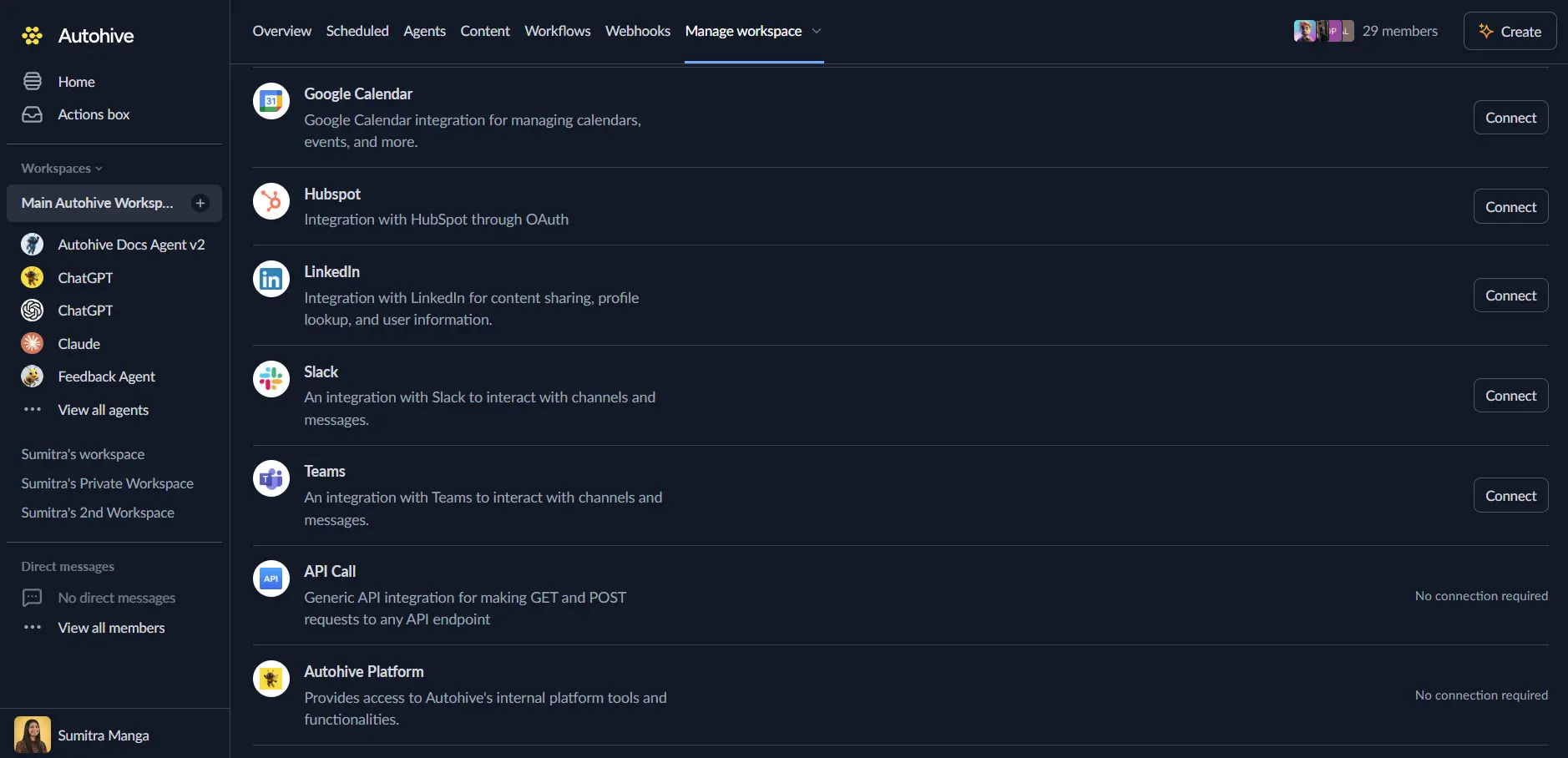
Log in to Autohive and navigate to Your user profile > Connections or Your workspace → Manage workspace
Locate the Apollo Integration card and click Connect
You’ll be redirected to Apollo — log in with your Apollo account and authorize Autohive to access the MCP server
You’ll be redirected back to Autohive with the integration showing as “Connected”
Use the integration
You can now use the integration with your agents, workflows, and scheduled tasks!
- Follow our Create your first agent guide on how to create an agent.
- In the Agent settings, scroll down to the Add capabilities section and turn on the Apollo capability. You can choose which individual Apollo capabilities to turn on and off.
- Once the settings have been selected, begin prompting the agent with the workflow you’d like to achieve with Autohive and Apollo!
Available capabilities
Apollo spans prospecting, CRM, sales engagement, and analytics. Capabilities are grouped below by area, with credit or send-cost notes where relevant.
People and company search
- Search for People - Search Apollo’s global people database by job title, seniority, location, employer details, technology stack, years of experience, time in role, and website-visitor activity. Does not return email addresses or phone numbers — use enrichment for that
- Search for Companies - Search Apollo’s global company database by industry, headcount, revenue, funding, technologies, job postings, and website-visitor intent (1 credit per request that returns a result)
Enrichment
- Enrich a Person - Enrich a single person’s profile using name, email, LinkedIn URL, or employer, with optional personal email and phone number reveal (1 credit per match; phone/waterfall reveals use additional credits)
- Bulk Enrich People - Enrich up to 10 people in one request, with the same reveal and waterfall options (1 credit per match)
- Enrich a Company - Enrich a single company by domain with firmographic data, technologies, funding, and headcount (1 credit if found)
- Bulk Enrich Companies - Enrich up to 10 companies by domain in one request (1 credit per match)
- Get Company Job Postings - Retrieve current job postings for a company to spot hiring signals (1 credit per request)
- Poll Webhook Result - Retrieve the async result of a phone number reveal or waterfall enrichment request
Contacts
- Search Contacts - Search contacts already saved to your team’s Apollo account, by keyword, list, or job-change activity
- Create a Contact - Create a single contact, optionally linked to an account and custom fields
- Bulk Create Contacts - Create or update up to 100 contacts in one request (matches by email update existing records)
- Update a Contact - Update an existing contact’s details, account link, or list membership
Accounts
- Create an Account - Create a single company record (account) in your team’s Apollo database
- Bulk Create Accounts - Create multiple accounts in one request
- Update an Account - Update an existing account’s details or custom fields
Lists and labels
- List Lists - Retrieve your team’s saved contact and account lists
- Create a List - Create a new, empty contact or account list
- Update a List - Rename an existing list
- Add Records to Lists - Add contacts or accounts to one or more lists (creates the list if it doesn’t exist)
- Remove Records from Lists - Remove contacts or accounts from one or more lists without deleting the records
Sales sequences and outreach
- Search for Sequences - Find existing sequences by name
- Create a Sequence - Build a multi-step outreach sequence with auto/manual email, call, LinkedIn, and action-item steps, schedules, and A/B variants
- Update a Sequence - Add, edit, reorder, or remove steps and touches on an existing sequence
- Activate a Sequence - Turn on a sequence so enrolled contacts start receiving emails and tasks
- Add Contacts to a Sequence - Enroll contacts into a sequence from a specific sender mailbox
- Remove or Stop Contacts from Sequences - Permanently remove or pause contacts in one or more sequences
- List Sending Schedules - Retrieve the team’s configured send-time windows
- Get a List of Email Accounts - Retrieve the team’s connected sending mailboxes and their default sender
One-off emails
- Create an Email Draft - Draft a one-off email to a contact, with optional custom To/Cc/Bcc recipients
- Send an Email Now - Send a drafted email immediately from a chosen mailbox
- Check Email Send Status - Poll the delivery status of a sent email
Tasks
- Search Tasks - Search scheduled, completed, or skipped tasks by contact, account, opportunity, type, or priority
- Get Task Details - Retrieve a task’s full detail, including the message or call script it asks the user to send
- Create a Task - Create a call, email, LinkedIn-step, or action-item task tied to a contact, account, or opportunity
- Bulk Create Tasks - Create multiple tasks in one request
- Complete a Task - Mark a task complete, advancing sequence contacts to the next step
- Skip a Task - Skip a task without performing it
- Update a Task - Edit a task’s title, note, priority, due date, assignee, or message content
Conversation intelligence
- Search Conversations - Find recorded phone calls and meetings by host, keyword, date range, or source
- Get Conversation Transcript - Retrieve a recorded conversation’s transcript
- Get Conversation Insights - Retrieve AI-generated summary, action items, questions, and tracker insights (only once insights have finished processing)
- Get Conversation Recording Links - Retrieve temporary links to a conversation’s video/audio recording
Analytics and reporting
- Query Analytics Data - Query sales activity across emails, calls, meetings, tasks, and opportunities, with grouping, pivoting, and sorting across 55+ dimensions
- Get Credit Usage Stats - Retrieve the team’s credit usage, remaining balance, and reset windows
- Get User Profile - Retrieve the authenticated user’s Apollo profile, and optionally credit usage or waterfall enrichment capability
Context Center (AI personalization)
- Show Context Center - Fetch the team’s Ideal Customer Profile (ICP) and product profiles
- Create/Update ICP Profile - Set or edit the team-wide customer profile, value proposition, pain points, and competitors used to personalize AI-generated outreach
- Create/Update/Show a Product - Manage individual product profiles referenced in AI-generated messaging
Custom fields
- List Custom Fields - Retrieve team-created custom fields (and Apollo’s standard system fields) for contacts, accounts, and opportunities, including picklist options
Mailbox and domain purchasing
- List Purchased Domains - Retrieve domains the team has purchased through Apollo, with SPF/DKIM/DMARC diagnostics
- List Purchased Mailboxes - Retrieve Apollo-provisioned mailboxes and their provisioning status
- Purchase Mailboxes - Provision new shared, Google, or Outlook mailboxes on an owned domain (consumes credits: 300/800/1,500 per mailbox depending on type)
Website visitor tracking
- Get Domain Tracker Config - Retrieve the team’s tracked domains, intent paths, and tracking status
- Update Domain Tracker - Add, edit, or remove a tracked domain and its intent paths
- Get Install Script - Retrieve the ready-to-embed tracking snippet for the team’s tracker
- Email Install Script - Email the tracking snippet to a developer for installation
- Get Website Visitor Aggregates - Retrieve visit counts, unique visitors, and top pages for a specific visiting company on a tracked domain
Feedback
- Send Feedback - Log feedback about an unexpected or unhelpful Apollo result directly from the AI client
Key features
Full prospecting-to-outreach pipeline
An agent can search Apollo’s people and company database, enrich promising matches with verified contact details, save them as contacts and accounts, organize them into lists, and enroll them in a sequence — all in one conversation.
Credit-aware actions
Search, enrichment, and mailbox-purchase actions consume Apollo credits. Credit costs are called out per action above so agents (and the humans reviewing their actions) know what a request will cost before it runs.
Context Center-driven personalization
The team-wide Ideal Customer Profile and product profiles let Apollo tailor AI-generated openers, sequence copy, and messaging to your actual customers and value proposition, rather than generic templates.
Conversation intelligence access
Beyond CRM and outreach, an agent can pull transcripts, AI-generated call summaries, action items, and tracker insights (like competitor mentions) from recorded calls and meetings.
Deep sales analytics
The analytics reporting capability supports 55+ grouping dimensions and 60+ metrics across emails, calls, meetings, tasks, and opportunities, so an agent can answer specific performance questions (for example, reply rates by sequence step, or call connect rates by outcome) without exporting data manually.
Common use cases
Prospecting and list building
- Search for people matching an ideal customer profile (title, seniority, location, company size) and enrich the best matches
- Save qualified prospects as contacts, tag them with labels, and add them to a targeted list
- Check a company’s recent job postings to spot hiring signals before reaching out
Outreach and sequence management
- Build a new multi-step sequence with email, call, and LinkedIn steps and activate it once reviewed
- Enroll a batch of enriched contacts into an existing sequence from the right sender mailbox
- Pause or remove contacts from a sequence once they’ve replied or disqualified themselves
Task and pipeline follow-up
- Search for overdue tasks assigned to a rep and summarize what’s outstanding
- Create follow-up call or email tasks tied to a specific account or opportunity
- Mark tasks complete with an outcome note as calls and emails are finished
Call and meeting review
- Search recent conversations and pull the AI-generated summary, objections, and next steps
- Retrieve a call transcript or recording link to review what was discussed
- Scan tracker insights for competitor mentions or pricing triggers across recent calls
Sales performance reporting
- Query email reply rates by sequence or by rep over a custom date range
- Compare call connect rates by outcome for the current month
- Track task completion and overdue rates for a team
Disconnect the integration
- Navigate to Your user profile → Connections or Your workspace → Manage workspace
- Find the Apollo Integration
- Click Disconnect and confirm
Data Impact: Existing data in your Apollo account — contacts, accounts, sequences, lists, and Context Center settings — remains completely unchanged. Disconnecting only removes Autohive’s API access.