Workspaces
Workspaces are how you organise work within your plan. Each workspace has its own agents, conversations, content, scheduled jobs, and members. A plan can have as many workspaces as you need — one per team, project, client, or however you prefer to organise things.
Your workspaces are listed in the left sidebar. Click any workspace name to open it.
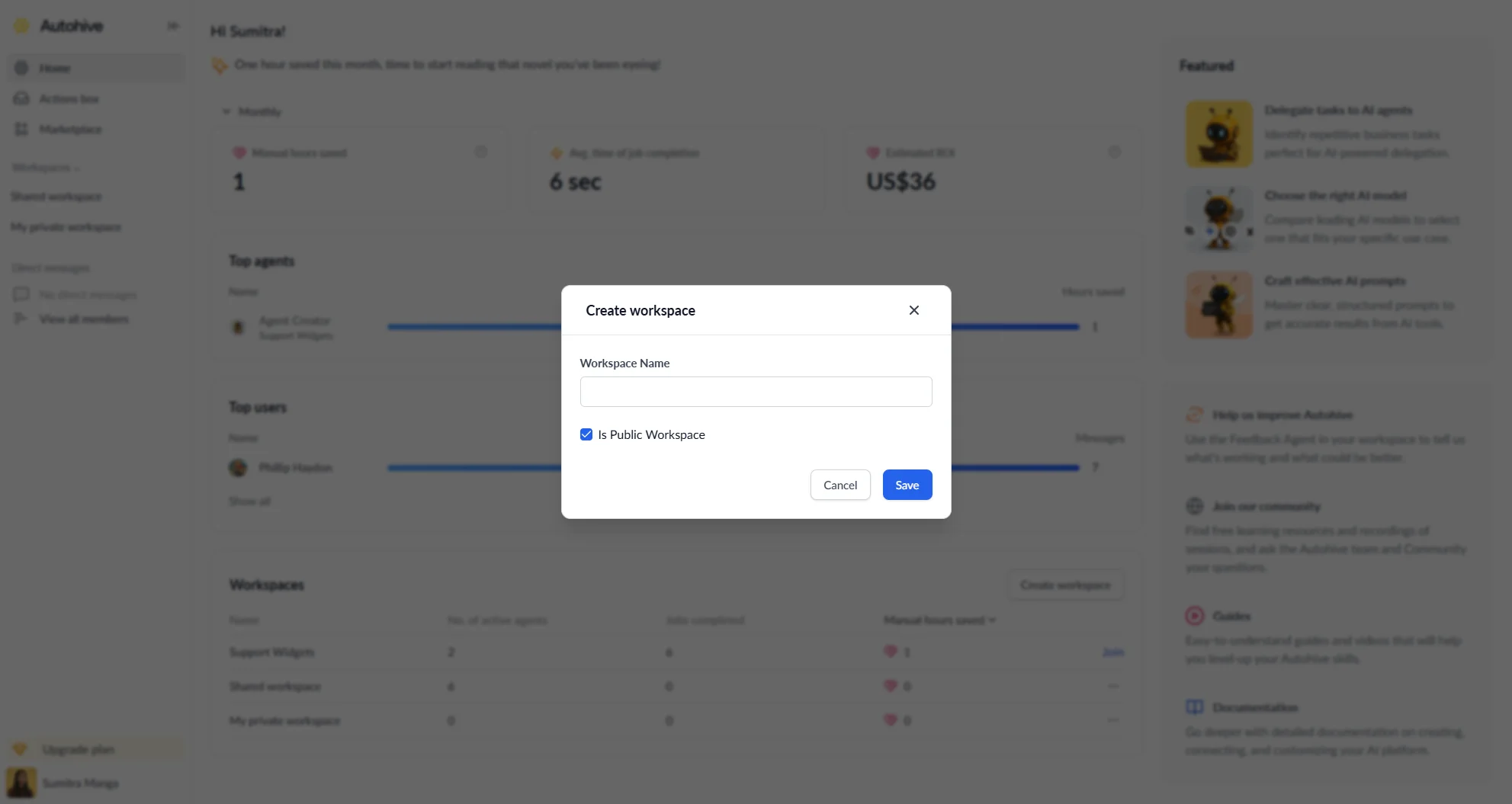
Workspace types
When you create a workspace you choose its visibility:
| Type | Who can access it |
|---|---|
| Public | Any member of your plan can join and use it |
| Private | Only members who have been explicitly added or invited |
| Personal | Only you — automatically created for every account |
You cannot leave or delete your personal workspace.
Creating a workspace
- Click Workspaces in the left sidebar to open the workspaces menu.
- Select Create workspace.
- Enter a Workspace name (up to 100 characters).
- Check Is Public Workspace if you want any plan member to be able to join.
- Click Save.
The new workspace opens immediately and is added to your sidebar.
Viewing all workspaces
Select View workspaces from the Workspaces menu to see every workspace on your plan. The list shows all public workspaces and any private workspaces you belong to.
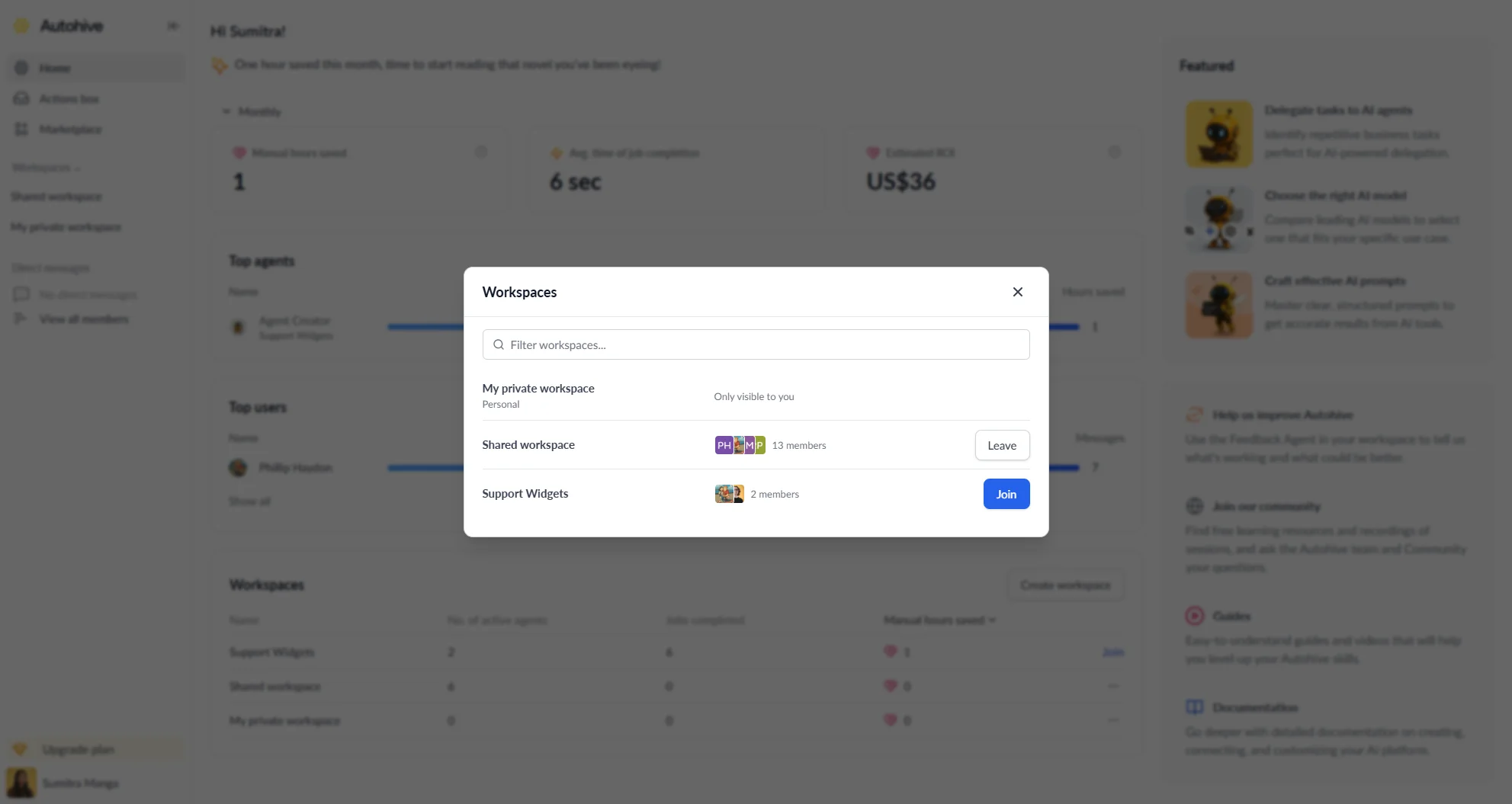
Each workspace shows its type, member count, and member avatars. From here you can:
- Join a public workspace you haven’t joined yet
- Leave a workspace you no longer need access to
Use the Filter workspaces field to search by name.
Workspace overview
When you enter a workspace, the Overview tab is your starting point. It shows your top performing agents and upcoming scheduled jobs at a glance.
Workspace settings
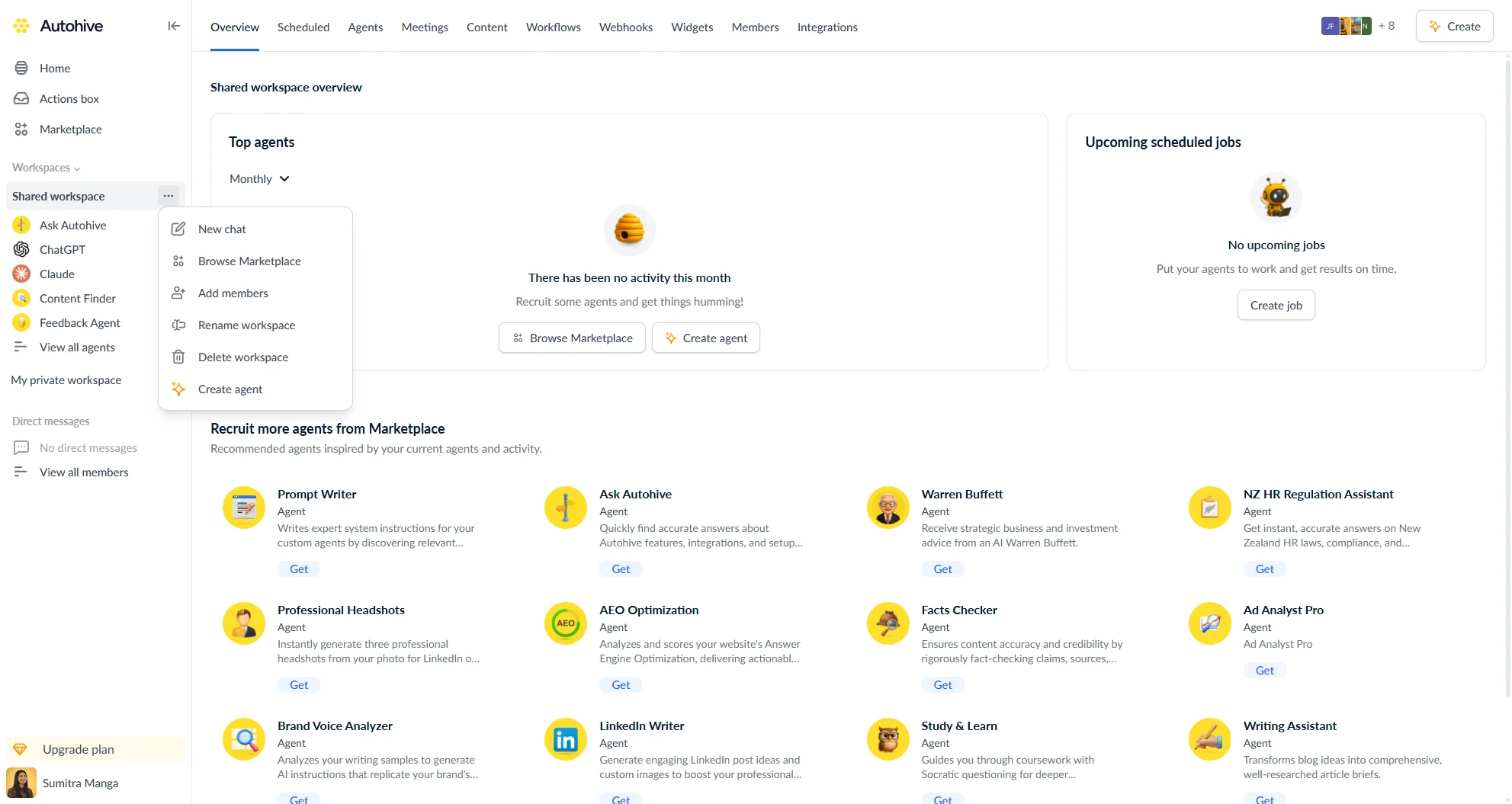
Renaming a workspace
Open the three-dot menu on the workspace in the sidebar and select Rename workspace. Enter the new name and click Save changes.
Workspace actions menu
Click the three-dot menu on any workspace in the sidebar to quickly:
| Action | Description |
|---|---|
| New chat | Start a new conversation in the workspace |
| Browse Marketplace | Browse agents to add to this workspace |
| Add members | Invite plan members to this workspace |
| Rename workspace | Change the workspace name |
| Delete workspace | Permanently delete the workspace |
| Create agent | Build a new custom agent in this workspace |
Leaving a workspace
Open View workspaces from the Workspaces menu, find the workspace, and click Leave. Confirm when prompted.
You cannot leave your personal workspace.
Deleting a workspace
Open the three-dot menu on the workspace in the sidebar and select Delete workspace. Confirm when prompted.
You cannot delete your personal workspace.
Managing workspace members
For full details on adding and removing members, see the Workspace members guide.