Integration actions
A skill can do more than give instructions: it can use your connected tools directly. By referencing an Autohive Action (like “HubSpot: Search Contacts” or “Slack: Send Message”) in a skill’s instructions, you let the agent call that tool as a step, and Autohive handles the connection and sign-in for you.
This means a skill can pull data from HubSpot, format it, and post it to Slack without anyone writing code or managing passwords.
Inserting an action
While writing a skill’s Instructions, type @ (or use Insert action) to open a picker of the tools available in your workspace. Choose an action and it’s dropped into your instructions as a tidy chip that’s readable in place, like mentioning a person or channel elsewhere in Autohive.
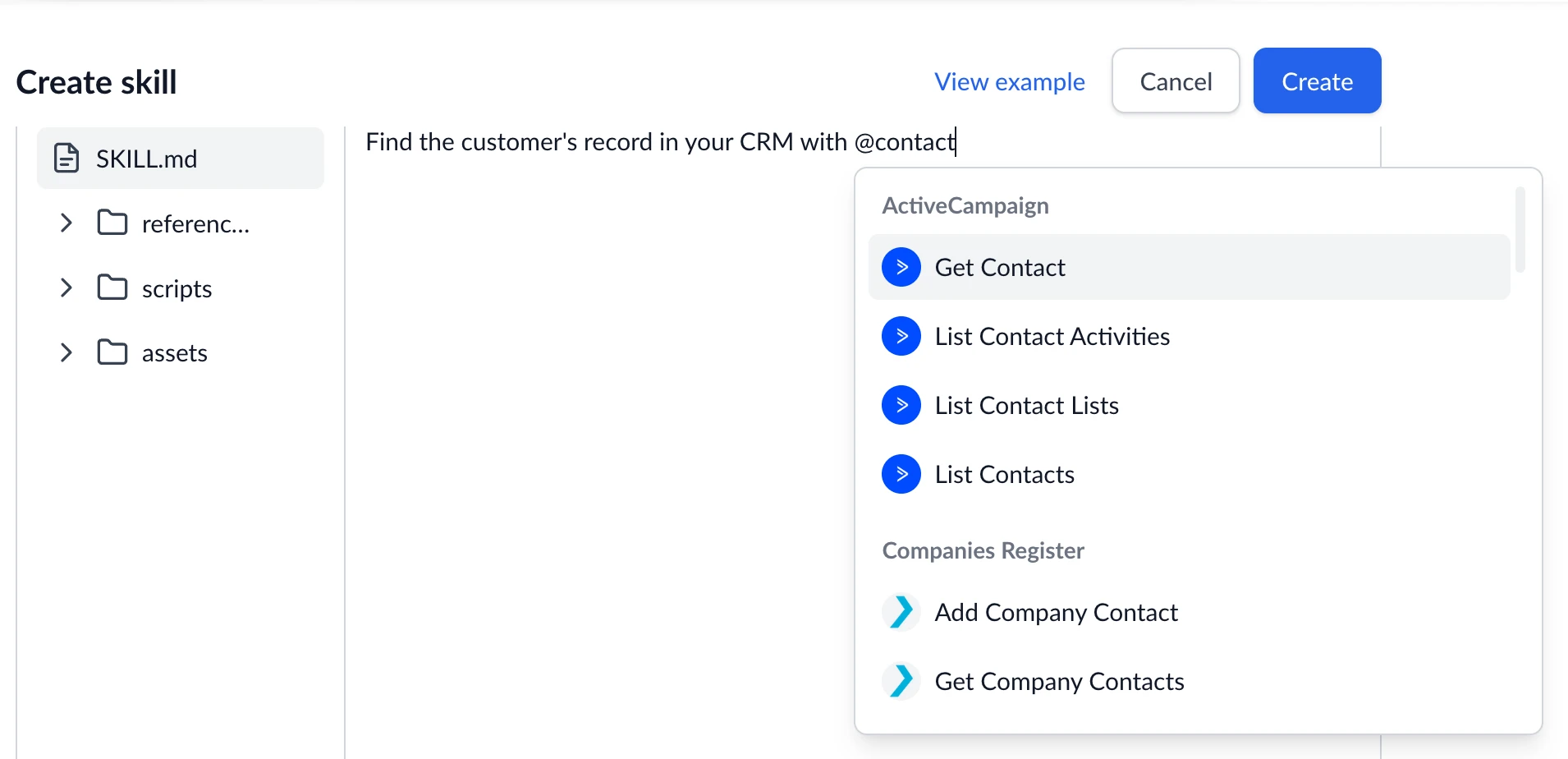
For example, your instructions might read:
- Use the HubSpot: Search Contacts action to find matching records.
- Summarise the results and post them with the Slack: Send Message action.
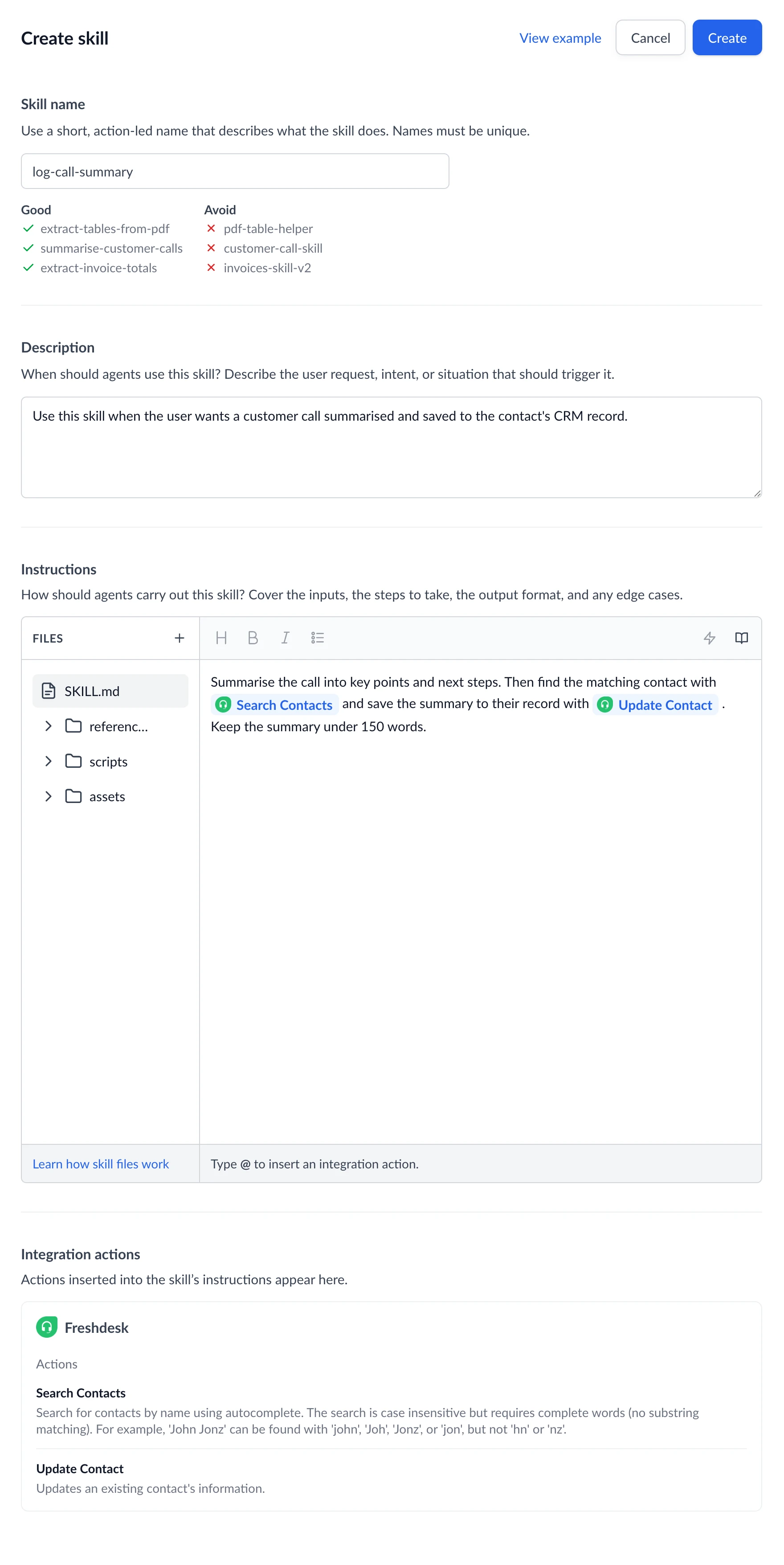
Every action you insert is also listed in the Integration actions section below the editor, so you can see at a glance which tools a skill relies on. (That list is read-only; actions are added and removed by editing the instructions.)
Why use actions instead of scripts
- No credentials to manage: sign-in runs through the connections you’ve already set up in Autohive.
- Combine several tools: one skill can use HubSpot, Slack, and Google Drive together, without each agent needing those tools added individually.
- Reusable: the same skill works in any workspace that has the right tools connected.
Actions and scripts work well together: a skill might use actions to talk to your tools and a script to transform the data in between.
You can only use tools you’ve connected
The @ picker only shows actions for integrations that are connected in your workspace. If you don’t see the tool you want, connect it first (see Integrations), then come back and insert the action.
Referencing another skill
The @ picker also lists your other skills. Insert one to have a skill build on another, which is handy when several skills share a common first step. For example: “First prepare the data with the clean-sales-data skill, then continue below.”
When an agent uses a skill that references another, it pulls in the referenced skill’s instructions too, so you can reuse a procedure instead of copying it into every skill.