Marketplace
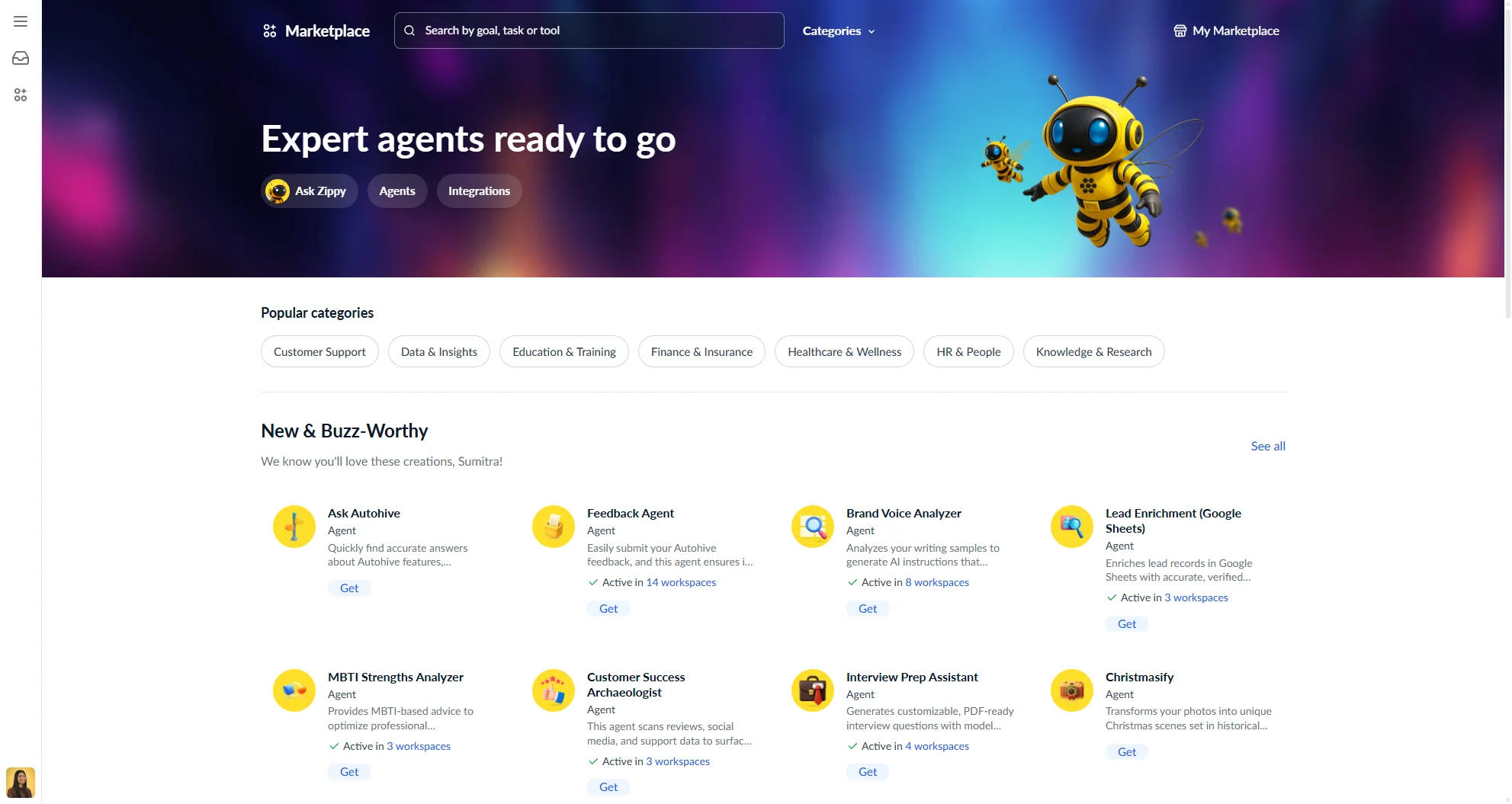
The Autohive Marketplace is where you discover and install agents and integrations built by the Autohive team and community creators. Browse by category, search for a specific goal or tool, and add agents directly to your workspace in a few clicks.
Access the Marketplace by clicking Marketplace in the left sidebar.
Browsing the Marketplace
The Marketplace home page surfaces popular categories, new and trending agents, popular agents, and featured creators. Click any category or listing to explore further.
To search the full catalogue, click through to the browse page. Use the search bar at the top to find agents by goal, task, or tool name.
Filtering and sorting
Narrow down results using the filter bar:
| Filter | Options |
|---|---|
| Filter by category | Browse all available categories |
| Filter by type | Agent, Integration |
| Sort by | Popularity, Recently added, Name |
Active filters appear as removable chips above the results. Click the × on any chip to remove it. Results update automatically as you adjust filters.
Listing cards
Each listing in the browse grid shows:
- The listing icon and name
- The listing type (Agent or Integration)
- A short description
- Whether it is already active in one of your workspaces
Listing detail page
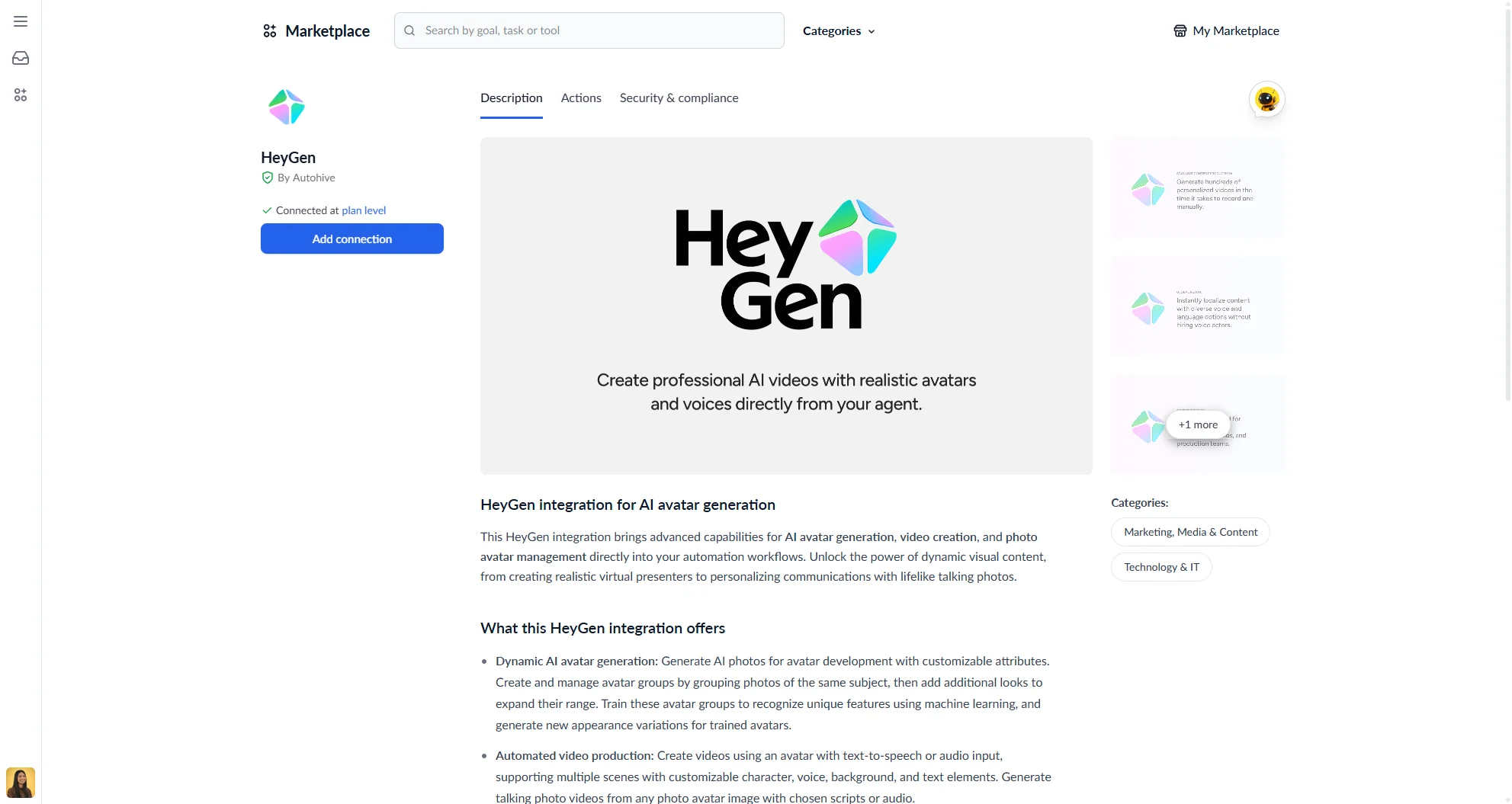
Click any listing to open its detail page. The detail page has three tabs:
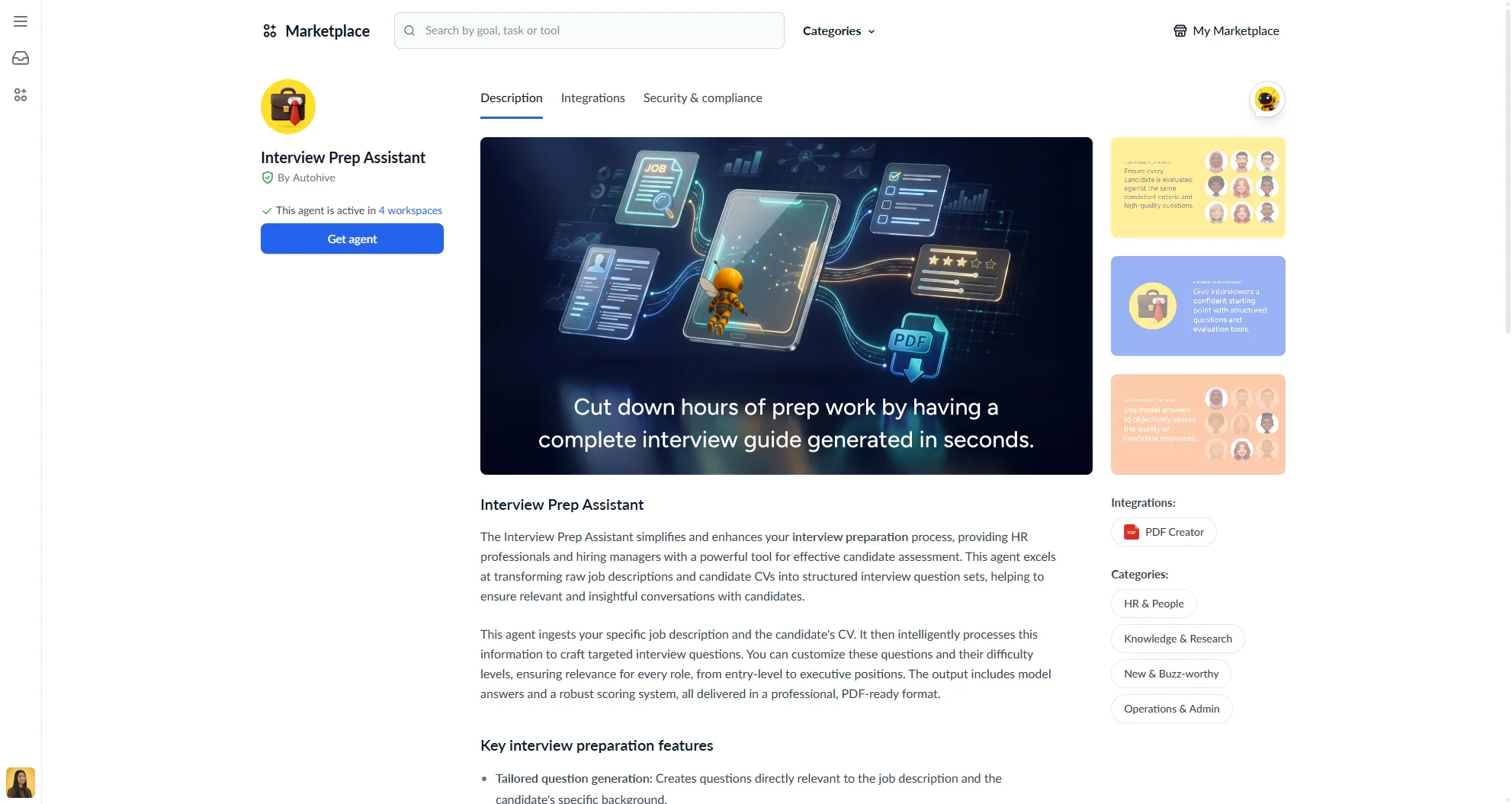
Description
- A media gallery with screenshots and images
- An About this agent section with the full description
- Categories the listing belongs to
- Integrations the agent uses
- A Frequently Asked Questions section with expandable answers
Integrations
Lists every integration required by the agent, with its name and description.
Security & compliance
Security and compliance information for the listing.
Below the main content, a “Expand this agent’s potential” section suggests related agents you can combine with this one.
Getting an agent
To add an agent to your workspace:
- Open the listing detail page and click Get agent.
- If the agent requires integrations, connect them to your plan. All required integrations are listed — connect each one before continuing.
- Select the workspace you want to add the agent to.
- Click Continue to Agent.
You are taken directly to a chat with the agent in your chosen workspace. You can share the agent with other workspaces later from your workspace settings.
Creator profiles
Each listing links to the creator’s public profile. A creator profile shows:
- Cover image and avatar
- Display name and bio
- Social links (X, YouTube, Instagram, website)
- All listings by that creator, sortable by popularity or name
Managing your Marketplace listings
If you are a creator and want to submit your own agents to the Marketplace, see the My Marketplace guide.