Zoom
The Autohive Zoom integration connects your Zoom account with Autohive’s automation platform, enabling:
- Meeting management - Create, update, delete, and retrieve Zoom meetings with full control over settings and scheduling
- Meeting templates - Create reusable meeting templates for consistent meeting setups across your organization
- Participant tracking - View meeting participants, attendance records, and participation details for past meetings
- User management - Access user profiles, permissions, and account information
- Calendar integration - Manage calendar events and settings through Zoom’s calendar API
- Contact management - Access and search your Zoom contacts directory
- Personalized invite links - Generate custom invite links for specific attendees
Install the integration
Log in to Autohive and navigate to Your user profile > Connections or Your workspace -> Manage workspace
Locate the Zoom Integration card and click Connect
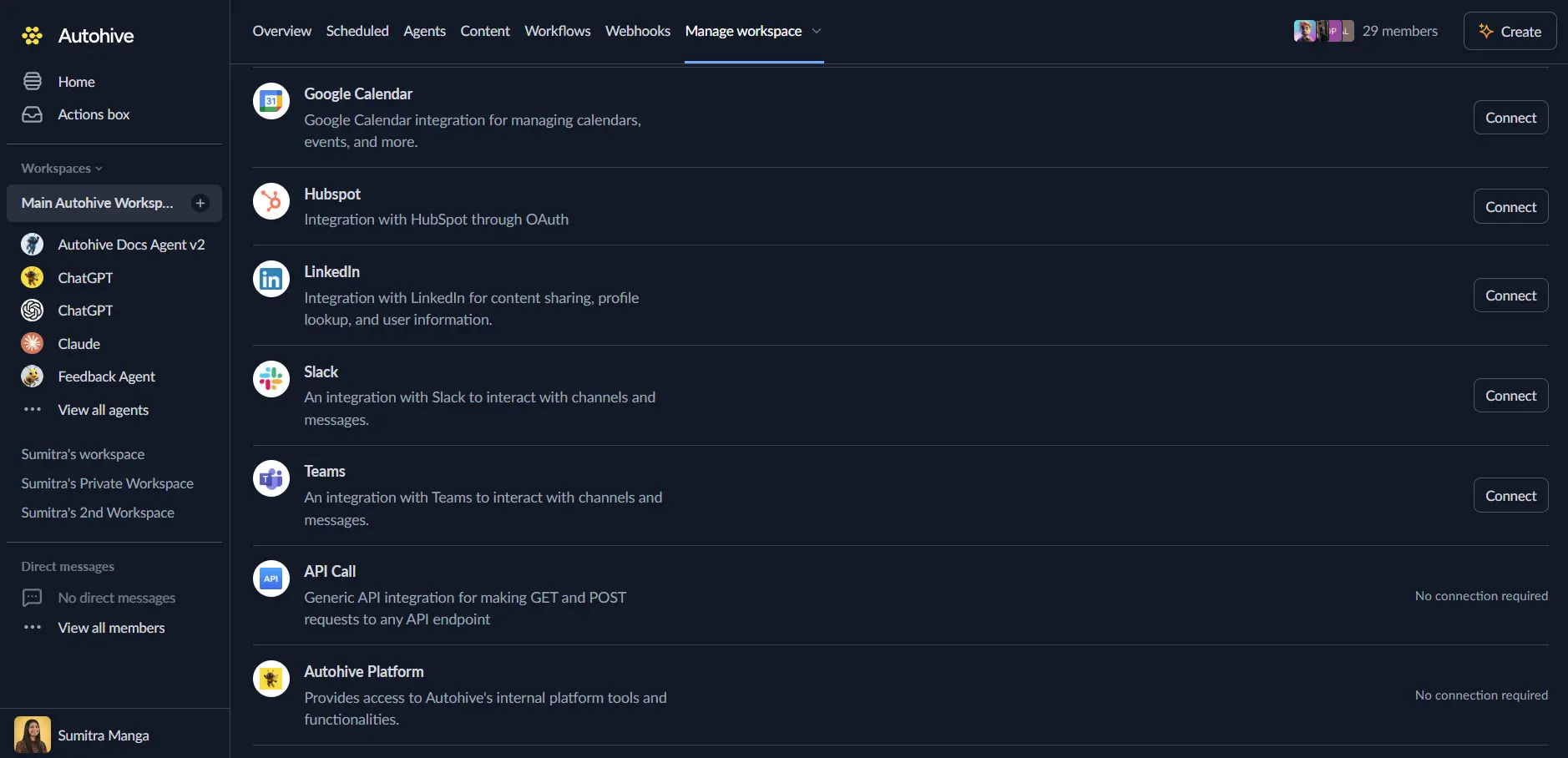
Authorize with Zoom - you’ll be redirected to Zoom’s authorization page
Review and approve permissions. Autohive requests access to:
- Create, update, and delete meetings
- View meeting details and participants
- Access user information and permissions
- Manage calendar events and contacts
- Create meeting templates and invite links
Ensure you approve the permissions required in order for the integration to function as expected.
Confirm installation - you’ll be redirected to Autohive with “Connected” status displayed
Use the integration
You can now use the integration with your agents, workflows and scheduled tasks!
- Follow our Create your first agent guide on how to create an agent.
- In the ‘Agent settings’, scroll down to the ‘Add capabilities’ section and turn on the Zoom capability. You can choose what individual Zoom capabilities to turn on and off.
- Once the settings have been selected, begin prompting the agent of the workflow you’d like to achieve with Autohive and Zoom!
Available capabilities
Meeting Operations
- List Meetings: View all scheduled, live, upcoming, or past meetings for a user with pagination support
- Get Meeting Details: Retrieve comprehensive meeting information including settings, host info, and join URLs
- Create Meeting: Schedule new meetings with customizable settings including topic, duration, timezone, password, and recording options
- Update Meeting: Modify existing meeting details such as topic, time, duration, and settings
- Delete Meeting: Remove scheduled meetings with optional occurrence deletion for recurring meetings
- Get Past Meeting: View details of completed meetings including duration and participant count
Meeting Templates and Invites
- Create Meeting Template: Save meeting configurations as reusable templates for consistent meeting setups
- Get Meeting Template Detail: View the full configuration of a saved meeting template
- Create Meeting Invite Links: Generate personalized invite links for specific attendees with customizable expiration
Participant Management
- Get Meeting Participants: View the list of participants who attended a past meeting with join/leave times
- Get Meeting Participant: Access detailed information about a specific meeting participant
User Management
- Get User Details: Retrieve comprehensive user profile information including settings, timezone, and account type
- Get User Permissions: View a user’s permission levels within Zoom
Calendar Operations
- List Calendar Events: View calendar events with filtering by date range and search queries
- Get Calendar Event: Retrieve details of a specific calendar event including attendees and location
- List Calendar Settings: View calendar configuration and settings
Contact Management
- List Contacts: Browse and search your Zoom contacts directory with filtering by type
Key features
Comprehensive Meeting Management
- Full lifecycle control of Zoom meetings from creation to deletion
- Support for all meeting types: instant, scheduled, recurring with no fixed time, and recurring with fixed time
- Advanced meeting settings including waiting room, join before host, mute upon entry, and auto-recording
- Customizable meeting passwords and security options
Enterprise-Ready Scheduling
- Timezone-aware scheduling for global teams
- Meeting template support for standardized meeting configurations
- Personalized invite links for tracking attendee participation
- Recurring meeting management with individual occurrence control
Participant Analytics
- Historical participant data for meeting attendance tracking
- Join and leave time tracking for engagement analysis
- Integration with past meeting data for comprehensive reporting
- Support for large meetings with pagination
User and Account Management
- Access to user profiles and organizational information
- Permission-based access control visibility
- Personal Meeting ID (PMI) configuration access
- User timezone and preference management
Common use cases
Automated Meeting Scheduling
- Create meetings automatically based on calendar events or form submissions
- Schedule recurring team standups or project check-ins with consistent settings
- Generate meeting links for customer onboarding workflows
- Automate interview scheduling with personalized invite links
Meeting Notifications and Reminders
- Send automated meeting reminders through connected messaging platforms
- Distribute meeting links and passwords to participants automatically
- Create pre-meeting briefings with agenda and participant lists
- Send post-meeting summaries and follow-up tasks
Attendance Tracking and Reporting
- Generate attendance reports for training sessions or webinars
- Track participant engagement metrics across meetings
- Create compliance reports for mandatory meetings
- Analyze meeting patterns and participation trends
Calendar and Workflow Integration
- Sync Zoom meetings with external calendar systems
- Trigger workflows based on meeting creation or completion
- Automate follow-up actions after meetings end
- Coordinate meeting scheduling across multiple team calendars
Template-Based Meeting Management
- Create standardized meeting templates for different meeting types
- Ensure consistent security settings across all company meetings
- Streamline meeting creation for recurring event types
- Maintain organizational meeting policies automatically
Customer and Client Meetings
- Automate client meeting scheduling from CRM triggers
- Generate unique meeting links for customer support sessions
- Track customer meeting history and engagement
- Create personalized meeting experiences with custom settings
Zoom integration best practices
Meeting Security
- Enable waiting rooms for external meetings to control participant access
- Use meeting passwords for sensitive discussions
- Disable join before host when host presence is required
- Review auto-recording settings for compliance requirements
Scheduling Considerations
- Always specify timezone when scheduling meetings for distributed teams
- Use meeting templates for consistent meeting configurations
- Set appropriate meeting durations to avoid calendar conflicts
- Consider participant time zones when scheduling recurring meetings
Participant Management
- Use personalized invite links for tracking attendance in large meetings
- Review participant lists after meetings for follow-up actions
- Monitor past meeting data for engagement insights
- Set appropriate page sizes when retrieving large participant lists
Disconnect the integration
Important: Disconnecting stops data synchronization but preserves existing data in both systems.
- Navigate to Your user profile -> Connections or Your workspace -> Manage workspace
- Find the Zoom Integration
- Click Disconnect and confirm
Data Impact: Existing data remains unchanged in both systems, but sync stops and Autohive loses Zoom API access.
Uninstall the app
From Zoom: Go to your Zoom account settings > Apps > Installed Apps > Find Autohive and uninstall