WhatsApp Business
The Autohive WhatsApp Business integration connects your WhatsApp Business account with Autohive’s automation platform, enabling:
- Message automation - Send text messages, media, and pre-approved templates to customers via WhatsApp
- Business communication - Reach customers on their preferred messaging platform
- Template messaging - Send structured, pre-approved messages for business-initiated conversations
- Media sharing - Send images, videos, documents, and audio files to customers
- Account monitoring - Check phone number health and quality ratings
- Multi-format support - Handle various message types and media formats
Install the integration
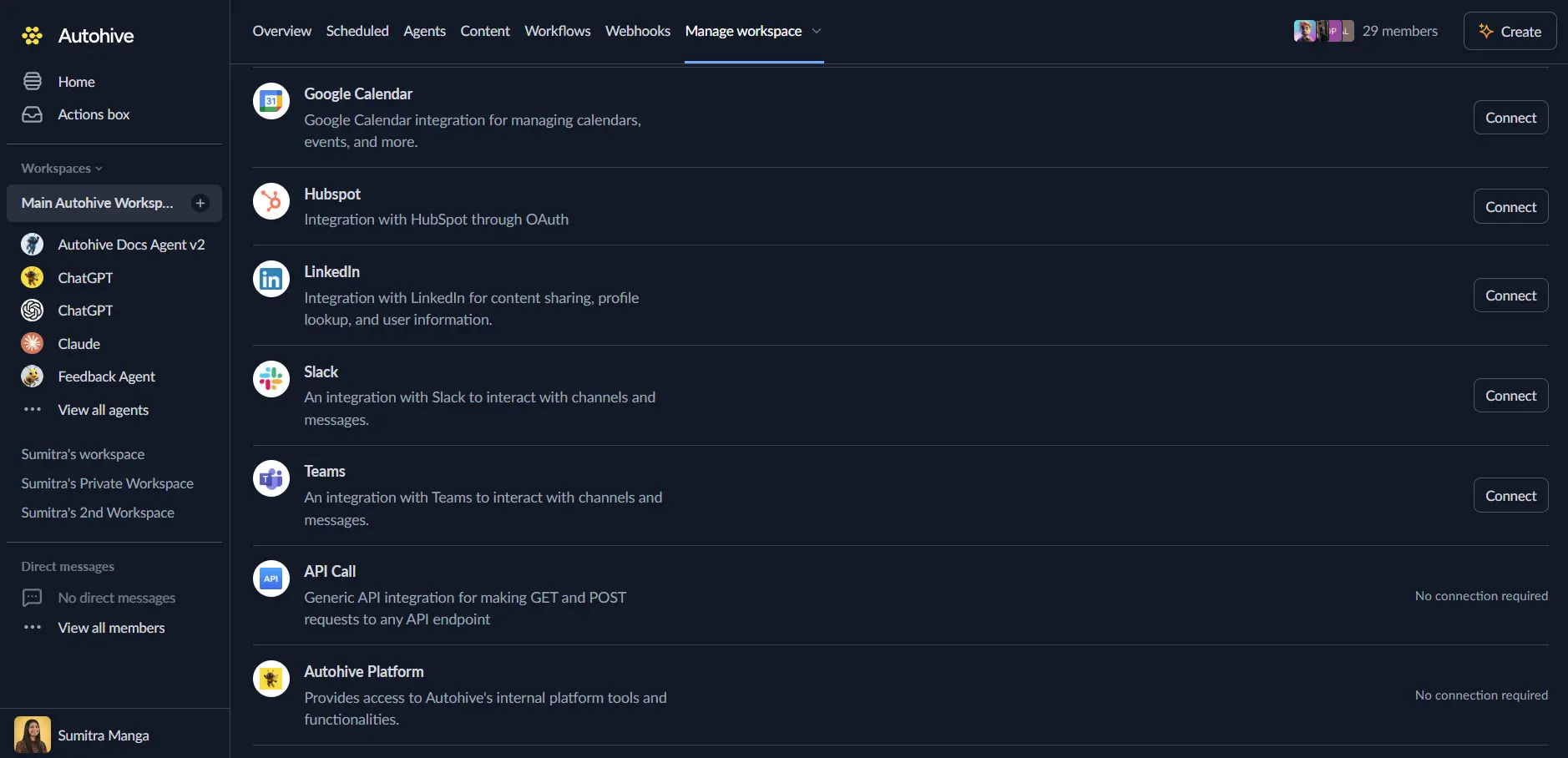
Log in to Autohive and navigate to Your user profile > Connections or Your workspace -> Manage workspace
Locate the WhatsApp Business Integration card and click Connect
Enter your WhatsApp Business credentials:
- Access Token: Your WhatsApp Business API access token from Meta (Facebook)
To get your Access Token, you’ll need a WhatsApp Business account set up through Meta Business Suite. If you don’t have one yet, visit Meta Business Suite to create your account and get your API credentials.Confirm installation - once connected, you’ll see a “Connected” status displayed
Use the integration
You can now use the integration with your agents, workflows and scheduled tasks!
- Follow our Create your first agent guide on how to create an agent.
- In the ‘Agent settings’, scroll down to the ‘Add capabilities’ section and turn on the WhatsApp Business capability. You can choose what individual WhatsApp Business capabilities to turn on and off.
- Once the settings have been selected, begin prompting the agent of the workflow you’d like to achieve with Autohive and WhatsApp Business!
Available capabilities
Send Message
Send text messages directly to your customers via WhatsApp. Simply provide the recipient’s phone number (with country code) and your message text.
Example use: “Send a thank you message to +1234567890”
Send Template Message
Send pre-approved template messages for business-initiated conversations. Templates must be created and approved in Meta Business Suite before use.
Example use: “Send the order_confirmation template to customer +1234567890 with their order number”
Send Media Message
Share rich media content with your customers including:
- Images: Product photos, receipts, or visual content
- Videos: Tutorials, promotions, or demonstrations
- Documents: PDFs, invoices, or reports with custom filenames
- Audio: Voice messages or audio files
Example use: “Send the invoice PDF to customer +1234567890”
Get Phone Number Health
Monitor your WhatsApp Business phone number’s status and quality rating to ensure optimal message delivery and account health.
Key features
Reach Customers Directly
WhatsApp is one of the world’s most popular messaging platforms. Connect with your customers where they already are, delivering messages directly to their mobile devices.
Multiple Message Types
- Text Messages: Send simple text communications
- Rich Media: Share images, videos, documents, and audio files
- Template Messages: Use pre-approved templates for business communications
- Personalization: Add captions and customize content for each recipient
Global Phone Number Support
Send messages to customers worldwide using international phone numbers. Autohive automatically handles phone number formatting, supporting numbers with or without the ‘+’ prefix.
Account Health Monitoring
Keep track of your WhatsApp Business account status and quality rating to ensure your messages are being delivered successfully and your account remains in good standing.
Common use cases
Order & Shipping Updates
Keep customers informed about their purchases with automated notifications for order confirmations, payment receipts, shipping updates, and delivery tracking information.
Example: “When an order is placed, automatically send the customer a WhatsApp message with their order details and tracking link”
Appointment Reminders
Reduce no-shows by sending automated appointment confirmations and reminders with all the details customers need.
Example: “Send appointment reminders to customers 24 hours before their scheduled time”
Customer Support
Deliver quick responses to common questions, share helpful documents, or send personalized support messages to enhance customer satisfaction.
Example: “When a support ticket is resolved, send the customer a summary and ask for feedback via WhatsApp”
Marketing Campaigns
Engage customers with promotional messages, product launches, or special offers using pre-approved WhatsApp templates.
Example: “Send a monthly newsletter template to subscribed customers with your latest offers”
Document Delivery
Share important documents like invoices, receipts, contracts, or reports directly through WhatsApp for easy access.
Example: “Automatically send monthly invoices as PDF documents to customers via WhatsApp”
Phone number format
When sending WhatsApp messages, you need to include the country code with the phone number.
How to format phone numbers
Include the country code and remove any spaces, dashes, or special characters:
- United States: +12125551234 or 12125551234
- United Kingdom: +442071234567 or 442071234567
- India: +919876543210 or 919876543210
- Australia: +61412345678 or 61412345678
The ‘+’ prefix is optional - Autohive will handle the formatting for you.
About template messages
WhatsApp requires businesses to use pre-approved message templates when starting conversations with customers. This helps prevent spam and ensures quality communication.
Creating templates
Templates are created and approved in Meta Business Suite:
- Design your message in Meta Business Suite
- Include placeholders for dynamic content (like names, order numbers, etc.)
- Submit for WhatsApp approval
- Once approved, use the template name in Autohive
Using templates in Autohive
When sending a template message, you’ll need:
- Template name: The name you gave your template in Meta Business Suite
- Language code: Such as “en” for English, “es” for Spanish, etc.
- Parameters (optional): Values to fill in the template placeholders
Example template:
  Template in Meta: "Hello {{1}}, your order {{2}} has been shipped!"
In Autohive:
  - Template name: "order_shipped"
  - Parameters: ["Sarah", "ORD-12345"]
  - Result: "Hello Sarah, your order ORD-12345 has been shipped!"
Sending media files
You can send images, videos, documents, and audio files through WhatsApp.
What you need
- A publicly accessible URL where your file is hosted (must be HTTPS)
- The file should be in a common format (JPG/PNG for images, MP4 for videos, PDF/DOC for documents, MP3 for audio)
Adding context to media
- Caption: Add a text description to images, videos, or documents
- Filename: Specify a custom filename for documents (like “Invoice_January_2024.pdf”)
Example: “Send the product photo at https://mysite.com/images/product.jpg to customer +1234567890 with the caption ‘Here is the item you inquired about!’”
Monitoring your account health
WhatsApp monitors the quality of business accounts to ensure customers have a good experience. You can check your phone number’s health through Autohive.
What the ratings mean
Status:
- CONNECTED: Your phone number is active and working
- DISCONNECTED: Phone number is not connected to WhatsApp
- FLAGGED: There may be quality issues to address
Quality Rating:
- GREEN: Excellent - no restrictions
- YELLOW: Fair - you may have some limitations
- RED: Poor - your messaging may be restricted
- UNKNOWN: Rating not yet available
Keeping your account healthy
- Send messages only to customers who want to hear from you
- Respond to customer messages quickly
- Use approved templates for marketing messages
- Don’t send spam or unwanted messages
- Monitor your quality rating regularly in Autohive
Best practices
Get permission first
Only send messages to customers who have agreed to receive them. This could be through a sign-up form, checkbox at checkout, or verbal agreement.
Be respectful and relevant
- Send messages that provide value to your customers
- Keep content clear and concise
- Personalize messages when possible
- Avoid sending too many messages
Respond promptly
Try to respond to customer messages within 24 hours to maintain good engagement and account health.
Use templates correctly
- Use approved templates when starting conversations with customers
- Regular text messages work great for ongoing conversations
- Keep your templates updated in Meta Business Suite
Keep your credentials safe
- Never share your access token publicly
- Don’t include tokens in screenshots or shared code
- Regularly review who has access to your WhatsApp Business account
Disconnect the integration
Important: Disconnecting stops data synchronization but preserves existing data in both systems.
- Navigate to Your user profile -> Connections or Your workspace -> Manage workspace
- Find the WhatsApp Business Integration
- Click Disconnect and confirm
Data Impact: Existing data remains unchanged in both systems, but sync stops and Autohive loses WhatsApp Business API access.
Remove WhatsApp access
From Meta Business Suite:
- Go to Meta Business Suite settings
- Navigate to Business Settings
- Find System Users or Apps section
- Locate Autohive and remove access
- Your WhatsApp Business account will no longer be connected to Autohive