Typeform
The Autohive Typeform integration connects your Typeform account with Autohive’s automation platform, enabling:
- Form management - Create, update, list, and delete forms with custom fields, settings, and themes
- Response tracking - Access form responses with filtering by date, completion status, and pagination
- Workspace organization - Manage workspaces to organize forms and collaborate with team members
- Theme customization - Create and manage themes with custom colors, fonts, and backgrounds
- Image library - Upload and manage images for use in forms and themes
- Webhook integration - Create and manage webhook subscriptions for real-time form submission notifications
- User account access - Retrieve authenticated user account information
Install the integration
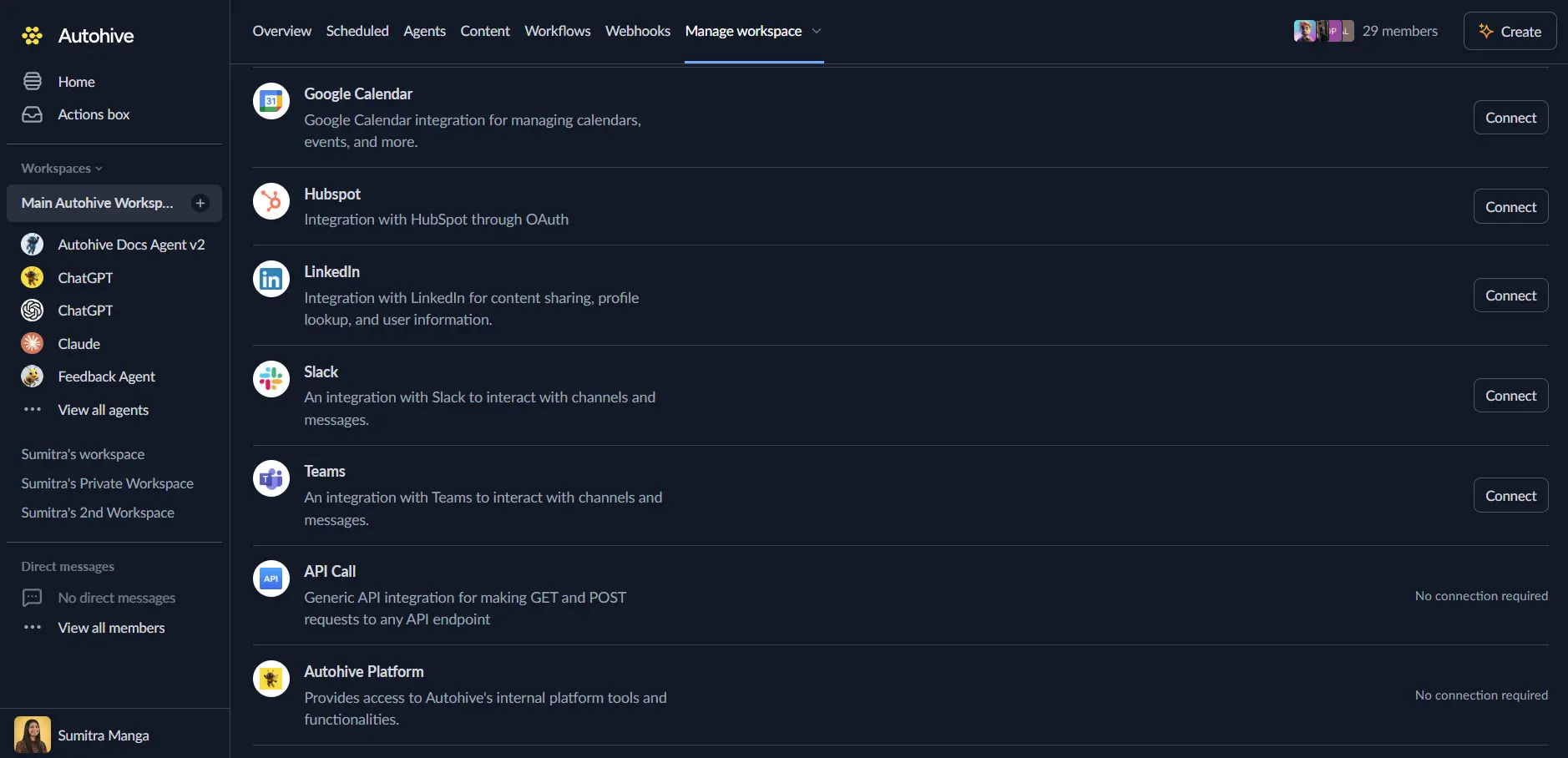
Log in to Autohive and navigate to Your user profile > Connections or Your workspace -> Integrations
Locate the Typeform Integration card and click Connect to workspace
Authorize with Typeform - you’ll be redirected to Typeform’s authorization page
Review and approve permissions. Autohive requests access to:
- Read and manage forms
- Access form responses
- Manage workspaces
- Create and manage themes
- Upload and manage images
- Manage webhook subscriptions
Ensure you approve the permissions required in order for the integration to function as expected.
Confirm installation - you’ll be redirected to Autohive with “Connected” status displayed
Use the integration
You can now use the integration with your agents, workflows and scheduled tasks!
- Follow our Create your first agent guide on how to create an agent.
- In the ‘Agent settings’, scroll down to the ‘Add Integrations and Agents’ section, click ‘Add integrations and agents’, and select Typeform. You can choose what individual Typeform capabilities to turn on and off.
- Once the settings have been selected, begin prompting the agent with the workflow you’d like to achieve with Autohive and Typeform!
Available capabilities
User Management
- Get Current User: Retrieve authenticated user account information including user ID, email, alias, and language preferences
Form Management
- List Forms: Browse all forms with optional filtering by workspace ID or search by title (up to 200 per page)
- Get Form: Retrieve detailed form information including fields, settings, logic, theme, and welcome/thank you screens
- Create Form: Create new forms with custom title, fields, settings, theme, workspace assignment, and screen configurations
- Update Form: Modify existing forms including title, fields, settings, theme, and screen configurations
- Delete Form: Permanently remove forms from your account
Response Operations
- List Responses: Retrieve form responses with filtering by date range (ISO 8601 or Unix timestamp), completion status, text search, and field selection (up to 1000 per page)
- Delete Responses: Remove specific responses from forms by providing comma-separated response IDs
Workspace Management
- List Workspaces: Browse all workspaces with search by name and pagination support (up to 200 per page)
- Get Workspace: Retrieve workspace details including name, forms, and members
- Create Workspace: Create new workspaces to organize forms and collaborate with team members
- Update Workspace: Modify workspace names and settings
- Delete Workspace: Remove workspaces from your account
Theme Management
- List Themes: Browse all custom themes with pagination support (up to 200 per page)
- Get Theme: Retrieve theme details including colors, fonts, and background settings
- Create Theme: Design custom themes with color palettes (question, answer, button, background), font families, button transparency, and background images
- Delete Theme: Remove custom themes from your account
Image Management
- List Images: Browse all uploaded images with pagination support for use in forms and themes
- Get Image: Retrieve image details including source URL, file name, width, and height dimensions
- Delete Image: Remove images from your account library
Webhook Management
- List Webhooks: Browse all webhook subscriptions for a specific form
- Get Webhook: Retrieve detailed webhook subscription information including tag, URL, enabled status, and creation timestamp
- Create Webhook: Set up webhook subscriptions with custom tags, callback URLs, enabled status, and HMAC SHA256 signature secrets for payload verification
- Delete Webhook: Remove webhook subscriptions by form ID and tag to stop receiving notifications
Key features
Comprehensive Form Builder
- Create forms with custom field types and validation rules
- Configure form settings including language, public/private status, and progress bars
- Design welcome and thank you screens for enhanced user experience
- Apply custom themes or use Typeform’s default themes
Advanced Response Management
- Filter responses by submission date range for time-based analysis
- Search responses by text content for specific answer lookup
- Query by completion status to focus on complete or partial responses
- Pagination support for efficiently processing large response datasets (up to 1000 per page)
Workspace Collaboration
- Organize forms into workspaces for team collaboration and project management
- Share forms with workspace members for joint management
- Search workspaces by name for quick access to relevant form collections
- Manage workspace membership for controlled access to forms and data
Theme Customization Engine
- Design custom color schemes for questions, answers, buttons, and backgrounds
- Choose from multiple font families for consistent brand typography
- Configure transparent or solid button styles for design flexibility
- Set background images with layout and brightness controls for visual appeal
Image Asset Library
- Upload images to Typeform’s CDN for fast global delivery
- Reference images by ID in forms, themes, and welcome/thank you screens
- View image dimensions and file names for asset management
- Delete unused images to maintain clean asset libraries
Real-Time Webhook Integration
- Subscribe to form submission events for instant data processing
- Configure HMAC SHA256 signatures for secure payload verification
- Enable/disable webhooks without deleting subscriptions for testing
- Use custom tags to organize multiple webhooks per form
Rate Limit Handling
- Built-in retry mechanism with _retry_attempt parameter for rate limit errors
- Automatic retry_after_seconds detection for optimal retry timing
- Maximum 3 retries recommended to prevent excessive API calls
- Graceful degradation for high-volume automation workflows
Common use cases
Automated Survey Processing
- Send form responses to Slack, email, or CRM systems via webhooks
- Process new submissions in real-time for immediate follow-up workflows
- Filter responses by completion status to focus on fully submitted forms
- Trigger approval workflows based on survey answer thresholds
Form Creation Automation
- Generate custom forms programmatically based on templates or business logic
- Create event registration forms with dynamic fields from external data sources
- Deploy feedback forms automatically after customer interactions
- Clone and customize forms for recurring campaigns or events
Response Data Analysis
- Export form responses to BigQuery, databases, or data warehouses for analytics
- Aggregate responses across multiple forms for consolidated reporting
- Search responses by text to identify specific feedback or keywords
- Track submission trends over time with date range filtering
Multi-Brand Form Management
- Create workspace-specific themes for consistent brand identity across forms
- Organize forms by client, department, or project using workspaces
- Manage team access to forms through workspace membership controls
- Deploy branded forms with custom colors, fonts, and images
Lead Qualification Workflows
- Process routing form responses to score and route leads automatically
- Integrate form data with marketing automation platforms for nurturing campaigns
- Trigger sales workflows based on form submission criteria and answers
- Sync high-value leads to CRM systems immediately upon submission
Content and Design Management
- Maintain centralized image libraries for consistent visual elements across forms
- Update form themes dynamically based on seasonal campaigns or rebranding
- Archive completed forms while preserving response data for compliance
- Clone and modify successful form templates for new use cases
Disconnect the integration
Important: Disconnecting stops data synchronization but preserves existing data in both systems.
- Navigate to Your user profile -> Connections or Your workspace -> Integrations
- Find the Typeform Integration
- Click Disconnect and confirm
Data Impact: Existing data remains unchanged in both systems, but sync stops and Autohive loses Typeform API access.
Uninstall the app
From Typeform: Go to your Typeform Account > Settings > Connected Apps > Find Autohive and revoke access.