Shopify Admin
The Autohive Shopify Admin integration connects your Shopify store with Autohive’s automation platform, enabling:
- Customer Management - Create, update, search, and manage customer profiles
- Order Processing - Retrieve, create, and cancel orders
- Product Management - Manage product catalog, variants, and inventory
- Inventory Control - Track and update inventory levels across locations
- Fulfillment Automation - Create fulfillments and update tracking information
- Draft Orders - Manage draft orders including creation and completion
Install the integration
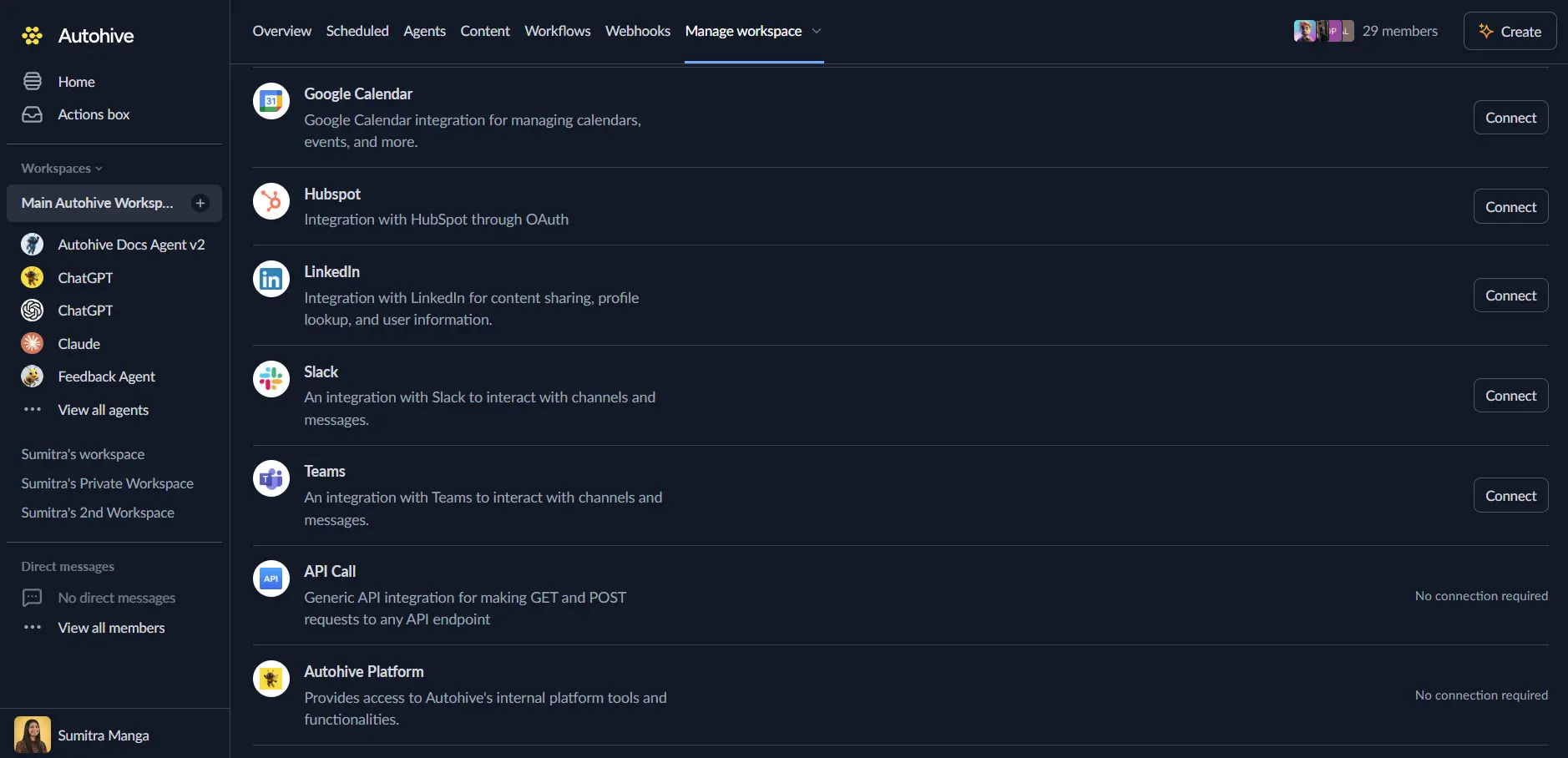
Log in to Autohive and navigate to Your user profile > Connections or Your workspace -> Manage workspace
Locate the Shopify Admin Integration card and click Connect
Authorize Access:
- You will be redirected to Shopify to authorize the integration
- Log in to your Shopify store
- Review and grant the requested permissions (Customers, Orders, Products, Inventory, etc.)
- Confirm the installation
Confirm installation - You will be redirected back to Autohive, and your Shopify store will be connected
The integration uses Platform Authentication, so you don’t need to manually manage API keys.
Use the integration
You can now use the integration with your agents, workflows and scheduled tasks!
- Follow our Create your first agent guide on how to create an agent.
- In the ‘Agent settings’, scroll down to the ‘Add capabilities’ section and turn on the Shopify Admin capability. You can choose what individual Shopify Admin capabilities to turn on and off.
- Once the settings have been selected, begin prompting the agent of the workflow you’d like to achieve with Autohive and Shopify!
Available capabilities
Customers
- List Customers: Retrieve a list of customers with optional filtering by creation date, update date, etc.
- Get Customer: Retrieve a single customer by their ID.
- Search Customers: Search for customers using a query string.
- Create Customer: Create a new customer profile with details like email, name, and address.
- Update Customer: Update an existing customer’s information.
Orders
- List Orders: Retrieve orders with filtering by status (open, closed, cancelled), financial status, and fulfillment status.
- Get Order: Retrieve details of a specific order.
- Create Order: Create a new order with line items, customer details, and shipping address.
- Cancel Order: Cancel an existing order with a specified reason.
Products
- List Products: Retrieve products with filtering by title, vendor, type, and status.
- Get Product: Retrieve details of a specific product.
- Create Product: Create a new product with variants, options, and images.
- Update Product: Update an existing product’s details.
Inventory
- Get Inventory Levels: Retrieve inventory levels for specific items or locations.
- Set Inventory Level: Set the available inventory quantity for an item at a specific location.
Locations
- List Locations: List all store locations (warehouses, stores, etc.).
- Get Location: Retrieve details of a specific location.
Fulfillments
- List Fulfillments: List fulfillments associated with a specific order.
- Create Fulfillment: Create a fulfillment for an order, including tracking details.
- Update Fulfillment Tracking: Update tracking information for an existing fulfillment.
Draft Orders
- List Draft Orders: List draft orders with optional filtering.
- Create Draft Order: Create a new draft order with line items and customer details.
- Complete Draft Order: Complete a draft order, converting it into a real order.
- Delete Draft Order: Delete a draft order.
Shop
- Get Shop Info: Retrieve general information about the shop.
Key features
Comprehensive Store Management
- Access to core e-commerce entities: Customers, Orders, and Products.
- Full CRUD (Create, Read, Update, Delete) support for key resources.
Inventory & Fulfillment
- Multi-location inventory management.
- Automate the fulfillment process by creating fulfillments and updating tracking numbers.
Flexible Searching & Filtering
- Advanced search capabilities for customers.
- Granular filtering for orders and products based on status, dates, and other attributes.
Common use cases
Customer Support Automation
- Search for a customer by email to retrieve their recent orders.
- Update customer notes or tags based on support interactions.
- Create new customer profiles from external leads.
Order Management
- Automatically cancel orders flagged as fraudulent.
- Retrieve open orders for reporting or synchronization with ERP systems.
- Create orders programmatically from external sales channels.
Inventory Sync
- Update inventory levels in real-time based on stock changes in a warehouse management system.
- Check inventory availability before processing orders.
Fulfillment Processing
- Automatically create fulfillments when shipping labels are generated.
- Update customers with tracking URLs from logistics providers.
Disconnect the integration
Important: Disconnecting stops API access but preserves existing data in both systems.
- Navigate to Your user profile -> Connections or Your workspace -> Manage workspace
- Find the Shopify Admin Integration
- Click Disconnect and confirm
Data Impact: Existing data remains unchanged in both systems, but sync stops and Autohive loses Shopify Admin API access.
Remove access
From Shopify:
- Log in to your Shopify Admin.
- Go to Settings > Apps and sales channels.
- Find the Autohive application and uninstall it.