Netlify
The Autohive Netlify integration connects your Netlify account with Autohive’s automation platform, enabling:
- Site management - Create, list, retrieve, update, and delete sites with custom domain configuration
- Deployment operations - Create new deploys, list all deploys for sites, and retrieve detailed deploy information
- Hosting automation - Deploy files to sites programmatically with automatic URL generation
- Site configuration - Update site settings including names and custom domains for flexible management
- Deploy monitoring - Track deployment status and access deploy URLs for verification workflows
Install the integration
Log in to Autohive and navigate to Your user profile > Connections or Your workspace -> Integrations
Locate the Netlify Integration card and click Connect to workspace
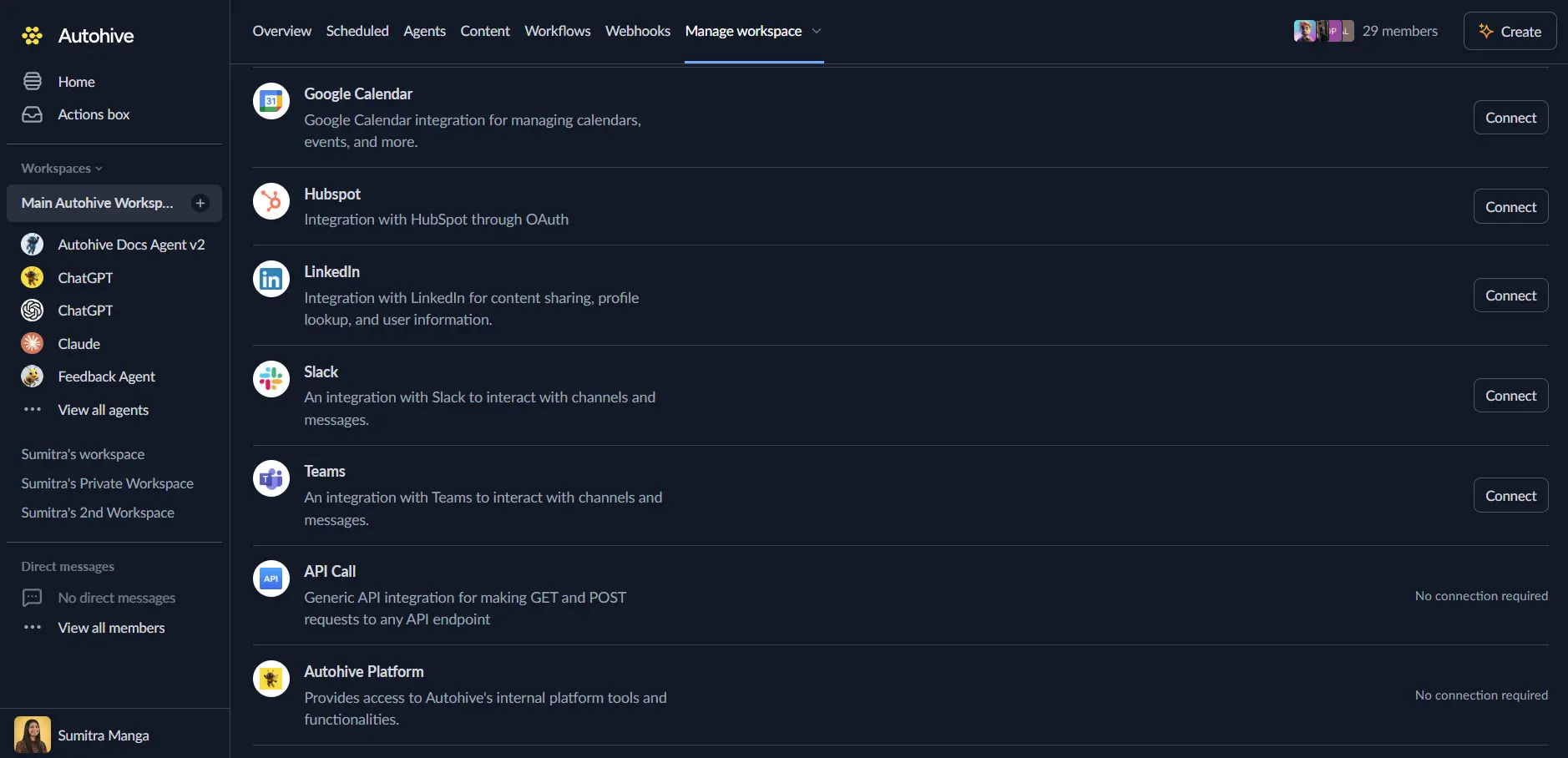
Authorize with Netlify - you’ll be redirected to Netlify’s authorization page
Review and approve permissions. Autohive requests access to:
- Manage sites and deployments
- Access site configuration and settings
Ensure you approve the permissions required in order for the integration to function as expected.
Confirm installation - you’ll be redirected to Autohive with “Connected” status displayed
Use the integration
You can now use the integration with your agents, workflows and scheduled tasks!
- Follow our Create your first agent guide on how to create an agent.
- In the ‘Agent settings’, scroll down to the ‘Add Integrations and Agents’ section, click ‘Add integrations and agents’, and select Netlify. You can choose what individual Netlify capabilities to turn on and off.
- Once the settings have been selected, begin prompting the agent with the workflow you’d like to achieve with Autohive and Netlify!
Available capabilities
Site Management
- List Sites: Browse all sites for the authenticated user with comprehensive site information
- Get Site: Retrieve detailed information about specific sites including configuration and URLs
- Create Site: Create new sites with custom names and optional custom domain configuration
- Update Site: Modify site settings including site name and custom domain assignments
- Delete Site: Remove sites from your Netlify account when they’re no longer needed
Deployment Operations
- List Deploys: Browse all deployments for a specific site with complete deploy history
- Get Deploy: Retrieve detailed information about specific deployments including status and URLs
- Create Deploy: Deploy files to sites programmatically with automatic URL generation and hosting
Key features
Comprehensive Site Management
- Full lifecycle control with create, read, update, and delete operations
- Custom domain support for branded web hosting
- Site name customization for organized project management
- Access to all sites associated with your Netlify account
Programmatic Deployment
- Deploy files directly from automation workflows using path-to-content mappings
- Automatic deploy URL generation for immediate access to deployed content
- Complete deployment history tracking for all sites
- Deploy status monitoring for verification and quality assurance
Flexible Configuration
- Update site settings dynamically based on workflow requirements
- Optional custom domain configuration for brand consistency
- Site-specific deployment management for multi-project workflows
- Detailed deploy information including IDs, URLs, and metadata
Enterprise-Ready
- OAuth 2.0 platform authentication with secure token management
- RESTful API integration for reliable connectivity
- Comprehensive error handling with detailed status reporting
- Scalable architecture for managing multiple sites and deployments
Common use cases
Automated Website Deployment
- Deploy static sites automatically when content changes are detected
- Publish documentation sites from content management systems or Git repositories
- Automate landing page deployment for marketing campaigns
- Deploy preview environments for testing and review workflows
CI/CD Pipeline Integration
- Trigger Netlify deployments from external build systems and pipelines
- Deploy sites programmatically after successful test runs
- Automate multi-environment deployments (staging, production) based on workflow logic
- Monitor deployment status and alert teams on failures or completions
Site Lifecycle Management
- Create new sites programmatically for multi-tenant applications or client projects
- Update site configurations dynamically based on business requirements
- Delete old sites as part of project cleanup or archival workflows
- List all sites for inventory management and reporting
Content Publishing Workflows
- Deploy blog posts or articles automatically when published in CMS
- Update product pages by deploying new content on schedule or trigger
- Publish event landing pages with automated deployment timing
- Deploy localized content to different custom domains for international audiences
Development and Testing Automation
- Create temporary sites for feature branch testing and review
- Deploy preview environments automatically for pull requests
- Clean up test sites after reviews are completed
- Monitor deploy status to gate downstream workflows and approvals
Disconnect the integration
Important: Disconnecting stops data synchronization but preserves existing data in both systems.
- Navigate to Your user profile -> Connections or Your workspace -> Integrations
- Find the Netlify Integration
- Click Disconnect and confirm
Data Impact: Existing data remains unchanged in both systems, but sync stops and Autohive loses Netlify API access.
Uninstall the app
From Netlify: Go to your Netlify User Settings > Applications > Find Autohive and revoke access.