LinkedIn Ads
The Autohive LinkedIn Ads integration connects your LinkedIn Marketing Solutions account with Autohive’s automation platform, enabling:
- Campaign management - Create, update, pause, and activate advertising campaigns directly from your workflows
- Performance analytics - Retrieve comprehensive metrics for campaigns including impressions, clicks, and engagement
- Creative retrieval - Access ad creatives associated with your campaigns
- Account oversight - Manage multiple ad accounts and campaign groups efficiently
- Automated reporting - Generate regular performance reports for data-driven decision making
Install the integration
Log in to Autohive and navigate to Your user profile > Connections or Your workspace -> Manage workspace
Locate the LinkedIn Ads Integration card and click Connect
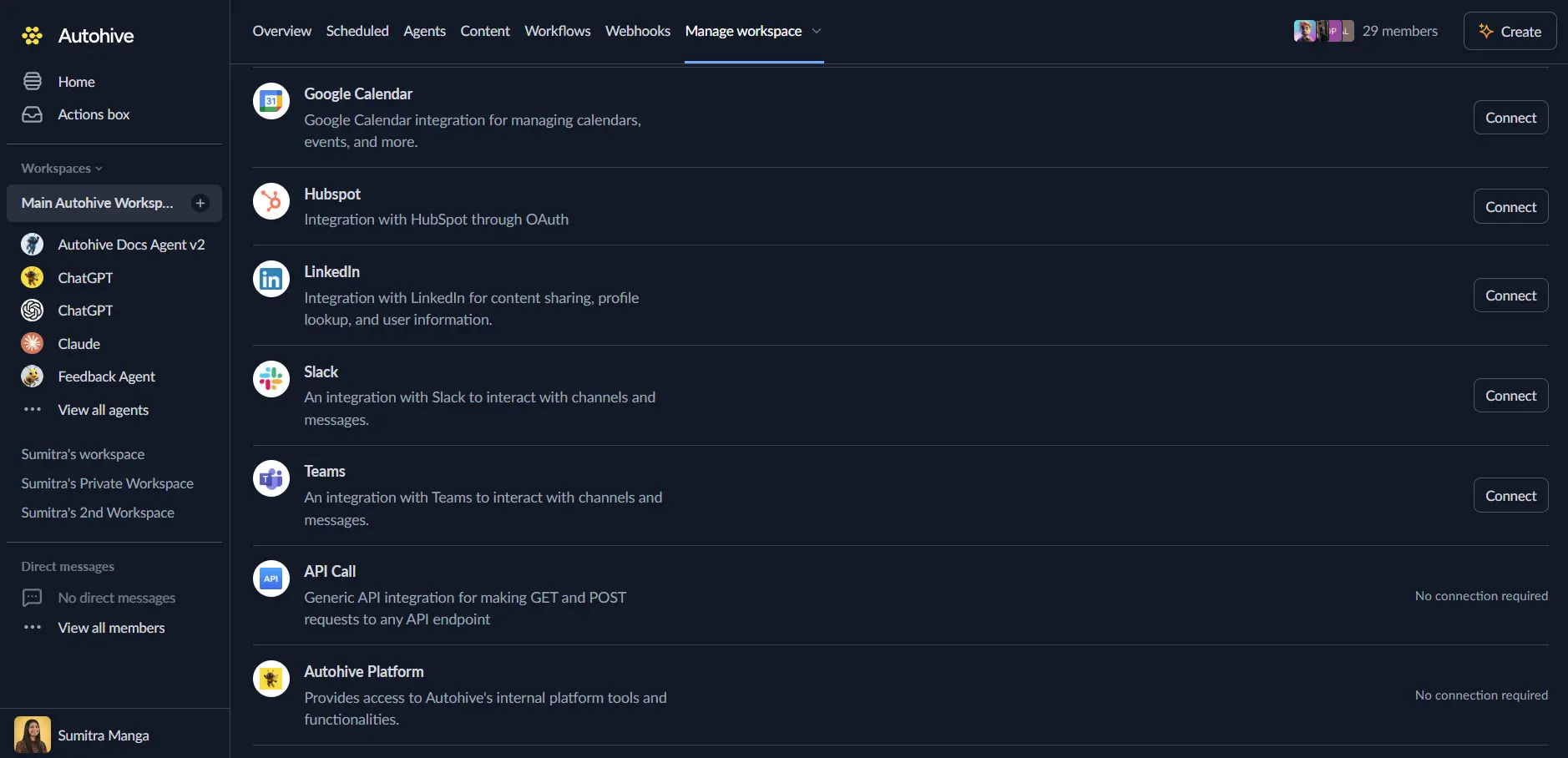
Authorize with LinkedIn - you’ll be redirected to LinkedIn’s authorization page
Review and approve permissions. Autohive requests access to:
- Read ad accounts and campaigns
- Read campaign analytics
- Read/write access to ads
Ensure you approve the permissions required in order for the integration to function as expected.
Confirm installation - you’ll be redirected to Autohive with “Connected” status displayed
Use the integration
You can now use the integration with your agents, workflows and scheduled tasks!
- Follow our Create your first agent guide on how to create an agent.
- In the ‘Agent settings’, scroll down to the ‘Add capabilities’ section and turn on the LinkedIn Ads capability. You can choose what individual LinkedIn Ads capabilities to turn on and off.
- Once the settings have been selected, begin prompting the agent of the workflow you’d like to achieve with Autohive and LinkedIn Ads!
Available capabilities
Campaign Management
- Create Campaign: Launch new advertising campaigns with specific objectives, types, and budgets
- Update Campaign: Modify settings of existing campaigns such as name, status, and budget
- Pause/Activate Campaign: Control the status of your campaigns to optimize spend and timing
- Get Campaign Details: Retrieve detailed information about specific campaigns including objective and status
Performance Analytics
- Get Ad Analytics: Pull performance metrics for campaigns over specific date ranges
- Multi-Granularity Data: Analyze data on a daily, monthly, or overall basis
- Comprehensive Metrics: Track impressions, clicks, cost, and other key performance indicators
Account & Structure Management
- Get Ad Accounts: List all accessible ad accounts to manage multiple clients or brands
- Get Campaign Groups: Organize and retrieve campaign groups for better account structure
- Get Ad Account Users: View users with access to specific ad accounts
Creative Management
- Get Creatives: Retrieve the ad creatives associated with your campaigns for review and analysis
Key features
Full-Cycle Campaign Control
- Manage the entire lifecycle of your campaigns from creation to optimization
- Support for various objective types including Brand Awareness, Lead Generation, and Website Conversions
- Flexible budget management with daily and total budget options
Data-Driven Insights
- Access granular performance data to understand what’s working
- Filter analytics by campaign, date range, and time granularity
- Make informed decisions to improve ROI and campaign effectiveness
Enterprise-Ready
- Support for managing multiple ad accounts suitable for agencies and large organizations
- Secure OAuth 2.0 authentication ensures your data remains protected
- Detailed error handling and result reporting for reliable automation
Common use cases
Automated Monthly Reporting
- Generate comprehensive performance reports at the end of each month
- Aggregate data across multiple campaigns and accounts
- Share insights with stakeholders automatically
Budget Monitoring & Optimization
- Track daily spend against budgets to prevent overspending
- Automatically pause campaigns that are underperforming or have reached their limits
- Adjust budgets based on performance triggers
Campaign Deployment
- Streamline the creation of multiple campaigns across different accounts
- Standardize campaign settings and structures using templates
- Launch time-sensitive campaigns automatically
Disconnect the integration
Important: Disconnecting stops data synchronization but preserves existing data in both systems.
- Navigate to Your user profile -> Connections or Your workspace -> Manage workspace
- Find the LinkedIn Ads Integration
- Click Disconnect and confirm
Data Impact: Existing data remains unchanged in both systems, but sync stops and Autohive loses LinkedIn Marketing API access.
Uninstall the app
From LinkedIn: Go to your LinkedIn Settings & Privacy > Data privacy > Other applications > Permitted services > Find Autohive and remove access.