On this page
Humanitix
The Autohive Humanitix integration connects your Humanitix account with Autohive’s automation platform, enabling:
- Event management - Retrieve and monitor all your events with details including dates, venue, and ticket information
- Order tracking - Access order details with buyer information, ticket quantities, and payment status
- Ticket management - View ticket details, attendee info, and check-in status
- Attendee check-in/check-out - Check in and check out attendees at your events
- Tag management - Retrieve and browse tags used to categorize your events
Install the integration
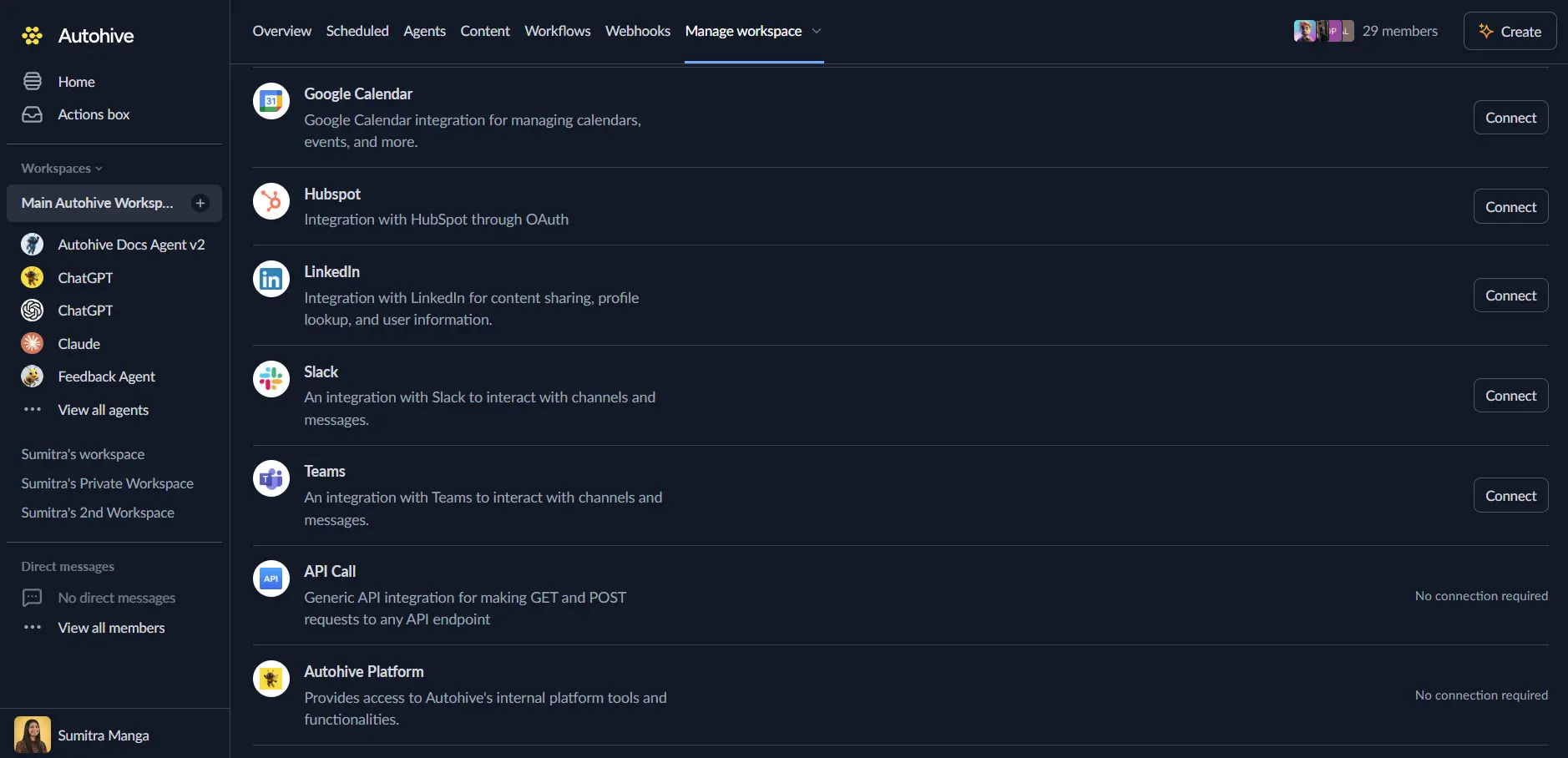
Log in to Autohive and navigate to Your user profile > Connections or Your workspace -> Integrations
Locate the Humanitix Integration card and click Connect to workspace
Enter your Humanitix API Key. To generate your API key:
- Log into your Humanitix account
- Navigate to Account > Advanced > API Key
- Generate your API key and copy it
Paste your API key into the connection form and confirm
Confirm installation - you’ll see “Connected” status displayed
Do not share your API key — it provides access to sensitive event data. Generating a new key will invalidate any existing keys.
Use the integration
You can now use the integration with your agents, workflows and scheduled tasks!
- Follow our Create your first agent guide on how to create an agent.
- In the ‘Agent settings’, scroll down to the ‘Add Integrations and Agents’ section, click ‘Add integrations and agents’, and select Humanitix. You can choose what individual Humanitix capabilities to turn on and off.
- Once the settings have been selected, begin prompting the agent with the workflow you’d like to achieve with Autohive and Humanitix!
Responses could be inaccurate, especially if your agent’s Temperature setting is high.
Available capabilities
Event Management
- Get Events: Retrieve events from your Humanitix account — fetch a single event by ID or list all events with pagination and date filtering
Order Tracking
- Get Orders: Retrieve orders for a specific event — fetch a single order by ID or list orders with pagination, date filtering, and event date filtering
Ticket Management
- Get Tickets: Retrieve tickets for a specific event — fetch a single ticket by ID or list tickets with pagination, date filtering, status filtering, and event date filtering
Attendee Check-In
- Check In: Check in an attendee’s ticket for an event and receive any configured scanning messages
- Check Out: Check out an attendee’s ticket for an event and receive any configured scanning messages
Tag Management
- Get Tags: Retrieve tags from your Humanitix account — fetch a single tag by ID or list all tags with pagination
Key features
Event Monitoring
- Retrieve all events across your Humanitix account
- Access event details including names, dates, venues, and ticket information
- Filter events by date to focus on recent or upcoming events
- Paginate through large event lists efficiently
Order and Ticket Insights
- Access detailed order information including buyer details and payment status
- View ticket details with attendee information and check-in status
- Filter tickets by status (complete or cancelled)
- Filter orders and tickets by specific event dates
Attendee Check-In Management
- Check in attendees at your events directly through Autohive
- Check out attendees when they leave
- Receive scanning messages configured for each ticket upon check-in or check-out
- Streamline event day operations with automated check-in workflows
Tag Organization
- Browse and retrieve tags used to categorize your events
- Use tags to organize and filter events programmatically
- Access individual tag details by ID
Common use cases
Event Operations
- Monitor upcoming events and track ticket sales across your organization
- Pull real-time order and attendee data for event planning
- Automate pre-event reporting with attendee counts and ticket breakdowns
Attendee Management
- Automate check-in workflows for large events
- Track attendee arrivals and departures in real time
- Sync attendee data to your CRM or marketing platform
Reporting and Analytics
- Generate order and ticket reports for stakeholders
- Monitor ticket sales velocity across multiple events
- Track check-in rates and attendance patterns
Cross-Platform Workflows
- Sync Humanitix event data with other tools connected to Autohive
- Trigger notifications when new orders are placed or tickets are issued
- Coordinate event operations across Humanitix and other event platforms
Disconnect the integration
Important: Disconnecting stops data synchronization but preserves existing data in both systems.
- Navigate to Your user profile -> Connections or Your workspace -> Integrations
- Find the Humanitix Integration
- Click Disconnect and confirm
Data Impact: Existing data remains unchanged in both systems, but sync stops and Autohive loses Humanitix API access.