Google Search Console
The Autohive Google Search Console integration connects your Search Console properties with Autohive’s automation platform, enabling:
- Search analytics - Query search performance data with dimensions and metrics for comprehensive SEO analysis
- Site management - List all verified sites in your Search Console account with permission levels
- URL inspection - Inspect individual URLs for index status, mobile usability, and AMP validation
- Sitemap management - List and manage submitted sitemaps with submission dates and status indicators
- Advanced filtering - Filter by date ranges, queries, pages, countries, devices, and search appearance types
- Performance metrics - Access clicks, impressions, CTR, and position data for detailed search performance
- Dimension analysis - Analyze data by query, page, country, device, date, and search appearance
- Large dataset handling - Retrieve up to 25,000 rows per query with pagination support
Install the integration
Set up Google Search Console OAuth2:
- Ensure you have verified properties in Google Search Console
- Note your site URLs (e.g.,
https://example.comorsc-domain:example.com) - Create OAuth2 credentials in Google Cloud Console with Search Console API access
- Add the
https://www.googleapis.com/auth/webmastersscope to your OAuth2 configuration
Log in to Autohive and navigate to Your user profile > Connections or Your workspace -> Manage workspace
Locate the Google Search Console Integration card and click Connect
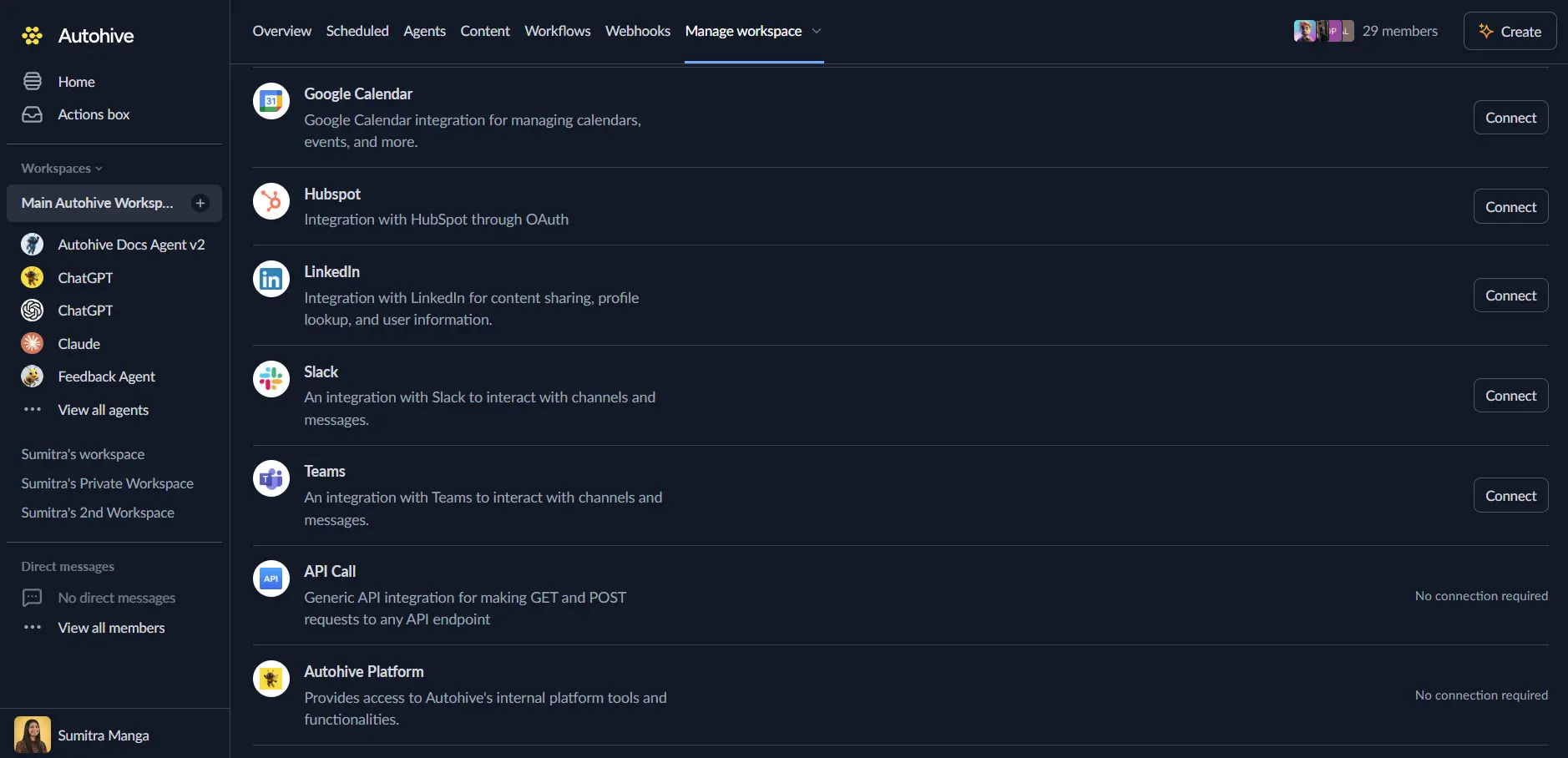
Authorize with Google - you’ll be redirected to Google’s authorization page
Review and approve permissions. Autohive requests access to:
- Full access to Google Search Console data (
webmastersscope)
Ensure you approve the permissions required in order for the integration to function as expected.
- Full access to Google Search Console data (
Confirm installation - you’ll be redirected to Autohive with “Connected” status displayed
Use the integration
You can now use the integration with your agents, workflows and scheduled tasks!
- Follow our Create your first agent guide on how to create an agent.
- In the ‘Agent settings’, scroll down to the ‘Add capabilities’ section and turn on the Google Search Console capability. You can choose what individual Google Search Console capabilities to turn on and off.
- Once the settings have been selected, begin prompting the agent of the workflow you’d like to achieve with Autohive and Google Search Console!
Available capabilities
Search Analytics
- Query Search Analytics: Retrieve search performance data filtered by dimensions like query, page, country, device, or date with clicks, impressions, CTR, and position metrics
Site Management
- List Sites: Display all properties in your Search Console account with permission levels and verification status
URL Inspection
- Inspect URL: Examine indexing status, mobile usability, and AMP validation for specific URLs within your properties
Sitemap Management
- List Sitemaps: Show all submitted sitemaps with submission dates, status indicators, and error information
- Get Sitemap Details: Retrieve comprehensive information about individual sitemaps including content details and processing status
Key features
Comprehensive Search Analytics
- Multi-dimensional data analysis with query, page, country, device, date, and search appearance dimensions
- Performance metrics including clicks, impressions, click-through rate (CTR), and average position
- Flexible date range filtering with YYYY-MM-DD format supporting up to 16 months of historical data
- Row limit controls with maximum 25,000 rows per query for efficient data management
Advanced Filtering and Operators
- Filter dimensions with multiple operators: equals, notEquals, contains, and notContains
- Combine multiple filters for precise data segmentation and analysis
- Query-level filtering for keyword performance tracking
- Page-level filtering for content-specific analytics
- Geographic filtering by country for regional performance insights
- Device filtering (mobile, desktop, tablet) for device-specific optimization
Property Management
- Support for both URL-prefix properties (
https://example.com) and Domain properties (sc-domain:example.com) - List all verified properties with permission level visibility
- Track site verification status and access control
- Manage multiple properties from a single integration
URL and Sitemap Operations
- Individual URL inspection for index status and validation checks
- Mobile usability assessment for mobile-first indexing compliance
- AMP validation for Accelerated Mobile Pages implementation
- Sitemap submission tracking with date and status monitoring
- Comprehensive sitemap details including content statistics and errors
Common use cases
SEO Performance Monitoring
- Track search performance metrics automatically on daily, weekly, or monthly schedules
- Monitor keyword rankings and position changes over time for SEO campaigns
- Analyze click-through rates and impressions for content optimization
- Generate automated SEO reports for stakeholders and clients
Content Performance Analysis
- Identify top-performing pages by clicks, impressions, and average position
- Analyze query performance to discover content opportunities and gaps
- Track landing page effectiveness with search analytics data
- Monitor content changes impact on search visibility and traffic
Technical SEO Automation
- Automatically inspect URLs after publishing new content for index status
- Monitor sitemap submission status and processing errors
- Track mobile usability issues across your website
- Verify AMP implementation and validation status
Multi-Regional Performance Tracking
- Compare search performance across different countries and regions
- Analyze geographic variations in keyword performance and user behavior
- Track international SEO campaigns with country-specific filtering
- Generate regional performance reports for global websites
Device-Specific Optimization
- Analyze mobile vs desktop search performance differences
- Track mobile-first indexing impact on search visibility
- Monitor tablet-specific search behavior and performance
- Optimize content delivery based on device-specific analytics
Automated Reporting and Alerting
- Generate automated search performance reports with custom dimensions
- Set up alerts for significant ranking changes or traffic drops
- Schedule regular sitemap status checks and error monitoring
- Create executive dashboards with key SEO metrics and trends
Available dimensions
Standard Dimensions
- query: Search queries that triggered your site in search results
- page: URLs of pages that appeared in search results
- country: Countries where searches originated (ISO 3166-1 alpha-3 format)
- device: Device types (MOBILE, DESKTOP, TABLET)
- date: Date of search activity in YYYY-MM-DD format
- searchAppearance: How your site appeared in search (e.g., normal result, AMP, video)
Dimension Combinations
You can combine multiple dimensions in a single query to analyze data at different levels of granularity. Common combinations include:
- Query + Page: Analyze which queries drive traffic to specific pages
- Query + Country: Understand geographic variation in search queries
- Page + Device: Compare page performance across device types
- Date + Query: Track query performance trends over time
Available metrics
All search analytics queries return the following metrics:
- clicks: Total number of clicks from search results to your site
- impressions: Total number of times your site appeared in search results
- ctr (Click-Through Rate): Percentage of impressions that resulted in clicks (clicks ÷ impressions)
- position: Average position in search results (1 = top position)
Date range and filtering
Date Format
- Format: YYYY-MM-DD (e.g., “2024-01-01”, “2024-12-31”)
- Maximum range: 16 months of historical data
- Minimum date: Data availability depends on when your property was verified
Filter Operators
- equals: Exact match filtering (e.g., query equals “keyword”)
- notEquals: Exclude exact matches (e.g., country notEquals “usa”)
- contains: Partial match filtering (e.g., page contains “/blog/”)
- notContains: Exclude partial matches (e.g., query notContains “brand”)
Filter Examples
- Filter by specific query:
{"dimension": "query", "operator": "equals", "expression": "your keyword"} - Filter by page path:
{"dimension": "page", "operator": "contains", "expression": "/blog/"} - Filter by country:
{"dimension": "country", "operator": "equals", "expression": "usa"} - Exclude mobile:
{"dimension": "device", "operator": "notEquals", "expression": "MOBILE"}
API quotas and rate limits
Google Search Console API Quotas
- Rate limit: 1,200 API requests per minute per project
- Daily quota: No explicit daily limit, but rate limits apply
- Row limit: Maximum 25,000 rows per query
- Date range: Maximum 16 months of historical data
Best Practices
- Use dimension filtering to retrieve only the data you need and reduce row counts
- Set appropriate
rowLimitvalues to avoid unnecessary data transfer and processing - Implement pagination for large datasets by using
startRowparameter - Cache frequently accessed data to reduce API calls and improve performance
- Schedule automated reports during off-peak hours to manage rate limits
- Combine related queries where possible to minimize API request count
Disconnect the integration
Important: Disconnecting stops data synchronization but preserves existing data in both systems.
- Navigate to Your user profile -> Connections or Your workspace -> Manage workspace
- Find the Google Search Console Integration
- Click Disconnect and confirm
Data Impact: Existing data remains unchanged in both systems, but sync stops and Autohive loses Google Search Console API access.
Remove access
From Google: Go to your Google Account > Security > Third-party apps with account access > Find Autohive and remove access