Google Looker
The Autohive Google Looker integration connects your Looker instance with Autohive’s automation platform, enabling:
- Dashboard access - List and retrieve detailed dashboard information including elements, filters, and layouts
- LookML queries - Execute queries against Looker models and explores with dimensions, measures, and filters
- Model exploration - Browse available LookML models and their explores, dimensions, and measures
- SQL execution - Run raw SQL queries directly against connected data sources
- Connection management - Access and manage database connections configured in Looker
- Data retrieval - Get query results in multiple formats including JSON, CSV, and more
Install the integration
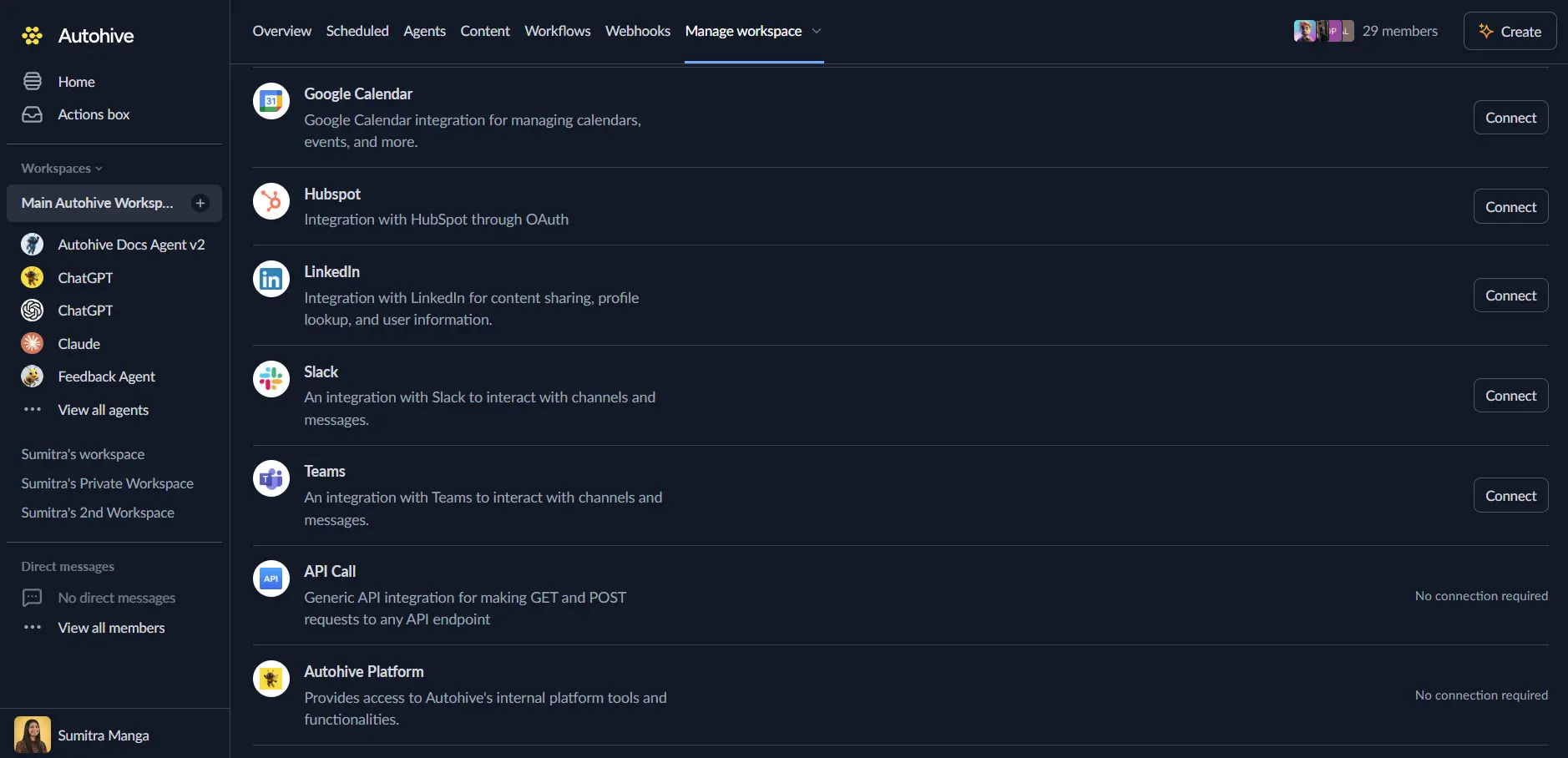
Log in to Autohive and navigate to Your user profile > Connections or Your workspace -> Manage workspace
Locate the Google Looker Integration card and click Connect
Enter your Looker credentials:
- Base URL: Your Looker instance URL (e.g., https://your-company.looker.com)
- Client ID: Your Looker API client ID
- Client Secret: Your Looker API client secret
Get API credentials (requires Looker admin access):
- Go to Admin > Users > API Keys in your Looker instance
- Create a new API key pair (Client ID and Client Secret)
- Ensure the API user has appropriate permissions for data access
Confirm installation - you’ll be redirected to Autohive with “Connected” status displayed
Use the integration
You can now use the integration with your agents, workflows and scheduled tasks!
- Follow our Create your first agent guide on how to create an agent.
- In the ‘Agent settings’, scroll down to the ‘Add capabilities’ section and turn on the Google Looker capability. You can choose what individual Google Looker capabilities to turn on and off.
- Once the settings have been selected, begin prompting the agent of the workflow you’d like to achieve with Autohive and Google Looker!
Available capabilities
Dashboard Management
- List Dashboards: Retrieve all available dashboards in your Looker instance with metadata including IDs, titles, and descriptions
- Get Dashboard: Fetch detailed information about a specific dashboard including elements, filters, and layout configuration
LookML Query Execution
- Execute LookML Query: Create and run queries against specified models and explores with full control over dimensions, measures, filters, sorts, and result limits
- Result Formats: Get query results in multiple formats including JSON, CSV, and more
- Filtering and Sorting: Apply complex filters and sort orders to refine query results
Model and Explore Access
- List Models: Retrieve all available LookML models with their associated explores and structure
- Get Model: Access detailed information about a specific model including all explores, dimensions, and measures
SQL Query Execution
- Execute SQL Query: Run raw SQL queries directly against database connections
- Connection Selection: Choose which database connection or model to execute queries against
- Multiple Output Formats: Get results in JSON, CSV, HTML, Markdown, and other formats
Connection Management
- List Connections: Retrieve all database connections configured in your Looker instance for use with SQL queries
Key features
LookML Query Building
- Build queries using Looker’s semantic modeling layer
- Select dimensions and measures from defined explores
- Apply Looker filter expressions for precise data selection
- Support for sorting and result limiting
Direct SQL Access
- Execute raw SQL queries against connected databases
- Bypass the semantic layer when needed for advanced analysis
- Access data sources directly for custom reporting
Multiple Result Formats
- JSON for programmatic data processing
- CSV for spreadsheet compatibility
- HTML and Markdown for formatted output
- Support for downloading results as attachments
Comprehensive Error Handling
- Clear error messages for authentication failures
- Validation of required parameters
- Graceful handling of API errors and timeouts
Disconnect the integration
Important: Disconnecting stops data synchronization but preserves existing data in both systems.
- Navigate to Your user profile -> Connections or Your workspace -> Manage workspace
- Find the Google Looker Integration
- Click Disconnect and confirm
Data Impact: Existing data remains unchanged in both systems, but sync stops and Autohive loses Looker API access.
Uninstall the app
From Looker: Contact your Looker administrator to revoke the API key pair associated with the Autohive integration.