Calendly
The Autohive Calendly integration connects your Calendly account with Autohive’s automation platform, enabling:
- Event type management - List and retrieve event type details including duration, scheduling URLs, and active status
- Scheduled event tracking - Access scheduled events with filtering by date, status, and invitee email
- Invitee management - View invitee details with questions, answers, and contact information
- Availability checking - Get available time slots, busy times, and availability schedules for scheduling automation
- Event cancellation - Cancel scheduled events programmatically with optional cancellation reasons
- Webhook integration - Create and manage webhook subscriptions for real-time event notifications
- Routing forms - Access routing form configurations and submission data for lead qualification workflows
- Organization management - List organization members and manage team scheduling capabilities
Install the integration
Log in to Autohive and navigate to Your user profile > Connections or Your workspace -> Integrations
Locate the Calendly Integration card and click Connect to workspace
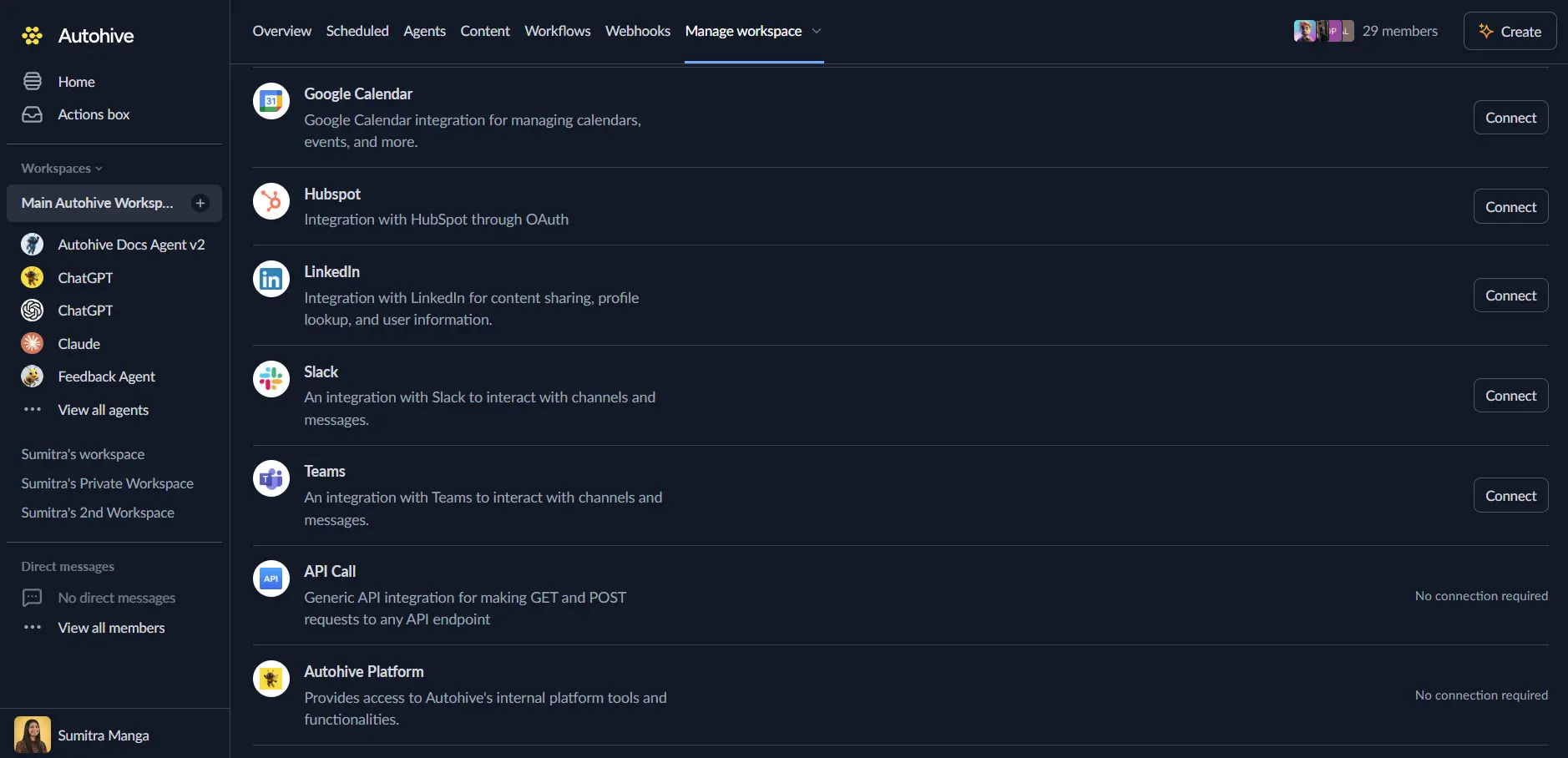
Authorize with Calendly - you’ll be redirected to Calendly’s authorization page
Review and approve permissions. Autohive requests access to:
- Read and manage scheduled events
- Access event types and availability
- View invitee information
- Manage webhook subscriptions
Ensure you approve the permissions required in order for the integration to function as expected.
Confirm installation - you’ll be redirected to Autohive with “Connected” status displayed
Use the integration
You can now use the integration with your agents, workflows and scheduled tasks!
- Follow our Create your first agent guide on how to create an agent.
- In the ‘Agent settings’, scroll down to the ‘Add Integrations and Agents’ section, click ‘Add integrations and agents’, and select Calendly. You can choose what individual Calendly capabilities to turn on and off.
- Once the settings have been selected, begin prompting the agent with the workflow you’d like to achieve with Autohive and Calendly!
Available capabilities
User Management
- Get Current User: Retrieve authenticated user information including name, email, scheduling URL, timezone, and organization
- Get User: Fetch details for any specific user by UUID including profile and scheduling information
Event Type Management
- List Event Types: Browse all event types for a user or organization with filtering by active status and sorting by name (up to 100 per page)
- Get Event Type: Retrieve detailed information about specific event types including duration, color, and scheduling URL
Scheduled Event Operations
- List Scheduled Events: Query scheduled events with filtering by user, organization, invitee email, status (active/canceled), and date range (ISO 8601)
- Get Scheduled Event: Retrieve detailed information for specific events including start time, end time, location, and invitee count
- Cancel Scheduled Event: Cancel events programmatically with optional cancellation reason for notification purposes
Invitee Management
- List Event Invitees: Browse all invitees for a scheduled event with filtering by status, email, and sort order (up to 100 per page)
- Get Invitee: Access detailed invitee information including name, email, timezone, and questions with answers
Availability and Scheduling
- Get Available Times: Retrieve available time slots for event types within specified date ranges (maximum 7 days per request)
- Get User Busy Times: Check user busy time slots for conflict detection and scheduling optimization
- List Availability Schedules: Access user availability schedules with rules and timezone information for scheduling logic
Organization Management
- List Organization Members: Browse all members of an organization with filtering by user or email (up to 100 per page)
Webhook Management
- List Webhooks: Browse webhook subscriptions for users or organizations with filtering by scope
- Get Webhook: Retrieve detailed webhook subscription information including callback URL, events, and state
- Create Webhook: Set up webhook subscriptions for event notifications (invitee.created, invitee.canceled, routing_form_submission.created) - requires paid plan
- Delete Webhook: Remove webhook subscriptions to stop receiving event notifications
Routing Forms
- List Routing Forms: Browse all routing forms for an organization with pagination support (up to 100 per page)
- Get Routing Form: Retrieve detailed routing form configuration including questions and routing logic
- List Routing Form Submissions: Access routing form submissions with questions and answers for lead qualification analysis
Key features
Comprehensive Event Management
- Complete visibility into scheduled events with advanced filtering by date, status, and invitee
- Event cancellation automation with reason tracking for audit trails
- Real-time event data access for workflow triggers and notifications
- Support for both active and canceled event tracking
Invitee Tracking and Engagement
- Access complete invitee information including contact details and custom question responses
- Filter invitees by email and status for targeted communication workflows
- Track invitee lifecycle from booking to cancellation
- Integration-ready data format for CRM synchronization
Intelligent Availability Management
- Check available time slots for event types to suggest booking options
- Query user busy times for conflict detection and scheduling optimization
- Access availability schedule rules for custom scheduling logic
- Support for multi-day availability queries (up to 7 days per request)
Real-Time Webhook Integration
- Subscribe to invitee.created events for instant booking notifications
- Monitor invitee.canceled events for automated follow-up workflows
- Track routing_form_submission.created for lead qualification pipelines
- Secure webhook signatures for payload verification (requires paid plan)
Routing Form Capabilities
- Access routing form configurations for custom scheduling logic
- Retrieve submission data with questions and answers for lead analysis
- Integrate routing form data with CRM and marketing automation platforms
- Support for organization-wide routing form management
Enterprise-Ready Features
- OAuth 2.0 authentication with secure token management
- Organization-level user and event management for team scheduling
- Pagination support (up to 100 items per page) for large data sets
- URI-based resource references for flexible integration patterns
Common use cases
Automated Event Notifications
- Send Slack or email notifications when new events are scheduled via webhooks
- Alert team members when events are canceled for proactive rescheduling
- Trigger follow-up workflows based on event status changes
- Integrate with CRM systems to log scheduled meetings automatically
Meeting Preparation Automation
- Retrieve scheduled event details to generate pre-meeting briefings
- Access invitee question responses to prepare personalized meeting agendas
- Check availability before proposing alternative meeting times
- Automate calendar preparation with event details and attendee information
Scheduling Workflow Optimization
- Display available time slots on custom booking pages or chatbots
- Check user busy times to prevent double-booking conflicts
- Sync Calendly availability with other scheduling systems
- Automate meeting proposal generation based on availability data
Lead Qualification and Routing
- Process routing form submissions to score and route leads automatically
- Integrate routing form data with marketing automation platforms
- Trigger sales workflows based on routing form responses
- Analyze routing form submissions for lead qualification insights
Team Scheduling Coordination
- List organization members to build team scheduling interfaces
- Monitor scheduled events across team members for capacity planning
- Coordinate multi-person meeting scheduling with availability checks
- Automate team calendar synchronization with external systems
Event Cancellation Management
- Cancel events programmatically when external conditions change
- Automate rescheduling workflows when cancellations occur
- Track cancellation reasons for customer service analysis
- Trigger refund or compensation workflows for canceled paid events
Disconnect the integration
Important: Disconnecting stops data synchronization but preserves existing data in both systems.
- Navigate to Your user profile -> Connections or Your workspace -> Integrations
- Find the Calendly Integration
- Click Disconnect and confirm
Data Impact: Existing data remains unchanged in both systems, but sync stops and Autohive loses Calendly API access.
Uninstall the app
From Calendly: Go to your Calendly Account > Integrations > API & Webhooks > Find Autohive and revoke access.