Global search
Global search is a search palette that opens on top of whatever you are doing in Autohive. Use it to jump to an agent, conversation, file, or app section without leaving your current page, or to browse everything of one type across your plan.
Search results only include items you already have access to, so you can search freely without seeing content from workspaces you are not a member of.
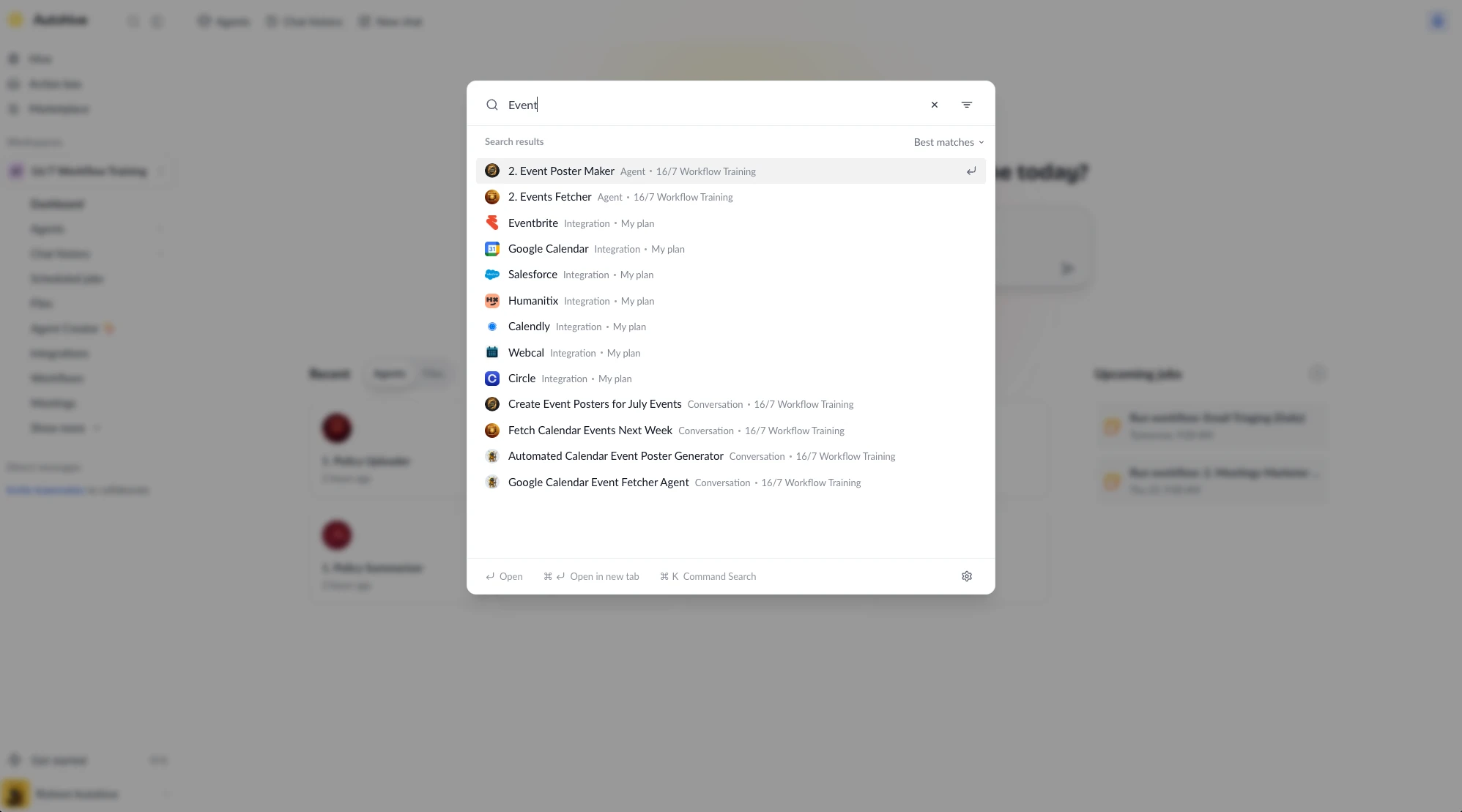
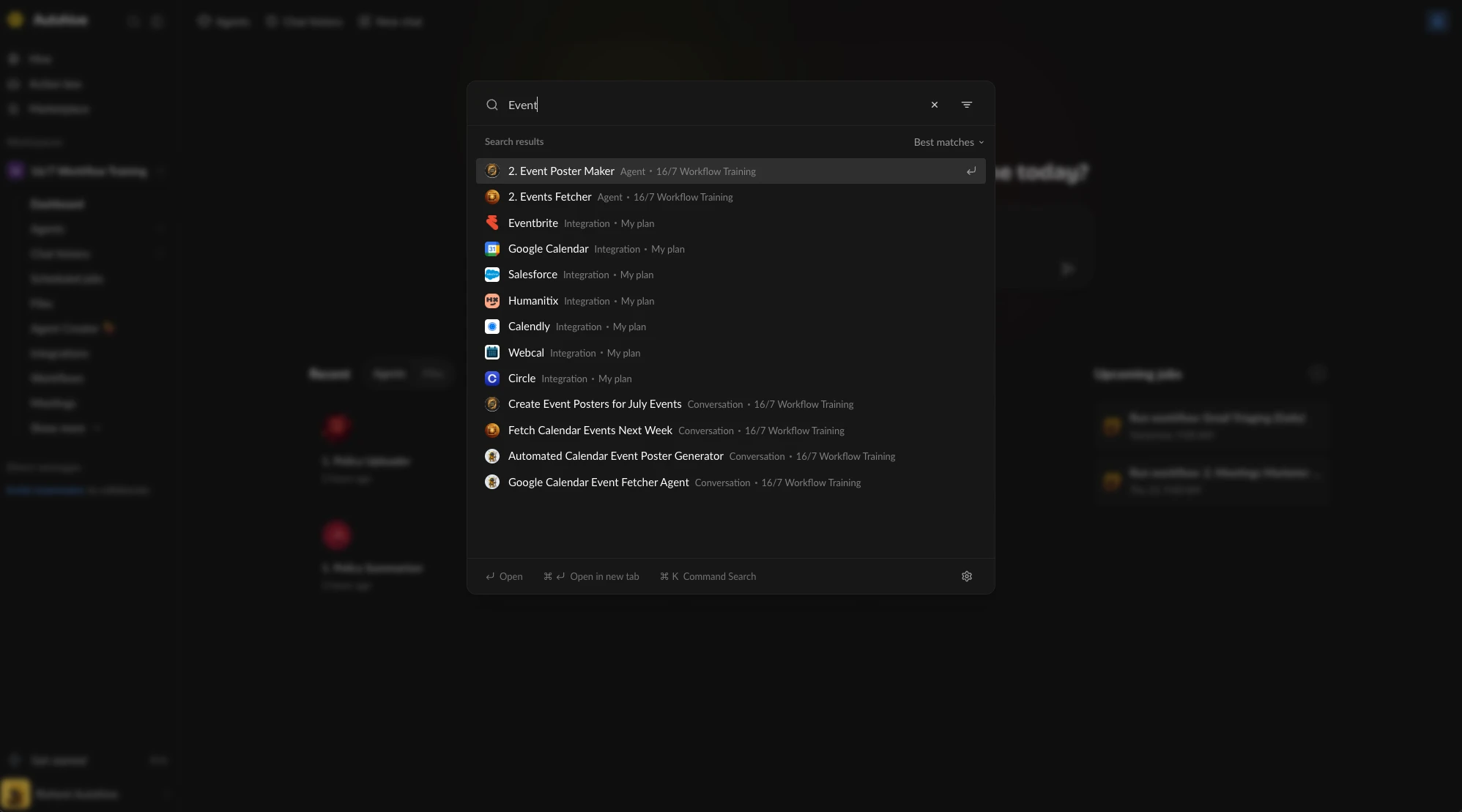
Open search
Open the search palette from anywhere in Autohive:
- Press ⌘ + K on Mac or Ctrl + K on Windows and Linux.
- Click the Search button at the top of the left navigation sidebar.
- On mobile, tap the Search icon in the header. The palette opens as a bottom sheet that you can swipe down to dismiss.
Press Esc to close the palette at any time.
Browse without typing
When you open search with an empty query, the palette shows two things:
- Actions — shortcuts for common tasks: New chat, Schedule a job, Create an agent, Record a meeting, and New workflow. Click Show all or Show less to expand or collapse the list.
- Recent items — your recently active conversations, files, and folders, grouped by Today, Past week, Past 30 days, and Older.
Recent items reflect your recent activity in Autohive. They are not saved search queries.
By default the recent list covers conversations, files, and folders. Turn on Show all types on open in search settings to include every searchable type.
Search across your plan
Start typing to search. Results appear as you type once your query is at least three characters long, ranked by relevance under a Search results header. Actions that match your query appear under an Actions header above the results.
Each result shows an icon, avatar, or thumbnail, the item’s title, and a supporting line:
- Most items show their type and workspace, for example “Conversation · Marketing”.
- Files and folders show their location path, such as “Workspace / Folder / Subfolder”.
- Members show their email address.
Use the sort toggle to switch between Best matches (the default) and Most recent.
What you can find
Search covers the following types across every workspace you belong to in your current plan:
| Type | What search matches |
|---|---|
| Agents | Agent names |
| Conversations | Conversation titles and message content |
| Files | File names and descriptions |
| Folders | Folder names |
| Integrations | Integration names |
| Meetings | Meeting recordings |
| Members | Member names and email addresses |
| Scheduled jobs | Job names |
| Skills | Skill names and descriptions |
| Workflows | Workflow names |
| Workspaces | Workspace names |
| Webhooks | Webhook names |
| Widgets | Widget names |
| Environments | Environment names |
| Plans | Plan names |
Search also matches App sections — navigation destinations such as Hive, Action box, Todo, Marketplace, and workspace tabs like Dashboard, Files, and Integrations. It also covers the pages in your plan menu: Plan settings, Plan integrations, Plan skills, My Marketplace, Achievements, Billing, Upgrade plan, and Chat channels, for whichever of these your plan has turned on. Selecting an app section takes you straight there.
A related word finds these pages even if you don’t type their exact name. Searching “invoices” finds Billing, and “connections” finds Plan integrations.
Filter results
Click the filter icon in the palette to show two filters:
- Workspace — limit results to one or more workspaces. The default is All workspaces.
- Type — limit results to one or more types. The default is All types. Available type filters are Conversations, Agents, Folders & files, Scheduled jobs, Meetings, Skills, Widgets, and Members.
Types without their own filter, such as workflows and integrations, still appear in results when no type filter is applied. App section results, such as Billing or Plan settings, always appear too, since they are plan-level pages rather than items tied to one workspace.
Active filters show a count badge. Click Clear all to remove every filter at once.
Keyboard shortcuts
| Shortcut | Action |
|---|---|
| ⌘ + K / Ctrl + K | Open the search palette |
| ↑ / ↓ | Move between actions and results |
| Enter | Open the highlighted result |
| ⌘ + Enter / Ctrl + Enter | Open the highlighted result in a new tab and keep the palette open |
| Esc | Close the palette |
Results are regular links, so you can also middle-click or right-click a result to open it in a new tab.
Search settings
Click the settings icon in the palette to open Search settings:
| Setting | Description |
|---|---|
| Show all types on open | Includes every searchable type in the recent items shown when you open search, instead of only conversations, files, and folders. |
| Hide Actions | Hides the quick actions list from the palette. |
What search can see
Search respects your existing access:
- Results only come from workspaces you are a member of, within your current plan.
- Conversations only appear if you are a participant.
- Public workspaces you have not joined are not searched.
If you cannot find an item you expect, you may not have access to the workspace or conversation it lives in.
Common issues
| Problem | Why it happens | How to fix |
|---|---|---|
| No results for a query | The query is too short, misspelled, or filters are excluding the matches | Type at least three characters, try a shorter query or a different keyword, and check your workspace and type filters |
| “Some sources timed out; showing partial results.” | One or more sources took too long to respond | Run the search again |
| An item you expect is missing | It lives in a workspace you are not a member of, or in a conversation you do not participate in | Ask a workspace member to share it, or join the workspace |