Direct messages
Direct messages let you have private one-on-one conversations with other members of your plan. Unlike workspace chats which are shared with the team, direct messages are just between you and one other person.
Finding direct messages
The Direct messages section lives in the left sidebar. It shows any members who have sent you unread messages. Click a member’s name to open the conversation.
To message someone you haven’t spoken to yet, click View all members at the bottom of the Direct messages section. This opens the members drawer showing everyone on your plan. Click any member to start a conversation with them.
The direct message window
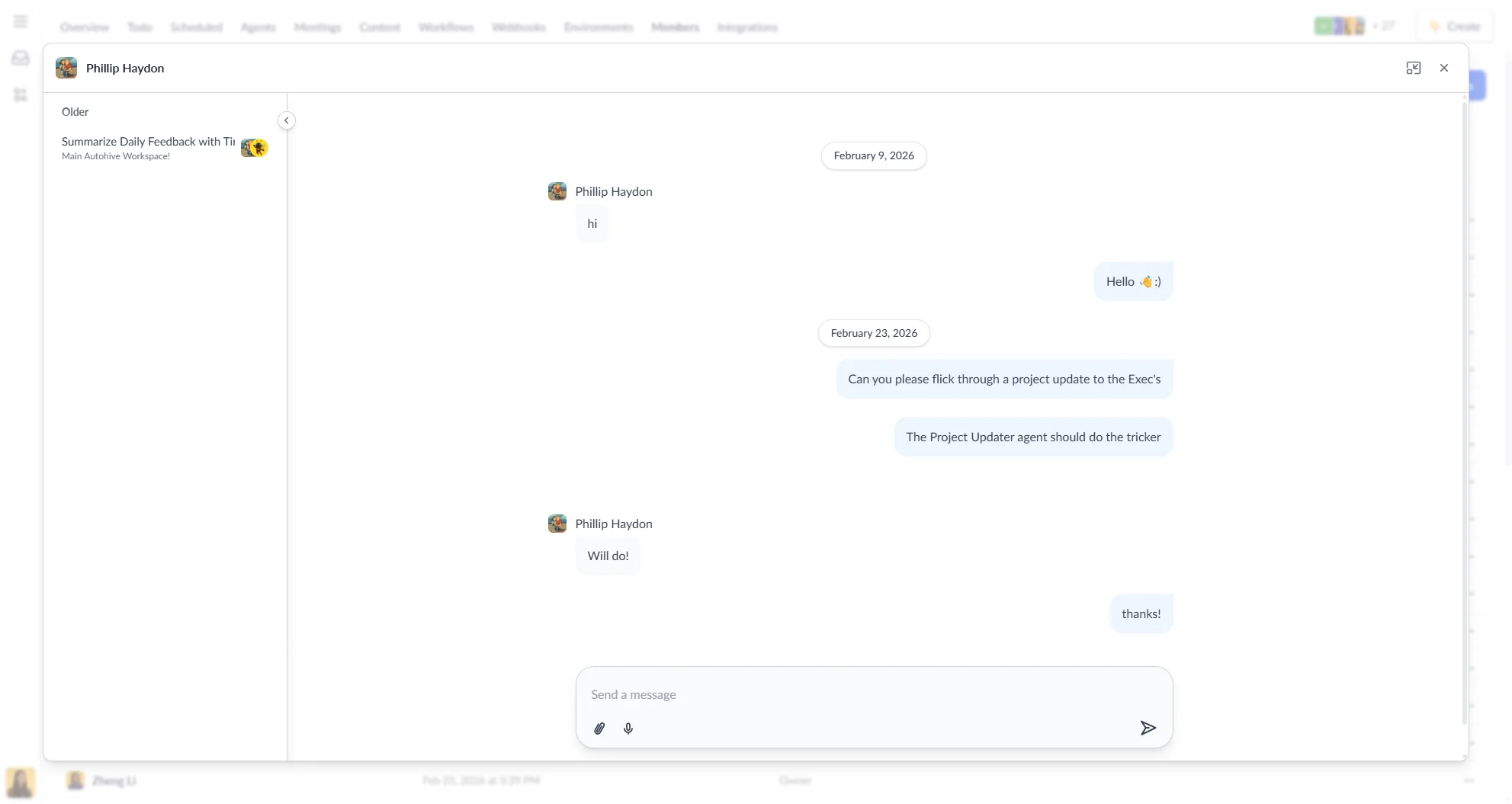
Direct messages open as a modal window. From the header you can:
- Minimize — collapses the window to a small panel in the bottom-left corner of the screen, so you can keep chatting without leaving your current page. Minimized windows are draggable.
- Close — closes the window entirely
You can have multiple direct message windows open or minimized at the same time.
Conversation history
The direct message window includes a history sidebar showing all past conversations you’ve had with that member across all workspaces. Click any entry to view it.
Unread messages
Unread direct messages show a badge in the sidebar with the number of unread messages from that sender. The badge clears automatically when you open the conversation.
If the Direct messages section isn’t visible in the sidebar, an unread indicator appears in the navigation to let you know messages are waiting.
Sending files and mentions
The direct message input supports the same features as regular chat:
- File attachments — click the attach icon to upload files
- Mentions — use
@to mention other members