Content area
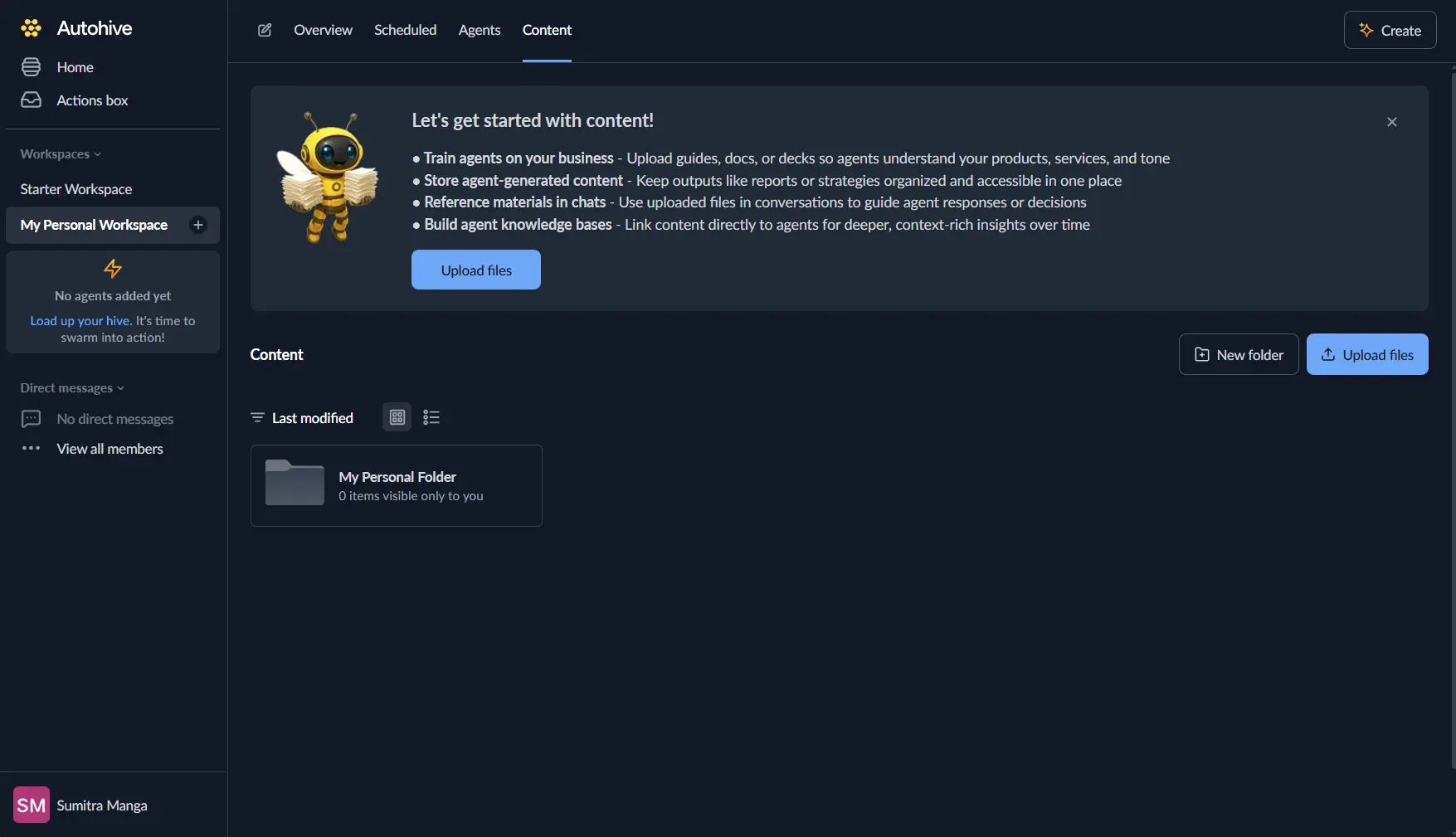
Your Content area is where you give your agents the knowledge they need to work alongside you effectively. Think of it as their reference library; the better organised and comprehensive it is, the more helpful they become.
Why your content area matters
When your agents have access to the right information, they can:
- Give answers that sound like they came from your team
- Follow your brand guidelines naturally
- Handle tasks with the context they need to get things right
It’s like having a new team member who’s read everything but needs you to show them where the important stuff lives.
What you can upload
Your Content area accepts a wide range of file types.
| Category | Supported formats |
|---|---|
| Documents | PDF, DOCX, TXT |
| Spreadsheets | CSV |
| Markdown | MD, MARKDOWN |
| Web & markup | HTML, HTM, XML |
| Data & config | JSON, YAML, YML, TOML, ENV, INI, CFG, PROPERTIES |
| Code | JS, JSX, TS, TSX, MJS, CJS, PY, PYW, CS, VB, JAVA, KT, GO, RS, RB, PHP, SQL, SH, BASH, PS1, BAT, CMD, CPP, C, H, SWIFT, SCALA, R |
| Styles | CSS, SCSS, SASS, LESS |
| Images | PNG, JPG, GIF, WEBP, BMP, SVG |
Getting your files uploaded
- Find the Content section in your main navigation.
- Click Upload files or drag your documents directly onto the page.
- Select your files and confirm the upload.
- Autohive processes everything in the background, making it searchable and available to your agents.
Organising your content
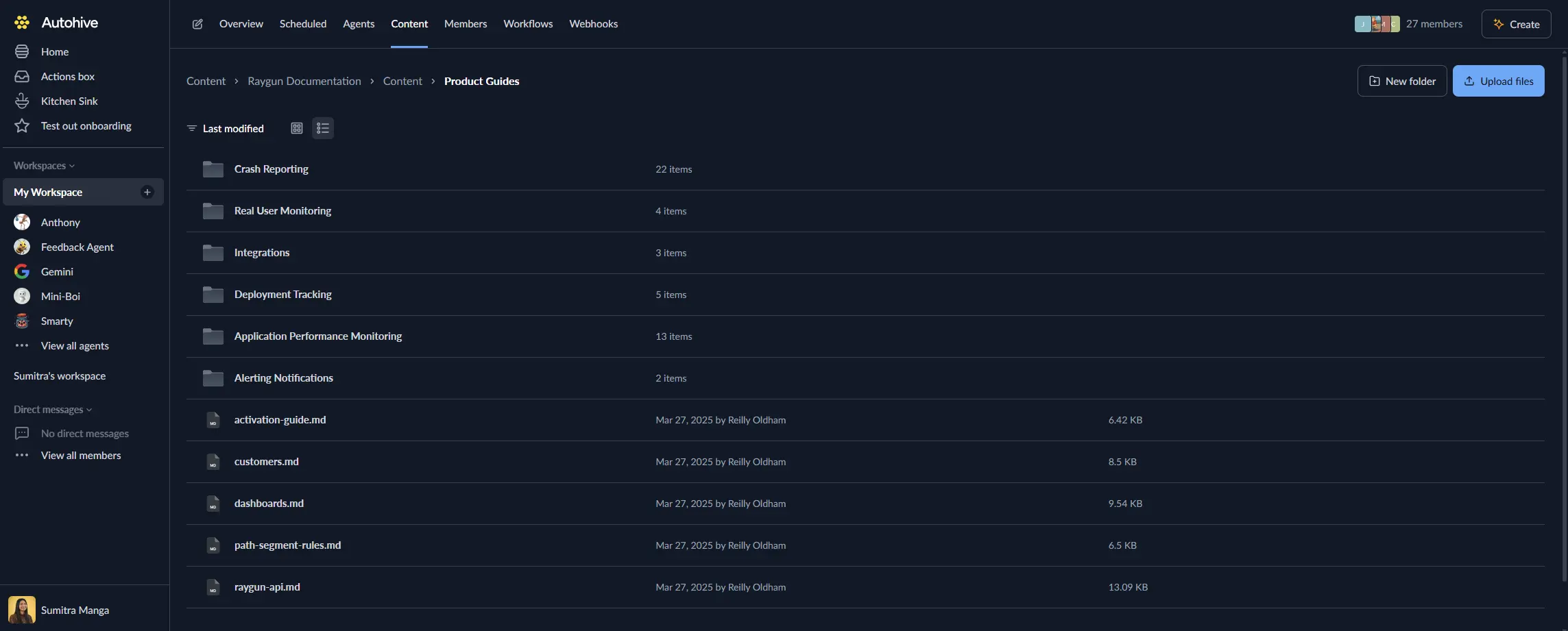
Your Content area works like the folder system you’re already familiar with.
Workspace vs personal folders
- Workspace folders are shared with everyone in your team and their agents.
- Personal folders keep your private materials separate from the rest of the workspace.
Creating structure that works
- Build nested folders for different teams, projects, or topics.
- Use the three-dot menu on any file or folder to rename, move, download, or delete it.
- Drag files and folders directly into other folders to reorganise your content.
- Use clear, descriptive names that make sense to both humans and AI.
Navigating and viewing your files
Views
Switch between grid and list views using the toggle at the top of the page.
Sorting
Sort your files using the dropdown at the top of the page:
- Last modified — see your most recently updated files first (default)
- Name (A–Z) — alphabetical order for easy browsing
- Date created (newest first) — find your latest uploads
- Date created (oldest first) — access your foundational documents
- File type — group similar formats together
Searching
Use the search bar to find files across your entire workspace. Results appear as you type.
Previewing files
Double-click any file to open a preview. Use the arrows to navigate between files, or the thumbnail strip at the bottom to jump to a specific one.
Selecting and managing multiple files
You can select multiple files and folders at once to act on them together.
- Click to select a file or folder
- Ctrl / Cmd + click to add or remove individual items
- Shift + click to select a range
- Click and drag to draw a selection box around items
When items are selected, a banner appears at the bottom of the screen with options to download or delete the selection.
You can also move or copy multiple items to another folder using right-click.
Keyboard shortcuts
You can use our keyboard shortcuts to work faster.
| Shortcut | Action |
|---|---|
Ctrl+A / Cmd+A | Select all items in the current folder |
Ctrl+C / Cmd+C | Copy selected items to the clipboard |
Ctrl+X / Cmd+X | Cut selected items (they dim to indicate a pending move) |
Ctrl+V / Cmd+V | Paste copied or cut items into the current folder |
Delete | Delete selected items (shows a confirmation dialog) |
Backspace | Navigate up to the parent folder |
Escape | Clear selection and clipboard |
A few things to know:
- After a cut and paste, an undo option appears in the notification so you can reverse the move if needed.
- After a copy and paste, the clipboard is kept so you can paste the same items multiple times. Copies are automatically renamed if a file with the same name already exists.
- You cannot cut, copy, or delete root-level workspace or personal folders.
- You cannot move or copy items across different root folders (e.g. from your personal folder into the workspace folder).
- Shortcuts are disabled when focus is inside a text input or search field.
Editing files in the browser
Text, code, and config files can be opened and edited directly in the browser — no need to download, edit, and re-upload. Once saved, the file is automatically re-indexed for your agents.
You can also use Save as to create a new copy of an editable file.
How your agents use your content
There are several ways your uploaded content comes into play:
Workspace content access
Agents can be given full access to your workspace content folder. When enabled, they can read, write, and organise files directly — listing directories, reading file contents, searching within files, and creating or updating documents.
Agent knowledge
When setting up an agent, you can link specific files or entire folders from your Content area as that agent’s knowledge. The agent will use this content when handling tasks, drawing on it the same way a colleague might remember something they read last week.
You can also add website links as knowledge sources alongside your files.
Direct references in conversations
In any conversation, you can attach files directly using the attachment icon to give your agent immediate context for the task at hand.
Real teams, real workflows
Marketing magic
The marketing team uploads brand guidelines, product sheets, and presentation templates. Now their agent can draft copy that sounds authentically on-brand without constant guidance.
Support superpowers
Customer support stores FAQ documents and troubleshooting guides, then schedules regular jobs to auto-generate knowledge-base updates. This means less manual work and more time helping customers.
Data insights on autopilot
Data analysts drop CSV exports into a dedicated folder. An agent parses the numbers and delivers a morning summary of key metrics. Coffee time becomes insight time.
Troubleshooting
| What’s happening | Why it might be happening | How to fix it |
|---|---|---|
| “File type not supported” error | The format isn’t supported yet. | Convert to PDF, TXT, or DOCX and try again. |
| Upload stuck at 0% | Network hiccup. | Refresh and retry with a stable connection. |
| Agent ignoring a file | File might be private or still processing. | Check that the file is in a workspace folder and wait a moment for processing to complete. |
| Image content not searchable | Images are not indexed for text search. | Use images for direct visual references in chat. |
Ready to give your agent the context they need?
A well-organised Content area transforms your AI teammates from helpful assistants into knowledgeable collaborators who understand your business, your voice, and your goals.
Start by uploading the documents your team references most often, and you’ll be amazed how quickly your AI teammates learn to work the way you do.