Code Reviewer
Autohive Code Reviewer reviews proposed GitHub changes and posts summaries and actionable findings on your pull requests. You can request reviews from GitHub or Autohive, ask follow-up questions, and set review rules for each repository.
The screenshots in this guide use example organizations, repositories, authors, and pull requests. They do not show customer data.
Connect GitHub
- Open Autohive and select the plan where you want to use Code Reviewer.
- Open Code Reviewer and click Connect GitHub.
- Complete the GitHub app installation and choose the repositories you want to make available.
- Return to Autohive to finish setup.
You need permission to administer the Autohive plan and the necessary GitHub permissions to connect or manage the installation. If management controls are disabled, ask a plan administrator to make the change.
When you connect more than one GitHub organization, use the organization selector in the top-right corner to switch between them. Each organization’s General/code rules are separate.
Request a review
From GitHub
Add a pull request comment containing one of these commands:
| Command | When to use it |
|---|---|
@autohive-ai review | Request a review that can continue from previous review context. |
@autohive-ai full review | Request a fresh review of the current base-to-head diff. |
Use Full review when you want the reviewer to look across the complete proposed change again. The distinction is review scope, rather than simply whether a pull request is small or large.
Review commands are subject to access checks. Enabling comment replies does not grant permission to start reviews or approve pull requests.
From Autohive
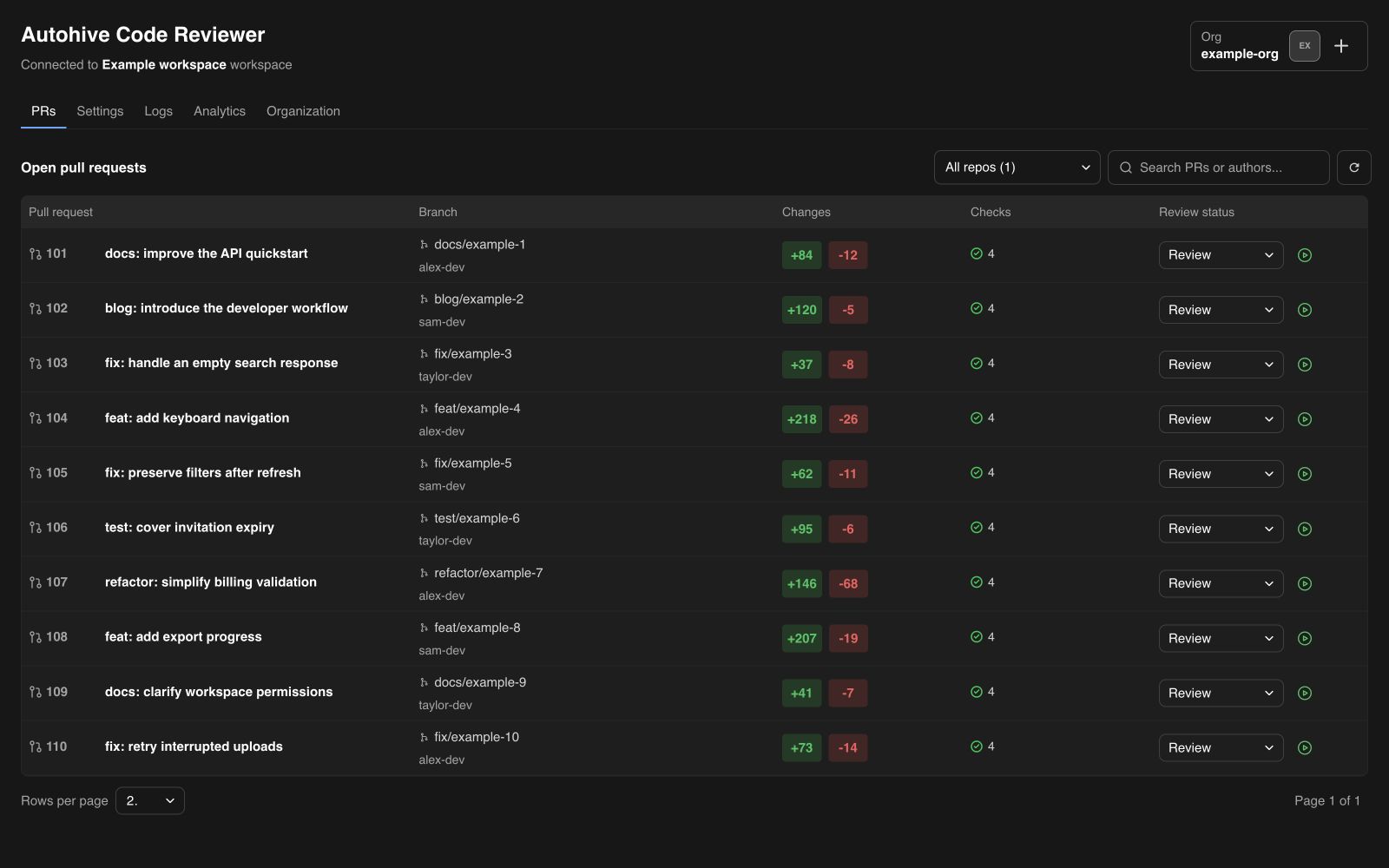
- Open the PRs tab.
- Find the pull request using the repository filter or search box.
- Choose Review or Full review from its review selector.
- Click the start button beside the selector.
The table shows changed lines, GitHub checks, and review status. You can stop an active review using its stop control.
Read findings and ask questions
Autohive posts a review summary and, when it finds issues, comments on relevant diff lines. Findings can include a priority, an explanation of the affected behavior, and a suggested fix. For suitable small changes, a finding can include a GitHub code suggestion that you choose whether to apply.
To ask for clarification, reply in the PR discussion or review thread with @autohive-ai and your question. For example:
@autohive-ai can you explain which input causes this failure?
Follow-up access depends on the repository’s Comment replies settings. A follow-up question is different from a new review command.
Configure review behavior
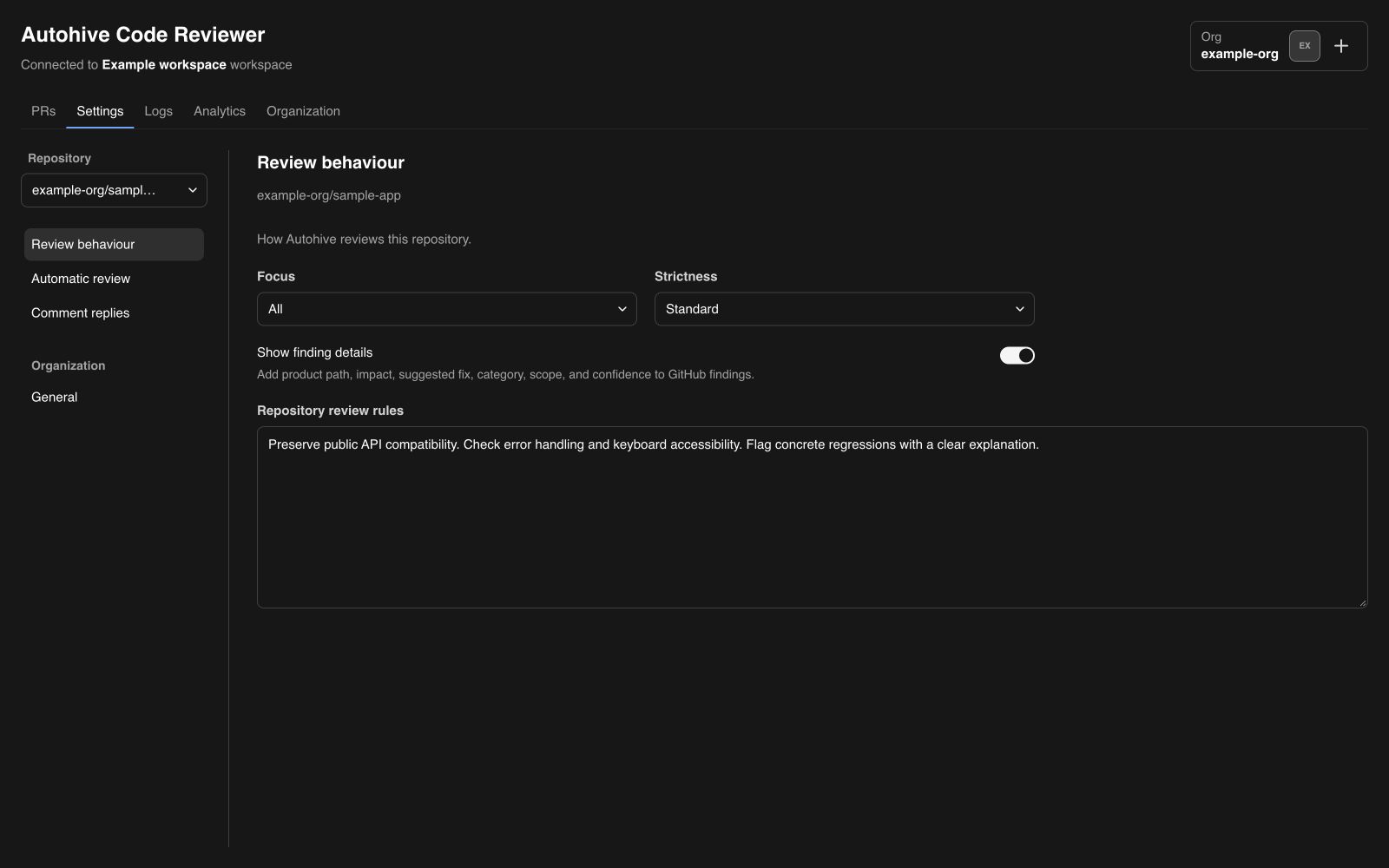
Open Settings, select a repository, and choose Review behaviour.
| Setting | What it controls |
|---|---|
| Focus | Prioritize All, Security, Performance, Style, or Logic. |
| Strictness | Choose Lenient, Standard, or Strict to guide how aggressively issues are flagged. |
| Show finding details | Include additional context such as product path, impact, suggested fix, category, scope, and confidence in GitHub findings. |
| Repository review rules | Add project-specific instructions that apply to reviews of this repository. |
For example, you can ask the reviewer to check public API compatibility, error handling, or keyboard accessibility. Save your changes when the save button appears.
Choose General under Organization to edit organization-wide code rules. Switch the connected organization first if you want to configure a different organization’s rules.
Enable automatic reviews and approval
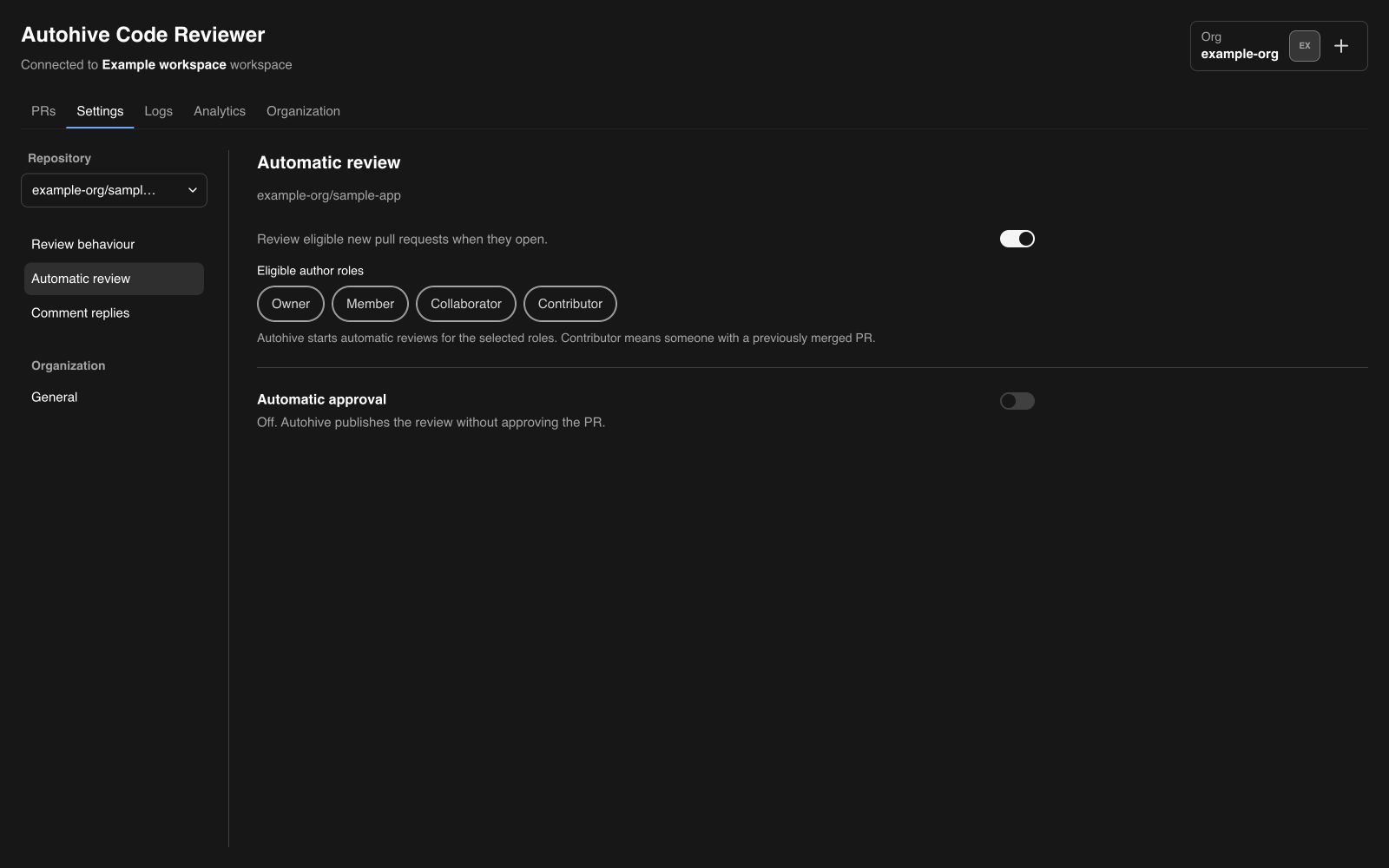
Under Settings → Automatic review, turn on automatic review for the selected repository. Choose which GitHub author roles are eligible: Owner, Member, Collaborator, and Contributor. Contributor means someone with a previously merged pull request.
Automatic reviews can start for eligible pull requests when they open or are marked ready for review. Keep automatic review off if you prefer to request reviews manually.
Automatic approval is a separate, optional control in this section. When enabled, Autohive can approve eligible clean reviews, subject to its approval checks and configured rules. A clean result does not always result in approval, and asking the bot to approve cannot bypass this setting. Approval does not merge the pull request.
Control follow-up access
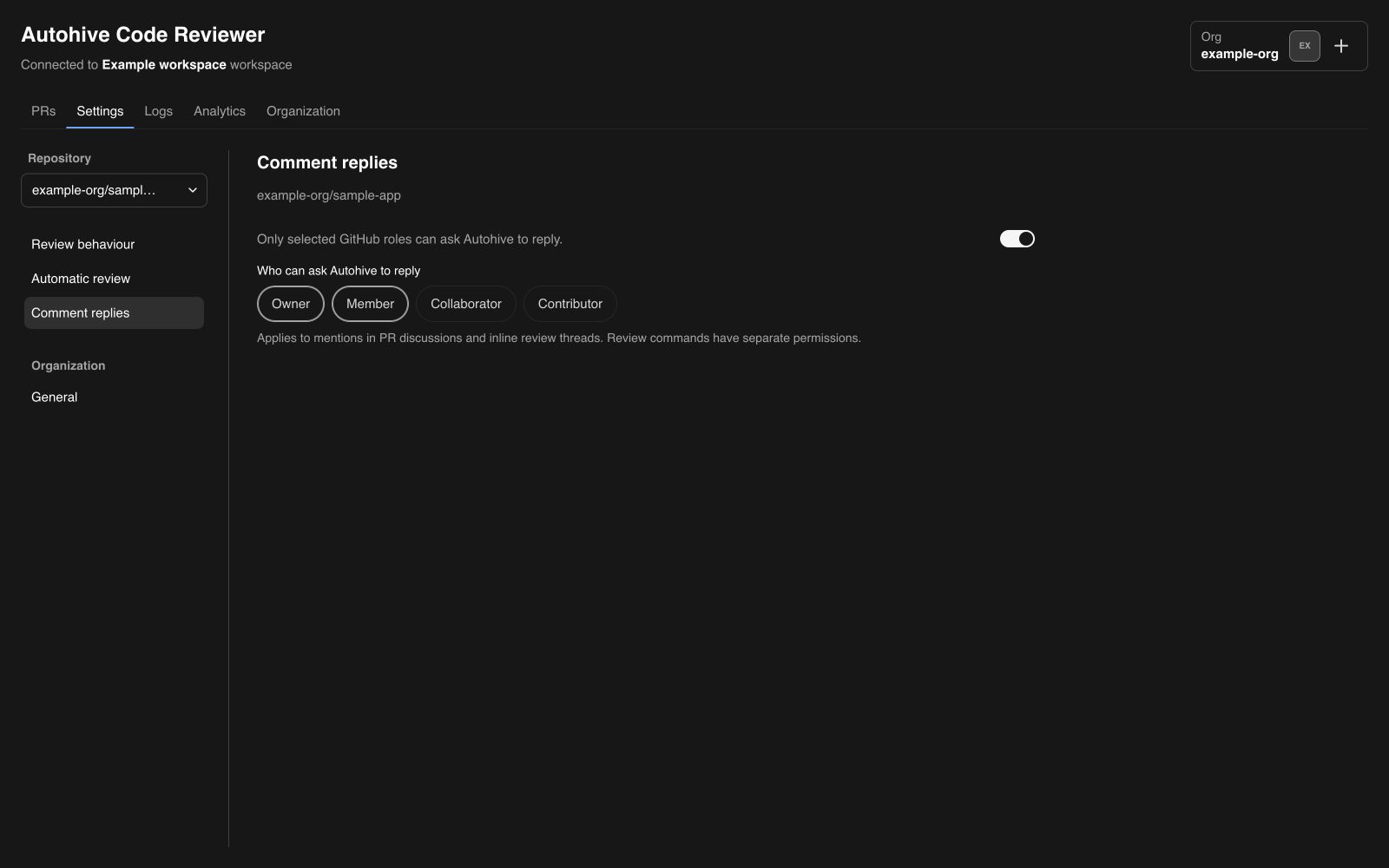
Open Settings → Comment replies to choose who can ask Autohive to reply. With restrictions enabled, select the allowed GitHub roles: Owner, Member, Collaborator, or Contributor.
These controls apply to mentions in both PR discussions and inline review threads. They are separate from automatic-review author eligibility and review-command permissions.
Track reviews
Use Logs to inspect review history and outcomes. Use Analytics to see review activity, result breakdown, and pull request size distribution for the selected filters.
Reviews do not always execute tests, lint, or builds. Available tools, repository instructions, and the review environment determine what can run. Check the review’s stated verification and your CI results before relying on a finding or a clean result.
Troubleshooting
| Problem | What to check |
|---|---|
| A repository is missing | Confirm it is included in the GitHub app installation and that you selected the correct connected organization. |
| A review does not start | Check the command spelling, your access, the installation connection, and the review status or logs. |
| Automatic reviews do not start | Confirm automatic review is enabled for that repository and the PR author’s role is eligible. |
| Autohive does not answer a follow-up | Check the mention and the repository’s Comment replies role restrictions. |
| A clean review does not approve the PR | Check that Automatic approval is enabled and that the PR satisfies the approval rules. |
| Settings cannot be edited | Ask an Autohive plan administrator to make the change. |