Discord
Discord chat channels bring Autohive agents into Discord. Connect a Discord server to your Autohive plan, route each Discord channel to an agent, and keep the conversation in a native Discord thread.
Each channel route connects:
- One Discord channel;
- One public Autohive workspace; and
- One default agent from that workspace.
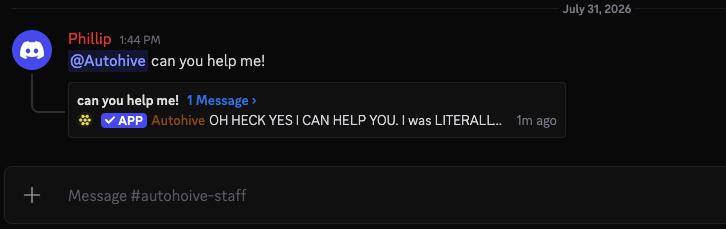
When someone mentions Autohive or uses /autohive ask in a connected channel, the mapped agent receives the request and replies in a Discord thread. Autohive can include earlier thread messages and attached files as context, show progress while the agent works, and return generated files or images to Discord.
Before you start
You need:
- an Autohive plan with Chat channels and Discord enabled;
- membership in the Autohive plan as an owner, manager, or member;
- permission to install or approve the Autohive app in Discord;
- a public Autohive workspace in the plan; and
- at least one agent in that workspace.
Plan owners, managers, and members can connect Discord, add or remove channel routes, and turn routes on or off. Team members who use an agent from Discord must belong to both the connected Autohive plan and the workspace selected for that channel.
If Chat channels does not appear in your profile menu, the feature is not enabled for your plan. If the Discord card shows Coming soon, Discord chat channels are not enabled for the plan.
Connect Discord
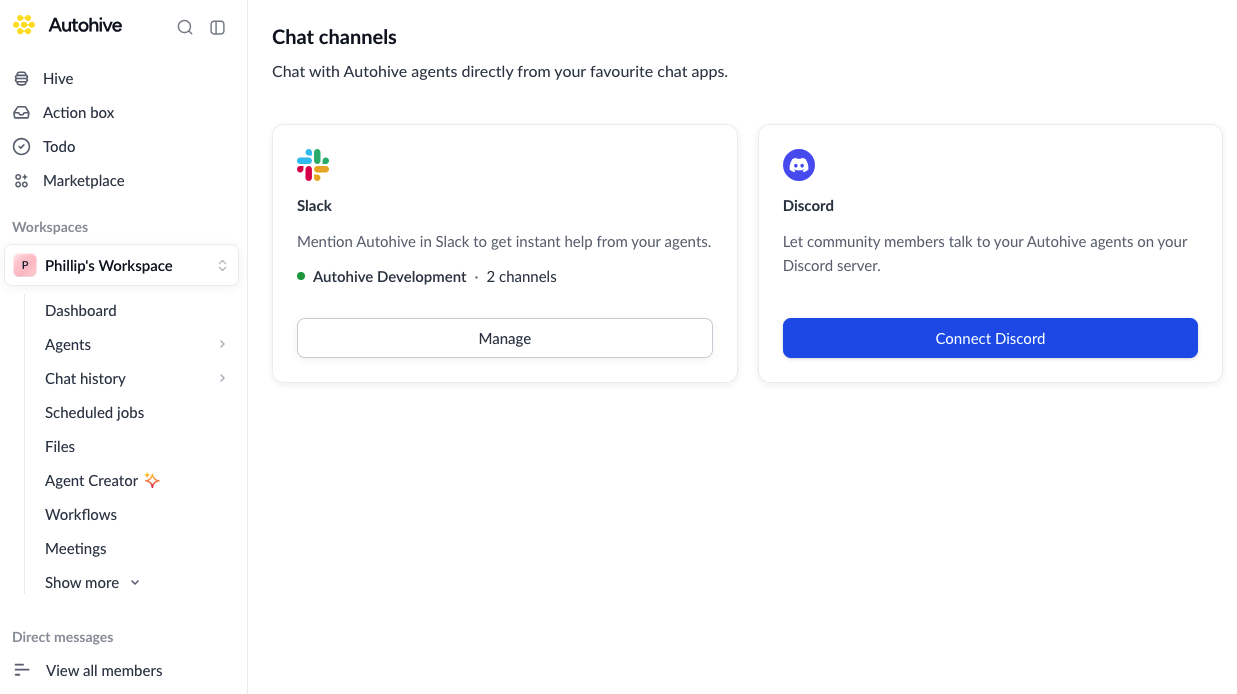
- Click your profile picture in the bottom-left corner of Autohive.
- Select Chat channels.
- On the Discord card, click Connect Discord.
- In the Discord window, select the server you want to connect.
- Review the requested permissions and authorize Autohive.
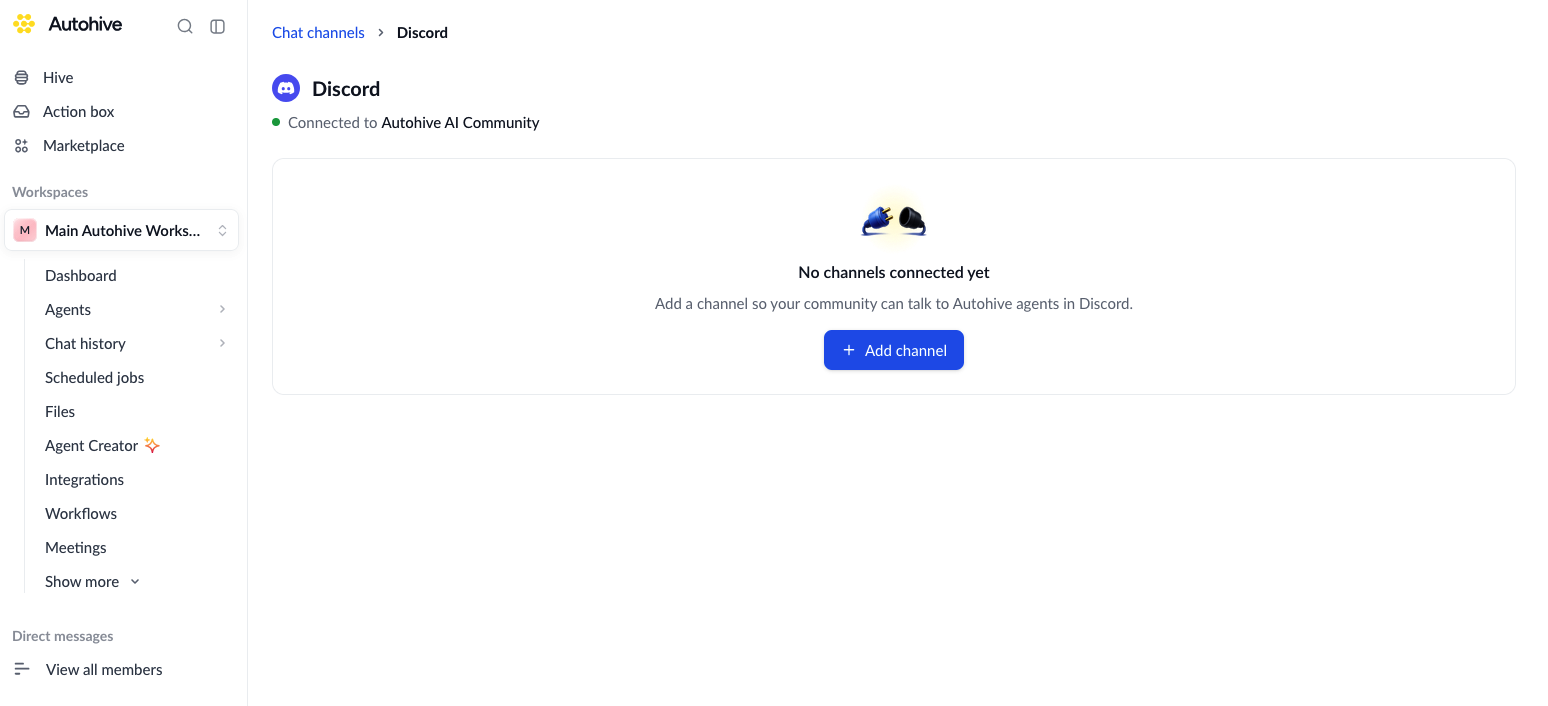
After authorization succeeds, Autohive opens the Discord chat-channel settings page. The page shows the connected Discord server and a No channels connected yet prompt until you add the first route.
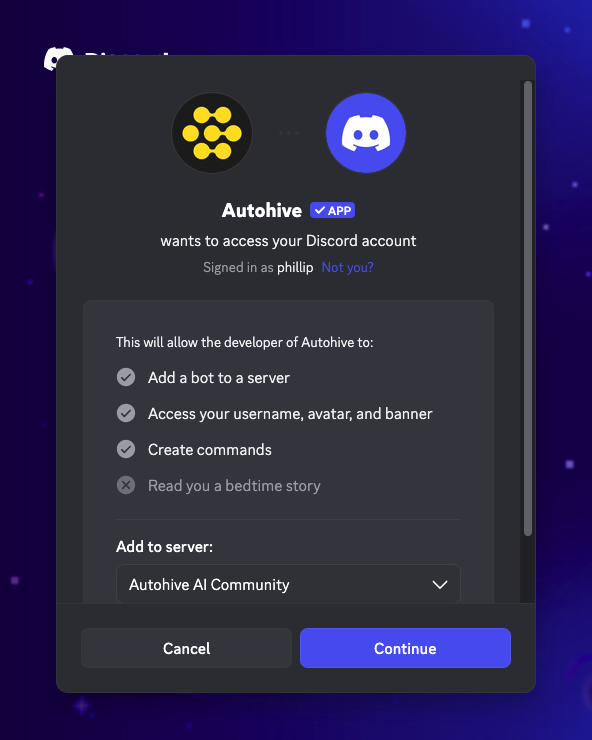
Chat channels use Discord permissions to:
- view configured channels and receive messages from them;
- read earlier messages for conversation context;
- post agent responses with link previews;
- upload generated files and images; and
- create native Discord threads and post replies inside them.
Autohive also adds the /link-me, /autohive-configure-channel, and /autohive ask commands to the connected server.
If Discord is already connected to the plan, the Discord card shows Manage instead of Connect Discord.
Add a Discord channel
- Open Chat channels from your profile menu.
- Click Manage on the Discord card.
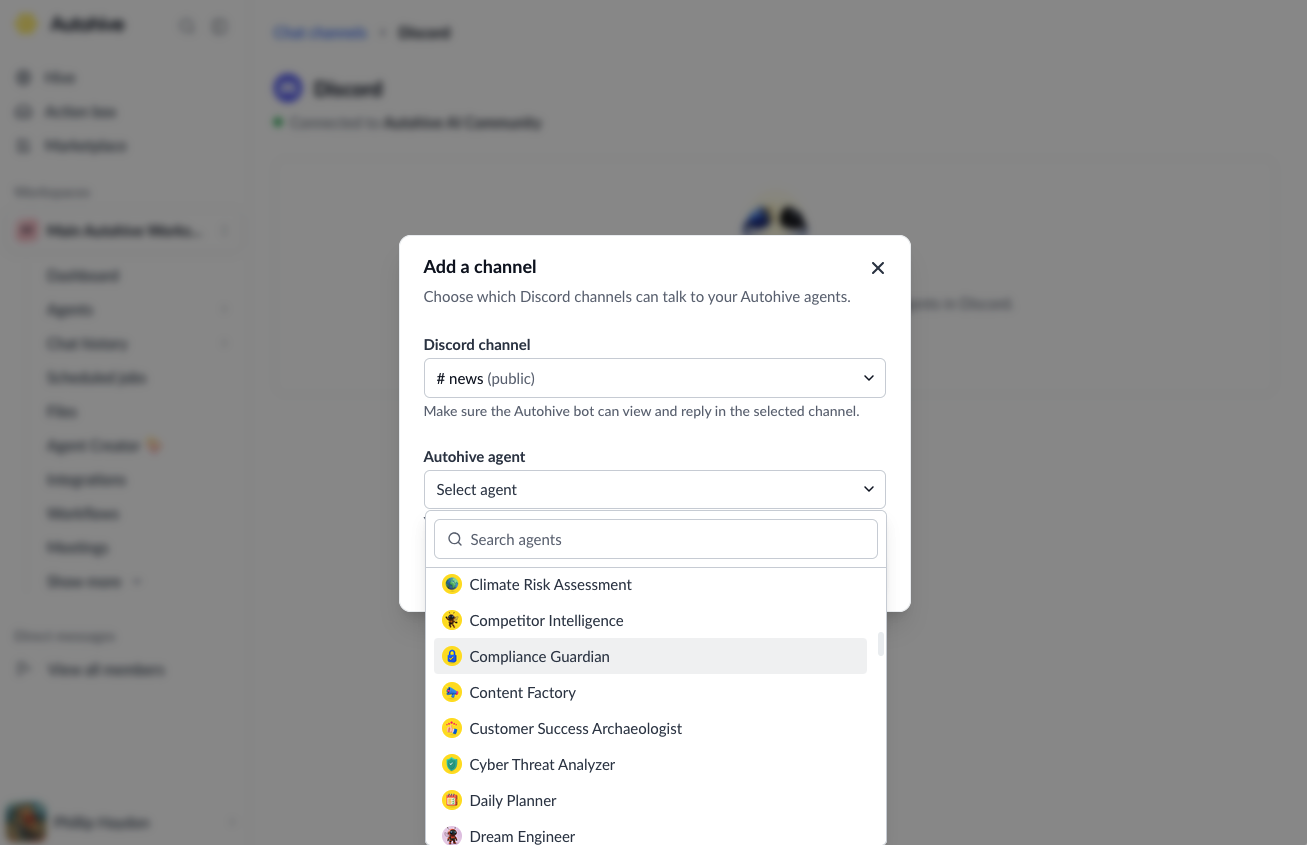
- Click Add channel.
- Select a Discord channel.
- Select an Autohive agent. Agents are grouped by their public Autohive workspace.
- Click Save channel.
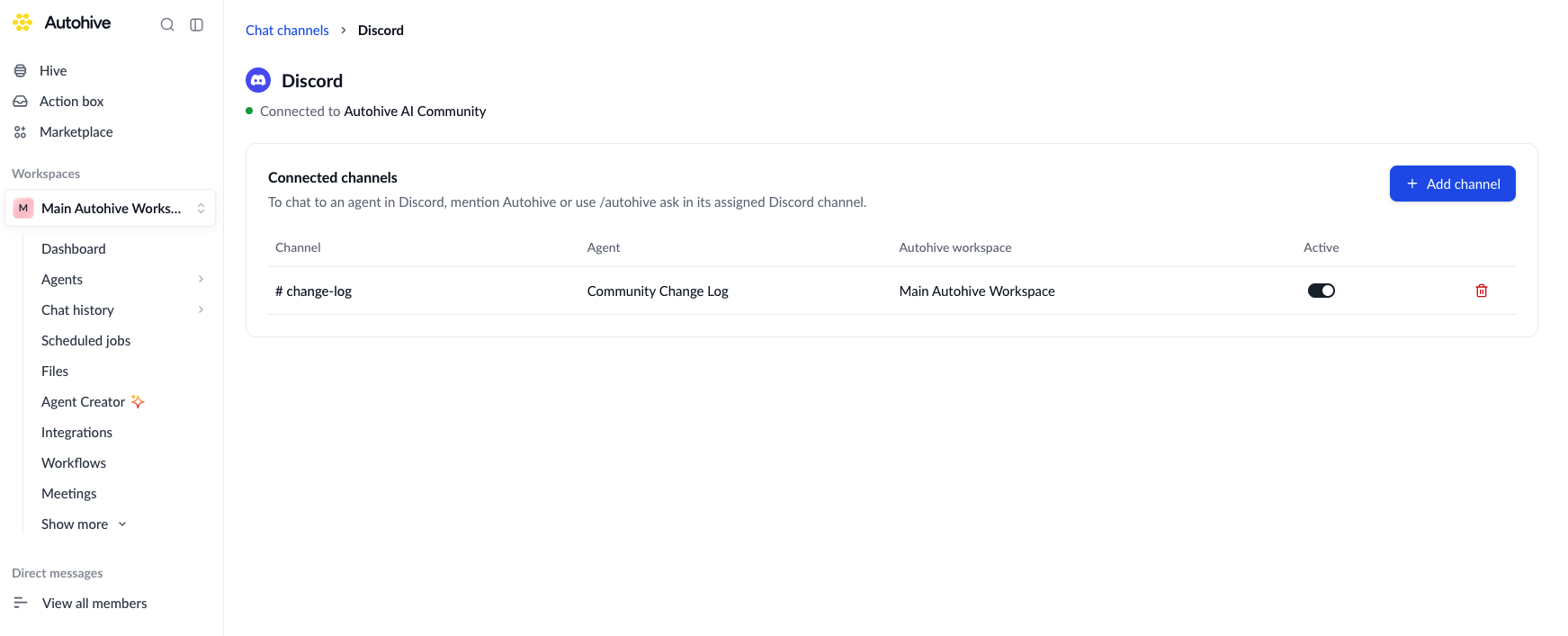
The new route appears in Connected channels, showing its Discord channel, default agent, Autohive workspace, and active state.
You can route Discord text, announcement, forum, and media channels. Voice channels, categories, and existing Discord threads cannot be selected as routes.
Configure from Discord
You can start the same setup from the Discord channel you want to connect:
- Run
/autohive-configure-channelin the parent Discord channel. - Open the private, plan-specific configuration link from Autohive.
- Sign in to Autohive as a plan owner, manager, or member if prompted.
- Select the agent and click Save channel.
The configuration link opens the correct Autohive plan and preselects the Discord channel. If the Discord server is connected to more than one Autohive plan, the private response includes a separate configuration link for each plan.
Discord threads cannot be configured directly. If you run the command in a thread, Autohive asks you to run it again from the parent channel.

Channel permissions
Discord permission overrides can prevent Autohive from working in a particular channel even when the server connection is healthy. Make sure the Autohive app can view the channel, read its history, send messages, create public threads, and send messages in threads.
Link your Discord account
Connecting a Discord server authorizes the app for the plan. Each person must also link their own Discord identity to their Autohive account before they can invoke an agent.
- In the connected Discord server, run
/link-me. - Open the link for the intended Autohive plan from Autohive’s private response.
- Sign in to the Autohive account that should be linked.
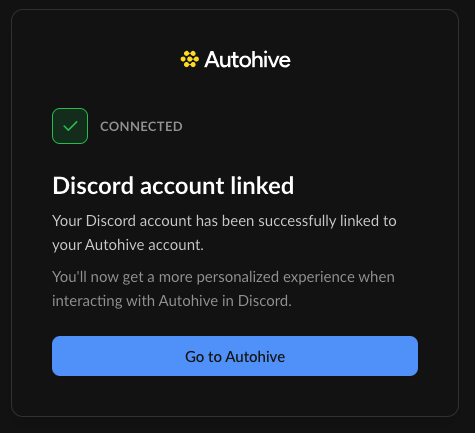
- Autohive verifies the Discord server, Discord user, and Autohive account, then completes the link automatically.
The success page shows Go to Autohive. Each one-time link expires after 15 minutes; if it expires, run /link-me again.
If the Discord server is connected to more than one Autohive plan, /link-me returns a separate link for each plan. Choose the plan whose channel route you want to use.

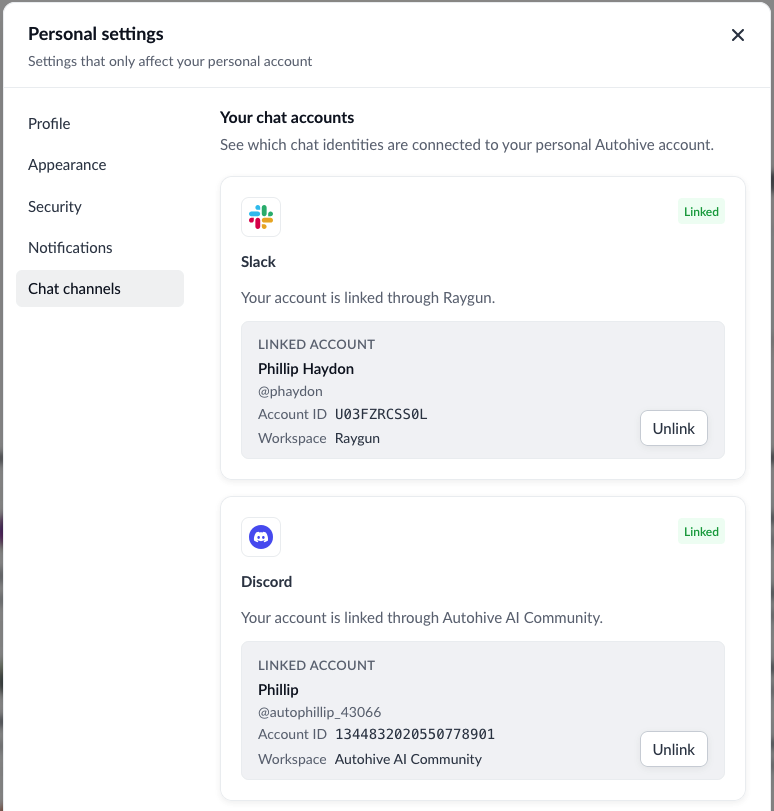
You can review or remove your linked identity from Personal settings > Chat channels. Unlinking removes the personal account association; it does not disconnect Discord from the plan or remove channel routes.
Talk to an agent from Discord
In a connected, active channel, mention Autohive followed by your request:
@Autohive Summarize the decisions in this discussion and list the next actions.
Autohive posts the request, creates or continues a native Discord thread, runs the channel’s default agent, and returns the response to that thread. Keep related messages in the thread so the agent retains the conversation context.
You can also start a request with the Discord slash command:
/autohive ask message:Summarize today's community feedback and suggest the top three follow-ups.
The slash command works from a routed parent channel or one of its Discord threads. Discord first shows a private acknowledgement, then Autohive posts the request and agent response in the conversation thread.
Useful commands include:
| Command | What it does |
|---|---|
/autohive ask message:<request> | Starts an agent request and creates or continues a Discord thread. |
/autohive-configure-channel | Opens channel setup for the current parent Discord channel. |
/link-me | Links your Discord identity to your Autohive account. |
Thread context and files
- When you first mention Autohive in an existing Discord thread, it can include the thread starter and up to 15 earlier messages as context.
- Messages from other people, Discord bots, and webhooks can be included as context even when those senders are not linked to Autohive.
- An unlinked person can contribute context in an active thread, but cannot start an agent request.
- Files attached to Discord messages can be passed to the agent when the Autohive app can access them.
- Autohive accepts up to 10 inbound attachments with a combined size of 25 MB per Discord message.
- Generated files and images can be uploaded back to the same Discord thread.
- If a teammate discussion mentions another Discord user, Autohive stays quiet and keeps the messages as context. Mention
@Autohiveagain when you want the agent to respond.
Agent responses longer than Discord’s message limit are split into readable messages and posted in order.
Manage connected channels
Open Chat channels, click Manage on the Discord card, and use the Connected channels table to review each mapping.
Pause or resume a channel
Use the Active switch to pause or resume a route. When a route is inactive, Autohive stops responding in that Discord channel, but the mapping remains saved.
Change the agent or workspace
Channel routes cannot be edited in place. Remove the existing route, then add the Discord channel again with the new agent. Choosing the agent also selects its Autohive workspace.
Remove a channel
Click the remove button on the channel row and confirm Remove channel. Autohive stops responding in that channel, but the Discord server remains connected to the plan.
Reconnect Discord
If the Discord card shows Reconnection required, click Manage, review the affected capabilities, and click Reconnect Discord. Reauthorizing Discord keeps the saved channel routes.
A plan owner can disconnect Discord from the entire plan through Plan integrations. Disconnecting affects chat channels and any agents, workflows, or scheduled jobs that use the same plan connection.
Troubleshooting
| Problem | How to fix |
|---|---|
| Discord shows Coming soon | Discord chat channels are not enabled for the plan. Contact your plan administrator or Autohive support. |
| Connect Discord is unavailable | Confirm that you belong to the plan as an owner, manager, or member and that you can authorize apps for the Discord server. If the button remains unavailable, ask Autohive support to check the plan’s Discord provider configuration. |
| A workspace or agent is missing | The workspace must belong to the current plan and be public. Explicit workspace membership is not required for route setup, but the agent must be available in that workspace. |
| A Discord channel is missing | Confirm that it is a text, announcement, forum, or media channel, then check that the Autohive app can view it. Voice channels, categories, and existing threads cannot be configured. |
| Autohive asks you to link your account | Run /link-me and open the link for the intended plan while signed in to an Autohive account that belongs to both the connected plan and the routed workspace. |
| Autohive does not respond to a mention | Mention @Autohive, confirm the route is active, and check the app’s channel, message, history, and thread permissions. |
| The route points to the wrong agent | Remove the route and add the channel again with the correct agent. |
| A configuration command was rejected in a thread | Run /autohive-configure-channel from the parent Discord channel. Discord threads cannot be saved as routes. |
| Autohive cannot create a conversation thread | Grant the app permission to create public threads and send messages in threads. Reconnect Discord if the server-level grant is incomplete, then check channel-specific permission overrides. |
| Discord shows Reconnection required | Open Manage, review the missing capabilities, and click Reconnect Discord while signed in as a plan owner, manager, or member. |
| The same Discord channel is routed through more than one plan | Keep an active route in only one plan. /autohive ask rejects overlapping routes, while an @Autohive mention can reach each matching plan connection. Disable or remove the routes you do not want. |
Discord actions and chat channels
Chat channels and Discord actions can use the same plan-level Discord connection, but they solve different problems:
| Feature | Use it when |
|---|---|
| Chat channels | People in Discord need to ask an Autohive agent for help and receive the response in a native Discord thread. |
| Discord actions | An agent, workflow, or scheduled job needs to list server channels, read message history, send messages, or manage reactions as part of a task. |
See the Discord integration guide for Discord actions and capabilities.