Agent chat & communication
Agent chat is where you talk to your agents. Every agent conversation happens here — whether you’re asking a quick question, kicking off a multi-step task, or reviewing what an agent produced.
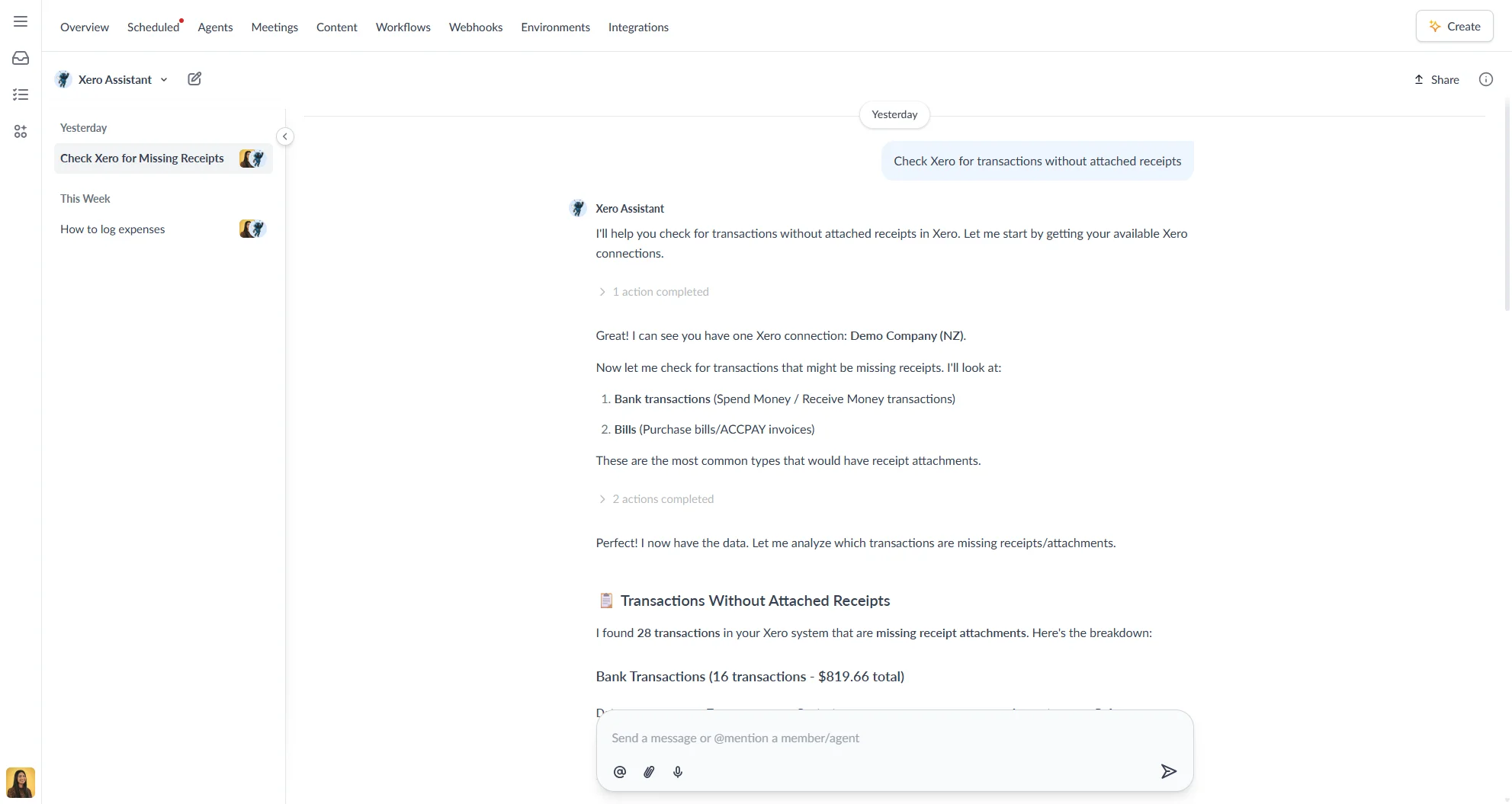
Conversation types
| Type | Participants | Best for |
|---|---|---|
| Direct agent chat | You + a single agent | Focused tasks, quick questions |
| Group chat | Multiple agents and/or members | Combining expertise, collaborative problem-solving |
Starting a new chat
Direct chat with an agent
- Click an agent in the Agents sidebar.
- A fresh conversation is displayed to start chatting in.
Starting a group chat
Group chats let you bring multiple agents and/or members into a single conversation — useful when a task benefits from more than one agent’s expertise, or when you want a human colleague involved alongside an agent.
- Click the New chat button (pencil icon) at the top of the “Workspaces” options menu.
- In the To: field, search for and select the agents and members you want to include. Each participant appears as a pill — click the × to remove one.
- Type your opening message and press Enter to start the conversation.
You can also use @ mentions in any existing conversation to bring an additional agent or member into the thread.
Agents can respond without a mention
In a group chat that has at least one other member (human or agent) alongside an agent, you don’t always need to @ mention an agent to get a reply. Autohive looks at the conversation and can decide on its own that an agent should chime in — for example, if a message is clearly directed at the agent’s area of expertise even though it isn’t named.
- If the situation is ambiguous, Autohive uses this same judgement to decide whether an agent should respond, and if so, which one.
- Direct chats and explicit
@mentions are unaffected — an@mentioned agent always responds. - This behaviour only applies to group chats; a direct one-on-one chat with an agent always replies as normal.
Sending messages
- Type your message in the input area at the bottom of the chat window.
- Type
@to open the mention suggester and search for agents, human colleagues and files from the Content area. - Mentions notify the right people (or agents) and provide full context.
- When you mention files, your agents can read them directly from the Content area.
- Press Enter to send, or Shift + Enter for a line break.
- Click the stop icon to cancel a response while the agent is replying.
Mentions
Type @ to open the mention suggester and select an agent, member, or file. Mentions bring the right person or agent into the conversation and give them full context.
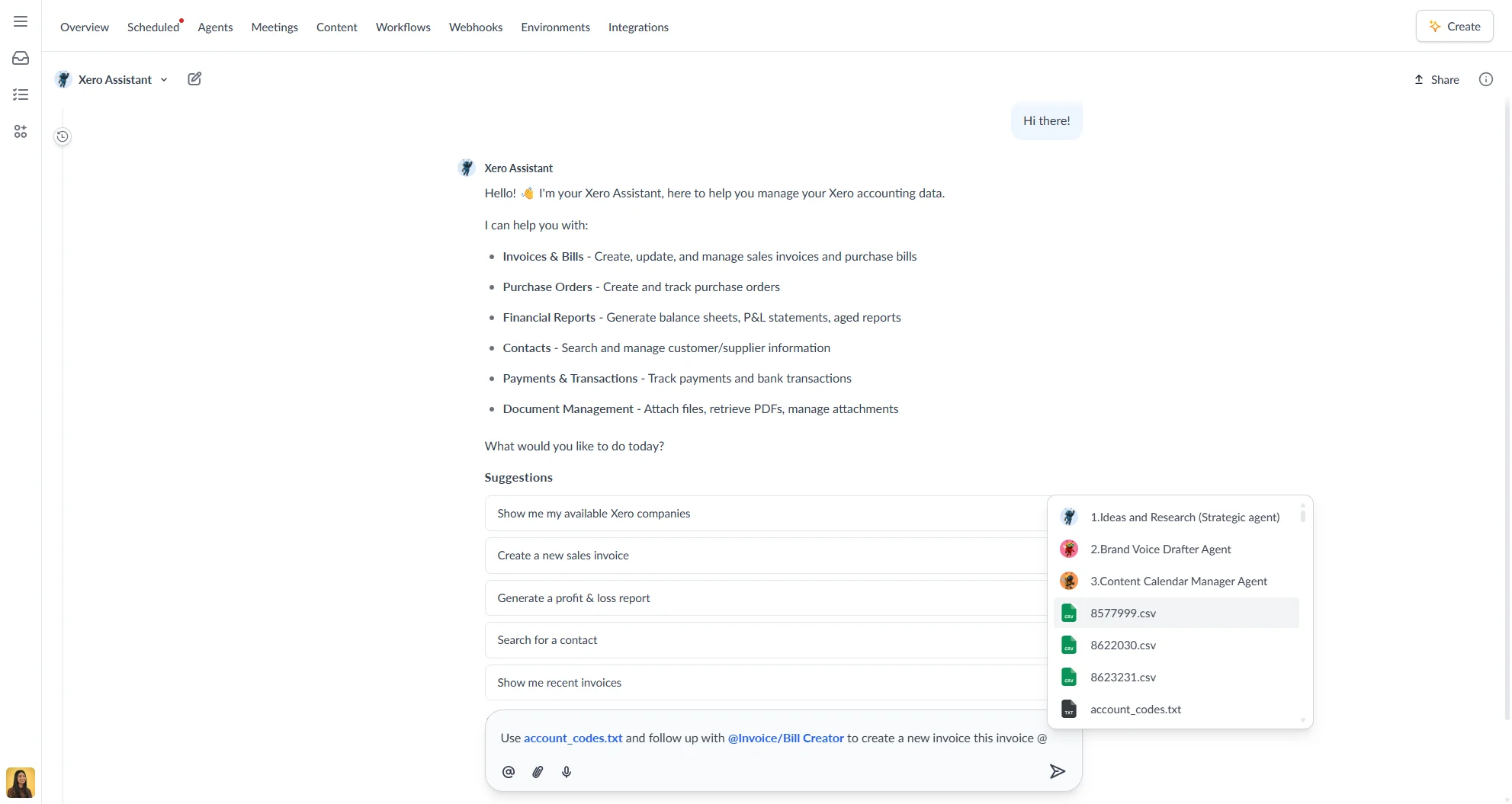
When you mention a file, the agent reads it directly from the Content area.
Attachments
- Click the paperclip icon, drag and drop files into the chat window, or paste an image or file you’ve copied to your clipboard.
- Pasted images and files are always added as attachments. This is the same as using the paperclip or drag-and-drop — they never appear as inline content in the message text.
- Uploaded files appear as preview cards. Click to view the full content.
- Supported formats include documents, spreadsheets, images, and PDFs.
Reading scanned and image-heavy PDFs
Agents can read PDFs even when the pages themselves are images rather than selectable text — for example scanned documents, photographed pages, or charts and signatures embedded in non-standard formats. When a PDF (or a page within it) has no usable text layer, Autohive automatically renders the affected pages as images so the agent can still see and describe their content.
- Text-based PDFs continue to be read as text, exactly as before.
- Scanned pages, charts, and signatures that previously could not be extracted are now visible to the agent.
- Damaged, oversized, or otherwise problematic PDF pages are skipped gracefully instead of breaking the rest of the conversation — one bad file won’t derail your chat.
Quoting text from earlier messages
You can point an agent at a specific part of the conversation. Highlight the text and add it to your next message as a quote.
- Highlight text in any message in the chat. You can quote your own messages and the agent’s replies.
- Click Add to chat on the button that appears next to your highlight.
- A quote card appears above the message box. It shows the text and who wrote it. Your own messages show You.
- Type your message and send it. The agent receives the quoted text with your message.
- You can add up to 8 quotes to one message. A warning appears if you try to add a ninth.
- To remove a quote, click the X on its card. The other cards stay.
- The button follows your highlight when you scroll. It hides when the highlight scrolls out of view.
- You can quote an agent reply while it is still being written.
- A quote does not replace your message. You still need to type some text before you can send.
- If you highlight text across more than one message, it counts as one quote from the first message.
- Each quote can hold up to 8,000 characters. Longer highlights are cut off at that length.
- System messages cannot be quoted.
After you send, the quote cards show above your message in the chat. They clear from the message box. If the agent is still working, the message waits in the queue with its quote cards. See Queuing messages and steering.
Voice input
Click the microphone icon in the message input to dictate your message. Autohive transcribes your speech to text — you can review and edit the transcription before sending. Your browser may prompt for microphone access the first time you use this feature
Message formatting
Autohive supports Markdown in messages:
**bold**,*italic*,`inline code`- Fenced code blocks, lists, blockquotes, and links
Queuing messages and steering
You can send more messages while an agent is still working. Autohive adds them to a queue. Each one is sent when the agent finishes its current run.
- The queue is saved by Autohive, not by your browser. Queued messages keep sending if you close the tab.
- You can see the same queue from another device.
- Queuing also works in workflow conversations.
- If a message has attachments, the files upload first. The message joins the queue once the upload finishes. If an upload fails, the message stays in the message box so you can try again.
The queue appears above the message box. Each queued message shows its text and any attachments, with these controls:
- Drag handle: Drag a message up or down to change its order. This shows when two or more messages are queued.
- Steer now: Applies the message before the agent’s next step. See the next section.
- Remove from queue: The trash icon. It removes that message from the queue.
Steering a running agent
Click Steer now on a queued message to add it to the run that is already in progress. The agent reads it before its next step. The button changes to Steering… while it waits.
- Steering does not cancel a step that has already started.
- If the run ends before the agent takes another step, the message stays in its place in the queue. It then sends as a normal follow-up.
Pausing the queue
Clicking the stop icon cancels the response and pauses the queue. A Queue paused bar appears above the message box. Your queued messages are kept.
- Click Resume to send the next queued message once the agent is free.
- Click Clear to remove every queued message.
In a conversation shared with you as a contributor, you can remove or steer your own messages. Reordering, pausing and clearing the queue are for workspace members in the conversation.
Choosing a model in Auto chats
When you chat with Auto, the toolbar of the message box has a model picker. Use it to choose which AI model writes the replies. It works on the dashboard before your first message and in any Auto chat after that. Custom agents do not have this picker. They use the model set in their agent settings.
What the picker shows:
- Default is the first choice. It reads Default · [model name], such as Default · Claude Opus 5.5. Autohive sets the default.
- Below it, models are grouped by maker: OpenAI, Anthropic, Gemini and Grok. Each version shows once, even when more than one host can run it.
- Type in the Find a model box to narrow the list.
- A model that cannot be used right now is greyed out and marked Unavailable.
- The picker is greyed out if you can view the chat but are not a member of it.
How your choice is kept:
- Your pick is saved in this browser straight away. It is still there if you leave the page and come back.
- A new chat starts with the model you picked last. An existing chat keeps its own model.
- When you send a message, Autohive saves the choice with that chat and with your account. You then see the same choice on your other devices. A pick you have not sent stays in this browser only.
- If a model is removed later, the picker goes back to Default. It shows the note “Your previous model is no longer offered. Default is selected.”
- If the model you picked becomes unavailable before you send, the message is not sent. Pick another model and send again.
Changing the model during a reply
You can change the picker while Auto is replying. The change applies to your next message, and the picker says Applies to your next message.
- The reply in progress keeps its model. That includes its tool steps and any background work.
- A queued message keeps the model that was picked when you queued it.
- Steer now only works when the queued message uses the same model as the run in progress. If the models differ, you see a message that tells you to keep it queued or pick the running model first.
Seeing which model was used
Under each message you send, the chat shows Selected model: and the model name. Queued messages show the model name too.
What agents send back
Agent responses can contain more than plain text. Here is what you may see in a conversation:
Text responses
Standard replies with Markdown formatting. Long responses may include a Summary block at the top.
Action prompts
After a response, an agent can offer a short set of clickable follow-up actions instead of leaving you to work out the next step yourself. Each block leads with a question about what to do next, then lists two to five actions — each one named after what it will produce, such as “Draft the checklist” or “Schedule this.”
- Click an action to send it straight away, the same as typing it yourself.
- An action can show a one-line description underneath, such as “A checklist the launch team can follow,” so you know what you’re choosing before you click.
- Some blocks let you choose more than one action before you continue. Tick each one you want, then click Submit.
- Once you choose an action (or send a different message instead), the block collapses to the question and a count. Expand it again to see what was offered.
Action prompts only appear in your own conversations with agents. They don’t appear in widget chats, shared external chat links, or scheduled workflow runs.
Artifacts
When an agent produces a document, webpage, chart, or other structured output, it appears in the Artifact viewer — a panel that opens alongside the chat.
The artifact viewer has two modes:
- Preview — renders the output (e.g., shows an HTML page or formatted document)
- Code — shows the raw source
A finished HTML page opens as the page. To read its source, use View code in the toolbar. See Viewing the code of an HTML page.
From the artifact viewer you can:
- Switch between versions if the agent has revised the output
- Copy the content to your clipboard
- Download as HTML page or Download as PDF
- Save to Content Area to store it in your workspace
- Share artifact to generate a shareable link (see Sharing an artifact below)
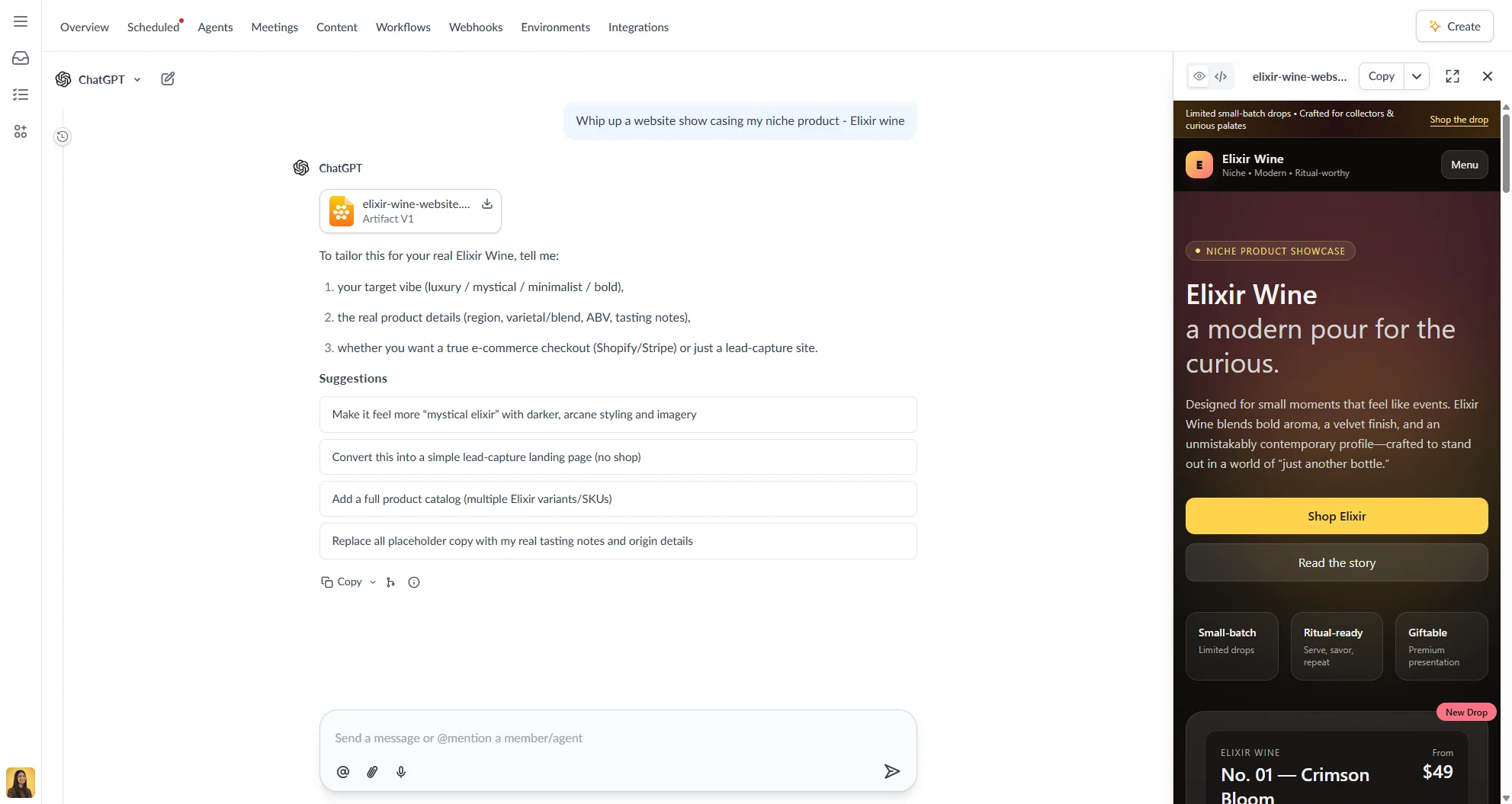
Viewing the code of an HTML page
Once an HTML page is finished, the toolbar shows a View code icon (</>). Click it to read the source code of the page instead of the page itself. Pages that are still being written do not have it yet.
- The code is indented and coloured, so it is easier to read.
- The icon stays highlighted while you view code. Click it again to go back to the page. The page stays loaded, so you return to the same spot.
- Select text still works. Highlight part of the code to ask the agent about it.
- Select elements is greyed out, because code has no page elements to pick.
- Copy is in More options while you view code. It copies the code as it was written, not the indented version.
- Download saves the code you are viewing.
- For a page the agent made, More options also has Download as PDF and Save to Files while you view code.
If a file is too large to show as code, the viewer says so. Use Back to page, Download or Close. Very large files show as plain text, without colour.
Toolbar icons and full screen
Every file type in the viewer uses the same toolbar style. This covers HTML pages, PDFs, Word documents, slides, spreadsheets, video, images and Markdown.
- Full screen is an icon button. It shows a maximise icon. In full screen, it becomes a minimise icon labelled Exit full screen.
- Going into or out of full screen keeps a video playing and keeps your place in the file.
- Download is an icon for video, images, Markdown and other files. It used to be a text button.
- Hover over a toolbar icon, or tab to it, to see its name in a tooltip.
- While you ask a question about part of a page, Select text and Select elements stay in the toolbar but are greyed out. They no longer disappear.
Charts in PowerPoint files
When a PowerPoint file opens in the viewer, the charts on each slide are drawn for you. Before, they showed as grey boxes.
The viewer draws these chart types:
- Column and bar charts, including stacked and 100% stacked
- Line and area charts
- Scatter charts
- Pie and doughnut charts
- Combination charts that mix chart types
Charts keep their titles, legends, axes, gridlines, colours and data labels.
Some charts still show a placeholder instead. These include radar, bubble, stock and surface charts. Charts with a second value axis or a log scale also show a placeholder.
The viewer draws each chart from the values saved inside the PowerPoint file. It does not open the Excel data behind the chart.
Tool messages
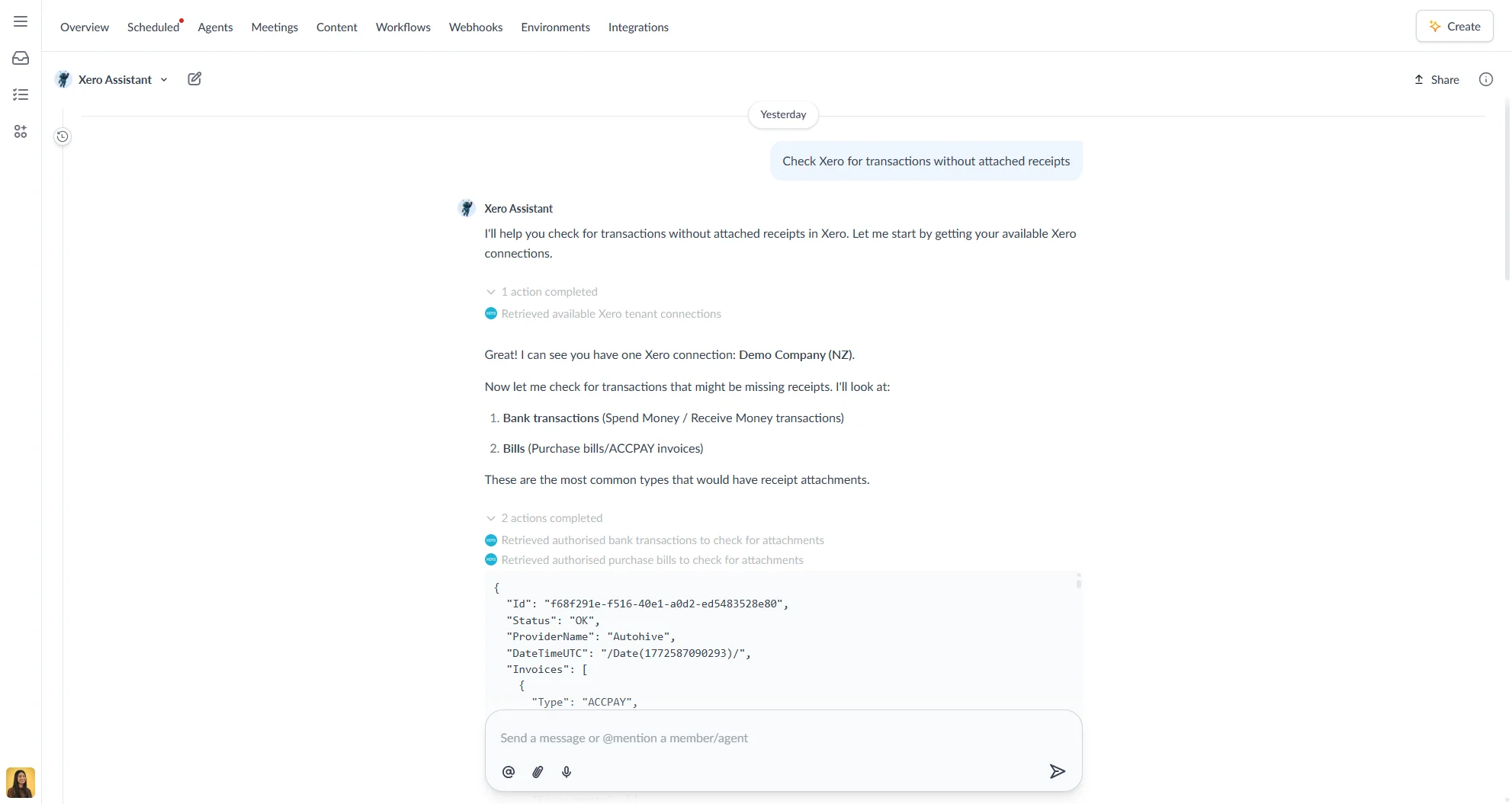
When an agent uses an integration or built-in tool (e.g., searches Google Drive, sends a Slack message), a tool message appears in the conversation showing which tool was used and what it did. Click to expand the full output.
Integration account choices
When an agent has multiple accounts available for an integration, click its icon in the chat composer’s bottom action row to change Account setting, then click Apply. This applies to that agent’s subsequent tool calls in the conversation. Choose Follow agent default to use its saved setting again.
With Ask me each time, the agent pauses on an account-choice card the first time it needs the integration. Your selection is remembered for that agent and integration for the rest of the conversation. Use the composer icon to change it or request a new choice.
See Change the account choice for one chat for the full steps and how chat choices take precedence.
Approval requests
If an agent action has Requires approval enabled, the agent will pause and show an approval prompt before proceeding:
- Click Approve to let the action run.
- Click Deny to block it.
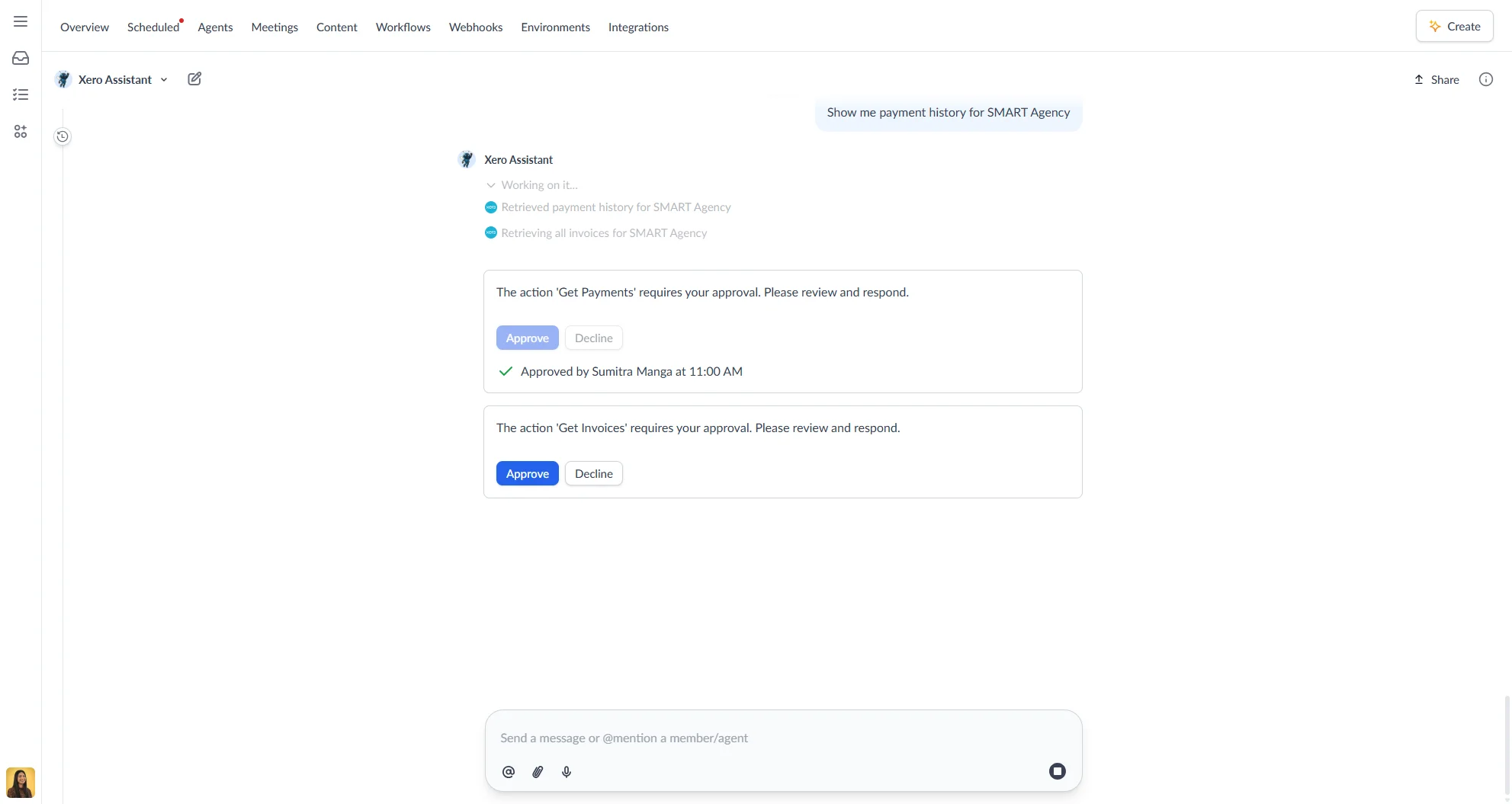
See Agent tools & capabilities to learn how to configure approval requirements.
Clearing a backlog of approvals from the Action Box
Pending approvals from every conversation and agent in your workspace are collected in the Action Box, a drawer accessible from the sidebar. This gives you one place to review everything currently waiting on a decision, instead of hunting through individual conversations.
When you have several approvals waiting, a bulk toolbar at the top of the Action Box lets you clear the backlog in one action:
- Approve all (N) — approves every pending request currently shown.
- Decline all (N) — declines every pending request currently shown.
Both counts update together, and you can narrow the set before acting by filtering the Action Box by workspace and by agent — each button only acts on the filtered set shown on screen. Clicking either button shows a confirmation dialog before anything is actioned; unlike declining a single request, Decline all does not collect a reason, so nothing is sent back to the agent as feedback.
Managing conversations
Renaming and deleting
Right-click or open the three-dot menu on any conversation in the chat history sidebar to Rename or Delete it. Deleting a conversation is permanent.
Branching a conversation
You can branch off a new conversation from any point in an existing one. Hover over a message and click the Branch option to create a new conversation that starts with all the messages up to that point — including the same agent and files. This is useful for exploring a different direction without losing your original thread.
Sharing a conversation
Click the Share button in the chat header to generate a shareable link to the current conversation. Options include:
- Who can view — anyone with the link (no Autohive account required)
- Hide member details — share anonymously without showing participant names
- Link expiry — set the link to expire after 24 hours, 7 days, 30 days, or a custom duration
Sharing creates a snapshot of the conversation as it exists at that moment. Any new messages after sharing remain private.
To manage or revoke existing share links, open the Share modal and deactivate any active shares.
Sharing an artifact
You can share an individual artifact without sharing the entire conversation. Click Share artifact in the artifact viewer to generate a link to that specific artifact.
Artifact share options are the same as conversation shares:
- Hide member details — share anonymously without showing participant names
- Link expiry — never, 24 hours, 7 days, 30 days, or a custom duration
Anyone with the link can view the artifact without an Autohive account.
Chat history
Use Search (⌘/Ctrl + F) to find messages or files in the current chat.
All conversations are saved automatically. Use the chat history sidebar (desktop) to navigate between past conversations, grouped by time period (Today, Yesterday, Last Week, etc.).
Notifications & presence
- Unread badges on the sidebar highlight active conversations.
- Presence indicators show who’s online and typing.
Best practices for productive chats
- Be specific when you tell your agents exactly what you need and reference files.
- Use separate chats for different topics to keep things organised.
- Ask agents to create meeting summaries to capture decisions.
- Use mentions strategically to bring the right expertise into each conversation.
Troubleshooting
| Issue | Possible cause | How to fix |
|---|---|---|
| Message won’t send | Connection interrupted | Refresh the page and check your internet connection |
| Agent not responding | Complex request or context limit reached | Try a shorter, clearer prompt and resend |
| File preview not working | Unsupported file format | Download the file directly or convert to PDF |
| Approval prompt not appearing | Action does not have approval required | Enable Requires approval in the agent settings |
| Context window warning appears | Conversation is approaching the agent’s context limit | Start a new chat or fork the conversation from an earlier message |