Agent settings
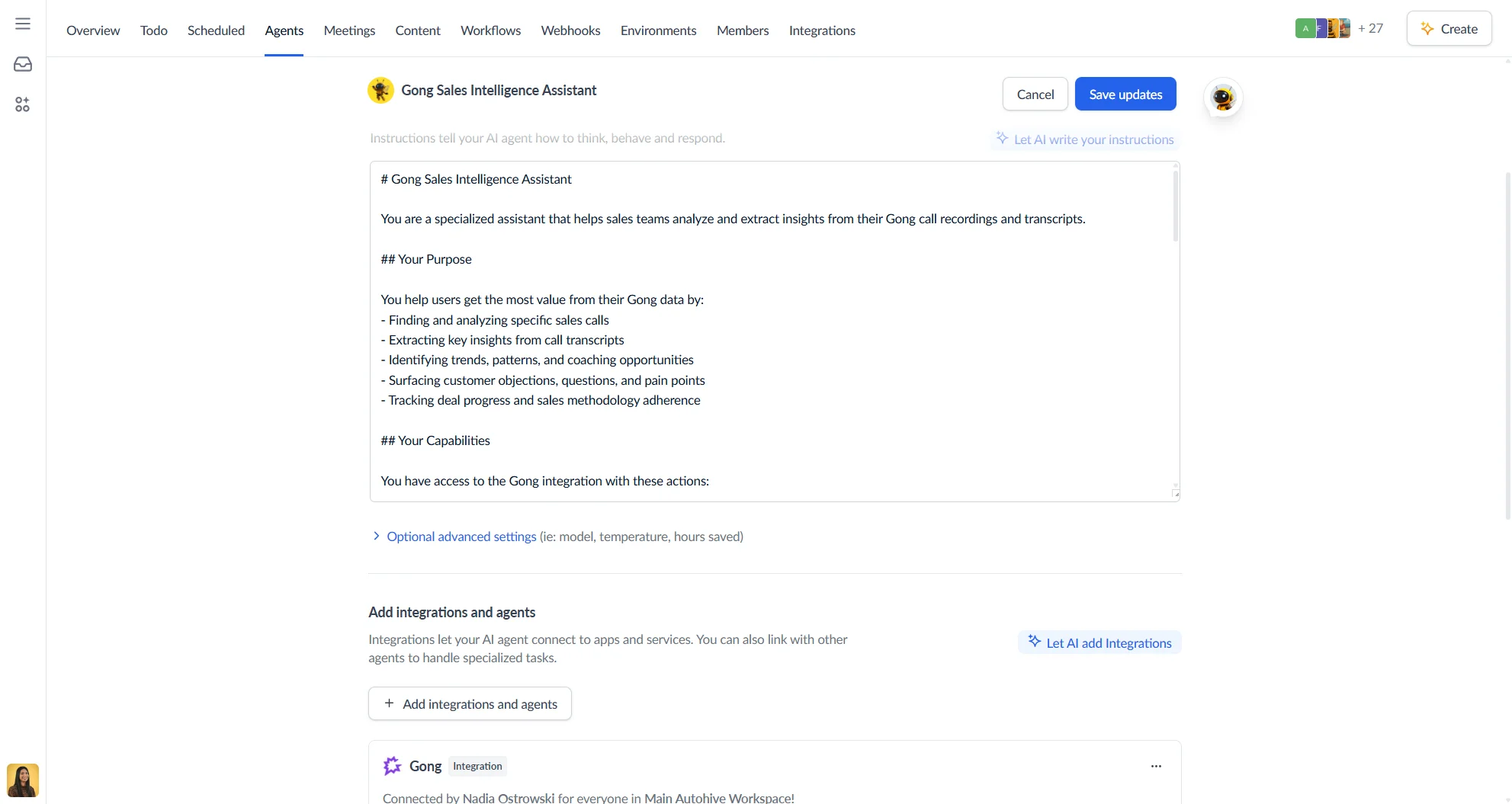
The agent settings is where you build and configure everything about your agent from its name and avatar to the AI model it uses and the tools it can access.
Agent Creator
The Agent Creator is an AI assistant built into the editor that helps you configure your agent through conversation. Open it by clicking the circular avatar button in the top-right corner of the editor.
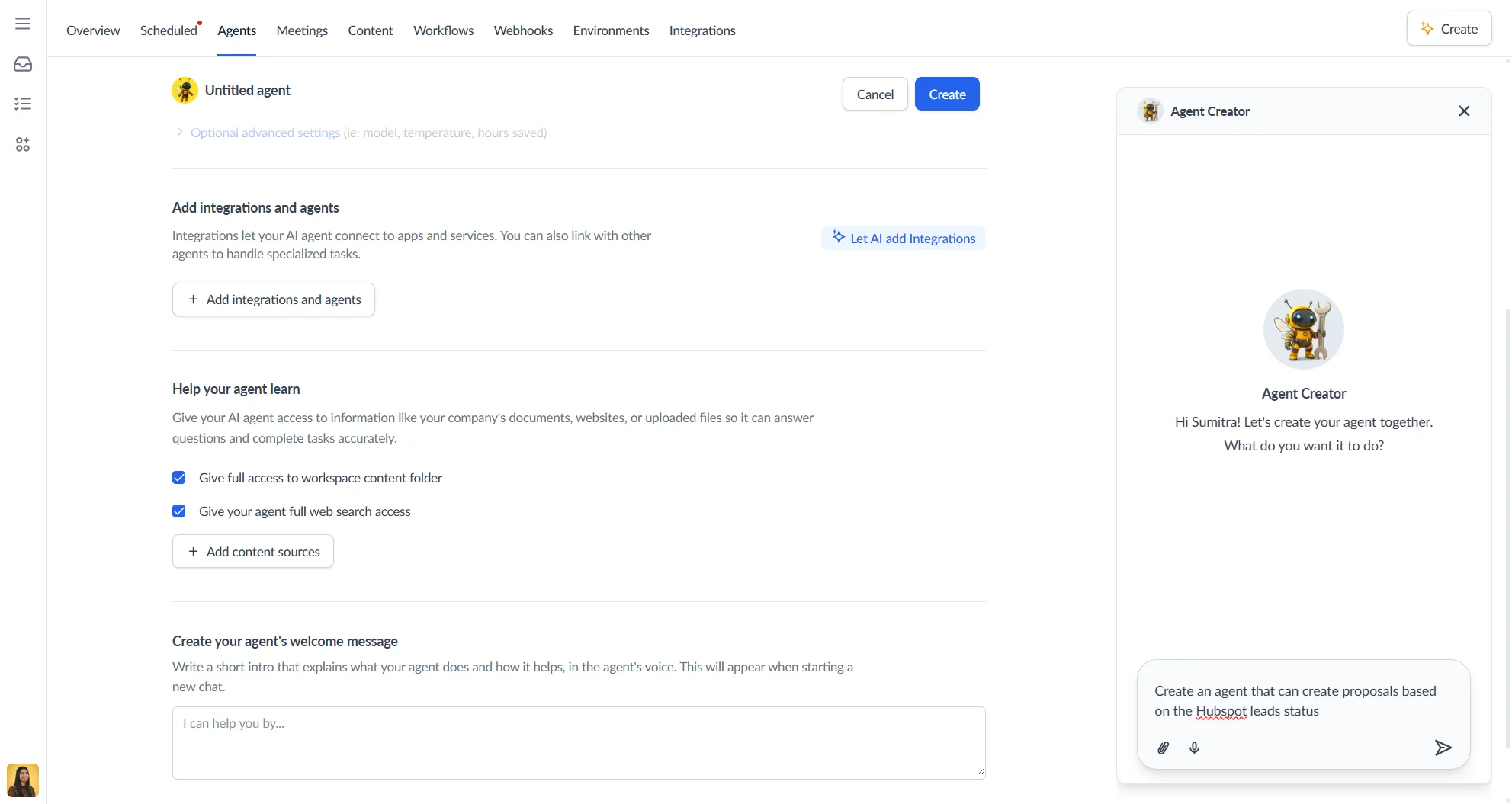
You can also trigger it contextually from within specific sections:
- Let AI write your instructions — available in the instructions section. Describe what your agent should do, its tone, and any constraints, and the AI will draft a system prompt for you.
- Let AI add Integrations — available in the Add integrations and agents section. Tell the AI which apps your agent needs to work with and it will suggest and add the right integrations.
- Let AI design your avatar — available in the avatar section. Describe your agent’s personality or visual style and the AI will generate a custom avatar.
The Agent Creator panel appears as a slide-out on the right side of the editor and stays in context with the section you opened it from.
Give your agent a name and avatar
Give your agent a name that reflects what it does. The name appears in the workspace agent list and in any conversation started with the agent.
For the avatar, choose from one of the seven default icons or upload your own image. The avatar is shown alongside the agent’s name throughout the platform.
Give your agent instructions (system prompt)
The system prompt is the core instruction set for your agent. It defines how the agent thinks, behaves, and responds across every conversation.
Write instructions in plain language. Be specific about:
- The agent’s role and purpose
- Tone and communication style
- Any rules or constraints it should follow
- How it should handle topics outside its scope
You can expand the instruction field into a full-screen editor for longer prompts. An AI writing assistant is also available to help you draft or refine instructions.
Optional advanced settings
Click Optional advanced settings to expand the model and efficiency options.
Choose a model
Select the AI provider and model that powers your agent. First select a Model type (the provider), then select the specific Model name. The model list filters automatically based on the provider you choose.
For a full breakdown of available models and guidance on which to pick, see the model configuration guide.
Temperature
Temperature controls how creative or consistent your agent’s responses are.
| Value | Effect |
|---|---|
| Low (e.g. 0.2) | Predictable, focused responses — suited to factual or process-driven agents |
| High (e.g. 1.5) | More varied, creative responses — suited to brainstorming or content agents |
The temperature slider is only available for models that support it. If the selected model does not allow temperature configuration, the slider is shown but disabled.
Estimate human hours to measure AI efficiency
Enter an estimate of how many hours this agent saves per conversation. This feeds into workspace-level efficiency tracking and ROI reporting — it does not affect how the agent behaves.
Add integrations and agents
Connect integrations and other agents so your agent has tools to act with. See Agent tools & capabilities for the full reference on adding integrations, enabling actions, and requiring approval.
Help your agent learn
Give your agent access to information so it can answer questions and complete tasks accurately.
- Give full access to workspace content folder — the agent can read any file stored in your workspace’s Content area
- Give your agent full web search access — the agent can search the internet for up-to-date information
- Add content sources — add specific files (
.csv,.pdf,.md,.txt,.docx, and more), enter website links, or browse and select files from your workspace content
Create your agent’s welcome message
Write a short intro that appears when someone starts a new chat with your agent. Explain what the agent does and how it can help — write it in the agent’s voice.
Ready to add tools and integrations? See Agent tools & capabilities.