User account & settings
Your account settings help you make Autohive work exactly how you want it to. This guide walks you through what we currently support.
Profile menu
Click your profile picture in the bottom-left corner of the sidebar to open the profile menu. From here you can access:
| Menu item | What it does |
|---|---|
| Profile | Opens your personal settings panel (name, password, theme, etc.) |
| Plan settings | Manage your plan name and security settings — see Plan settings below |
| Plan integrations | Manage third-party integrations connected to your plan |
| My Marketplace | Access your marketplace listings (if the feature is enabled for your account) |
| Billing | View and manage your subscription, credits, and invoices |
| Switch plan | Switch between plans if you belong to more than one |
| Sign out | Sign out of your account |
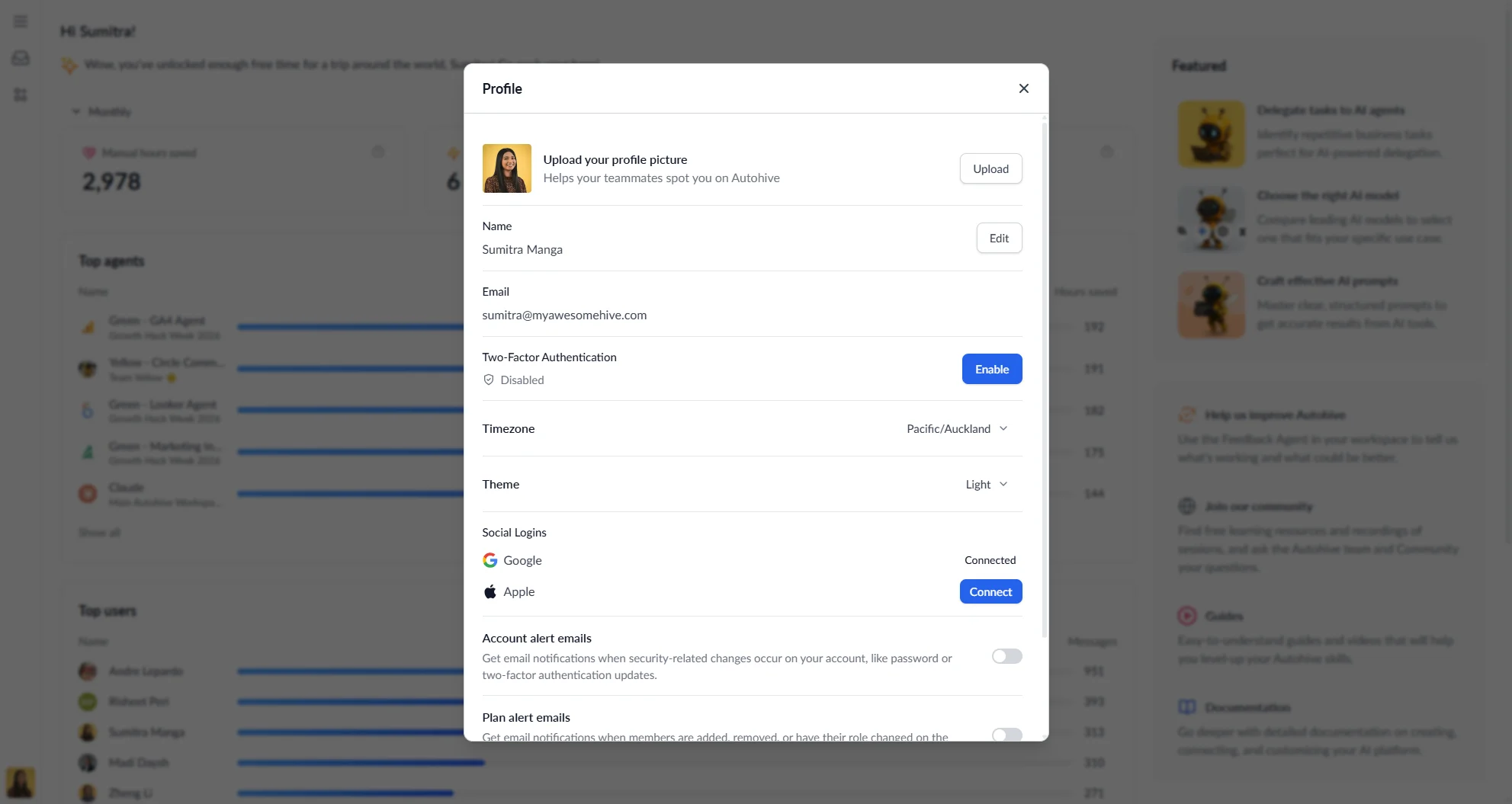
Profile
Click your profile picture in the bottom-left corner of the sidebar and select Profile to open your personal settings panel.
Profile picture
Upload a profile picture to help your teammates spot you on Autohive. Click Upload and select any PNG or JPG file (up to 50 MB). Your picture saves automatically.
Name
Your display name is shown to others when you collaborate. Click Edit to update your first and last name.
Your email address is displayed here but cannot be changed from this panel. If you need to update your email, contact us. If your email has changed that is connected with SSO, you will need to contact us to change it in the Autohive system.
Two-factor authentication
Two-factor authentication (2FA) adds an extra layer of security to your account using an authenticator app.
- Enable — walks you through scanning a QR code (or entering a key manually) and verifying a code to activate 2FA
- Recovery codes — 10 single-use codes are generated when you enable 2FA. Store these somewhere safe. You can regenerate them at any time from this section.
- Disable — you can turn off 2FA unless your organisation requires it
Timezone
Set your timezone for accurate scheduling across agents and workflows.
Theme
Choose Light, Dark, or Auto (matches your system setting) to set the appearance of Autohive.
Social logins
Connect your account to sign in with Google or Apple. Once connected, you can use either provider to log in alongside your password. Each provider shows its connection status and a Connect button if not yet linked.
Account alert emails
Receive email notifications when security-related changes occur on your account, such as password or two-factor authentication updates. Toggle this on or off from the profile panel.
Plan alert emails
Receive email notifications when members are added, removed, or have their role changed on the plan.
Default plan
If you belong to more than one plan, a Default plan selector appears in your profile. This controls which plan loads automatically when you log in.
Password
If your account uses password-based login, you can update your password here:
- Enter your current password
- Enter a new password (minimum 8 characters)
- Confirm the new password
A security alert email is sent to your address whenever your password is changed. This section is not shown if you signed up using only a social login.
Plan settings
Plan settings are separate from your personal profile and apply to the plan as a whole. Access them via Plan settings in the profile menu.
Plan name
The current plan name is displayed here. The plan owner can edit it (up to 100 characters) by clicking Edit.
Security
If enabled for your organisation, plan owners can toggle Require two-factor authentication — when on, all plan members must set up 2FA before they can access the platform.
Billing
Within the Billing section, you can:
- Check your current plan & limits.
- Update payment details.
- View past invoices.
- Change or upgrade your plan.
Check out our Billing guide for more information.
Common questions
| Issue | How to fix |
|---|---|
| Can’t update email | Contact us to have your email changed |
| Theme keeps changing | Check your browser’s privacy settings or extensions. |
| 2FA option not visible | Two-factor authentication may not be enabled for your organisation yet. |
Taking time to set up your account helps you focus on what matters—getting work done with your agents.