Plan settings
Plan settings apply to your entire plan and affect all members. Access them by clicking your profile picture in the bottom-left sidebar and selecting Plan settings.
Plan settings has four tabs: Settings, Members, Invites, and Audit Log.
Settings tab
Plan name
Your current plan name is displayed here. The plan owner can rename the plan by clicking Edit, entering a new name (up to 100 characters), and clicking Save.
Default workspace
Invited users are added to the default workspace. The plan owner can choose a different default from the list of public workspaces; private and personal workspaces cannot be selected. The default workspace cannot be deleted, so change the default first if you need to delete that workspace.
Members tab
The Members tab lists everyone who has access to the plan. Each row shows:
| Column | Description |
|---|---|
| Name | Member’s display name and avatar |
| Member’s email address | |
| Last active | When the member was last active — shown as Now, Today, Yesterday, or a specific date |
| Role | The member’s role on the plan |
| 2FA | Whether the member has two-factor authentication enabled |
The list can be sorted by Name or Last active.
Member roles
Every member on a plan has one of three roles:
| Role | What they can do |
|---|---|
| Owner | Full access — manage billing, rename the plan, invite and remove any member, set plan-wide 2FA requirements |
| Member | Access workspaces they belong to; no plan administration |
Each plan has exactly one owner. Roles are assigned by the owner.
Inviting members
Click Invite members to generate an invite. This opens the invite modal where you can create a new invite link to share with people you want to add to the plan.
Removing a member
Click the three-dot menu on any member row (other than your own) and select Remove from plan to remove that member’s access.
Invites tab
The Invites tab lists all invite tokens that have been generated for the plan. Each row shows:
| Column | Description |
|---|---|
| Token | A short identifier for the invite |
| Expiry time | When the invite link expires |
| Max uses | The maximum number of times the invite can be used |
| Used count | How many times the invite has been used so far |
| Created by | Which member generated the invite |
| Created on | When the invite was created |
| Status | Whether the invite is Active, Expired, Used, or Cancelled |
Click any column header to sort the table by that column.
Invite statuses
| Status | What it means |
|---|---|
| Active | The link can still be used |
| Expired | The expiry date has passed |
| Used | The link has reached its maximum number of uses |
| Cancelled | A member manually cancelled the invite |
Actions
For active invites, the three-dot menu provides two options:
- Copy link — copies the invite URL to your clipboard to share
- Cancel invite — immediately deactivates the invite so it can no longer be used
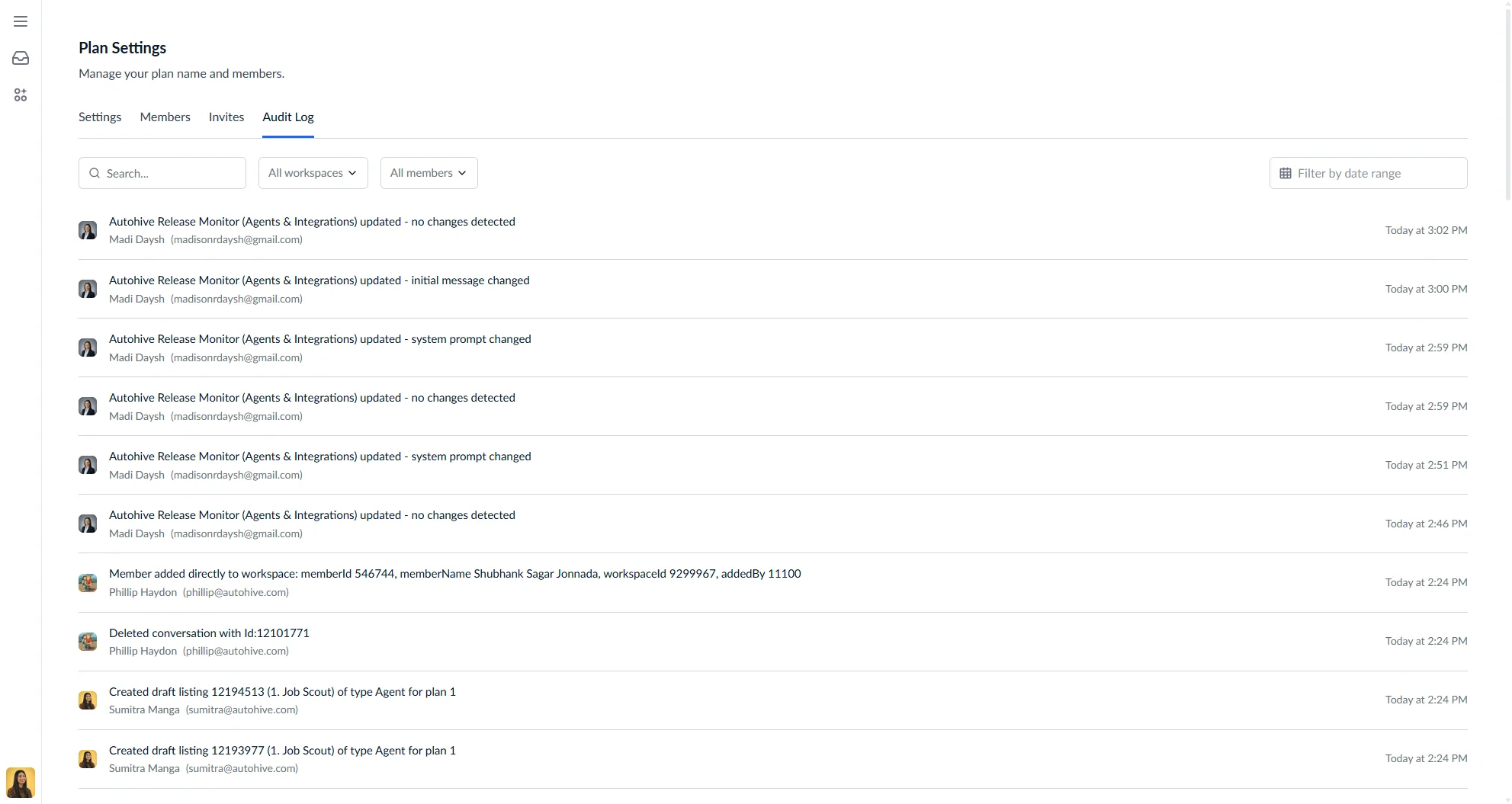
Audit log tab
The Audit Log records activity across your plan for accountability and troubleshooting. You can filter the log by:
- Search — filter by keyword
- Workspace — narrow results to a specific workspace
- Member — show activity from a specific member
- Date range — limit results to a chosen time period